Export a PST from classic Outlook and verify folders and older mail
Verify the account, subfolders and downloaded older mail before exporting a PST in classic Outlook. Save a new file and inspect its contents, separating a mailbox copy from a complete settings backup.
Published · Updated · FaultNote editorial policy
Who this guide is for and what to prepare
- People preserving mail and calendars before moving PCs
What you need
- Confirm the File tab in classic Outlook, the oldest required message date, and free space at the destination.
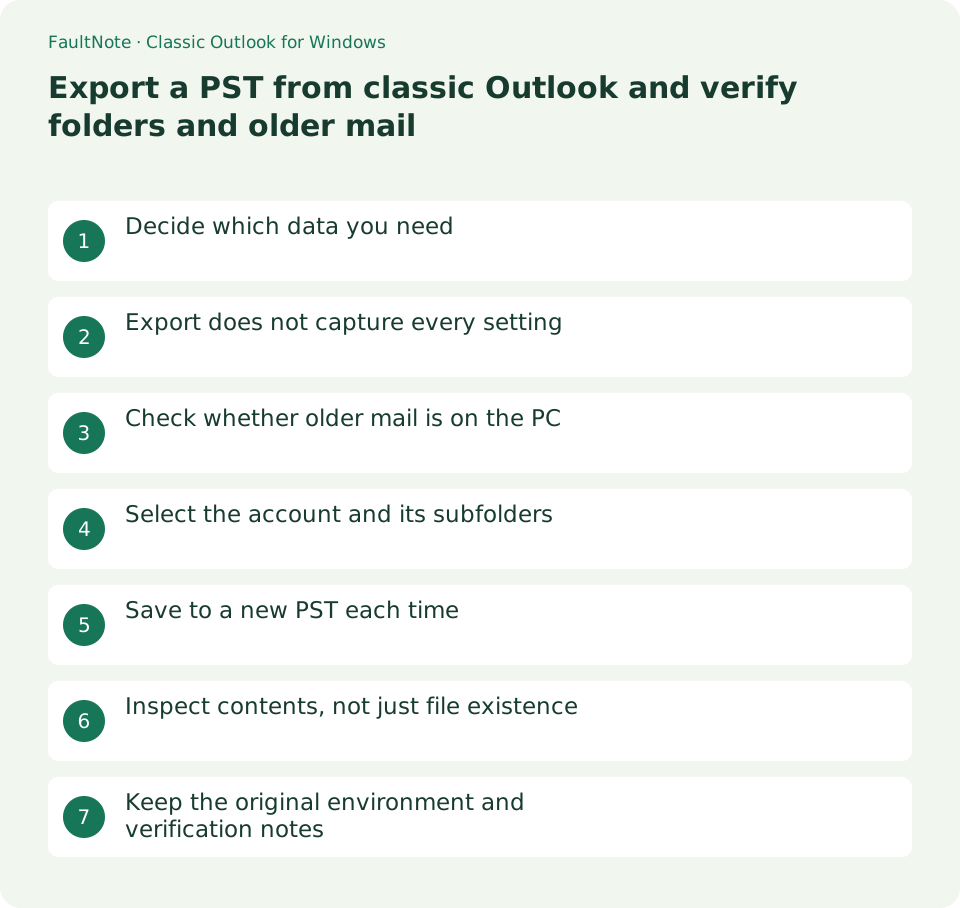
Decide which data you need
For a PC replacement without closing an account, list the work mailbox, mail since 2023, calendars, additional folders and any shared mailbox. Follow organizational data-export rules instead of copying work records to a personal drive.
Export does not capture every setting
A PST export copies selected items without moving them out of Outlook. Attachments travel with mail, but rules, folder views and permissions, and AutoArchive settings need separate records. This procedure uses classic Outlook; new Outlook PST capabilities are not identical.
Check whether older mail is on the PC
Cached Exchange Mode exports items in the current cache. If a required 2023 message is visible on the web but unavailable locally, resolve the download scope before exporting. Open a representative older body and attachment. Follow Microsoft guidance and administrator policy for cache changes, and wait for downloads while watching disk space.
Select the account and its subfolders
Open File > Open & Export > Import/Export, choose Export to a file, then Outlook Data File (.pst). Select the top level of the intended account and enable Include subfolders. Export one account at a time; selecting only Inbox gives a different scope.
Save to a new PST each time
Use a new dated name such as work-mail-2026-10-13.pst. Appending to an existing PST introduces duplicate-handling choices, so keep this export separate. Complete it in an approved local location and make the storage copy when Outlook is no longer using the file, rather than writing directly into a shared sync folder.
Inspect contents, not just file existence
Open the PST through File > Open & Export > Open Outlook Data File in classic Outlook, keeping it separate from importing into the active mailbox. Inspect oldest and newest mail, subfolders, calendar items and required attachments. If anything is missing, preserve the originals, correct scope or cache coverage, and export under another name.
Scroll horizontally to see the full table →
| Observed result | What to review |
|---|---|
| Only Inbox appears | Selected level and Include subfolders |
| Only recent mail | Download/cache coverage for required dates |
| Rules are absent | Preserve separately as settings outside PST scope |
Keep the original environment and verification notes
Record the storage location, date, mailbox and checked date range after closing the PST. Deleting the old PC data or closing the account is a separate decision. If you need contacts or calendars, confirm that the intended application can read them; file size alone does not establish successful migration.
Limitations and requirements
- PST files can contain private mail and attachments. Restrict storage access rather than exposing them through broad sharing links.
Frequently asked questions
Does exporting remove original mail?
Export creates a copy; it is separate from deletion or archive moves.
Can I export several accounts at once?
Choose one account per export and distinguish the files by account.
Is new Outlook identical?
Its interface and PST capabilities differ. Use this classic procedure for the described mail, calendar and contact scope.
Sources and verification date
Sources checked: . These sources support the specifications, procedures or prices discussed here. Check each source for applicable conditions and current information.
Related practical guides
- Export a Thunderbird profile ZIP and check its 2 GB and import boundaries
- Create a sender rule in new Outlook and verify account scope and rule order
- Set Outlook signatures by account and check new-message, reply and format behavior
- Microsoft 365 vs Office 2024: Which Should You Buy?