Isolate Classic Outlook connection problems by repairing or creating a profile
What to do first
First use Repair for the account. If it is unavailable or does not help, retain the old profile and create a new one for comparison.
This is a general troubleshooting guide, not an announcement of a current outage.
Affected products and symptoms
- Product
- Classic Outlook for Windows
- Versions and conditions
- Outlook for Microsoft 365 / Outlook 2024 / 2021 / 2019 / 2016 (features vary)
Symptoms
- Mail connection, sending and receiving, or startup fails for one Outlook profile
Causes and conditions
The Outlook profile, including its account settings, may be inconsistent or damaged.
Before you start
- Confirm the email address and authentication method
- Record the locations of PST files and other local-only data
- Do not delete the old profile until verification is complete
Precautions
- Before deleting the old profile, confirm local PST files and required data
- Authentication and Autodiscover for an organization account depend on administrator settings
Tools and official pages used in this guide
Check the procedure and configurations in which the Repair button is available.
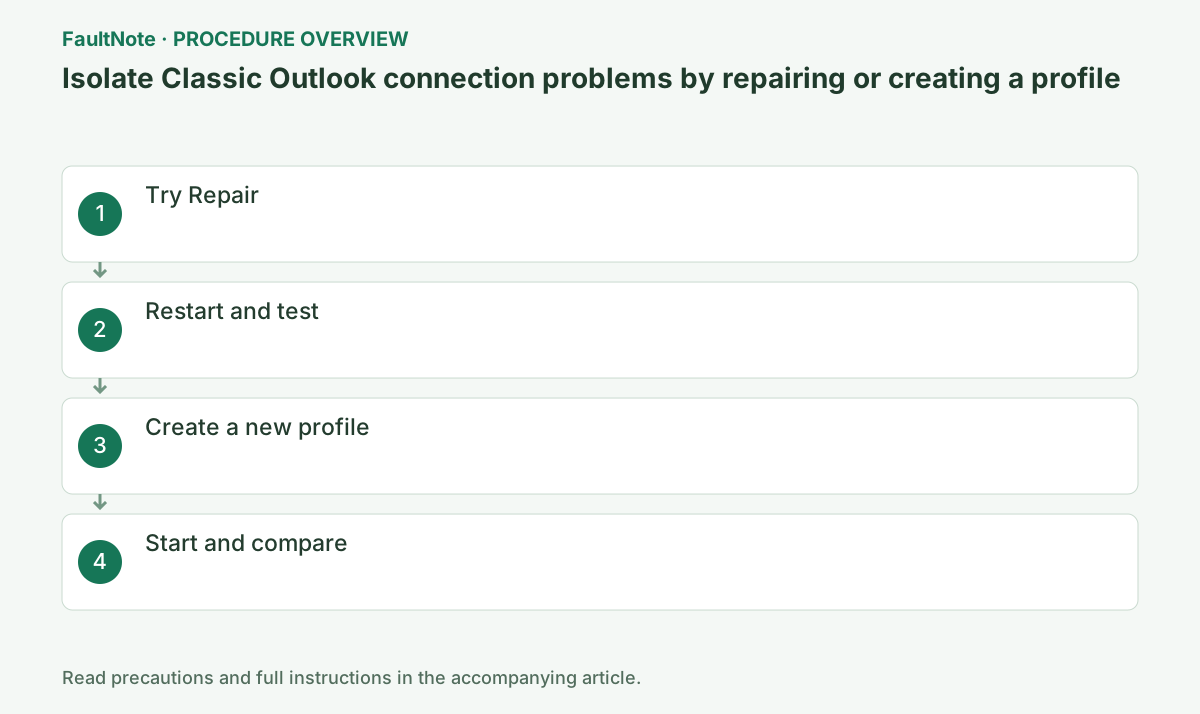
Step-by-step instructions
Separate mail visible on the web from archives or pending messages available only in Outlook. Record PST locations on File > Account Settings > Account Settings > Data Files, close Outlook, and retain copies.
Do not treat an OST as a complete backup for a new profile. Account type and synchronization can leave local-only information, so retain files and the old profile until their contents are checked.
Check before continuingDo not treat an OST as a complete backup for a new profile. Account type and synchronization can leave local-only information, so retain files and the old profile until their contents are checked.
In Outlook, open File > Account Settings > Account Settings, select the account on the Email tab, and choose Repair. Enter only the credentials normally used when the wizard requests them.
In configurations where Repair is unavailable, such as some Outlook 2016 connections to Exchange, do not force a settings change; proceed to comparing a new profile.
The Repair menu requires classic Outlook to open. If it cannot start, keep the old profile and proceed to the separate-profile test below.
If Repair is unavailable, verify the selected account and Outlook product. Microsoft excludes Outlook 2016 Exchange connections from this option; do not rewrite server settings to make the button appear. Use the expected organization or provider authentication and do not substitute example hostnames or ports. Follow administrator instructions for certificates or additional authentication, then restart Outlook after repair.
Official links for this step
- Repair an Outlook profile
Check the procedure and configurations in which the Repair button is available.
Check before continuingIn Outlook, open File > Account Settings > Account Settings, select the account on the Email tab, and choose Repair. Enter only the credentials normally used when the wizard requests them.
- Repair an Outlook profile
After the wizard finishes, restart Outlook normally and send a small message to yourself through receipt. Open the same account on the web to distinguish a service or credential problem.
If startup and mail flow work, finish after the repair. If not, keep the old profile and proceed to creating a new one.
An organization may manage the mail server and update channel. Do not delete PST/OST files or profiles; compare whether the same mailbox opens in Outlook on the web to distinguish a service problem.
A move to Sent Items alone is insufficient. Send a small non-sensitive message to yourself and confirm receipt and readable content. Record send/receive errors or delays. Desktop-only failure differs from failure in both desktop and webmail. For attachment-only failures, retain size and error separately instead of repeatedly sending the same large message.
Use a distinct profile name and a startup setting that lets you choose which profile to test. Configure the same email address and allow initial synchronization before checking mail flow.
An initially empty inbox does not establish data loss. Compare the address and organization with webmail and check whether synchronization is ongoing. Escalate repeated authentication prompts to your administrator.
Check before continuingAn initially empty inbox does not establish data loss. Compare the address and organization with webmail and check whether synchronization is ongoing. Escalate repeated authentication prompts to your administrator.
Close Outlook and open Control Panel > User Accounts > Mail > Show Profiles > Add. Give the test profile a distinct name and configure the primary email address and credentials.
For a PST configuration, do not move or delete the old data file. First compare startup and mail flow in the new profile using server-based mail only.
Keep Prompt for a profile to be used selected before testing. Creating a profile does not require removing the old profile or disabling add-ins.
Match the old email address and avoid a similarly named organization. During initial sync, inspect progress and cache scope before treating absent older mail as missing. List required shared mailboxes and extra data files rather than assuming they appear automatically. Even when the new profile works, retain old files until local-only content has been reviewed.
Official links for this step
Select Prompt for a profile to be used, start Outlook, and choose the new profile. After folder synchronization finishes, test startup, search, sending and receiving, and the original failing operation.
If it does not improve, close Outlook and select the old profile on the same prompt to restore the prior configuration. Even if it improves, retain the old profile until necessary PST files, signatures, and shared mailboxes are checked.
Use a small message to yourself to verify sending, receiving, and body display. Retain the old profile and data files until required mail, signatures, and shared mailboxes have been checked.
If only recent mail appears after initial synchronization, compare sync scope with older webmail. Profile creation does not imply all history is immediately local. Treat limited search results separately from receive or authentication failures. After mail works and archives are protected, choose their access path; make the new profile default only after verification and preserve needed data before eventual old-profile removal.
Keep profile selection at startup while checking the migration. Close Outlook before switching instead of trying simultaneous profiles. Record specific outcomes such as old-profile connection failure and new-profile mail success. If both fail identically, provide the Office version, account type, time, and webmail results rather than creating profiles repeatedly. Data-file repair is a separate backed-up operation.
Check before continuingDecision: select Prompt for a profile to be used, start Outlook with the new profile, and test after synchronization. If there is no improvement, select the old profile again; even if improved, retain it until PST files, signatures, and shared mailboxes are checked.
Check Inbox, Sent Items, calendar, contacts, shared mailboxes, and archives. Compare signatures and rules with the old setup and verify that required shared features work with your permissions.
If the new profile also fails, choose the old profile at startup and report both errors alongside webmail results. Even if the new profile works, retain the old one until unsynchronized data has been reviewed.
Check before continuingIf the new profile also fails, choose the old profile at startup and report both errors alongside webmail results. Even if the new profile works, retain the old one until unsynchronized data has been reviewed.
Check the result
- Sending and receiving work in the new profile
- The account itself also works in webmail
If the problem continues
- Keep Prompt for a profile to be used under Control Panel > Mail > Show Profiles and choose the old profile at the next startup
- If the new profile also fails, check service status and administrator settings
Scope of this guide
Troubleshooting guide — Microsoft's official profile-diagnostic procedure.
Frequently asked questions
Can I delete the old profile immediately?
Keep it until you have confirmed required mail, PST files, signatures, and other data in the new profile.
Does an empty new profile mean my mail is gone?
Not by itself. Check the address, organization, sync state, and view against webmail and the old profile. Local archives may not return merely by adding the account again.
Official sources and dates
- Fix your Outlook email connection by repairing your profile ↗
- Classic Outlook not responding ↗
- I cannot start Microsoft Outlook: create a new profile ↗
Source publication or resolution date: Not specified. Sources checked: 2026-10-13. The check date is not the date the problem first occurred. Interface labels can vary between versions and display languages.