Start Classic Outlook in safe mode to identify an add-in conflict
What to do first
If Outlook starts in safe mode, restore the disabled add-ins one at a time to identify the cause.
This is a general troubleshooting guide, not an announcement of a current outage.
Affected products and symptoms
- Product
- Classic Outlook for Windows
- Versions and conditions
- Outlook for Microsoft 365 / Outlook 2024 / 2021 (Classic)
Symptoms
- Outlook does not start, remains at Processing, or crashes while sending or receiving
Causes and conditions
An added feature such as a COM add-in can interfere with startup or operation. Safe mode provides a comparison without loading add-ins.
Before you start
- Confirm that Classic Outlook is fully closed
- Record the names of enabled add-ins
- Save unsent work
Precautions
- This is not a procedure for new Outlook
- More than one add-in may be involved, so verify after each restart
Tools and official pages used in this guide
Official instructions for Outlook /safe and add-in isolation.
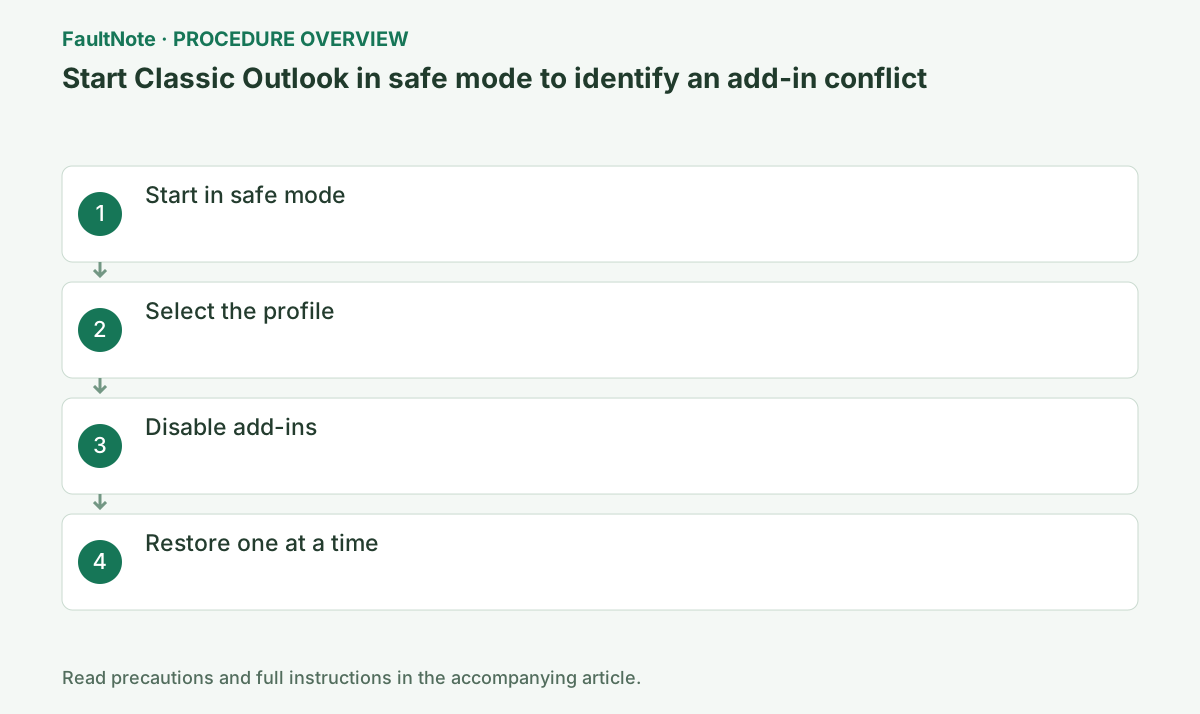
Step-by-step instructions
Record whether the failure occurs during startup, send/receive, reply, message display, or calendar use. In safe mode, test the same account and action; an open inbox alone does not establish recovery.
Retain the failure time and exact error. If normal mode happens to work too, save work and repeat the same comparison before drawing a conclusion. Treat authentication failures separately from add-in behavior.
Disabling add-ins can change automatic signatures or meeting-link creation. Working mail alone does not restore those functions. List required features and check them after restoring unrelated items. Report concrete limits such as mail working with the candidate disabled while meeting integration remains unavailable.
Check before continuingRetain the failure time and exact error. If normal mode happens to work too, save work and repeat the same comparison before drawing a conclusion. Treat authentication failures separately from add-in behavior.
Press Windows key+R, enter Outlook.exe /safe, and select OK.
If Classic Outlook opens, record the product name and version under File > Office Account. If it does not, run the stated command from Win+R and confirm that it is not being confused with new Outlook.
In Win+R, use Outlook.exe /safe with a space before /safe and choose the affected profile. New Outlook is outside this COM add-in procedure; confirm classic Outlook is installed. Check the safe-mode label before the same mail action. Distinguish a command-not-found error from Outlook failing during startup instead of reporting both as a failed safe-mode test.
Outlook.exe /safeOfficial links for this step
- Microsoft Outlook startup troubleshooting
Official instructions for Outlook /safe and add-in isolation.
Check before continuingPress Windows key+R, enter Outlook.exe /safe, and select OK.
- Microsoft Outlook startup troubleshooting
If Choose Profile appears, select the profile normally used and enter credentials if required. Confirm that Safe Mode appears at the top of the window.
An organization may manage the mail server and update channel. Do not delete PST/OST files or profiles; compare whether the same mailbox opens in Outlook on the web to distinguish a service problem.
Changing profiles changes account settings as well as add-in conditions, so record the selected profile each time. For authentication failures in safe mode, compare the same account on webmail and separate account access, additional authentication, and service conditions. Working webmail does not prove local PST data is healthy. Record archive failures separately and retain profiles and data files throughout testing.
Under File > Options > Add-ins, select COM Add-ins in Manage and choose Go. Record enabled items, then clear their check boxes. Do not use Remove.
Note the features affected when disabling mail protection, signatures, or meeting integrations. Do not remove managed items; send settings you cannot change to the administrator.
Check before continuingNote the features affected when disabling mail protection, signatures, or meeting integrations. Do not remove managed items; send settings you cannot change to the administrator.
If Outlook starts, open File > Options > Add-ins, select COM Add-ins under Manage, choose Go, record the enabled items, and clear their check boxes.
After changing settings, fully exit Outlook, confirm in Task Manager that OUTLOOK.EXE is no longer running, and start normally. Restore add-ins one at a time and record which change makes the symptom return.
Record add-in names, states, and vendors if visible. Clearing a check box differs from Remove, which can require an installer to restore; do not use it for this comparison. Exit through File > Exit and check for OUTLOOK.EXE in Task Manager. Resolve save prompts first and consider unsaved messages before force-ending a retained process.
Start normally, enable one add-in, restart, and check for reproduction after every change.
Use a small message to yourself to verify sending, receiving, and body display. Retain the old profile and data files until required mail, signatures, and shared mailboxes have been checked.
Report Office product/version, add-in/version, normal and safe-mode results, and the last working period. Verify vendor support before changing versions and use managed update procedures for work add-ins. After an update, enable the candidate in normal mode and test the original action. If it still fails, assess continued use with it disabled and document unavailable functions.
Verify normal launch, the original failing action, and required integrations. If launch improves but signatures or meetings are unavailable, document that limitation. Provide the vendor with repeated enable-fails/disable-works results and ask about supported updates. Record multiple contributors separately. Do not call unavailable safe-mode features recovered; make the final check in normal mode.
For a send-button freeze with a working inbox, compare sending a short message in safe mode. For one crashing HTML message, test its display; successful sending is not equivalent. Prepare reproduction details without private mail content. Record time and action for administrator log correlation and label launch-only success with sending still unverified.
Check before continuingDecision: start normally and enable one add-in at a time, restarting and retesting after each. Verify sending, receiving, and body display, and retain old profiles and data until required content is checked.
Disable the item that reproduces the fault and confirm normal startup returns. Restore the remaining items individually to check for additional contributors. Give the vendor the add-in and Office versions if support is needed.
Finish with a small message sent and received, body display, and the signature or meeting features you need. If safe mode cannot open, stop this branch and compare another profile while retaining the old one.
Check before continuingFinish with a small message sent and received, body display, and the signature or meeting features you need. If safe mode cannot open, stop this branch and compare another profile while retaining the old one.
Check the result
- The symptom does not occur in safe mode
- It returns immediately after restoring a particular add-in
If the problem continues
- If Outlook does not start even in safe mode, proceed to creating a new profile
- Restore cleared check boxes to undo the change
Scope of this guide
Troubleshooting guide — This is Microsoft's general diagnostic procedure, not a fix notice for a particular incident.
Frequently asked questions
Can I keep using Outlook in safe mode after it works?
Safe mode is for diagnosis. Disable the responsible add-in, then confirm normal startup.
Should I remove the add-in?
For diagnosis, clear the check box. Microsoft distinguishes disabling from removing. After identifying a candidate, review business impact and vendor guidance before updating or removing it.
Official sources and dates
Source publication or resolution date: Not specified. Sources checked: 2026-10-13. The check date is not the date the problem first occurred. Interface labels can vary between versions and display languages.