Create a sender rule in new Outlook and verify account scope and rule order
File mail from one sender in new Outlook, checking third-party account support, exceptions, stop-processing order and existing-message scope. Start with narrow conditions and a folder action rather than deletion.
Published · Updated · FaultNote editorial policy
Who this guide is for and what to prepare
- People creating one rule to organize notification mail
What you need
- Check the account, actual sender address, destination folder and existing rule order.
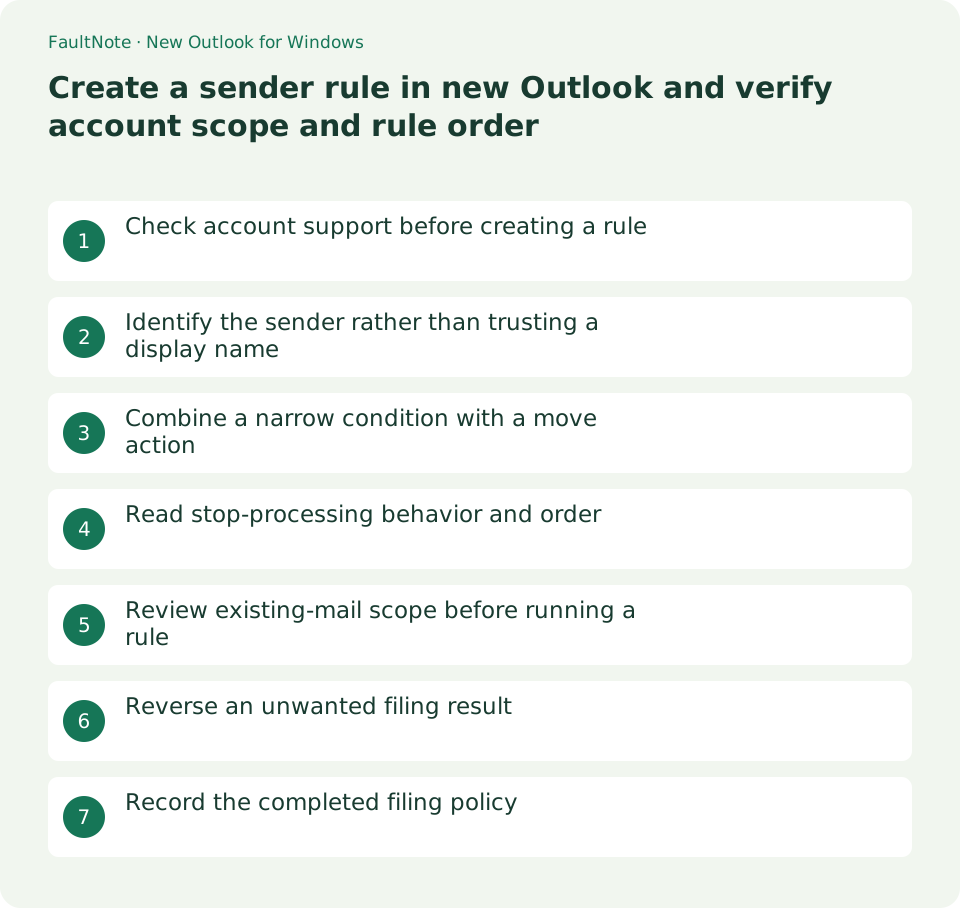
Check account support before creating a rule
Rule support in new Outlook depends on the account. Microsoft currently lists third-party accounts such as Gmail, Yahoo and iCloud as unsupported for rule management. If options are missing, consult provider webmail filters instead of recreating the account. Classic Outlook also has rules that require the client to run; do not treat the two implementations as identical.
Identify the sender rather than trusting a display name
For daily notices filed into a Notices folder, open an existing message and inspect the actual address. Display names may hide different senders; a generic subject word is too broad. If invoices or incident alerts share that address, define subject conditions or exceptions first.
Combine a narrow condition with a move action
Open Settings > Mail > Rules, check the account and add a new rule. Name it, select the sender condition and move-to-folder action, then add necessary conditions or exceptions. If starting with right-click > Rules > Create rule on a message, still review the resulting conditions before saving.
Read stop-processing behavior and order
Stop processing more rules prevents subsequent matching rules from running. Check whether an existing priority-customer rule and the new notices rule can match the same mail. Reordering affects more than this rule, so record the original order and avoid unnecessary changes.
Review existing-mail scope before running a rule
Separate filing future mail from running against existing messages. If a run-now option appears, do not move all historical mail as part of the initial save. Compare representative existing notices and exception invoices with the intended destinations. No external test email is required simply to review the rule.
Reverse an unwanted filing result
Disable the rule to stop additional unwanted filing, identify moved messages by subject/date and move them back. Deleting a rule does not reverse earlier moves. If it fails to match, check the real address, exceptions, stop-processing settings above it and the account scope.
Scroll horizontally to see the full table →
| State | Review |
|---|---|
| No rules for a third-party account | Provider webmail filters |
| Important mail is moved | Additional conditions and exceptions |
| Mail also gets other actions | Rule order and stop-processing |
Record the completed filing policy
Record the sender, folder, exceptions, order and whether existing mail was processed. Verify the real sender before updating a changed notification address. For retained business records, consult policy before adding automatic deletion. Successful filing does not mean the notices no longer need attention.
Limitations and requirements
- Avoid deletion, permanent deletion or external forwarding as the initial action. Keep scope narrow and the rule reversible through disabling.
Frequently asked questions
Can this manage Gmail rules?
Current new Outlook documentation excludes third-party account rules; use Gmail’s filter settings.
Are classic rules equivalent?
Capabilities and execution conditions differ; some classic rules require the app to run.
Does deleting the rule undo its actions?
It stops future processing; already moved mail requires a separate return move.
Sources and verification date
Sources checked: . These sources support the specifications, procedures or prices discussed here. Check each source for applicable conditions and current information.