Set Outlook signatures by account and check new-message, reply and format behavior
Set separate work and personal signatures using the correct new or classic Outlook controls. Check new-message and reply defaults, duplicate insertion and text contact details in drafts before sending.
Published · Updated · FaultNote editorial policy
Who this guide is for and what to prepare
- People preventing signature mix-ups across accounts
What you need
- Prepare approved name, organization and contact details, and preserve existing signature text.
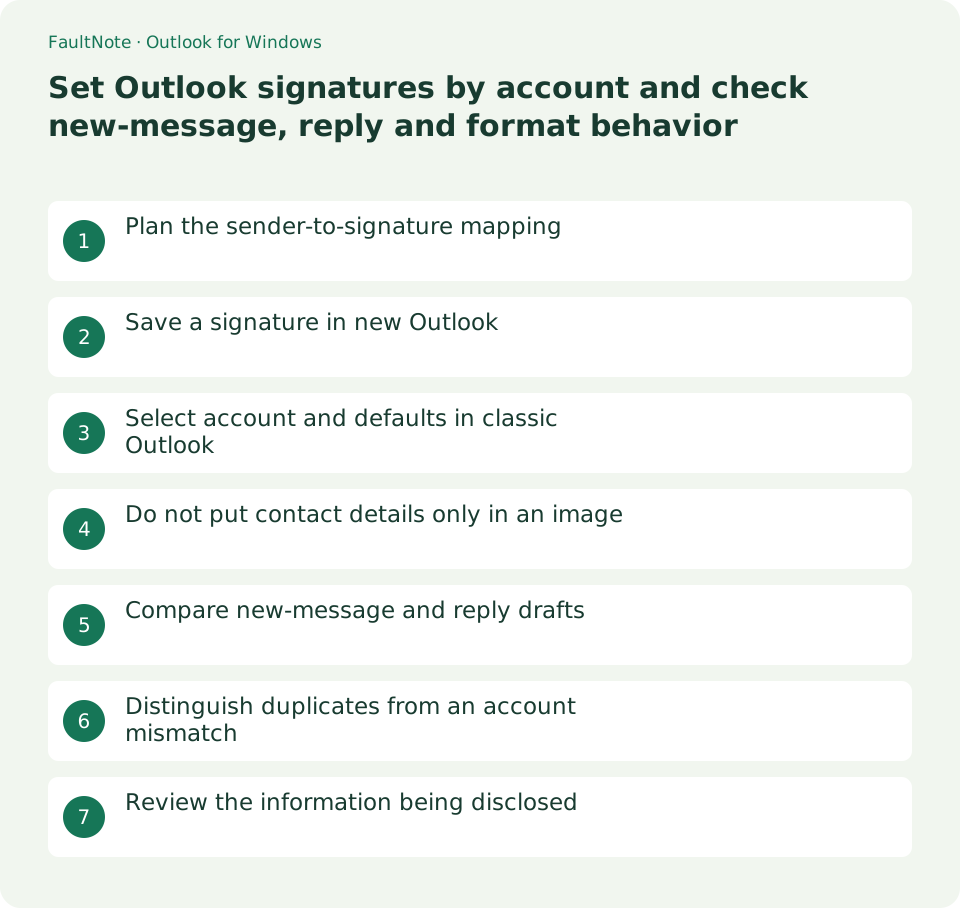
Plan the sender-to-signature mapping
Use organization and work contact details for the work account and minimal personal details for the personal account. Distinguish signatures by name even when sender display names match. Follow approved organizational wording and avoid reusing another person’s signature image.
Save a signature in new Outlook
Open Settings > Accounts > Signatures, select the work account if the screen offers an account picker, create a named signature and save it. Check new-message and reply/forward defaults separately. If the controls differ, first establish whether you are using classic Outlook with a File tab.
Select account and defaults in classic Outlook
Open a new message and Message > Signature > Signatures. Choose the email account, create the signature, and set New messages and Replies/forwards defaults. Save, then open a fresh draft to verify it: the message used to create the signature may not receive the new signature automatically.
Do not put contact details only in an image
Keep name and contact details as text so their reading order survives hidden images. Start with a few simple lines instead of a wide table or large logo that may be awkward on a phone. Plain-text mail cannot rely on colors or pictures, so ensure the meaning remains clear with text and line breaks alone.
Compare new-message and reply drafts
Open a work draft and compare From with the signature. If switching to the personal account, inspect the signature again rather than assuming it follows correctly. Open a reply draft to inspect signature placement around quoted text. Save or discard without sending, comparing the two draft types.
Distinguish duplicates from an account mismatch
For apparent duplicates, distinguish automatic plus manual insertion from a signature inside quoted mail. If a different PC or web version lacks the signature, inspect the storage method and Outlook version. Do not assume a locally stored classic signature always synchronizes; check settings in the other environment.
Scroll horizontally to see the full table →
| Symptom | Check |
|---|---|
| Only the original draft lacks it | Compare a fresh draft after saving |
| Replies differ | Replies/forwards default |
| Two signatures appear | Manual insertion and quoted text |
Review the information being disclosed
Remove addresses or personal phone numbers that are unnecessary. Consider separate short external and internal signatures when disclosure differs. Review sender, phone numbers, links and quoted signatures after changing defaults. Existing drafts may retain old text; a default change does not guarantee every saved draft is updated.
Limitations and requirements
- No external email is needed for signature-setting checks. Delivery rendering is a separate authorized validation.
Frequently asked questions
Why is the message used for creation unsigned?
Classic may not insert it into that original message; check a fresh draft.
Why did manual insertion create duplicates?
Check existing automatic insertion and distinguish signatures within quoted messages.
Will the logo survive plain text?
Do not rely on images or colors; preserve contact details as readable text.
Sources and verification date
Sources checked: . These sources support the specifications, procedures or prices discussed here. Check each source for applicable conditions and current information.