Choosing a Webcam: Resolution and Frame Rate Pairs, Field of View, Fixed Focus vs Autofocus
"4K" or "Full HD" on a webcam box is the maximum the camera can output, not the resolution that reaches the other side of a call. On the camera, read four things: the resolution and frame-rate pair (Logitech specifies 4K/30fps or 1080p/60fps for the MX Brio, and 1080p/30fps or 720p/60fps for the Brio 500), the diagonal field of view (58 degrees fixed on the Brio 100, 78 degrees fixed on the C920s, and 90/78/65 degrees selectable on the Brio 500 and MX Brio), the focus type (fixed on the Brio 100, autofocus on the other three) and the connection requirement (the MX Brio needs a USB-C port supporting the USB 3.0 standard). The application imposes its own ceiling: Zoom states that HD video activates 720p for the active speaker in a group meeting and that 1080p requires an eligible plan, activation by Zoom Support, an i7 quad-core CPU and virtual backgrounds disabled. Microsoft states that where bandwidth is not limited, Teams optimizes up to 1080p and up to 30 fps. The lowest of camera, PC, application and connection decides the result.
Published · Updated · FaultNote editorial policy
Who this guide is for and what to prepare
- Anyone buying a first webcam for remote work, interviews or streaming
- People who bought a "4K" camera and saw no change in how they look in meetings
- Anyone choosing by field of view because of a small desk or a background they do not want on camera
What you need
- The meeting application you use (Zoom, Teams, Google Meet) and which plan your account is on
- The free USB ports on your PC (USB-A or USB-C) and whether they support USB 3.0
- The distance from the camera position to where you sit, and what is behind you
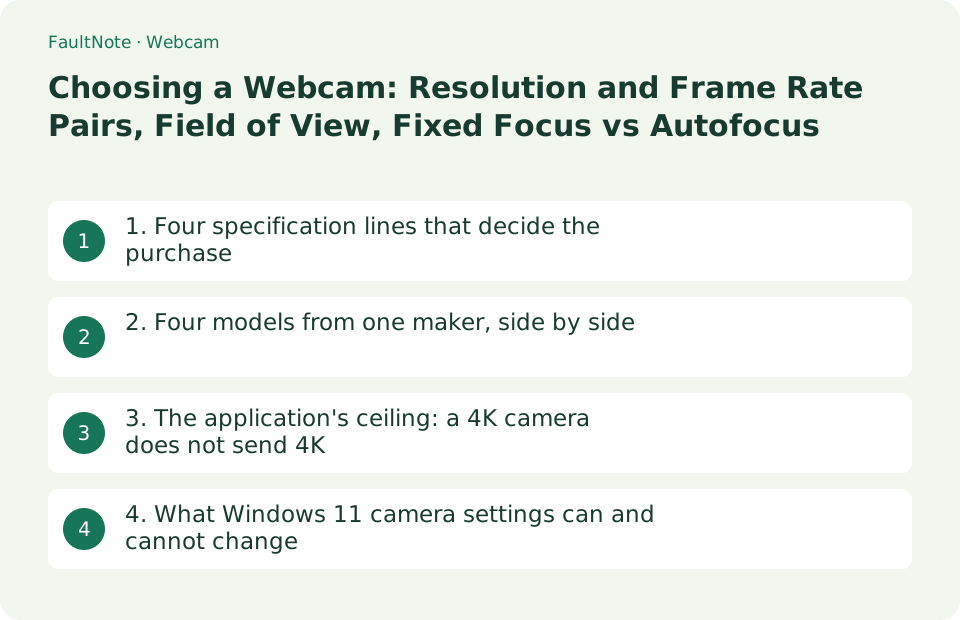
1. Four specification lines that decide the purchase
Start by treating resolution and frame rate as a pair. Logitech's published specifications list the MX Brio as 4K/30fps (3840x2160) or 1080p/60fps (1920x1080), and the Brio 500 as 1080p/30fps or 720p/60fps. In other words, "4K" and "60fps" are not necessarily available at the same time. A talking-head meeting is served by 30fps, while fast movement, desk work or game streaming is where 60fps matters.
Next is the diagonal field of view (dFoV). Logitech lists 58 degrees for the Brio 100, a fixed 78 degrees for the C920s, and a selectable 90/78/65 degrees for the Brio 500 and MX Brio. A wider view includes more of the room behind and beside you; a narrower one frames you larger. Focus type also differs: the Brio 100 is fixed focus, while the C920s, Brio 500 and MX Brio are autofocus, which matters if you hold documents or objects close to the lens. Finally, check the connection requirement. The MX Brio's stated requirement is a USB-C port supporting the USB 3.0 standard, which already rules it out on a PC with only free USB-A ports.
Scroll horizontally to see the full table →
| Specification line | How it is written | What it decides | Question to ask about your setup |
|---|---|---|---|
| Resolution and frame-rate pair | Listed together, as in "4K/30fps" and "1080p/60fps" | Whether you get smoothness or detail | Is there fast movement? What resolution can the other side receive? |
| Field of view (dFoV) | "Diagonal field of view (dFoV): 78°", fixed or selectable | How much of the room appears beside and behind you | Is there a background you want excluded? Will one camera cover several people? |
| Focus type | Fixed focus or Autofocus | Whether close objects such as documents stay sharp | Faces only, or do you show things close to the lens? |
| Connection requirement | "USB-A plug-and-play", "USB-C port supporting the USB 3.0 standard" | Whether the camera works on that PC as-is | Free port shape and generation, and cable length (the MX Brio ships with 1.5 m) |
| Built-in microphone type and range | "Omni-directional", "Stereo", "Dual Beamforming", plus a stated mic range | Whether you also need a separate microphone | Is your mouth within the stated range of the camera position? |
2. Four models from one maker, side by side
To see what actually changes between tiers, compare four cameras from the same maker. All values below were read from Logitech's US product pages on September 19, 2026 and are published specifications, not our measurements. Other brands and regional models may be specified differently.
The table shows that the tiers do not differ only in resolution. Sensor size (2MP, 3MP, 4MP, 8.5MP), focus type, selectable field of view, microphone configuration and port type all move together. Read the other way, if 1080p/30fps and a narrow view are enough for you, the extra capability of a higher model may be capped by the meeting application anyway. Logitech describes low-light behavior under the RightLight name, but its comparative claims are stated as testing in a controlled environment, so treat them as specification text rather than a guarantee of what you will see.
Scroll horizontally to see the full table →
| Model | Resolution and fps | Field of view (dFoV) | Focus type / sensor | Connection and built-in microphone |
|---|---|---|---|---|
| Brio 100 | 1080p/30fps, 720p/30fps | 58° (fixed) | Fixed focus / 2MP, custom 4-element plastic lens | USB-A plug-and-play / omni-directional mic, range up to 1 m |
| C920s Pro HD | 1080p/30fps, 720p/30fps | 78° (fixed) | Autofocus / 3MP, glass lens | USB-A port / stereo mic, range up to 1 m |
| Brio 500 | 1080p/30fps, 720p/60fps | 90° / 78° / 65° (selectable) | Autofocus / 4MP, glass lens | USB-C plug-and-play / stereo mic, range up to 1.22 m |
| MX Brio | 4K/30fps, 1080p/60fps | 90° / 78° / 65° (selectable) | Advanced autofocus / 8.5MP Sony STARVIS | Requires a USB-C port supporting USB 3.0 (detachable 1.5 m cable) / dual beamforming mic, range up to 1.2 m |
3. The application's ceiling: a 4K camera does not send 4K
When a new camera makes no visible difference, the application conditions are usually why. Zoom's support article, updated March 27, 2026, states that HD video activates 720p video quality for the active speaker video layout in a group meeting, and that full high-definition 1080p video is limited to Business and Enterprise plans. Its requirements section is more granular: 720p needs a Pro, Business, Education or Enterprise account, the meeting window full-screen in the desktop app, and at least the global minimum version; 1080p needs "Pro with Zoom Events or Pro with Zoom Webinars Plus license, or a Business, Education, or Enterprise account", activation by Zoom Support, an i7 quad-core (physical core) CPU or higher, and virtual backgrounds disabled. The article also notes that using a virtual background without a green screen caps video at 720p, potentially 360p on some lower-end Windows computers. Immediately after that note, the same article states that "currently, only some macOS devices with specific hardware can send outgoing video at 1080p". That sentence sits inside the virtual background paragraph and its scope is not stated, so if you are buying hardware on the assumption that a Windows PC will send 1080p, check Zoom's current wording and your own account settings first.
The bandwidth figures are published too. Zoom lists 720p group calls at 2.6 Mbps up and 1.8 Mbps down, and 1080p at a minimum of 3.0 Mbps to receive and 3.8 Mbps to send. Microsoft states that where bandwidth is not limited, Teams optimizes media quality including high-fidelity audio, up to 1080p video resolution and up to 30 fps for video and content, while at minimum bandwidth video is capped at up to 240p and Large Gallery video at up to 540p. So a 60fps camera does not deliver 60fps to the other participants if Teams optimizes to 30 fps.
Scroll horizontally to see the full table →
| Application | Published resolution conditions | Bandwidth stated | Where to check |
|---|---|---|---|
| Zoom (720p HD) | A Pro, Business, Education or Enterprise account, full-screen desktop app, global minimum version or higher | Group calls 2.6 Mbps up / 1.8 Mbps down | Zoom Support: Enabling HD video for Zoom Meetings |
| Zoom (1080p Full HD) | Pro with Zoom Events or Zoom Webinars Plus, or a Business, Education or Enterprise account, plus activation by Zoom Support, an i7 quad-core physical-core CPU and virtual backgrounds disabled | At least 3.0 Mbps to receive, 3.8 Mbps to send | Same article |
| Zoom (using a virtual background) | Without a green screen, video is capped at 720p, potentially 360p on some lower-end Windows PCs. The same paragraph states that currently only some macOS devices with specific hardware can send outgoing 1080p video; its scope is not stated | - | Same article |
| Microsoft Teams | Where bandwidth is not limited, up to 1080p and up to 30 fps; at minimum bandwidth, video up to 240p and Large Gallery up to 540p | Microsoft states Teams can deliver HD video quality in under 1.5 Mbps, while actual consumption varies | Microsoft Learn: Prepare your organization's network for Teams |
4. What Windows 11 camera settings can and cannot change
Knowing what you can adjust after the purchase helps avoid replacing hardware unnecessarily. Microsoft documents that in Windows 11, Settings > Bluetooth & devices > Cameras lists connected cameras; selecting one shows a preview with controls, and any change is saved as the new default. Depending on the camera's capabilities and the Windows version, the available controls may include basic camera controls such as brightness, contrast, saturation and sharpness, Windows Studio Effects, rotation for external cameras mounted differently, and Video HDR, which Microsoft describes as using HDR capture techniques so bright and dark parts of the image appear natural and detailed. Settings are stored per camera and per user account and do not synchronize between Windows devices.
The documented limits matter just as much. An app starts the camera with the default settings, but apps using the camera might apply different settings at any time, and not every app uses the defaults. Some cameras do not appear on this page at all: infrared cameras used for Windows Hello face authentication, cameras using DirectShow technology such as DSLRs and action cameras used as webcams, and proprietary cameras not managed by Windows. For cameras whose maker supplies its own app, a button under Related settings opens it.
Scroll horizontally to see the full table →
| What you want to do | Possible in Windows 11 camera settings? | What the documentation says | Where to go next |
|---|---|---|---|
| Adjust brightness, contrast, saturation, sharpness | Sometimes, depending on the camera and Windows version | Listed as basic camera controls | Settings > Bluetooth & devices > Cameras > the camera |
| Improve how you look in a dim room | Possible where Video HDR appears for that camera | Described as using HDR capture so bright and dark areas look natural and detailed | The same page; otherwise the manufacturer's app |
| Lock in how you look in a meeting app | Not guaranteed | Apps might apply different settings at any time, and not every app uses the defaults | The video settings inside the meeting application |
| Adjust a DSLR or action camera used as a webcam | It may not be listed at all | Cameras using DirectShow are given as an example of cameras that do not appear | The camera maker's own utility |
| Carry settings to another PC | No | Settings are stored per camera and per user account and do not synchronize between devices | Configure again on the other PC |
Limitations and requirements
- The values here are published specifications and official statements read on September 19, 2026 from Logitech's US product pages, Zoom Support, Microsoft Learn and Microsoft Support. We have not measured image quality or low-light behavior, and this article does not cover prices or stock.
- The field of view, resolution and frame-rate figures come from four models of one maker used as examples. Other brands and regional variants may be specified differently, so check the specification sheet for the model you intend to buy.
- Manufacturer comparisons for low-light features such as RightLight are based on the maker's own testing in a controlled environment, not on third-party measurement.
Frequently asked questions
Will a 4K webcam make me look better in meetings?
The resolution that reaches other participants also depends on the application and the connection. Zoom states that HD video in a group meeting is 720p and that 1080p is limited to eligible plans, with sending additionally requiring activation by Zoom Support and virtual backgrounds disabled. Microsoft states that Teams optimizes up to 1080p and up to 30 fps where bandwidth is not limited. Check the ceiling of the application you use first, then compare sensors and lenses.
Is a wider field of view better?
It depends on the use. Logitech specifies 58 degrees for the Brio 100 and a fixed 78 degrees for the C920s, while the Brio 500 and MX Brio switch between 90, 78 and 65 degrees. A wide view helps when one camera covers several people, but it also captures more of the room behind and beside you. For one person who wants the background excluded, a narrow or selectable view is easier to work with.
Should I choose fixed focus or autofocus?
Fixed focus is workable if you only ever sit at roughly the same distance. Autofocus helps when you hold documents or objects close to the lens or move around. Logitech specifies the Brio 100 as fixed focus and the C920s, Brio 500 and MX Brio as autofocus, so check the wording on the exact model you are considering.
Sources and verification date
Sources checked: . These sources support the specifications, procedures or prices discussed here. Check each source for applicable conditions and current information.
- Logitech: MX Brio product page (resolutions, field of view, connection requirement) ↗
- Logitech: Brio 500 product page (resolutions, field of view, connection) ↗
- Logitech: Brio 100 product page (fixed focus, 58 degrees, USB-A) ↗
- Logitech: C920s Pro HD Webcam product page (fixed 78 degrees, autofocus) ↗
- Zoom Support: Enabling HD video for Zoom Meetings (720p and 1080p requirements and bandwidth, updated March 27, 2026) ↗
- Microsoft Learn: Prepare your organization's network for Teams (up to 1080p and 30 fps, and resolutions at minimum bandwidth) ↗
- Microsoft Support: Manage cameras with Camera settings in Windows 11 (adjustable controls and cameras that do not appear) ↗
Related practical guides
- Use your phone as a webcam, or buy one? What Windows 11 documents, and what it does not
- 1080p, 1440p or 4K: Plan a Gaming Monitor and GPU Budget Together
- USB-C Monitor Not Working or Stuck at a Low Refresh Rate: Check DP Alt Mode and Lane Allocation
- Measure Laptop Battery Wear: Reading the Windows Battery Report and Deciding When to Replace
- Choosing a capture card: recording and passthrough resolutions differ, and the port sets the ceiling
- Adding Windows Hello: fingerprint reader or IR camera, and what Enhanced sign-in security rules out