Choosing a capture card: recording and passthrough resolutions differ, and the port sets the ceiling
The "4K" on a capture card box is usually the passthrough figure — the path that sends the console's picture straight to your monitor — and what the card can actually record into the PC is normally lower. AVerMedia's specification for the Live Gamer ULTRA 2.1 (GC553G2) lists a maximum input/output resolution of 3840x2160@144fps, while the maximum recording resolution is split by operating system: 3840x2160@144fps on Windows and 3840x2160@60fps on macOS. On the lower GC551G2 the gap is wider still: maximum input/output 3840x2160@60fps against a maximum recording resolution of 3840x2160@30fps. The recording ceiling also depends on the port you use. AVerMedia's FAQ states that when the GC553G2 is connected to a USB 3 Type-A port, a 10Gbps port with a 10Gbps Type-C to Type-A cable allows 4K60 capture, while a 5Gbps-only port limits capture to 4K30 — and that the GC553G2 does not support Thunderbolt. This guide sorts out which number is the ceiling for which path, what HDCP prevents from the start, and where EDID, DSC and HDR trip people up, using only what the manufacturers publish.
Published · Updated · FaultNote editorial policy
Who this guide is for and what to prepare
- People who want to record or stream console gameplay on a PC but cannot tell which "4K" product to buy
- People who need to check whether their PC's USB port or a free PCIe slot will let a capture card reach its rated performance
- People who want to know in advance what a capture card cannot do, rather than discovering "no signal" or "HDCP" after the purchase
What you need
- The device you want to record (console, PC or phone) and the resolution and refresh rate it is set to output
- What the PC offers: a USB Type-C port rated at 10Gbps (USB 3.2 Gen 2), or a free PCIe x4 slot
- The model of the monitor or TV used for passthrough, which HDMI generation it supports (2.0 or 2.1), and whether it relies on DSC
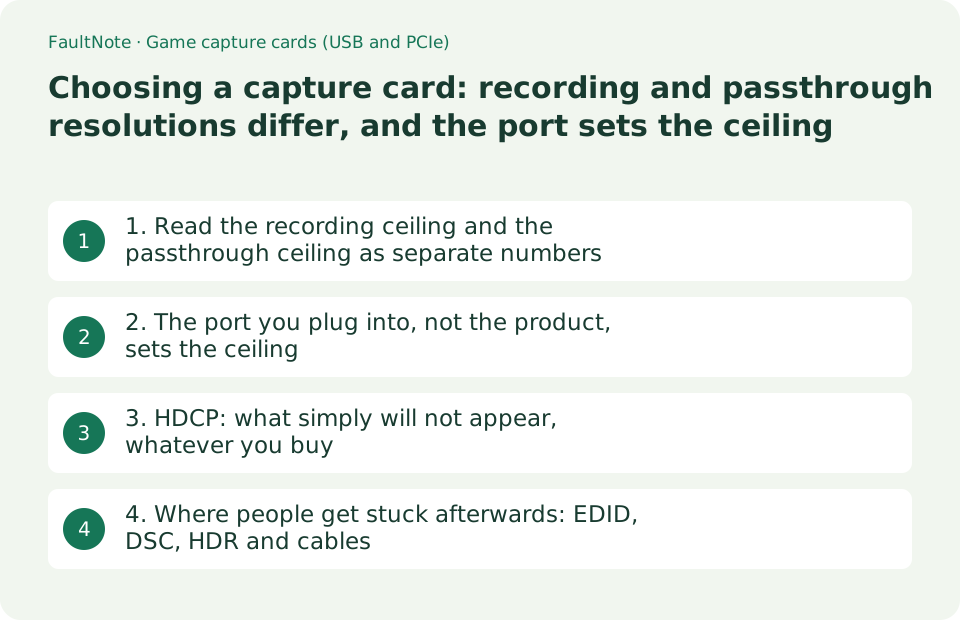
1. Read the recording ceiling and the passthrough ceiling as separate numbers
A capture card carries two paths: passthrough, which sends the console picture on to a monitor, and capture, which brings it into the PC. The large number on a product page is usually the passthrough figure, and the recording ceiling is written separately. AVerMedia's specification for the Live Gamer ULTRA 2.1 (GC553G2) gives a maximum input/output resolution of 3840x2160@144fps (HDR/VRR), 3440x1440@120fps, 2560x1440@240fps (HDR/VRR) and 1920x1080@360fps (HDR/VRR), and a maximum recording resolution of 3840x2160@144fps on Windows, 3840x2160@60fps on macOS, 2560x1440@120fps and 1920x1080@240fps. The 4K144 recording figure carries conditions: the page states that only the MJPG video format supports it and that it is achieved with Streaming Center on Windows.
On the GC551G2 the gap is larger. AVerMedia lists its connection interface as USB 3.2 Gen1 (Type-C), input and passthrough as HDMI 2.0, maximum input/output resolution 3840x2160@60fps, 2560x1440@120fps and 1920x1080@240fps, and maximum recording resolution 3840x2160@30fps, 2560x1440@60fps and 1920x1080@60fps. So a card advertised for 4K passthrough records at 4K30. The same page states that the GC551G2 supports VRR on passthrough but explicitly "does not support recording VRR".
The internal GC575 (Live Gamer 4K 2.1) uses a PCIe x4 Gen3 interface, with a maximum input/output resolution of 2160p144 HDR/VRR and others, and a maximum recording resolution listed as 2160@144fps (available only in Streaming Center) alongside 2160@60fps. It avoids the cable and port lottery that USB models face, but it needs a free PCIe slot and room for a 121 x 160.5 x 21.5 mm card. Its encoding method is software encoding, the same as on the two USB models, so the conversion load sits on the PC.
The order of decisions therefore runs: fix the resolution and frame rate you want to record, pick a card whose recording ceiling covers it, and only then check that the passthrough figures suit your monitor. Choosing from the passthrough number leaves you with recordings at a lower resolution than expected.
Scroll horizontally to see the full table →
| Model (as published by AVerMedia) | Connection and input | Maximum input/output (passthrough) | Maximum recording |
|---|---|---|---|
| GC551G2 | USB 3.2 Gen1 Type-C / HDMI 2.0 input | 3840x2160@60fps, 2560x1440@120fps, 1920x1080@240fps | 3840x2160@30fps, 2560x1440@60fps, 1920x1080@60fps |
| GC553G2 (Live Gamer ULTRA 2.1) | USB 3.2 Gen2 Type-C (10Gbps) / HDMI 2.1 input | 3840x2160@144fps, 3440x1440@120fps, 2560x1440@240fps, 1920x1080@360fps | 3840x2160@144fps (Windows), 3840x2160@60fps (macOS), 2560x1440@120fps, 1920x1080@240fps |
| GC575 (Live Gamer 4K 2.1) | PCIe x4 Gen3 / HDMI 2.1 input | 2160p144, 3440x1440p120, 1440p240, 1080p360 (all HDR/VRR) | 2160@144fps (Streaming Center only), 2160@60fps |
| Conditions on 4K144 recording | GC553G2 notes MJPG format only; GC575 notes Streaming Center only | — | The software and video format are part of the specification |
| How VRR is handled | GC551G2 supports VRR passthrough and states that VRR recording is not supported | VRR display needs an HDMI 2.1 VRR-capable monitor of 120Hz or higher, per the same page | The VRR behaviour does not survive into the recorded file |
| Encoding | All three are listed as "software encoding" | — | The conversion work falls on the PC |
2. The port you plug into, not the product, sets the ceiling
On a USB capture card the speed of the PC port becomes the recording ceiling. AVerMedia's FAQ states that when the GC553G2 is connected to a USB 3 Type-A port, 4K60 capture is possible if that port supports 10Gbps and a 10Gbps-capable Type-C to Type-A cable is used, and that if the Type-A port supports only 5Gbps the maximum capture becomes 4K30. The same FAQ states plainly that the GC553G2 does not support Thunderbolt.
The maker also publishes how to check your own port. Some vendors print "10Gbps" next to the Type-C port (the FAQ names ASUS as an example); where there is no marking, it tells you to check the motherboard's official page or manual to see whether the Type-C port is USB 3.2 Gen 2 (10Gbps), and gives the GIGABYTE B550 VISION D manual as an example of where that is stated. This is verifiable before you buy, so it is safer than judging by the colour or shape of the port.
On macOS the conditions are narrower. AVerMedia's FAQ says 10Gbps operation of the GC553G2 on a Mac requires enabling 10Gbps mode in Gaming Utility, and lists the conditions as a Mac with a 10Gbps-capable USB or Thunderbolt port and macOS Sonoma 14.4 or later, adding that "on other macOS versions the connection speed remains 5Gbps". The same FAQ's procedure also mentions updating to macOS 15 and installing Assist Central Pro, and recommends Apple Silicon Ultra series Macs for best performance. Note that the product page does not agree with itself here. Its specification row gives a maximum recording resolution of 3840x2160@60fps (macOS), while the notes further down the same page state that "when used with macOS, the maximum recording resolution becomes 4k30 / 2560x1440p30 / 1920x1080p120". Because the maker publishes both figures, this guide does not pick one as correct. That said, the FAQ above is titled "How do I enable 4K60 capture (10Gbps transmission) with the GC553G2 on a Mac?", so reading the 4K60 figure as the value that applies once 10Gbps mode is enabled is the natural interpretation — that reading is ours, not a statement by AVerMedia. If you are buying for a Mac and cannot meet the 10Gbps conditions, plan around 4K30.
PC requirements are published as well. For the GC553G2 the page lists Windows 11/10 (64-bit) with, for a desktop, an Intel Core i5-6XXX or AMD Ryzen 3 XXX or better CPU, a GeForce GTX1060 or RX 5700 or better GPU and 8GB of RAM (dual channel required, 16GB or more recommended) — and separately, for 4K144 MJPEG capture, a Core i5-12XXX or better CPU, an RTX 3060 or better GPU and 16GB of RAM. The GC575 page lists its own CPU, GPU and memory minimums. Since encoding is done in software, PC performance decides whether the recording succeeds.
Scroll horizontally to see the full table →
| Connection case | What AVerMedia states | What to check before buying |
|---|---|---|
| USB 3.2 Gen2 Type-C (10Gbps) | The GC553G2's standard interface; the page directs you to use the bundled cable | That the motherboard specification calls the Type-C port USB 3.2 Gen 2 |
| USB 3 Type-A rated at 10Gbps | 4K60 capture is possible with a 10Gbps Type-C to Type-A cable | That both the port and the cable are rated 10Gbps |
| USB 3 Type-A rated at 5Gbps only | Maximum capture becomes 4K30 | Whether that ceiling is enough for your use |
| Thunderbolt / USB4 port | "The GC553G2 does not support Thunderbolt" | Laptops that offer only Thunderbolt ports need checking |
| Mac at 10Gbps | Enable 10Gbps mode in Gaming Utility; requires a 10Gbps port and macOS Sonoma 14.4 or later, otherwise the link stays at 5Gbps | The macOS version and the port speed |
| PCIe card (GC575) | PCIe x4 Gen3, card size 121 x 160.5 x 21.5 mm | A free PCIe slot and the length and thickness inside the case |
| PC performance (GC553G2) | 4K144 MJPEG capture is listed with Core i5-12XXX or better, RTX 3060 or better and 16GB | That you meet the row matching the resolution you are aiming at |
3. HDCP: what simply will not appear, whatever you buy
Some video cannot be captured at all. AVerMedia's FAQ describes HDCP detection (the handshake) as an authentication process performed when two digital devices such as a player and a display are connected, so that digital content is only transmitted between legitimate devices. It then states that HDMI output from Blu-ray players and recorders, and video from some playback and streaming software such as Netflix and Hulu, is protected by HDCP and cannot be captured even when the software shows HDCP as disabled — and that "this is a copyright protection function built into the devices and the content themselves, and it cannot be bypassed by capture software or hardware". Buying a capture card to record a streaming service does not achieve that.
For your own gameplay, the consoles provide settings. The same FAQ explains that HDCP is enabled by default on PlayStation 4 and 5 and can be disabled by clearing "Enable HDCP" under Settings > System, and that the PS3's HDMI output always has HDCP enabled with no menu option to disable it, so PS3 HDMI output cannot be captured. For Xbox Series X|S and Nintendo Switch it states that launching a media app such as Netflix or Disney+ turns HDCP on and closing the app turns it off automatically, with a console restart as the remedy if it does not. PlayStation's own support page documents the related safe-mode option: "Change Video Output" offers "Change Resolution" or "Change HDCP Mode", and on the PS4 Pro an "HDCP 1.40 only" choice exists for 4K televisions that do not support HDCP 2.2.
Capturing a PC or phone screen has its own conditions in the same FAQ. Displaying the screen of an Android, iPad, iOS or macOS device requires HDCP detection to be set to "Off" in Assist Central Pro, while copyright-protected apps such as Netflix and Disney+ cannot be captured regardless of that setting. The FAQ also notes that gaming PCs using AMD graphics cards sometimes show the HDCP error message, and asks you to disable HDCP in the software and check again.
In short, HDCP is not a problem that a better capture card solves. Your own gameplay can be handled through the console's settings; protected streaming and disc content cannot be captured by specification. If that is the intended use, no purchase in this category will meet it.
Scroll horizontally to see the full table →
| Video source | What the manufacturer states | Effect on the purchase decision |
|---|---|---|
| HDMI output of a Blu-ray player or recorder | Protected by HDCP; cannot be captured even when the software shows HDCP as disabled | No product in this category solves this use |
| Netflix, Hulu, Disney+ and similar apps | Copyright-protected apps cannot be captured regardless of the setting | The maker states there is no way around it |
| PlayStation 4 / 5 gameplay | HDCP is enabled by default; it can be disabled under Settings > System | Your own gameplay is workable through the console setting |
| PlayStation 3 | HDMI output always has HDCP enabled, with no menu option to disable it | PS3 HDMI output is out of scope |
| Xbox Series X|S, Nintendo Switch | Media apps enable HDCP; closing them disables it automatically, otherwise restart the console | It becomes a matter of closing those apps first |
| Android / iOS / iPad / macOS screens | Displaying them requires HDCP detection to be set to Off in the software | Check that the bundled software exposes that setting |
| PC video from an AMD GPU | The HDCP message can appear; the FAQ asks you to disable HDCP in the software and re-check | Worth remembering if PC screen capture is the use case |
4. Where people get stuck afterwards: EDID, DSC, HDR and cables
"The high refresh rate is not selectable on passthrough" has a documented answer. AVerMedia's FAQ for cases where 4K144 or 1440p240 cannot be selected through a GC553G2 or GC575 lists: confirm the source, the monitor and the HDMI cable are all HDMI 2.1; on a gaming PC use an NVIDIA RTX3000 series or AMD RX6000 series GPU or newer; update the GPU driver; use the bundled HDMI cable between the monitor and the card; and, where a monitor offers a computer mode (4K144 / 1440p240) and a game mode (4K120), select computer mode. The important constraint is stated outright: "the GC553G2/GC575 do not support monitors that use DSC over HDMI", with a note that some models require DSC to display 4K144 and specific models named. The product page's connection notes likewise say it is recommended not to use the monitor's DSC (Display Stream Compression) feature.
When resolution choices change or the screen goes black, EDID handling is involved. The same maker's FAQ explains that a passthrough-capable capture device uses EDID (Extended Display Identification Data) to decide the best resolution and refresh rate, and that Assist Central Pro offers three EDID modes: a merged mode that combines the information of the capture device and the connected display, a copy (mirror) mode that uses only the passthrough display's EDID, and an internal mode. Merged mode is described as the recommendation for most standard setups, with the others offered as things to switch to when display problems appear.
Nintendo Switch 2 has its own FAQ. It asks you to use the HDMI cable supplied with the console, to first connect the console directly to the TV or monitor to confirm a picture, and then to turn off HDR output in the Display settings, disable 120Hz output, change the TV resolution (starting at 1080p), turn off the TV power-link feature, turn off automatic low-latency mode (ALLM), and switch EDID mode. If audio does not arrive, it asks you not to connect AUX headphones or USB-C devices to the console, to confirm in the Windows advanced sound settings that the capture device is not disabled or muted, and to set the console's TV audio output to stereo.
The "No Signal" checks are published too: connect the HDMI cable directly rather than through a conversion adapter; use a shorter, higher-quality HDMI cable or lower the resolution and frame rate; on Nintendo Switch make sure the dock has power; use Apple's own Lightning Digital AV adapter for an iPhone or a USB-C Digital AV Multiport adapter for an iPad; and update the firmware. For a preview that looks washed out or over-saturated, the maker separates the cases: on cards that do not support HDR recording (it names the GC551G2 and GC311G2 among others) the fix is to turn HDR off at the source. On the software side, the same maker's FAQ asks you to match OBS Studio's resolution and FPS exactly to the video capture source, gives 60, 59.94, 30 and 29.97 as common frame rates, and lists PlayStation 4/5 and Xbox Series X|S as 59.94.
Scroll horizontally to see the full table →
| Symptom or situation | Checks the manufacturer lists | What it means before buying |
|---|---|---|
| 4K144 or 1440p240 not selectable on passthrough | Source, monitor and cable all HDMI 2.1; GPU generation; driver; bundled cable; the monitor's mode setting | The generation of your monitor and cable |
| Monitor that needs DSC | "The GC553G2/GC575 do not support monitors that use DSC over HDMI" | Whether your monitor relies on DSC for its high refresh modes |
| Fewer resolutions offered, or a black screen | Switch EDID mode (merged / copy / internal) in Assist Central Pro; merged is the standard recommendation | Whether the bundled software lets you choose the EDID mode |
| No picture from Nintendo Switch 2 | Bundled cable, HDR output off, 120Hz off, resolution from 1080p, TV power link off, ALLM off, EDID mode | If Switch 2 is the target, check whether a dedicated FAQ exists |
| "No Signal" on screen | Direct connection without adapters, a shorter high-quality cable, lower resolution, powered Switch dock, Apple's own adapters, firmware update | Avoid designs that run through conversion adapters |
| Preview looks washed out or over-saturated | On cards without HDR recording (GC551G2, GC311G2 and others) turn HDR off at the source | If you want HDR recordings, choose a card that supports it |
| Audio drifts out of sync in OBS | Match resolution and FPS exactly to the video capture source (PS4/5 and Xbox Series X|S are 59.94) | This one is solved in the recording software |
Limitations and requirements
- The figures and procedures here come from AVerMedia's product pages and FAQs and PlayStation's official support pages as read on 2026-09-19. We did not measure or bench any capture card ourselves. The maker's pages also state that specifications may change without notice.
- The three models cited are AVerMedia products, and the same constraints do not automatically apply to other brands or series. Thunderbolt support and DSC behaviour in particular differ by product, so check the specification and FAQ of the product you intend to buy.
- For HDCP-protected streaming services and disc content, the manufacturer itself states that the protection "cannot be bypassed by capture software or hardware". This guide explains that limit; it does not cover ways around protection. It also carries no prices, stock or rankings.
Frequently asked questions
If the box says 4K, can I record in 4K?
Not necessarily. Most products publish separate ceilings for passthrough (the path to the monitor) and recording (the path into the PC). AVerMedia's GC551G2 lists a maximum input/output resolution of 3840x2160@60fps but a maximum recording resolution of 3840x2160@30fps. The GC553G2 splits its maximum recording resolution by operating system — 3840x2160@144fps on Windows and 3840x2160@60fps on macOS — and notes that 4K144 applies to the MJPG video format and is achieved with Streaming Center. Look for the "maximum recording resolution" row on the product page, and read whether it carries conditions about the OS or the software.
Will my PC's USB port let the card perform?
The port speed changes the ceiling. AVerMedia's FAQ states that with the GC553G2 on a USB 3 Type-A port, a 10Gbps port plus a 10Gbps-capable Type-C to Type-A cable allows 4K60, while a 5Gbps-only port limits capture to 4K30. The same FAQ states that the GC553G2 does not support Thunderbolt. A separate FAQ gives the way to check your own port: look for a "10Gbps" marking next to the Type-C port, and where there is none, check the motherboard's official page or manual for USB 3.2 Gen 2 support.
Can I capture streaming services or a Blu-ray I recorded?
No. AVerMedia's FAQ states that HDMI output from Blu-ray players and recorders, and video from some playback and streaming software such as Netflix and Hulu, is protected by HDCP and cannot be captured even when the software shows HDCP as disabled, adding that "this is a copyright protection function built into the devices and the content themselves, and it cannot be bypassed by capture software or hardware". For your own gameplay the same FAQ explains that HDCP can be disabled under Settings > System on a PlayStation 4 or 5, while the PS3's HDMI output always has HDCP enabled and cannot be changed.
Sources and verification date
Sources checked: . These sources support the specifications, procedures or prices discussed here. Check each source for applicable conditions and current information.
- AVerMedia: Live Gamer ULTRA 2.1 (GC553G2) product page and specifications (Japanese) ↗
- AVerMedia: GC551G2 product page and specifications (Japanese) ↗
- AVerMedia: Live Gamer 4K 2.1 (GC575) product page and specifications (Japanese) ↗
- AVerMedia FAQ: ceilings when connecting over USB 3 Type-A or Thunderbolt (Japanese) ↗
- AVerMedia FAQ: how to confirm USB 3.2 Gen 2 Type-C (10Gbps) support (Japanese) ↗
- AVerMedia FAQ: conditions for 10Gbps (4K60) operation on a Mac (Japanese) ↗
- AVerMedia FAQ: HDCP and how to handle it (Japanese) ↗
- AVerMedia FAQ: 4K144 / 1440p240 not selectable on passthrough, including DSC (Japanese) ↗
- AVerMedia FAQ: switching EDID mode (Japanese) ↗
- AVerMedia FAQ: Nintendo Switch 2 troubleshooting (Japanese) ↗
- AVerMedia FAQ: checks when "No Signal" is shown (Japanese) ↗
- AVerMedia FAQ: preview looks washed out or over-saturated (cards without HDR recording) (Japanese) ↗
- AVerMedia FAQ: video and audio drift apart in OBS Studio (Japanese) ↗
- PlayStation support: safe mode on PS5 and PS4 (Japanese) ↗
Related practical guides
- Choosing a KVM switch: the video ceiling row, keyboard/mouse emulation and EDID
- 4K text too small? Choosing size, resolution and Windows scaling from published PPI
- 1080p, 1440p or 4K: Plan a Gaming Monitor and GPU Budget Together
- SD and microSD Card Ratings: Choosing V30, U3, A2, UHS-II and SD Express by Use Case
- Record game audio only in OBS and test notification exclusion
- Record one game in OBS with a specific Game Capture window