1080p, 1440p or 4K: Plan a Gaming Monitor and GPU Budget Together
Set resolution, game FPS and monitor Hz separately, then verify GPU performance and connection requirements. Compare total display and PC-upgrade spending without converting pixel counts directly into performance or price.
Published · Updated · FaultNote editorial policy
Who this guide is for and what to prepare
- People planning monitor resolution and GPU spending together
- People checking whether they can retain their GPU when replacing a display
What you need
- A list of games, quality settings and target FPS
- Candidate monitor resolution, refresh rate and inputs
- A build sheet and quotes including GPU, PSU and cables
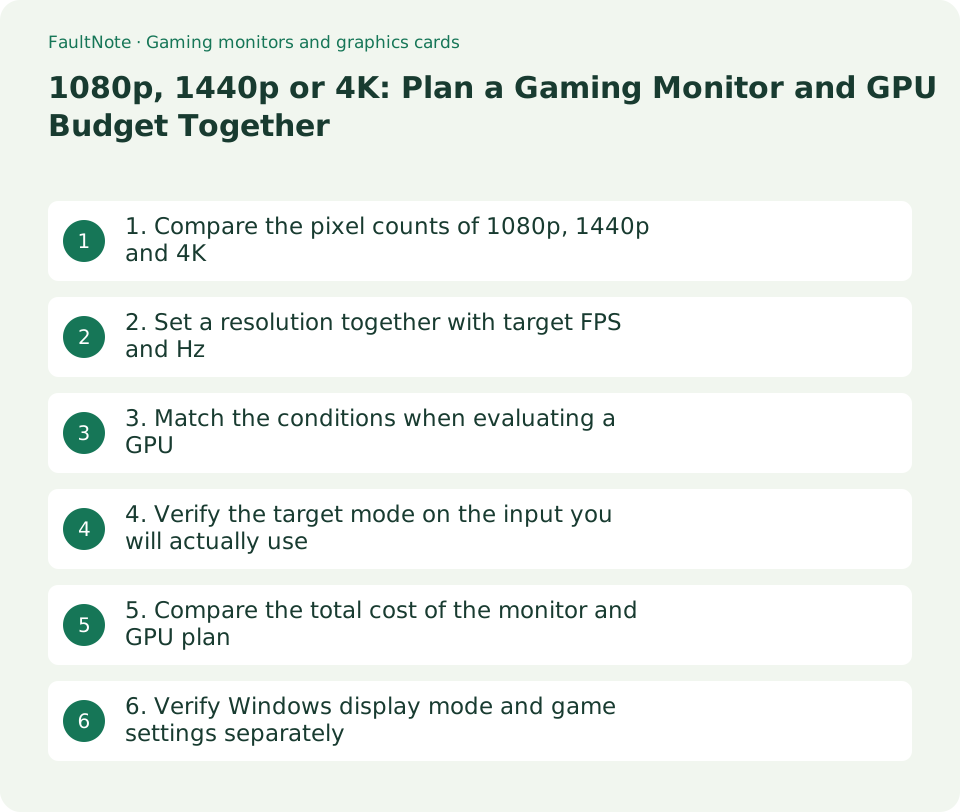
1. Compare the pixel counts of 1080p, 1440p and 4K
This comparison covers the common 16:9 modes 1920 x 1080, 2560 x 1440 and 3840 x 2160. An ultrawide described as 1440p has a different horizontal pixel count, so the vertical number alone does not define the same rendering workload. Physical screen size and resolution are also separate specifications.
The counts and ratios below are calculated from width times height. Four times the pixels at 4K does not mean exactly four times the GPU price or one-quarter the FPS.
Scroll horizontally to see the full table →
| Name | 16:9 resolution | Pixels | Pixel count relative to 1080p |
|---|---|---|---|
| 1080p / Full HD | 1920 x 1080 | 2,073,600 | 1x |
| 1440p / QHD | 2560 x 1440 | 3,686,400 | About 1.78x |
| 4K / UHD | 3840 x 2160 | 8,294,400 | 4x |
- Check the candidate monitor's full native resolution, including width and height.
- Add desk depth, viewing distance, physical screen size and text readability to the requirements.
2. Set a resolution together with target FPS and Hz
Monitor Hz describes display refreshes, while game FPS describes rendered frames. Buying a high-refresh monitor does not itself increase game FPS. Decide whether you prioritize motion in competitive games, image detail, or a display also used for work.
Scroll horizontally to see the full table →
| Priority | How to compare |
|---|---|
| Motion in competitive games | Compare high-refresh 1080p or 1440p options with a system able to meet the FPS target. |
| Image detail | Compare 1440p and 4K with the same game-quality and FPS objectives. |
| Gaming and document work | Add text-size and Windows-scaling checks to the gaming requirements. |
- Choose a few representative games and record resolution, quality, target FPS and monitor Hz separately.
- Decide whether you would lower quality for higher FPS or accept a lower frame-rate target for image detail.
3. Match the conditions when evaluating a GPU
When evaluating a GPU, check resolution, quality, ray tracing, upscaling, frame generation, CPU and driver conditions as well as the game name. FPS measured with different settings, or a specification's maximum output resolution, is not evidence of performance in your intended game configuration.
This article has not benchmarked candidate GPUs and does not provide performance rankings or required purchase prices. If comparable results are unavailable, leave the result unknown rather than deriving FPS from specification numbers.
- Record GPU model, game, resolution, quality, rendering features and test system, then select comparable results.
- Consider frame-time or low-frame-rate behavior when reported, and do not guarantee performance for games without results.
- For an existing GPU, compare settings using an owned game's benchmark or a repeatable scene and record what changed.
4. Verify the target mode on the input you will actually use
Maximum refresh can differ by input on the same monitor. Dell's G2724D specification lists 2560 x 1440 at 165Hz over DisplayPort and 144Hz over HDMI. This is an example of input-specific limits, not a current purchase recommendation or lowest-price listing.
- Check the monitor manual's combinations of resolution, refresh rate and input.
- Verify that the GPU output, cable, adapter and dock support the same mode. The USB-C shape alone does not establish video capability.
- Add any necessary cable or adapter to the purchase cost if it is not included.
5. Compare the total cost of the monitor and GPU plan
Budget for the monitor, GPU, any required PSU change, cables and installation items together. Compare options that retain an existing GPU or display against the same workload. Use real quotes from the same date rather than fixed budgets or invented price gaps by resolution.
Scroll horizontally to see the full table →
| Purchase route | Costs to check | Remaining condition |
|---|---|---|
| Keep the GPU; replace the monitor | Monitor and required connection items. | Game performance at the new resolution and settings. |
| Replace GPU and monitor together | Both products, PSU/cable changes and delivery. | Performance, display connection, power and case compatibility. |
| Keep the monitor; upgrade the GPU | GPU and necessary supporting changes. | Current monitor modes and the later display plan. |
- List required purchases for each route below and record tax-inclusive prices, delivery, stock and warranty.
- If the total exceeds the budget, decide whether resolution, quality, refresh target or purchase sequence can change.
6. Verify Windows display mode and game settings separately
In Windows, check the recommended resolution and suitable scaling first. For larger text, consider scaling before lowering the display resolution. Check a game's rendering resolution and upscaling separately from the Windows desktop mode.
Microsoft explains that an asterisk beside a refresh option means it does not support the current resolution; selecting it changes resolution. Recheck both values after changing the rate.
- In Settings > System > Display, select the target screen and check Display resolution and Scale.
- Open Advanced display, check resolution and Hz for the selected screen, and choose a supported target refresh rate.
- Set the planned quality, resolution and rendering features in the game, then check actual FPS and motion. Do not use the monitor's Hz readout as a game FPS measurement.
Limitations and requirements
- Four times the pixels at 4K does not imply the same ratio for GPU price or FPS.
- Verify input and connection conditions for high-refresh specifications instead of relying on the product name or maximum figure.
- This is a guide to comparing equivalent conditions, not a ranking based on measured GPU tests.
Frequently asked questions
Does 1440p require a GPU from a fixed price tier?
It depends on the game, quality, target FPS and rendering features. Match those conditions and use performance evidence and prices from the purchase date.
Will a 165Hz monitor also run at 165Hz over HDMI?
It depends on the product. The example Dell G2724D supports 1440p at 165Hz over DisplayPort and 144Hz over HDMI. Check the supported modes for the input you will use.
Should I lower resolution if text is small at 4K?
Check Windows scaling first. You may be able to keep the recommended resolution while adjusting text and application size.
Sources and verification date
Sources checked: . These sources support the specifications, procedures or prices discussed here. Check each source for applicable conditions and current information.
Related practical guides
- DisplayPort vs. HDMI for 144Hz, 4K and 240Hz Monitors: Check Ports, Cables and GPU Support
- How many external displays can you actually connect? GPU limits and the two kinds of dock
- Choosing a Webcam: Resolution and Frame Rate Pairs, Field of View, Fixed Focus vs Autofocus
- Single-cable USB-C monitors: match the monitor's supply wattage against your laptop's rating
- 4K text too small? Choosing size, resolution and Windows scaling from published PPI
- Buying a second-hand graphics card: the warranty, what to check, and what cannot be checked