USB-C Monitor Not Working or Stuck at a Low Refresh Rate: Check DP Alt Mode and Lane Allocation
Video over USB-C uses DisplayPort Alt Mode, which repurposes pins on the USB Type-C connector for video. VESA's FAQ states plainly that if you plug a display into a Type-C port that does not support DisplayPort over USB-C, no video data will be received by the display, so there will be no image, and that doing this will not harm your device. In other words, the cable fitting and video appearing are two different things. Even when it works, the ceiling is not fixed. The Type-C connector has four high-speed lanes, and carrying USB 3.x data at the same time means assigning two lanes to video and two to USB. VESA also publishes combinations of video with simultaneous USB, such as 4K at 60Hz uncompressed with USB 3.1 or 5K uncompressed with USB 2.0. The real ceiling also depends on the DisplayPort link rate on the PC (HBR2 or HBR3), DSC support, and the monitor's own USB-C priority setting. This guide gives the order in which to narrow the cause and which lines of a spec sheet to read before buying.
Published · Updated · FaultNote editorial policy
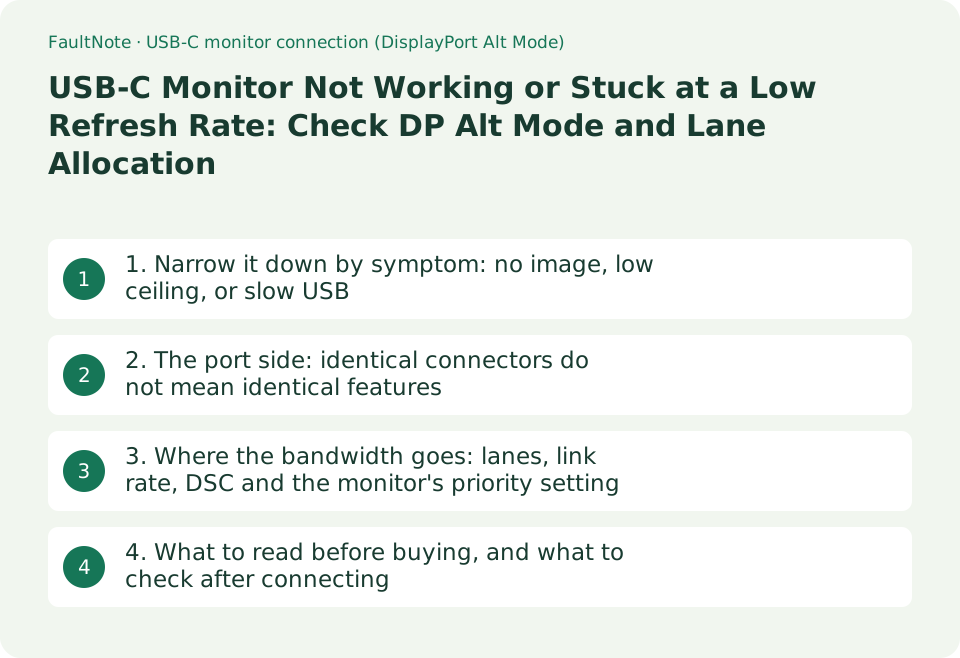
Who this guide is for and what to prepare
- People connecting a laptop to a monitor with a single USB-C cable, or who did and got no picture
- People about to buy a high refresh rate monitor with USB-C who want to know whether their PC can drive it
- People connecting through a dock or hub who want to know why either image quality or USB speed drops
What you need
- Your PC model and the specification of the USB-C port you will use (any statement of DP Alt Mode, Thunderbolt or USB4 support, and whether a DP logo is printed next to the port)
- The monitor's user guide or spec sheet (maximum resolution and refresh rate over USB-C, the DisplayPort version, and the charging wattage)
- Your current display settings (Settings > System > Display > Advanced display in Windows shows resolution, refresh rate and whether VRR is supported)
1. Narrow it down by symptom: no image, low ceiling, or slow USB
Trouble over USB-C splits into three layers. First, the port does not support DP Alt Mode at all, and VESA's FAQ says that in this case no video data reaches the display and nothing appears on screen. Second, the port supports it but there is not enough bandwidth, which shows up as a resolution that works while few refresh rates are offered, or as reduced colour depth. Third, video is being prioritised and the USB data side slows down. All three look like a faulty cable, so checking the documented capabilities of the hardware is the faster route.
Microsoft publishes the conditions under which Windows raises each notification, so the wording of the notification is itself diagnostic. "Display connection might be limited. Make sure the DisplayPort device you're connecting to is supported by your PC" appears when the connected USB-C device advertises DisplayPort Alternate Mode (SVID 0xFF01) and that mode is not configured. A different notification, "Use different USB port", exists for the case where the same PC supports the mode on another connector.
Scroll horizontally to see the full table →
| Symptom | Common cause | Where to look first |
|---|---|---|
| Screen stays black and reports no signal | The Type-C port on the PC does not support DP Alt Mode (VESA: no video data is received, so there is no image) | The PC spec sheet for that port's video support, a DP logo next to the port, and the Windows notification text |
| It works on a different USB-C port of the same PC | Ports differ within one PC (Microsoft documents the "Use different USB port" notification for exactly this case) | Per-port capabilities in the PC spec sheet and the markings on each port |
| Picture appears but 144Hz and other high rates are not offered | Not enough bandwidth because of the link rate (HBR2/HBR3) or a two-lane allocation, or no DSC | The link rate shown in the monitor's OSD, the DisplayPort version on the PC, and the USB-C limit in the monitor's specifications |
| Picture appears but the monitor's USB ports or Ethernet are slow | The connection is set to prioritise video (on Dell models this is "USB-C Prioritization") | The USB section of the monitor's OSD menu |
| Fewer displays or lower quality through a dock | What the dock itself supports (VESA notes that a product without Alt Mode support is a "hub", while one that carries video is a "dock") | The DisplayPort version and simultaneous-display statements in the dock's specifications |
2. The port side: identical connectors do not mean identical features
In a blog post dated 30 May 2025, Microsoft's USB team cited its own diagnostics data showing that 27% of PCs with USB4 have encountered a limited functionality notification, and wrote that not all USB-C ports are created equal and that you cannot tell which ones deliver the full experience just by looking at them. The specification permits one port on a machine to charge the laptop and run a 4K display while another delivers only USB 2.0 data speeds. What to check before buying is not the shape of the connector but the sentence written about that port.
The same post explains that the Windows Hardware Compatibility Program (WHCP) added requirements alongside Windows 11, version 24H2, making DisplayPort Alt Mode required on all USB-C ports of certified mobile PCs, and USB Power Delivery charging required on every USB-C port. Systems advertising USB 40Gbps or 80Gbps additionally have to provide PCI Express tunnelling, Thunderbolt compatibility and DisplayPort support for up to two 4K monitors at 60Hz. That is a floor you can expect from newly certified PCs, not something a machine you already own automatically meets.
Cables and adapters have published guidance too. For connecting a USB-C source to a monitor with a DisplayPort receptacle, VESA says it is preferable to use a USB-C to DisplayPort adapter cable (a USB-C plug on one end and a DP plug on the other) and that adapters which present a DisplayPort receptacle are not recommended because using one may result in poor picture quality, intermittent operation, or no video display.
Scroll horizontally to see the full table →
| What to check | What the official document states | How to read it |
|---|---|---|
| A USB-C port on the PC | Microsoft: the specification allows ports to differ in capability, and you cannot tell by looking | Use only the ports the spec sheet describes as supporting DisplayPort Alt Mode or video output |
| A newly certified PC | Microsoft: WHCP-certified mobile PCs must support DP Alt Mode and USB PD charging on every USB-C port | Confirm in the manufacturer's material that the model you are buying is covered (it does not apply to existing PCs) |
| A USB4 or Thunderbolt label | Microsoft: certified systems advertising USB 40Gbps also provide PCIe tunnelling, Thunderbolt compatibility and two 4K 60Hz displays | If docks or an external GPU are in your plans, the presence of this label is part of the decision |
| How you convert | VESA: a USB-C to DisplayPort adapter cable is preferable, and DisplayPort receptacle adapters are not recommended | Prefer a single cable with the right plug on each end over an adapter that lets you reuse a DP cable |
| Hub versus dock | VESA: under the USB-IF definition a "hub" does not support Alt Modes, and a product that carries video is a "dock" | If you need video, check the spec sheet for a video statement even when the product is sold as a hub |
3. Where the bandwidth goes: lanes, link rate, DSC and the monitor's priority setting
The Type-C connector carries four high-speed lanes. VESA describes using only two of them for video on USB-C so that SuperSpeed USB data and video can run at the same time, and on that basis lists DisplayPort 2.0 configurations such as three QHD (2560x1440) displays at 120Hz and 24 bpp with no compression, or three 4K displays at 144Hz and 30 bpp HDR with DSC. Its older DisplayPort over USB-C page, which does not state a lane allocation, lists 4K at 60Hz with 24-bit colour uncompressed alongside simultaneous USB 3.1, and 5K (5120x2880) uncompressed alongside simultaneous USB 2.0. The common thread is that the more USB speed you keep, the less bandwidth is left for video.
The DisplayPort link rate on the PC also sets a ceiling. The user guide for the Dell UltraSharp U2723QE/U3223QE says the USB-C port's alternate mode with DP 1.4 supports a maximum resolution of 3840 x 2160 at 60Hz, and gives daisy-chaining limits per link rate: for 3840 x 2160 at 60Hz, two external monitors on HBR3 and one on HBR2, with the note that the maximum external monitor resolution at the maximum number of monitors is 3840 x 2160 / 60Hz only when DSC is enabled on the graphics card or with cards that support DSC. Its troubleshooting section tells you to check the link rate under Display Info in the OSD and, if it is HBR2, suggests a USB-C to DP cable to turn on MST, so the link rate is a value you can actually read on the monitor.
Some monitors let you choose how the bandwidth is split. The same Dell guide documents USB-C Prioritization, which allows you to specify the priority to transfer the data with high resolution (High Resolution) or high speed (High Data Speed) when using the USB-C port or DisplayPort. If the monitor's built-in USB hub or Ethernet feels slow, this setting may be on the video-first side.
Scroll horizontally to see the full table →
| Condition | What the official document states | Effect on the video side |
|---|---|---|
| Two lanes for video plus USB 3.x | VESA: using only two lanes on the USB-C connector via DP Alt Mode allows simultaneous SuperSpeed USB data and video | Keeping high-speed USB reduces the video budget. With DP 2.0 and DSC, VESA still lists configurations such as three QHD displays at 120Hz |
| Video and USB at the same time | VESA (DisplayPort over USB-C page): 4K at 60Hz uncompressed with USB 3.1, 5K uncompressed with USB 2.0 (that page states no lane allocation) | Driving a 5K-class display uncompressed leaves the USB side at 2.0 speeds |
| Link rate HBR3 or HBR2 | Dell U2723QE guide: over USB-C MST, two external 4K 60Hz monitors on HBR3 and one on HBR2 | With the same cable, the link rate on the PC changes how many displays you can drive |
| DSC (compression) | Dell: the maximum resolution at the maximum monitor count requires DSC enabled on, or supported by, the graphics card | Without DSC you have to give up either resolution or refresh rate |
| The monitor's USB-C priority setting | Dell: USB-C Prioritization selects high resolution or high data speed | Choosing high data speed leaves less bandwidth for video, and the reverse also applies |
4. What to read before buying, and what to check after connecting
On the monitor side, do not assume the USB-C input matches the DisplayPort input. The ASUS ProArt PA278CGV (27-inch, 2560x1440) lists its I/O ports as USB-C x 1 (DP Alt Mode), DisplayPort 1.4 x 1 and HDMI (v2.0) x 2, and splits its signal frequency line into "USB-C, DisplayPort: 30~144 Hz (V)" and "HDMI: 24~144 Hz (V)", with USB-C Power Delivery of 90W. Here USB-C is inside the 144Hz range, but on 4K models the USB-C ceiling is often still 60Hz: Dell's U2723QE guide states 3840 x 2160 at 60Hz for the USB-C alternate mode. Read the USB-C row for both resolution and refresh rate.
After connecting, Windows can confirm what you actually got. Microsoft's support article says the Display information panel under Settings > System > Display > Advanced display shows the current resolution and refresh rate for the selected display and whether the display supports variable refresh rate (VRR). The refresh rates that appear depend on what the display supports, and the list shows an asterisk next to rates that do not support the current resolution, selecting which will change the resolution instead. If the ceiling here is lower than you expected, work through the conditions in section 3 before buying another cable.
Scroll horizontally to see the full table →
| Item to check | Example from the documentation | How to judge |
|---|---|---|
| The monitor's USB-C input ceiling | ASUS PA278CGV: USB-C and DisplayPort both 30~144 Hz vertical / Dell U2723QE: USB-C alternate mode with DP 1.4, maximum 3840 x 2160 at 60Hz | If you are buying for high refresh rate, confirm the rate you want appears on the USB-C line |
| USB-C charging (PD) | ASUS PA278CGV: USB-C Power Delivery 90W / Dell U2723QE: PD 20V/4.5A, 15V/3A, 9V/3A, 5V/3A | Compare with what your laptop needs. Too little and the picture works while charging falls behind |
| Video support on the PC port | Microsoft: ports can differ, and a notification appears on a port that does not support the mode | Use the port the spec sheet describes as supporting video; a DP logo next to it is another hint |
| The refresh rate you are actually getting | Microsoft: Advanced display shows current resolution, refresh rate and VRR support | If it differs from what you expected, start here and work through the bandwidth conditions |
| Link rate | Dell: the link rate (HBR2/HBR3) can be read under Display Info in the OSD | HBR2 may not reach MST or the highest settings |
| Cables and adapters | VESA: a USB-C to DP adapter cable is preferable and receptacle-style adapters are not recommended | Use one cable with the correct plug on each end rather than stacking an adapter |
Limitations and requirements
- The specifications here are what VESA (displayport.org), Microsoft Learn, Microsoft Support and the Microsoft USB Blog, Dell's user guide PDF and ASUS's product specification page stated on 19 September 2026. Wording changes by model, revision and country, so check the documents for your own model before buying.
- VESA's "DisplayPort over USB-C" overview page is written around the generation of its time, referring to USB 3.1 and HDMI 2.0, and its assumptions differ from the current DisplayPort 2.1b FAQ. Both are cited here and kept distinct, but the ceiling for a current product should come from that product's own specification sheet.
- This site did not test any of these connections or measure any speeds. Every figure quoted is a published manufacturer or standards-body figure, and prices and stock are out of scope.
Frequently asked questions
Will a more expensive cable get me 144Hz?
Not necessarily. VESA's documents show that sharing the Type-C high-speed lanes with USB data, the DisplayPort link rate and the presence of DSC all change what can be carried, and on monitors such as Dell's you can read the link rate (HBR2/HBR3) in the OSD. First confirm that the port on your PC supports DP Alt Mode and that the monitor's specification lists the refresh rate you want on its USB-C line; consider the cable after that.
The same PC works on one USB-C port but not another. Is it broken?
It is more likely to be by design. Microsoft states that the specification permits ports to differ in capability, and Windows has a notification for exactly this case: "Use different USB port. The USB device might have limited functionality when connected to this port. Plug the device into a different USB port on your PC." It appears when the device supports Thunderbolt or DisplayPort, the connector you used does not, and another connector on the same PC does.
The USB ports built into my monitor are slow. Is that related to the video?
It can be. VESA describes Type-C lanes being shared between video and USB, and monitors such as Dell's U2723QE have a USB-C Prioritization item in the OSD that selects whether data is transferred with high resolution or high data speed. If USB device speed matters more to you, check that setting, keeping in mind that changing it also changes what the video side can do.
Sources and verification date
Sources checked: . These sources support the specifications, procedures or prices discussed here. Check each source for applicable conditions and current information.
- VESA: DisplayPort FAQ (DisplayPort Over USB-C, two-lane configurations, behaviour on an unsupported port, hub versus dock definitions) ↗
- VESA: DisplayPort Over USB-C (combinations of video with simultaneous USB) ↗
- Microsoft Learn: Windows USB Type-C troubleshooting notifications (trigger conditions for "Display connection might be limited" and "Use different USB port") ↗
- Microsoft USB Blog: Ending USB-C Port Confusion (30 May 2025, WHCP USB-C requirements and diagnostics data on PCs with USB4) ↗
- Dell: UltraSharp U2723QX/U2723QE/U3223QE User's Guide (PDF) ↗
- ASUS: ProArt Display PA278CGV Tech Specs ↗
- Microsoft Support: Change the refresh rate on your monitor in Windows ↗
Related practical guides
- How many external displays can you actually connect? GPU limits and the two kinds of dock
- How to Choose a USB-C Cable: 60W vs 240W Power Marks, 10Gbps to 80Gbps Data Rates and Video Output by Use
- Single-cable USB-C monitors: match the monitor's supply wattage against your laptop's rating
- Choosing a portable monitor: what one USB-C cable has to carry, and when it is not enough
- USB-C Hub vs Thunderbolt Dock: Displays, Power, and Compatibility
- DisplayPort vs. HDMI for 144Hz, 4K and 240Hz Monitors: Check Ports, Cables and GPU Support