Camera video is missing or access is denied in Windows 11
What to do first
For camera problems, check the shutter, Windows permissions, desktop app permissions, and whether the device is enabled, then use the built-in Camera app for a baseline test.
This is a general troubleshooting guide, not an announcement of a current outage.
Affected products and symptoms
- Product
- Windows 11 Camera
- Versions and conditions
- Windows 11
- Error codes and identifiers
- 0xA00F42440x800700050xA00F4292
Symptoms
- The camera image is black
- A message says the camera cannot be found
- An app reports access denied
Causes and conditions
Possible causes include a physical shutter, Windows camera permissions, desktop app permissions, another app using the camera, or a disabled device.
Before you start
- Close other meeting and recording apps that use the camera
- For an external camera, check the cable
- Locate the PC's camera key or shutter
Precautions
- Do not allow camera access for apps or sites that do not need it
- If permissions are grayed out, do not change organization policies without authorization
Tools and official pages used in this guide
Check the official requirements, screen names, and limitations for this procedure.
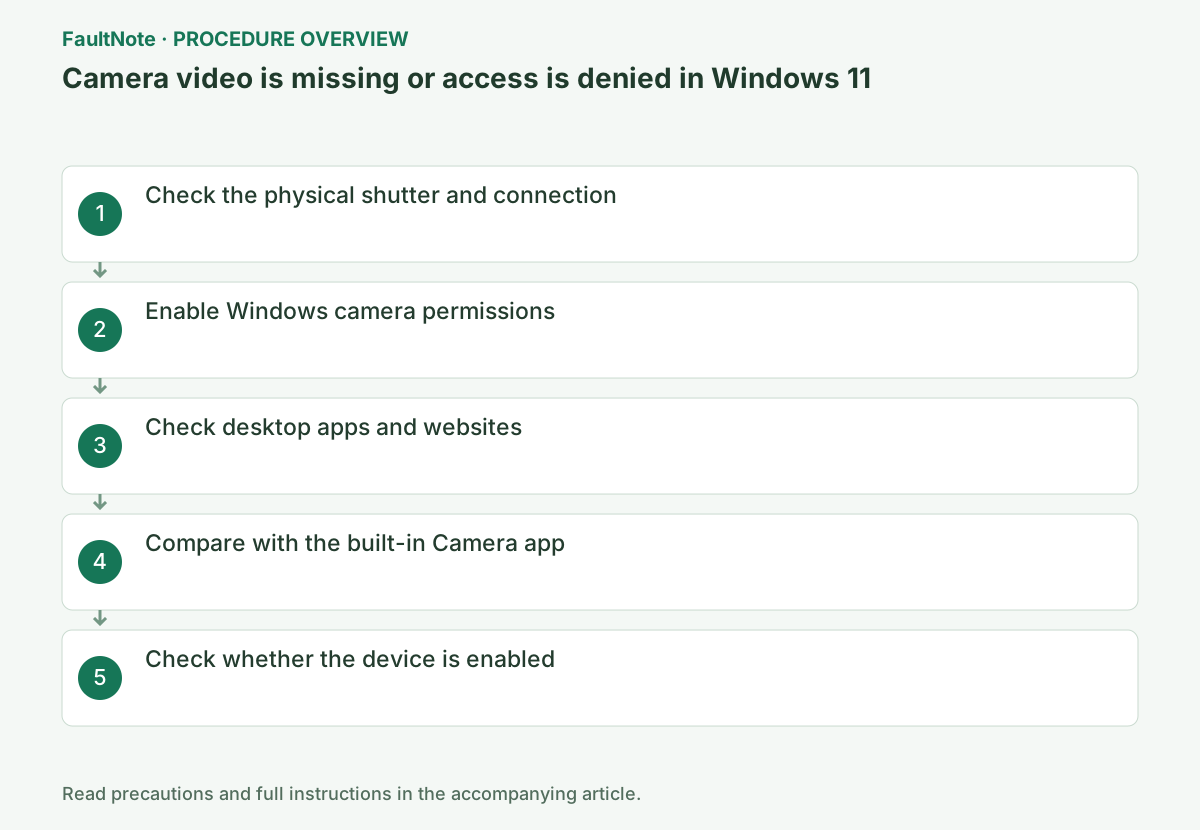
Step-by-step instructions
Compare Windows Camera with the meeting app. If Camera works, investigate meeting selection/permission first. If both fail, inspect shutters, disable keys, connection and Windows permission. Distinguish a black image, missing device and access-denied message.
Identify the intended internal, USB or virtual camera. Record the meeting-app device name. For USB, compare a hub with a direct connection while closing other camera apps. Controlled comparisons of connection/app results provide better evidence than simultaneous changes.
Open the lens slider and enable the camera using any side switch or Fn camera key. Reconnect an external camera directly to the PC without a hub and, if possible, try another USB port.
First close meeting apps and browser tabs using the camera. A slider covering the lens is separate from software permissions, so enabling access will not open it. Check whether the indicator is lit and consult the device manual to interpret its status.
Under Settings > Privacy & security > Camera, turn on Camera access and Let apps access your camera, and also enable the affected Store app.
For Teams and browsers, turn on Let desktop apps access your camera. For web meetings, also allow the camera in the browser's site permissions.
Official links for this step
- Camera doesn't work in Windows
Check the official requirements, screen names, and limitations for this procedure.
- Camera doesn't work in Windows
Check camera-level, required-app and desktop-app access; inspect site permission separately for browser use. Allow only what is needed and ask the administrator about locked controls. Reopen the app after changes and reselect the camera.
Test Camera alone, close it, and then test the original app. Verify the actual selected device before adjusting resolution or backgrounds. Success in another app does not prove the original permission/selection is fixed. Avoid private material in test images.
Open Camera from Start. If it works here, Windows and the device are functioning, so reselect the correct camera name in the affected app's settings. If it does not work here either, continue to the next step.
Search for "Camera" in Start and select the Windows Camera app. If you have multiple cameras, use the switch button to select the intended one. If video appears, close Camera before opening the meeting app so you can compare without two apps using the camera simultaneously.
Right-click Start > Device Manager > Cameras, then right-click the affected camera. If Enable device appears, select it. If there is a warning symbol, run Update driver.
Double-click the device entry and also check its status on the General tab. Record any warning number. Work only on the affected camera instead of removing working devices in bulk. After restarting, first check whether the built-in Camera app displays video.
Before driver updates, record the model and current provider/date/version. If it worsens immediately afterward, check available Roll Back Driver or a supported manufacturer version. Some devices do not offer rollback; do not randomly install an old third-party package when the button is unavailable.
After recovery, test video and needed microphone separately in the normal app, then restore unnecessary diagnostic permissions. Set shutters/disable keys appropriately for use. For recurrence, provide device/connection, per-app results, error and preceding update. A listed camera and usable video are different results.
Check the result
- Video appears in the built-in Camera app
- The preview appears when you select the correct camera in the affected app
If the problem continues
- Test an external camera on another PC to isolate a camera hardware fault
- For 0xA00F4243-related errors, restart and try only the built-in Camera app without opening other apps
Scope of this guide
Troubleshooting guide — Ensure that the intended camera image appears in both the Windows Camera app and the affected app.
Frequently asked questions
The Camera app works, but web meetings show no video.
Check the browser's site permissions and the camera selection in the meeting screen. Windows permission alone does not grant site permission.
The permission switch is grayed out.
It is controlled by an administrator or organization policy. Tell the device administrator the affected app's name and displayed code.
Why is the image black despite a listed camera?
A listed entry does not prove video capture. Check the shutter and selected device, then test Camera alone. Distinguish denial, another app using the device and app-only failure, and retain the message.
Should I enable every camera permission?
Check access for the required app/site first. Additional permissions do not fix a disabled device, shutter or connection. Restore unnecessary access afterward and verify video in the intended app.
What if the driver rollback button is unavailable?
An earlier version may not be available for that driver. Record provider/version and exact PC/camera model, then consult supported manufacturer guidance. Avoid forcing another model driver or unrelated old downloads. Include permission and Camera-app comparisons for diagnosis.
Official sources and dates
Source publication or resolution date: Not specified. Sources checked: 2026-09-05. The check date is not the date the problem first occurred. Interface labels can vary between versions and display languages.