Teams: Fix Camera and Microphone Access on Windows
What to do first
Sort by hardware, OS permissions, Teams settings, and Windows app comparison.
This is a general troubleshooting guide, not an announcement of a current outage.
Affected products and symptoms
- Product
- Microsoft Teams for work or school
- Versions and conditions
- Teams desktop version / Teams on the web (Windows)
Symptoms
- No image appears
- I can't hear the other person
Causes and conditions
Candidates include occupancy, physical mute/shutter, Windows/browser privileges, and incorrect device selection.
Before you start
- Prepare alternative means of participation, such as telephone audio
- Check the device names of the camera and microphone
Precautions
- Allow only necessary apps permissions
- Do not discuss confidential information on test recordings
Tools and official pages used in this guide
You can see the configuration name, limitations, and updated branches for this procedure on the official page.
Microsoft Teams official download. This is where you can get it if it is determined that reintroduction is necessary.
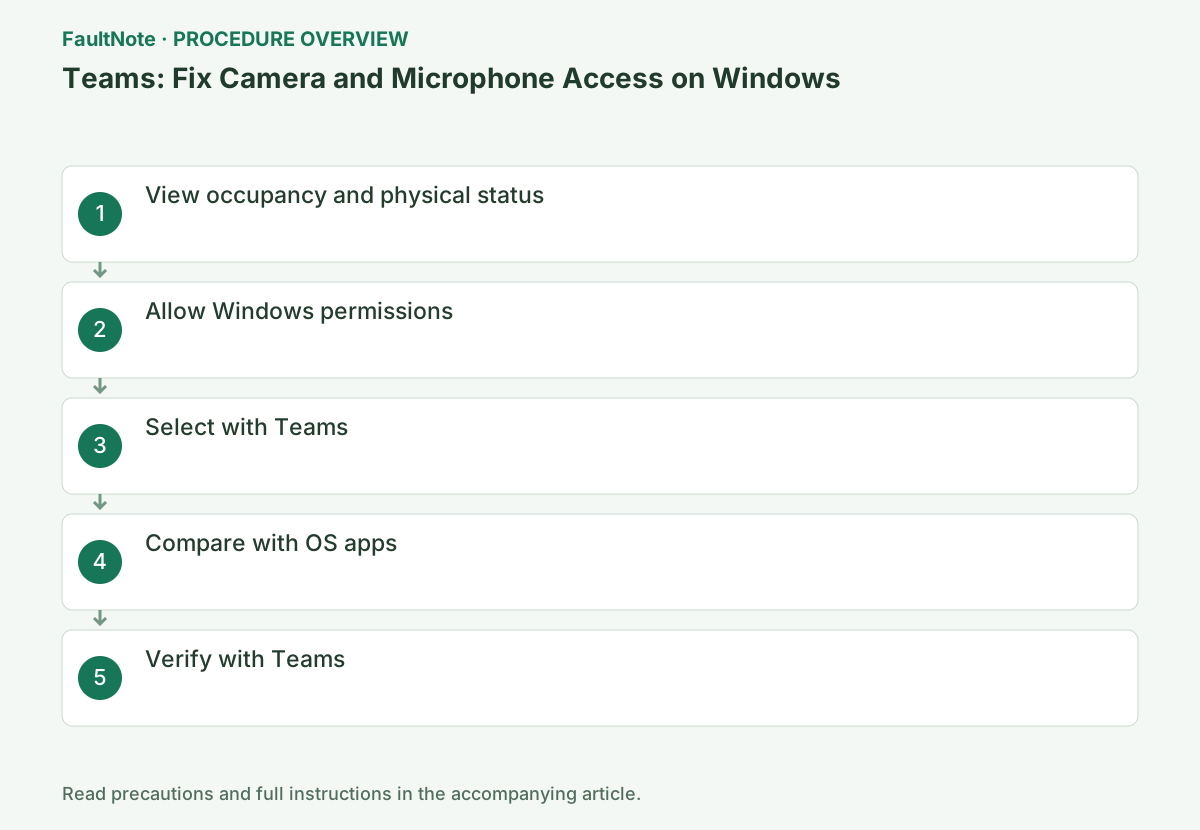
Step-by-step instructions
If you cannot hear others, check the speaker and output device; if others cannot hear you, check microphone input and permission. Match actual device names in Teams and Windows instead of treating both as microphone permission failures.
With both a USB headset and monitor audio available, explicitly select an output and check a short sound. For video, check the physical shutter and preview separately, distinguishing a black image from an unrecognized device.
Check before continuingWith both a USB headset and monitor audio available, explicitly select an output and check a short sound. For video, check the physical shutter and preview separately, distinguishing a black image from an unrecognized device.
Close Zoom, etc., and release the shutter, privacy key, and physical mute on the headset.
Check that the standard Windows camera displays images and that the headset is turned on. If you have both internal and external devices, Teams will match which one you are trying to use with the following settings.
Open [Settings etc.] → [Settings] → [Device] in the top right corner of Teams, and note down the actual device name displayed on the speaker, microphone, and camera. If only [Default] is selected, explicitly select the actual device from the candidate list.
Check the shutter, headset mute, and cable before joining. Verify USB recognition or whether a Bluetooth headset moved to another device. A missing device differs from a listed camera with black output. Prepare an alternative participation method before reconnecting hardware during a meeting, and end calls or recordings in other apps before investigating occupancy.
Allow Teams or the desktop app for [Camera] and [Microphone] in [Settings] → [Privacy and Security].
In Windows 10, open [Settings] → [Privacy] and then [Camera] or [Microphone]. If the switch is disabled by your organization, do not change it in the registry, etc., and check with your administrator for permissions.
Open Camera and Microphone separately in Windows 11 Settings > Privacy & security, checking device, app, and desktop-app access; Windows 10 uses Privacy. Record organization-disabled controls for the administrator. Permission alone does not correct a wrong Teams device selection. Limit access to needed applications.
Check device access and desktop-app access in Windows camera and microphone settings. For Teams on the web, also inspect site permissions in the active browser; Windows permission alone may leave a site-level denial.
After permission changes, reload the page or restart Teams and select the same device again. Ask the administrator about organization-disabled controls instead of bypassing them through registry changes.
Check before continuingAfter permission changes, reload the page or restart Teams and select the same device again. Ask the administrator about organization-disabled controls instead of bypassing them through registry changes.
Select the actual camera and microphone in [Settings etc.] → [Settings] → [Device].
Check the device name and then select it. There are similar candidates such as the monitor's microphone, laptop's built-in microphone, and USB headset, so check to see if the same name is selected on the Windows side before trying the preview.
Match speaker, microphone, and camera to actual device names. Explicit selection avoids a Default entry changing when Windows defaults move. Treat monitor audio, USB headset, built-in mic, and webcam mic separately. Check volume and mute after changes; an input meter does not prove working speaker output.
Check if it works outside of Teams using the Windows camera app and the [Sound] input meter.
If you cannot use the built-in Windows apps, check the permissions and recognition on the Windows side before resetting Teams. If you can use the built-in app but only Teams fails, give priority to the device settings in Teams or site permissions in the browser.
Check video in Windows Camera, then close it before returning to Teams to avoid adding occupancy. Select the microphone in Windows sound settings and inspect its meter while speaking. If Windows also fails, investigate connection, permissions, and maker drivers before a Teams reset. If only Teams fails, recheck its device names and mute state.
Try the pre-meeting preview and the available Test Call. The web version also allows site permissions in the address bar.
Test calls may not be displayed depending on your usage environment. In that case, you can also check the video preview before the meeting. In the web version, review the permissions from the site information in your browser and reload the page if necessary.
Use an available test call for a short recording and playback, checking camera and speaker too. Availability limitations mean a missing button alone is not an application fault. For web Teams, inspect camera and microphone site permissions and reload when needed. Select the same devices in the meeting preview and use non-sensitive test speech.
Official links for this step
- Microsoft Teams for work or school official troubleshooting
You can see the configuration name, limitations, and updated branches for this procedure on the official page.
- Microsoft Teams for work or school official download
Microsoft Teams official download. This is where you can get it if it is determined that reintroduction is necessary.
- Microsoft Teams for work or school official troubleshooting
Check camera preview, the Windows input meter, and a Teams test call in sequence. Where test calls are unavailable, use a short meeting with a helper to check both directions without recording confidential conversation.
If Windows also shows no response, investigate the device or permissions. If Windows works but Teams fails, focus on Teams selection or web permissions. Reopen other apps afterward and record whether concurrent use reproduces the issue.
Verify others hear you, you hear others, and the intended camera supplies video separately. Note low volume or incorrect output even when communication works. Record app combinations that cause recurrence. Use available alternative audio or web access for an urgent meeting while investigating the original path; alternative participation is not repair of the original devices.
Check before continuingIf Windows also shows no response, investigate the device or permissions. If Windows works but Teams fails, focus on Teams selection or web permissions. Reopen other apps afterward and record whether concurrent use reproduces the issue.
Check the result
- Video and input meters move
- You can check the audio on a test call or on the other end.
If the problem continues
- If the OS also fails, check Windows Update and manufacturer instructions.
- If the settings are gray, ask the administrator.
Scope of this guide
Troubleshooting guide — General diagnostic and recovery procedures based on official support. It does not describe a specific current incident.
Frequently asked questions
OS apps also fail.
Prioritize permissions, drivers, and equipment rather than Teams-specific.
No test calls.
Availability varies by client. Use the pre-meeting level meter or a short test call instead.
Is microphone permission the cause when I cannot hear others?
First inspect speakers, output selection, volume, and the other participant. Microphone permission concerns your input; test receiving and sending paths separately.
Official sources and dates
Source publication or resolution date: Not specified. Sources checked: 2026-10-13. The check date is not the date the problem first occurred. Interface labels can vary between versions and display languages.