Adding Windows Hello: fingerprint reader or IR camera, and what Enhanced sign-in security rules out
The goal is the same either way - stop typing a password - but face and fingerprint are bought under completely different conditions. Microsoft's setup page says face sign-in is configured "with your PC's infrared camera or an external infrared camera", so the 4K webcam already on your desk cannot stand in for an IR camera. The fingerprint side is simpler: the same page says a fingerprint reader is required and that you can buy one that connects over USB if your device didn't come with one. What decides the purchase, though, is Windows 11 Enhanced sign-in security (ESS): Microsoft states plainly that "Enhanced sign-in security is not supported for external camera modules", and that a reader which is not ESS-capable can only be used after you turn ESS off - which deletes existing ESS enrolments and associated credentials such as passkeys. This guide covers those conditions, how to read the accuracy figures, and the words to look for on a product page (ESS, SDCP, infrared), using published documents only.
Published · Updated · FaultNote editorial policy
Who this guide is for and what to prepare
- People who want the face or fingerprint sign-in of a laptop on a desktop or self-built PC
- People whose external fingerprint reader or webcam is connected but produces no option in Sign-in options
- People choosing between face and fingerprint on a PC shared with family or issued by an employer
What you need
- The Windows version of the PC (Settings > System > About: whether Windows 11 is version 24H2 or newer, or 23H2)
- The current sign-in methods (Settings > Accounts > Sign-in options: which of face, fingerprint and PIN are already configured)
- Whether the PC is issued by an employer or school, since an organization policy can block adding biometric devices
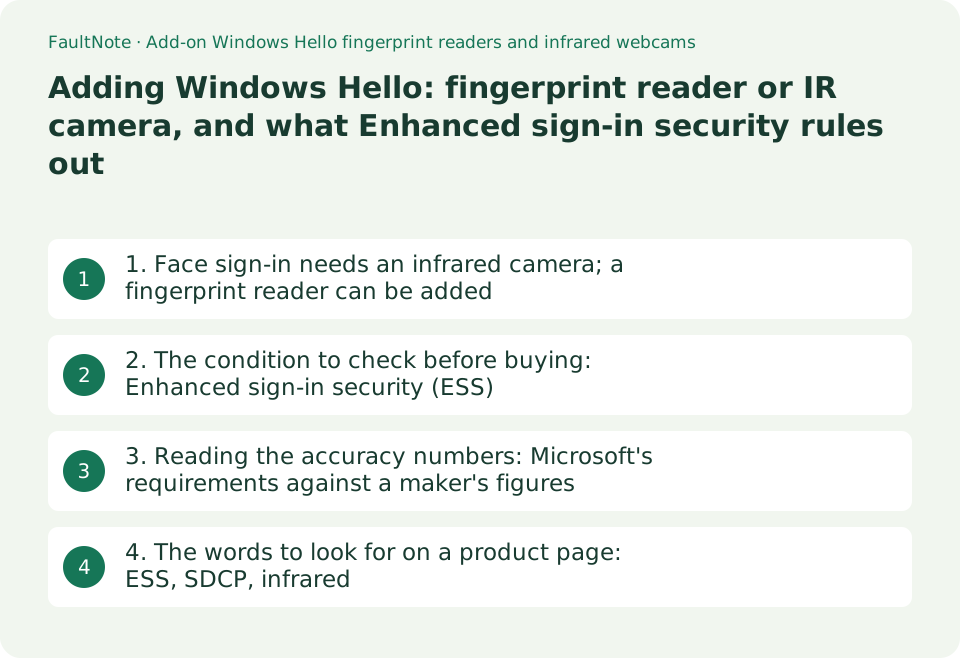
1. Face sign-in needs an infrared camera; a fingerprint reader can be added
Windows Hello offers three ways to sign in: face, fingerprint and PIN. Microsoft's setup page tells you to open Settings > Accounts > Sign-in options and says that selecting Facial recognition (Windows Hello) sets up "facial recognition sign-in with your PC's infrared camera or an external infrared camera". Put the other way round, an ordinary webcam without infrared does not produce that option at all.
Microsoft also explains why infrared. The Microsoft Learn article on face authentication says Windows Hello uses "a camera specially configured for near infrared (IR) imaging", that IR provides a consistent image across very different lighting conditions, and that because IR is a different wavelength it does not show up in photos or on an LCD display, which helps prevent the most accessible spoofing attacks. Resolution and HDR, in other words, have nothing to do with whether face sign-in is available.
The fingerprint condition is straightforward. The same Microsoft page states: "Signing in with your fingerprint requires your device to have a fingerprint reader. If your device didn't come with one of those you can purchase one that can be connected to your device via USB from any of a number of popular retailers." On a desktop or self-built PC with no built-in camera, this is usually the wider set of options.
Behaviour that matters after the purchase is published too. The face algorithm checks that the user is facing the device within plus or minus 15 degrees so that enough of the face is in view, and raises the match threshold when multiple users are enrolled on the system. No image of the face is ever stored, only a representation, and Microsoft lists cases that need an additional enrolment: occasionally wearing certain types of glasses, major changes to facial shape or texture, and moving into environments with high ambient near-IR light such as taking the device outside into sunshine.
Scroll horizontally to see the full table →
| Sign-in method | Requirement as published by Microsoft | Can it be added later? |
|---|---|---|
| Facial recognition (Windows Hello) | Your PC's infrared camera or an external infrared camera; a camera configured for near-IR imaging | Yes, but only a product that states infrared support (see the ESS condition in the next section) |
| Fingerprint recognition (Windows Hello) | The device must have a fingerprint reader; Microsoft states you can buy a USB one if it didn't come with one | Yes. USB products are the usual route |
| PIN (Windows Hello) | No extra hardware; the PIN is associated with one device only | No hardware purchase is involved |
| A webcam with no infrared | The face requirement is written as an infrared camera | Not usable for face sign-in. Resolution or HDR is no substitute |
| A PC with several people enrolled | Microsoft states the match threshold increases as more users are enrolled | Expect recognition to be stricter on a shared family PC |
2. The condition to check before buying: Enhanced sign-in security (ESS)
Microsoft devotes a page to the usual reason a newly connected device produces no option: "You may not be able to sign in using Windows Hello with an external or third-party fingerprint reader or camera if your Windows 11 PC has Enhanced sign-in security enabled." ESS protects biometric data with dedicated hardware and software components such as Virtualization Based Security (VBS) and Trusted Platform Module 2.0, and Microsoft explains the restriction directly: since the ESS ecosystem is tightly controlled, "introducing new items like non-secure peripheral cameras and fingerprint readers may open the door for potential malicious users to access your biometrics".
The important part is that cameras and fingerprint readers are treated asymmetrically. Microsoft states that "Enhanced sign-in security is not supported for external camera modules" - so signing in with an external IR camera while keeping ESS on is simply not an option. For fingerprint readers it says that "some external fingerprint readers labelled as 'Windows Hello compatible' do support Enhanced sign-in security, but if not, you will have to disable Enhanced sign-in security to get your camera or fingerprint reader to let you sign in".
Turning it off has a price. Microsoft writes: "On disablement, existing Enhanced sign-in security enrollments and associated credentials, such as passkeys, will be removed. These can be reprovisioned after set up." Re-enrolment is possible, but if you rely on passkeys for work you want to know the scope beforehand. Microsoft also notes that even with ESS on you can still use external peripherals inside apps such as Teams - they just cannot be used to sign in.
The location and name of the setting change between Windows versions. On Windows 11 version 24H2 or newer, Settings > Accounts > Sign-in options > Additional settings has an "Enhanced sign-in security" toggle: On means ESS is enabled and non-ESS peripherals cannot sign you in, Off means they can. On Windows 11 version 23H2 the toggle is named "Sign in with an external camera or fingerprint reader", and the sense is reversed - Off means ESS is enabled, On means ESS is disabled. If there is no toggle, Microsoft explains that the PC may not detect a sensor that is incompatible with ESS, or the organization may have disabled non-ESS Windows Hello devices; and on machines that instead show ESS as available to set up, the first sensor you enrol determines the ESS state.
Scroll horizontally to see the full table →
| Windows version or state | Setting location and name as published | Effect on external and third-party devices |
|---|---|---|
| Windows 11 24H2 or newer (ESS device) | Settings > Accounts > Sign-in options > Additional settings > "Enhanced sign-in security" | Left On, a non-ESS device cannot sign you in. Buy an ESS-capable device or turn it off |
| Windows 11 24H2 or newer (non-ESS device) | The same toggle | Turning it off enables the use of devices that are not ESS capable |
| Windows 11 23H2 | "Sign in with an external camera or fingerprint reader" | Off means ESS is enabled and external devices cannot sign you in; On means ESS is disabled (the reverse of 24H2) |
| No toggle shown | Microsoft: the PC doesn't detect an ESS-incompatible sensor, or the organization disabled non-ESS devices | On a work PC you may not be able to change the setting at all |
| External camera modules | "Enhanced sign-in security is not supported for external camera modules" | If you keep ESS, signing in with an external IR camera is not on the table |
| When ESS is turned off | Existing ESS enrolments and associated credentials such as passkeys are removed | They can be reprovisioned; plan for re-enrolling passkeys |
3. Reading the accuracy numbers: Microsoft's requirements against a maker's figures
Microsoft Learn's Windows Hello biometric requirements split fingerprint sensors into three classes by area and set a false accept rate (FAR) ceiling for each. Large area sensors (a sensor matrix of 160 x 160 pixels or more at 320 dpi or greater) must have FAR < 0.001%; small area sensors (less than 160 x 160 at 320 dpi or greater) FAR < 0.002%; swipe sensors FAR < 0.002%. Every class also requires an "effective, real world FRR with antispoofing or liveness detection <10%", with presentation attack defense measures a requirement (antispoofing measures for swipe sensors).
The facial requirement is FAR < 0.001% and TAR > 95%. The face authentication article is more specific about the shipping algorithm: for Windows 11 it gives a false positive rate of "Less than 0.001% or 1/100,000 FAR", a true positive rate "Greater than 95% with a single enrolled user" and a false negative rate "Less than 5% with a single enrolled user". The single-enrolled-user condition matters, because as the previous section noted the threshold rises when more people are enrolled.
Read a product's figures alongside those. Kensington publishes an FRR of 2.2% and a FAR of 0.0001% for both the VeriMark IT 2.0 and the VeriMark Desktop 2.0. That FAR is smaller than Microsoft's small-area requirement of under 0.002% and that FRR is well under the 10% requirement. These are the manufacturer's own published figures, though, and the product pages state no measurement conditions or test method. They are not measurements made by this site.
The dates on the referenced documents are worth stating. The biometric requirements page shows "Last updated on 2020-11-09" and the face authentication article "Last updated on 2021-07-15". The numbers are as published on those dates and are not guaranteed to match the current Windows implementation, so open the same pages again just before buying.
Scroll horizontally to see the full table →
| Measure | Published figure | How to read it |
|---|---|---|
| Large-area fingerprint sensor (160 x 160 pixels or more at 320 dpi or greater) | FAR < 0.001% (Microsoft) | The larger class carries the stricter requirement |
| Small-area fingerprint sensor (less than 160 x 160) | FAR < 0.002% (Microsoft) | A small USB dongle sensor is expected to fall in this class |
| Swipe sensor | FAR < 0.002%, antispoofing measures required (Microsoft) | The type you slide a finger across; a separate class from a stationary pad |
| Fingerprint FRR | Effective real-world FRR with antispoofing or liveness detection under 10% (Microsoft) | Shows that being rejected once in ten attempts is still inside the requirement |
| Facial recognition | FAR < 0.001%, TAR > 95% (Microsoft). The Windows 11 algorithm is 1/100,000 FAR with under 5% false negatives | All of these are figures for a single enrolled user |
| Manufacturer figures (Kensington VeriMark IT 2.0 / Desktop 2.0) | FRR 2.2%, FAR 0.0001% | The maker's own published values; the product page states no measurement conditions |
4. The words to look for on a product page: ESS, SDCP, infrared
If you want to keep ESS on, look for "ESS" and "SDCP" on the product page. Kensington describes both the VeriMark IT 2.0 and the VeriMark Desktop 2.0 as complying with "Microsoft's Secure Device Connection Protocol (SDCP) and Windows Hello Enhanced Sign-in Security (ESS), providing an extra layer of protection for fingerprint authentication and isolating biometric data from system level threats", with the footnote "Windows Hello Enhanced Sign-in Security requires a PC running Windows 11 with the latest updates". A product that says neither word should be treated as one you will have to turn ESS off to use.
Roles differ inside a single brand, too. Kensington's VeriMark Guard is a FIDO2 / WebAuthn (CTAP2) / FIDO U2F security key, and its own product description says "for Windows Hello, refer to VeriMark or VeriMark IT". A model that has a fingerprint sensor and looks like the flagship is therefore not necessarily the Windows sign-in product. Decide first whether you are buying for signing in to Windows or for passwordless authentication to web services, then look at model numbers. Note also that as captured on 2026-09-19 the VeriMark IT 2.0 product page displayed "This product is no longer available. Please click on the replacement SKU." and listed SKU K64705WW as Discontinued. Its specifications remain on the page, but check availability with a retailer.
Placement is easy to overlook. The Desktop 2.0 supports both USB-C and USB-A and is described as having a 3.9ft (1.2m) cable that "allows practical desk level sensor placement even when the PC is under a desk". A dongle that plugs straight into the machine, by contrast, means bending down to a tower on the floor every time. If you run Windows on ARM, check for an architecture statement of the kind the IT 2.0 makes: it states support for Windows 11 on x86 and ARM architectures.
For a camera, the deciding words are infrared or Windows Hello. Logitech writes of the Brio 4K that "with integrated optical and infrared sensors, [it] supports Windows Hello, enabling fast and secure facial recognition for Windows login". In the Brio 100, Brio 500 and MX Brio specification text captured on 2026-09-19, by contrast, neither "Windows Hello" nor "infrared" appeared - an observation limited to the pages as captured. A shared series name is no guarantee, so check per model. Choosing the webcam itself - resolution, field of view and autofocus - is covered in our separate webcam guide.
Scroll horizontally to see the full table →
| What to check | Example of the wording to look for | What its absence means |
|---|---|---|
| ESS support | "Complies with Windows Hello Enhanced Sign-in Security (ESS)" | Plan on turning ESS off to use the device |
| SDCP support | "Secure Device Connection Protocol (SDCP)" | Usually printed alongside ESS; with neither, treat it as a non-ESS device |
| What the product is for | "Windows Hello" against "FIDO2 security key" | The VeriMark Guard points you to VeriMark or VeriMark IT for Windows Hello |
| Connection and placement | USB-C and USB-A support, cable length (1.2m on the Desktop 2.0) | A straight-in dongle is awkward when the PC sits on the floor |
| Operating system and architecture | "Supports Windows 11 on x86 and ARM architectures" | On an ARM machine, check that the statement is there |
| Infrared on a camera | "Integrated optical and infrared sensors", "supports Windows Hello" | A webcam without it cannot be set up for face sign-in |
Limitations and requirements
- The requirements and steps here are as published on pages captured on 2026-09-19. Microsoft Learn's biometric requirements page shows "Last updated on 2020-11-09" and the face authentication article "Last updated on 2021-07-15", so they are not guaranteed to match the current Windows implementation. Microsoft also states that the 24H2 ESS setting is rolling out in phases and will not appear on all devices at the same time.
- Figures such as FRR 2.2% and FAR 0.0001% are values the manufacturer publishes on its own product pages, with no measurement conditions or test method stated. They are not results measured by this site. Microsoft closes its external-device article by stating that it "does not support any device or peripheral not sold by Microsoft".
- Microsoft states that disabling Enhanced sign-in security removes existing ESS enrolments and associated credentials such as passkeys. On a work or school PC the toggle may be absent because the organization has disabled non-ESS devices, so check with your administrator before changing the setting.
Frequently asked questions
Can I use the 4K webcam I already own for Windows Hello face sign-in?
No. Microsoft's setup page describes face sign-in as configured "with your PC's infrared camera or an external infrared camera", and Microsoft Learn explains that the feature uses a camera specially configured for near infrared imaging. Because IR is a different wavelength it does not appear in photos or on an LCD display, which is also how it resists the most accessible spoofing attacks. Resolution and HDR are not requirements, so judge by whether the product page states an infrared sensor or Windows Hello support. Logitech states for the Brio 4K that it has integrated optical and infrared sensors and supports Windows Hello.
My external fingerprint reader is connected but Fingerprint recognition does not appear in Sign-in options.
Windows 11 Enhanced sign-in security (ESS) may be enabled. Microsoft's procedure is to connect the device following the manufacturer's instructions, then open Settings > Accounts > Sign-in options and look under Additional settings. On 24H2 or newer the toggle is named "Enhanced sign-in security"; on 23H2 it is "Sign in with an external camera or fingerprint reader" and its sense is reversed, so read the behaviour rather than the name. A device that is not ESS capable requires ESS to be off, and Microsoft states that disabling it removes existing ESS enrolments and associated credentials such as passkeys. If there is no toggle at all, the PC may not detect an ESS-incompatible sensor or your organization may have disabled non-ESS devices. A PIN that itself stops working or asks to be recreated is a different problem - see our separate article on Windows Hello PIN issues.
On a desktop PC, is a fingerprint reader or an IR camera the more realistic addition?
Because the conditions are asymmetric, a fingerprint reader is usually the wider choice. Microsoft states that "Enhanced sign-in security is not supported for external camera modules", so there is no supported way to sign in with an external IR camera while ESS stays on. Fingerprint readers, by contrast, include models such as Kensington's VeriMark IT 2.0 and Desktop 2.0 that state compliance with ESS and SDCP, which can mean not having to turn ESS off. On the other hand, if you were going to replace your meeting webcam anyway and you are not using ESS (or are willing to turn it off), buying a camera that states infrared support lets one device cover both face sign-in and video calls. If you choose a stationary reader, check the cable length so the sensor can sit within reach when the PC is on the floor.
Sources and verification date
Sources checked: . These sources support the specifications, procedures or prices discussed here. Check each source for applicable conditions and current information.
- Microsoft: Configure Windows Hello ↗
- Microsoft: Using third-party fingerprint readers and cameras with Windows Hello ↗
- Microsoft: Enhanced Sign-in Security in Windows ↗
- Microsoft Learn: Windows Hello biometric requirements ↗
- Microsoft Learn: Windows Hello face authentication ↗
- Kensington: VeriMark Desktop 2.0 Fingerprint Key ↗
- Kensington: VeriMark IT 2.0 USB-C Fingerprint Key ↗
- Kensington: VeriMark Guard USB-C Fingerprint Security Key ↗
- Logitech: Brio 4K HDR Webcam ↗
Related practical guides
- Choosing a FIDO2 security key: what the certification level means, and the combinations the OS already rules out
- Camera privacy shutters versus kill switches: why the LED stays on, and what happens to face sign-in
- USB vs PCIe Wi-Fi Adapter: Check Installation Requirements, Bluetooth and Speed Labels Before Buying
- Choosing a Webcam: Resolution and Frame Rate Pairs, Field of View, Fixed Focus vs Autofocus
- Adding Bluetooth to a desktop PC: reading a USB adapter's version number, placement and limits
- Use your phone as a webcam, or buy one? What Windows 11 documents, and what it does not