How to Choose a USB-C Cable: 60W vs 240W Power Marks, 10Gbps to 80Gbps Data Rates and Video Output by Use
On a USB-C to USB-C cable, power (60W or 240W) and data rate (480Mbps to 80Gbps) are separate capabilities. USB-IF documents state that a USB 2.0 Type-C cable physically cannot carry USB 3.2 or USB4 signals, even if it is rated for 240W, and it does not implement the Alternate Mode signals used for video. For laptop charging alone, a USB 2.0 cable with enough wattage is sufficient; for external SSDs, USB4 docks and USB-C monitors, choose a cable rated for at least the device's data rate.
Published · Updated · FaultNote editorial policy
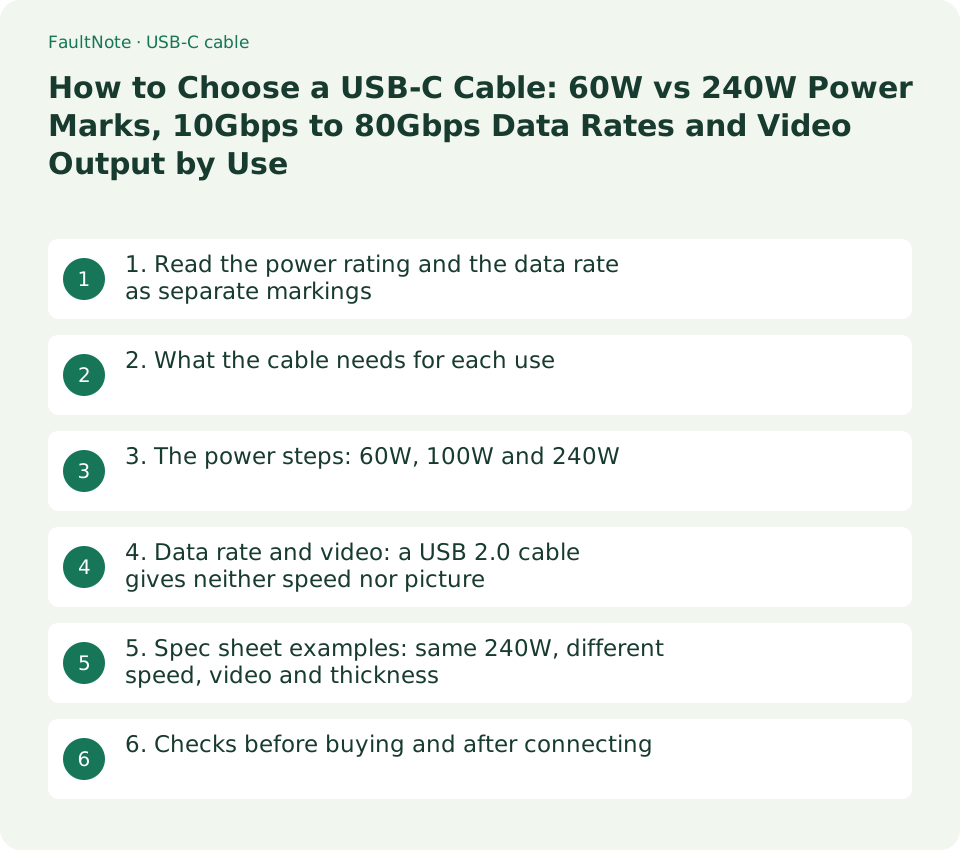
Who this guide is for and what to prepare
- People who know whether the cable is for laptop charging, an external SSD, a USB-C monitor or a dock, but are unsure which of the "240W", "40Gbps" or "USB4" markings actually matters
- People replacing a short or lost bundled cable who want to avoid losing speed or video output on the devices they already use
What you need
- Model numbers of the devices you will connect (PC, charger, external SSD, dock, monitor) and the spec sheet for the USB-C port you will use (data rate, video output, charging wattage)
- The spec sheet of each candidate cable (data rate, power rating, length, video output statement, USB-IF certification)
1. Read the power rating and the data rate as separate markings
USB-C names the connector shape; it says nothing about what a cable can do. USB-IF's USB Type-C Cable Logo Usage Guidelines require USB-C to USB-C cables going through USB-IF compliance to carry a cable logo, embossed or printed on the overmold, that matches their data rate and power rating. The document's example is a USB 20Gbps cable that supports 20V at 3A, which must be marked with the combined 20Gbps/60W logo.
By contrast, USB 2.0 Type-C 240W and 60W cables deliver data at up to 480Mbps, but that data capability is not required on the cable and is not reflected in the charging logos. A cable marked only "240W" may therefore be a 480Mbps cable. For data rates, USB-IF recommends the consumer names USB 80Gbps, USB 40Gbps, USB 20Gbps, USB 10Gbps and USB 5Gbps; product pages may also list specification names such as "USB4 Gen3" or "Gen 2x2".
The guidelines say certified logos may be used only with products that passed USB-IF compliance testing and are on the Integrators List. A logo image on a store listing is not proof on its own, so also check the model number and certification field on the maker's spec sheet.
Scroll horizontally to see the full table →
| Cable marking | What it tells you | What the marking alone does not tell you |
|---|---|---|
| Data rate plus wattage (e.g. 20Gbps/60W) | USB-IF certified data rate and power limit | Video resolution; specs of other lengths in the same line |
| Wattage only (60W / 240W) | Power limit. USB 2.0 Type-C cables do not show their data rate | Whether it works for fast data or video |
| Only words such as "fast charging" or "high speed" | Nothing can be confirmed from a USB-IF logo | Wattage and data rate; check the numbers in the spec sheet |
| Thunderbolt (Intel certification) | Intel's material says cables must be certified; Thunderbolt 4 cables up to 2 m | Speed with non-Thunderbolt devices (check product specs) |
2. What the cable needs for each use
Match the cable to the most demanding thing you will connect. Charging needs wattage, data needs a rate supported by both the PC and the device, and video needs Alternate Mode support. Microsoft's support article on USB-C problems likewise says the charger and cable must support the power level the PC requires, the cable must support the same USB-C features as the connected device, and USB4 devices should use the cable supplied by the device or dock maker or a certified USB4 cable.
A faster cable also works at lower speeds. USB-IF describes USB4 as backward compatible with previous USB versions, and Sanwa Supply's USB 40Gbps cable spec lists USB 3.2 Gen2/Gen1 support. Choosing the higher-rated cable avoids speed problems, but in the products checked here the faster cables are also thicker (section 5).
Scroll horizontally to see the full table →
| Use | What the cable needs | What happens if it falls short |
|---|---|---|
| Laptop charging (60W or less) | 60W or 240W power rating; USB 2.0 data is fine | A lower power limit can mean slow charging or no charging |
| Laptop charging (above 60W, up to 240W) | Up to 100W: rated 100W (5A) or more; above 100W: 240W (the range added in USB PD 3.1) | A 60W cable cannot use the charger's full output |
| External SSD (USB 10Gbps / 20Gbps) | Data rate equal to or higher than the device | A USB 2.0 cable runs at 480Mbps |
| USB4 (40Gbps / 80Gbps) SSD or dock | The bundled cable, or a certified cable of the same data rate | Windows may notify you that functionality might be limited |
| Monitor with USB-C input (DisplayPort Alt Mode) | A cable stated to support video output (Alt Mode) | A USB 2.0 cable lacks the video signal lines, so no picture |
- In each device's spec sheet, note the data rate (e.g. USB 10Gbps), whether it uses video output, and the charging wattage the PC needs.
- Pick every use in the table that this cable might serve and take the highest requirement as the cable's requirement.
- Confirm the cable's spec sheet lists all three: data rate, wattage and video output. Treat anything not listed as unsupported.
3. The power steps: 60W, 100W and 240W
According to USB-IF's USB Power Delivery page, USB PD Revision 3.1, announced in 2021, enables up to 240W over a full-featured USB Type-C cable and connector. Before that update, USB PD was limited to 100W at 20V using USB Type-C cables rated at 5A. The new 28V, 36V and 48V fixed voltages enable 140W, 180W and 240W respectively.
In the cable logo guidelines, 60W is the marking example for a cable that supports 20V at 3A. With a 65W or 100W charger, a 60W cable cannot use the charger's full output, so choose a cable with a higher rating; chargers above 100W, such as 140W, need a 240W cable. The power actually delivered is set by what the PC requests, and the cable rating is only a ceiling: a 240W cable does not charge faster than the PC and charger allow.
Scroll horizontally to see the full table →
| Charger and PC power | Cable power rating to choose | Reason (USB-IF documents) |
|---|---|---|
| 60W or less | 60W or 240W | The 60W logo example is a 20V / 3A cable |
| Above 60W, up to 100W | Explicitly rated for 100W (5A) or more, or 240W | Before USB PD 3.1: up to 100W at 20V with 5A-rated cables |
| 140W, 180W, 240W | 240W | 28V / 36V / 48V give 140W / 180W / 240W |
4. Data rate and video: a USB 2.0 cable gives neither speed nor picture
USB-IF's USB Type-C Language Product and Packaging Guidelines (March 20, 2023) state that a USB 2.0 Type-C cable physically cannot support USB 3.2 or USB4 signals and does not implement the TX/RX and Alternate Mode (SBU) signals. A USB 3.2 or USB4 host or device used with a USB 2.0 Type-C cable will perform at the slower USB 2.0 speed. To get the full benefit of USB 3.2 or USB4, both the host and the device must support it and a full-featured USB Type-C cable must be used.
For showing a PC's picture on a USB-C monitor, Microsoft's support article says the PC, the external display and the cable must all support DisplayPort or another Alternate Mode. For USB4 at 80Gbps, USB-IF describes operation up to 80Gbps over 80Gbps certified cables, so use an 80Gbps cable with 80Gbps devices.
Scroll horizontally to see the full table →
| Device | Minimum cable requirement | Result with a USB 2.0 Type-C cable |
|---|---|---|
| USB 10Gbps / 20Gbps external SSD | USB 10Gbps / 20Gbps or higher | Runs at USB 2.0 speed (480Mbps) |
| USB4 (40Gbps) SSD or dock | Bundled cable, or a certified USB 40Gbps cable | Runs at USB 2.0 speed |
| USB 80Gbps (USB4 Version 2.0) device | Certified USB 80Gbps cable | Runs at USB 2.0 speed |
| Monitor with USB-C input | Stated video output (DisplayPort Alt Mode) support | No Alt Mode signals, so no picture |
5. Spec sheet examples: same 240W, different speed, video and thickness
On September 13, 2026, we checked four Sanwa Supply product pages that all describe the cable as "PD 240W, USB certified". All four list up to 240W (48V/5A) power, an eMarker, and certification. They were chosen because the maker's spec sheets allow a like-for-like comparison, not because of sales or price rankings. Elecom product pages were also tried but access was denied, so they are not included.
The USB 2.0 KU-CCPE10 is thin at 3.1 mm, transfers data at 480Mbps, and its page states that it does not support DisplayPort Alternate Mode, so it cannot output video. The USB 20Gbps and 40Gbps models state DisplayPort Alt Mode video output, but are 4.8 to 5.0 mm thick. The USB 20Gbps model comes in 1 m and 2 m versions with the same listed data rate, power and video. Check the maker's lineup for each model to see whether other lengths exist.
Scroll horizontally to see the full table →
| Model | Data rate | Length | Video output (as stated) | Diameter |
|---|---|---|---|---|
| KU-CCPE10 | 480Mbps (USB 2.0) | 1 m | Not supported (stated) | 3.1 mm |
| KU-20GCCPE10 | 20Gbps | 1 m | 4K 60Hz | 5.0 mm |
| KU-20GCCPE20 | 20Gbps | 2 m | 4K 60Hz | 5.0 mm |
| KU-40GCCPE10 | 40Gbps | 1 m | 8K 60Hz | 4.8 mm |
6. Checks before buying and after connecting
If you want one cable for everything, choose one that meets the highest requirement among your likely uses (for example 40Gbps for a USB4 dock plus charging above 100W). For a cable carried only for charging, a thin USB 2.0 240W cable meets the requirement. When replacing a bundled cable, check the original's model or specs and choose one with the same or higher data rate and wattage.
If Windows shows a notification such as "USB device functionality might be limited" after connecting, or an SSD is slower than expected, swap in the bundled or a certified cable and compare with a direct connection to the PC without a hub. If a monitor shows no picture, also check that the PC's port supports video output.
- Note the data rate, video output and charging support from the spec sheets of the PC's USB-C port and the connected device.
- In the cable's spec sheet, confirm the data rate, wattage, length, video output statement and USB-IF or Thunderbolt certification.
- After connecting, check the charging status, file copy speed and monitor picture; if a notification appears, swap the cable and compare with a direct connection.
Limitations and requirements
- A cable's wattage is a ceiling. It does not make a PC or charger deliver power they do not support, and a 240W cable does not charge faster than the charger and PC specifications allow.
- Do not rely on a logo image or words like "high speed" or "fast charging" on a store listing; check the data rate, wattage, video output and certification in the maker's spec sheet.
- Stop using and replace any cable with a torn jacket, a deformed connector or abnormal heat during use.
Frequently asked questions
Will a 240W cable also work for an external SSD or a monitor?
Wattage alone does not tell you. USB-IF documents state that USB 2.0 Type-C 240W cables transfer data at 480Mbps and lack the Alternate Mode signals used for video. Check that the spec sheet lists a data rate (e.g. USB 10Gbps or higher) and video output.
Does a fast USB4 cable always support 240W charging?
Not necessarily. USB-IF's logo examples include combinations such as 20Gbps/60W, where the data rate is high but power is limited to 60W. If you will also charge above 100W, confirm the cable's power rating is 240W.
The bundled cable is too short. Can I switch to a longer one?
A cable with the same data rate and wattage as the bundled one is likely to work, but some product lines do not offer longer versions. For USB4 devices, Microsoft recommends the cable supplied by the device maker or a certified USB4 cable. Intel's material describes Thunderbolt 4 cables up to 2 m.
My monitor shows nothing over a USB-C cable. Is the cable the cause?
It will not work if the cable lacks video output (DisplayPort Alt Mode) support, but the PC's USB-C port and the monitor's input must support it too. If a cable stated to support video still shows nothing, check the PC port's specs and the monitor's input setting.
Sources and verification date
Sources checked: . These sources support the specifications, procedures or prices discussed here. Check each source for applicable conditions and current information.
- USB-IF: USB Type-C Cable Logo Usage Guidelines (PDF) ↗
- USB-IF: USB Type-C Language Product and Packaging Guidelines (March 20, 2023, PDF) ↗
- USB-IF: USB Data Performance Language Usage Guidelines (January 2024, PDF) ↗
- USB-IF: USB Charger (USB Power Delivery) ↗
- USB-IF: USB4 ↗
- Microsoft Support: Fix USB-C problems in Windows ↗
- Intel: Thunderbolt 4 one-pager (PDF) ↗
- Sanwa Supply: KU-CCPE10 (USB 2.0 Type-C PD 240W cable, 1 m) ↗
- Sanwa Supply: KU-20GCCPE10 (USB 20Gbps Type-C cable, 1 m) ↗
- Sanwa Supply: KU-20GCCPE20 (USB 20Gbps Type-C cable, 2 m) ↗
- Sanwa Supply: KU-40GCCPE10 (USB 40Gbps Type-C cable, 1 m) ↗
Related practical guides
- Choose a USB-C laptop charger: wattage, USB PD and cable support
- Your case says 20Gbps on the front Type-C. Your motherboard may not agree
- Choosing an M.2 SSD enclosure: USB 10Gbps vs 20Gbps vs USB4 (40Gbps) vs Thunderbolt, and checking your PC's port
- USB-C Monitor Not Working or Stuck at a Low Refresh Rate: Check DP Alt Mode and Lane Allocation
- External SSD vs HDD for backups: capacity, speed and portability
- USB vs PCIe Wi-Fi Adapter: Check Installation Requirements, Bluetooth and Speed Labels Before Buying