Choosing an M.2 SSD enclosure: USB 10Gbps vs 20Gbps vs USB4 (40Gbps) vs Thunderbolt, and checking your PC's port
An M.2 SSD enclosure's speed is set by the slowest of four parts: your PC's port, the cable, the enclosure, and the SSD inside, not by the maximum printed on the box. First check whether your PC's port supports USB 10Gbps, 20Gbps or 40Gbps (USB4/Thunderbolt), then choose an enclosure that matches it. Before buying, also check NVMe versus SATA, whether a heatsink SSD fits, and whether heat will slow the drive.
Published · Updated · FaultNote editorial policy
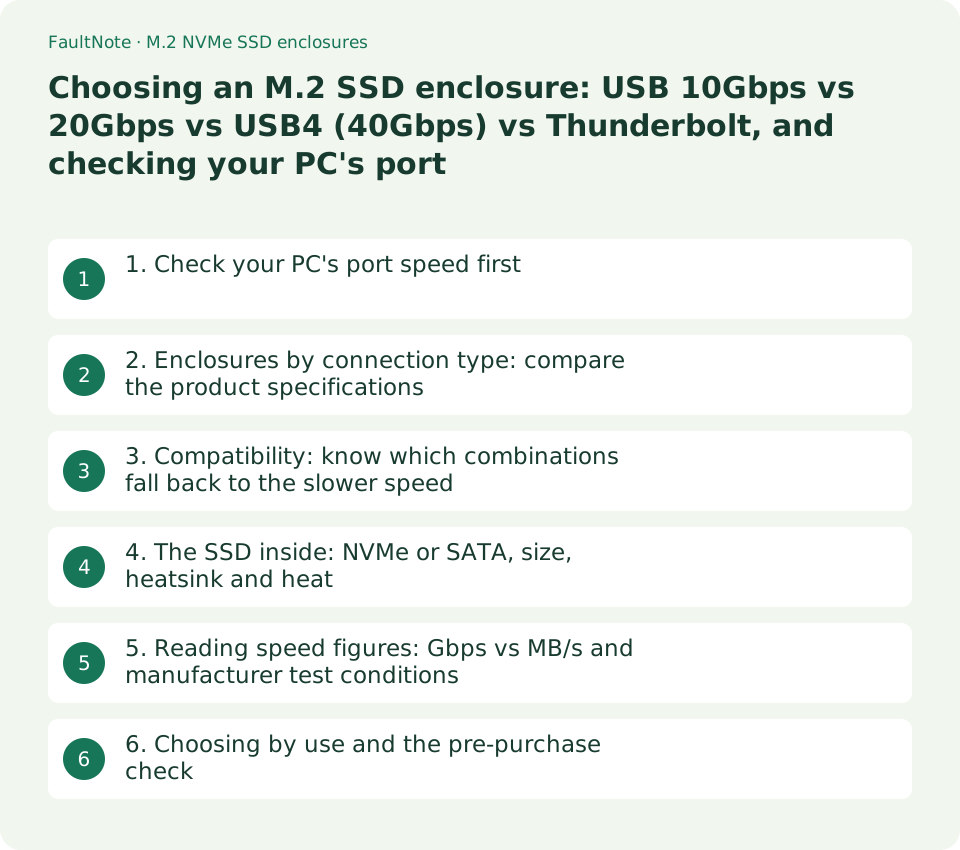
Who this guide is for and what to prepare
- People who want to turn a spare or newly bought NVMe M.2 SSD into an external drive but cannot tell which USB 10Gbps, 20Gbps or USB4 enclosure will actually be fast on their PC
- People planning to work with video footage or game data on an external SSD who want to judge whether a Thunderbolt or USB4 enclosure is worth the extra cost
What you need
- The model of the PC (or motherboard) and the specification of the USB Type-C or Type-A port you plan to use (labels such as "USB 20Gbps", "USB4" or "Thunderbolt 4")
- The model of the SSD you will install (NVMe or SATA, M.2 length 2230 to 2280, heatsink or not, PCIe generation)
1. Check your PC's port speed first
USB-IF's USB Data Performance Language Usage Guidelines (January 2024) define five USB4 and USB 3.2 transfer rates, 80Gbps, 40Gbps, 20Gbps, 10Gbps and 5Gbps, and recommend consumer names such as "USB 40Gbps", "USB 20Gbps" and "USB 10Gbps". The guidelines state that specification names such as "USB 3.2" and "USB4 Version 1.0" are not intended for product names or packaging, which is why product pages mix Gen names and speed names.
USB-IF's USB4 page explains that USB4 is based on the Thunderbolt protocol specification, is compatible with existing USB 3.2, USB 2.0 and Thunderbolt 3 devices, and that the connection scales to the best mutual capability of the devices connected. In other words, a fast enclosure on a port limited to 10Gbps connects at 10Gbps. Before choosing an enclosure, check the speed of the port you will use in the PC or motherboard specifications.
Scroll horizontally to see the full table →
| Consumer name (USB-IF recommendation) | Specification name often seen on product pages | Signalling rate |
|---|---|---|
| USB 10Gbps | USB 3.2 Gen 2, USB 3.1 Gen 2 | 10Gbps |
| USB 20Gbps | USB 3.2 Gen 2x2 | 20Gbps |
| USB 40Gbps | USB4 (40Gbps); Thunderbolt 4 and 3 are 40Gbps | 40Gbps |
| USB 80Gbps | USB4 Version 2.0; Thunderbolt 5 is 80Gbps (bi-directional) | 80Gbps |
- In the PC or motherboard specifications, find the label of the port you plan to use (USB 10Gbps / USB 3.2 Gen 2, USB 20Gbps / Gen 2x2, USB4, Thunderbolt 4/5)
- Type-C ports that look the same can have different speeds, so check the row for the exact port you will plug into: rear, front or the case front panel
2. Enclosures by connection type: compare the product specifications
The table lists products whose manufacturer specifications could be checked, to show what each connection type requires. It is not a performance ranking or price comparison. No external SSD enclosure specification for USB 20Gbps was checked for this article, so a portable SSD with the same 20Gbps connection (Samsung T9) is shown for reference.
For Thunderbolt 5, Intel's announcement (September 12, 2023) states 80Gbps of bi-directional bandwidth, up to 120Gbps with Bandwidth Boost for video-heavy use, double the PCI Express data throughput of Thunderbolt 4, and a basis in USB4 Version 2.0, DisplayPort 2.1 and PCI Express Gen 4. No Thunderbolt 5 SSD enclosure specification was checked for this article, so the table shows only the standard's figures.
Scroll horizontally to see the full table →
| Connection type | Product or document checked | Main conditions in the specification | Suited to |
|---|---|---|---|
| USB 10Gbps (USB 3.2 Gen 2) | Logitec LGB-PNV02UC | M.2 NVMe SSDs (2230 to 2280) only, M.2 SATA SSDs cannot be used; silicone thermal pad (2.5 mm); Type-C and Type-A cables included (about 20 cm each) | Laptops and desktops with ports up to 10Gbps, or reusing an SSD you already have at low cost |
| USB 20Gbps (USB 3.2 Gen 2x2) | Samsung Portable SSD T9 (a portable SSD, not an enclosure) | Interface USB 3.2 Gen 2x2 (20Gbps); maximum speed from Samsung's internal testing with the enclosed cable, varying with host configuration, cable and environment | PCs or motherboards whose specifications list a "USB 20Gbps" or "Gen 2x2" port |
| USB4 (40Gbps) | Logitec LHR-LPNVWU4CD, Century CFUM2NU40G | Logitec lists USB4 40Gbps plus 20Gbps / 10Gbps / 5Gbps and Thunderbolt 3/4 support, PCIe Gen3/Gen4 NVMe SSDs, up to 4TB. Century lists use on USB4 down to USB 5Gbps Type-C ports or Thunderbolt 4 ports, a 30 mm fan, and no support for SSDs with heatsinks | PCs with a USB4 or Thunderbolt 4 port that often copy large video files |
| Thunderbolt 5 (80Gbps) | Intel announcement (no product specification checked) | 80Gbps bi-directional, up to 120Gbps with Bandwidth Boost (for video), double Thunderbolt 4's PCI Express data throughput, passive cables up to 1 m | PCs with a Thunderbolt 5 port, once a compatible enclosure's specification and price can be checked individually |
- In the candidate enclosure's specifications, check the connection type (USB 10Gbps / 20Gbps / USB4 40Gbps / Thunderbolt) and the list of ports it is backward compatible with
- Check the type and length of the included cable and whether it matches your PC's port shape (Type-A or Type-C)
3. Compatibility: know which combinations fall back to the slower speed
USB-IF explains that a USB4 connection scales to the best mutual capability of both devices. Logitec's USB4 enclosure lists support for 20Gbps, 10Gbps and 5Gbps as well, and Century's USB4 enclosure lists use on Type-C ports down to USB 5Gbps. They work on slower ports, but only up to that port's limit.
USB 20Gbps (Gen 2x2) needs a PC port that also supports 20Gbps. Samsung notes that the T9's performance varies with host configuration and cable. Even if your PC has USB4 or Thunderbolt ports, do not assume a 20Gbps connection unless the specifications list "USB 20Gbps" or "Gen 2x2"; check with the manufacturer.
Scroll horizontally to see the full table →
| PC port | USB 10Gbps enclosure | USB 20Gbps device | USB4 (40Gbps) enclosure |
|---|---|---|---|
| USB 5Gbps | Connects at 5Gbps | Connects at 5Gbps (if backward compatibility is listed) | Connects at 5Gbps (if backward compatibility is listed) |
| USB 10Gbps | 10Gbps | 10Gbps | 10Gbps (if backward compatibility is listed) |
| USB 20Gbps (Gen 2x2) | 10Gbps | 20Gbps | 20Gbps if the enclosure lists 20Gbps support (Logitec does) |
| USB4 / Thunderbolt 4 (40Gbps) | 10Gbps | Whether it reaches 20Gbps must be checked against the port specification listing 20Gbps | 40Gbps (when both the enclosure and SSD support it) |
- Use the table below to find the ceiling for your PC's port and the candidate enclosure
- For combinations marked as needing a check, confirm the supported speed in the PC maker's specifications or with its support before buying
4. The SSD inside: NVMe or SATA, size, heatsink and heat
M.2 SSDs come in two types that look similar: NVMe (PCIe) and SATA. Logitec's LGB-PNV02UC states that M.2 SATA SSDs cannot be used, so a SATA SSD will not work in an NVMe-only enclosure. If you are reusing an SSD, check its interface from the model number first.
Watch the heat as well. Logitec explains that fast NVMe SSDs generate a lot of heat and that, without enough cooling, the SSD's thermal throttling can reduce transfer speed; it includes a silicone thermal pad. Century's CFUM2NU40G adds a 30 mm fan to an aluminium heatsink and thermal pad, but SSDs with heatsinks cannot be installed. If you reuse a heatsink SSD bought for a desktop, check whether the heatsink can be removed or whether the enclosure supports it.
Scroll horizontally to see the full table →
| What to check | Where in the specifications | What happens if it does not match |
|---|---|---|
| NVMe or SATA | Enclosure "supported SSD" and SSD "interface" | A SATA SSD in an NVMe-only enclosure does not work (Logitec LGB-PNV02UC states it cannot be used) |
| M.2 length | Enclosure supported sizes (such as 2230 to 2280) | The drive cannot be secured or the cover will not close |
| Heatsink | Enclosure notes | The drive does not fit (Century CFUM2NU40G does not support heatsink SSDs) |
| Maximum capacity | Enclosure supported capacity | Capacities above the listed value are not assured to work (Logitec LHR-LPNVWU4CD lists up to 4TB) |
| Cooling method | Body material, thermal pad, fan | Long copies may slow down because of thermal throttling |
- In the SSD's specifications, check the interface (NVMe/PCIe or SATA), length (2230 / 2242 / 2260 / 2280) and capacity, and compare them with the enclosure's support list
- For an SSD with a heatsink, confirm that the enclosure supports heatsink models; if not, choose an SSD without a heatsink
5. Reading speed figures: Gbps vs MB/s and manufacturer test conditions
USB speeds are usually given in Gbps (bits per second) and SSD speeds in MB/s (bytes per second). Dividing by 8 bits per byte gives 1,250 MB/s for 10Gbps, 2,500 MB/s for 20Gbps and 5,000 MB/s for 40Gbps. That is a simple ceiling taken straight from the signalling rate; real transfers lose some of it to protocol overhead, so these values are not reached.
Maximum speeds on product pages come with test conditions. Century states it measured with a Samsung 980 PRO 250GB and CrystalDiskMark 8.0.4, and that 40Gbps performance needs a USB4 PC and an SSD capable of that speed. Samsung notes its figure comes from internal testing with the enclosed cable and varies with host configuration and cable. Intel's Thunderbolt 4 document shows storage transfer examples based on minimum specification requirements of 3,000 MB/s for Thunderbolt 4, 1,500 MB/s for USB4 and 450 MB/s for USB 3.2 (a comparison of minimum requirements, not measurements of specific products).
Scroll horizontally to see the full table →
| Port speed | Simple conversion (Gbps × 1,000 ÷ 8) | Example figures from products and documents |
|---|---|---|
| 10Gbps | 1,250 MB/s | Intel's USB 3.2 example (based on minimum requirements) is 450 MB/s |
| 20Gbps | 2,500 MB/s | Samsung T9 up to 2,000 MB/s (internal testing) |
| 40Gbps | 5,000 MB/s | Logitec LHR-LPNVWU4CD up to 3,800 MB/s; Intel's Thunderbolt 4 example is 3,000 MB/s |
- In the footnotes for the maximum speed on the product page, check the PC, SSD and software used for testing
- Convert your PC port's speed with Gbps ÷ 8 and check whether the enclosure's maximum exceeds that ceiling (if it does, the extra speed will not be reached)
6. Choosing by use and the pre-purchase check
Once the PC port and SSD are settled, a good baseline is the most affordable connection type that uses your PC port's full speed. A USB4 enclosure also works on slower ports, so buying one ahead of a future USB4 or Thunderbolt PC is reasonable, but it will not be faster while you use it on the current PC.
Included cable lengths differ: about 20 cm for Logitec LGB-PNV02UC and about 50 cm for Century CFUM2NU40G. Thunderbolt 5 passive cables are specified up to 1 m. If you buy a longer cable separately, make sure it supports the enclosure's speed. Supported operating systems are listed per product, so check them for use with a Mac, iPad or game console.
Scroll horizontally to see the full table →
| Use and PC condition | Connection type to choose | Reason |
|---|---|---|
| The PC has ports only up to USB 10Gbps | USB 10Gbps enclosure | A higher-tier enclosure still connects at the port's 10Gbps limit |
| The PC has a USB 20Gbps (Gen 2x2) port | A USB 20Gbps device, or a USB4 enclosure that lists 20Gbps backward compatibility | It can use the port's 20Gbps |
| The PC has a USB4 / Thunderbolt 4 port and often copies large files | USB4 (40Gbps) enclosure with a PCIe NVMe SSD | An enclosure supporting the 40Gbps link and PCIe tunnelling can be faster |
| Reusing an old SATA M.2 SSD | An enclosure that supports SATA (not an NVMe-only one) | NVMe-only enclosures cannot use SATA SSDs |
- Check your PC port speed, the SSD's interface and size, and whether it has a heatsink in the specifications
- Check the candidate enclosure's supported ports, included cable length, supported operating systems and cooling
- After buying, first write and read some unimportant data and confirm the drive appears in Windows File Explorer before moving real data onto it
Limitations and requirements
- Specifications were checked on September 13, 2026 in published documents from USB-IF, Intel, Logitec, Century and Samsung. Prices were not compared; check stock and current prices with retailers.
- This article did not measure the speed or temperature of any SSD enclosure. The Gbps to MB/s conversion is a ceiling, and real transfer speed depends on the PC, cable, SSD and file types.
Frequently asked questions
Can I use a USB4 enclosure on a USB 10Gbps port?
Yes. Logitec's and Century's USB4 enclosures list use on slower USB ports. As USB-IF explains, though, the connection is set by what both sides support, so the speed is capped at the 10Gbps port's limit.
Can I put a desktop SSD with a heatsink straight into an enclosure?
It depends on the enclosure. Century's CFUM2NU40G does not support SSDs with heatsinks. Check the enclosure's notes; if heatsinks are not supported, use an SSD without one or check whether the SSD maker allows removing the heatsink.
What if I want to use an M.2 SATA SSD externally?
It will not work in an NVMe-only enclosure. Logitec's LGB-PNV02UC states that M.2 SATA SSDs cannot be used. Choose an enclosure that lists SATA support.
Sources and verification date
Sources checked: . These sources support the specifications, procedures or prices discussed here. Check each source for applicable conditions and current information.
- USB-IF: USB Data Performance Language Usage Guidelines (January 2024) ↗
- USB-IF: USB4 ↗
- Intel: Intel Introduces Thunderbolt 5 Connectivity Standard (September 12, 2023) ↗
- Intel: Thunderbolt 4 one-pager (comparison based on minimum specification requirements) ↗
- Logitec: LGB-PNV02UC USB 3.2 Gen 2 M.2 NVMe SSD enclosure (Japanese) ↗
- Logitec Direct: LHR-LPNVWU4CD USB4 M.2 NVMe SSD enclosure (Japanese) ↗
- Century: USB 4 you M.2 NVMe Case CFUM2NU40G (Japanese) ↗
- Samsung Semiconductor: Portable SSD T9 data sheet (Rev 1.0) ↗
- Samsung US: Portable SSD T9 2TB (MU-PK2T0G/WW) ↗
Related practical guides
- PCIe 4.0 or 5.0 SSD for gaming? Check load times, capacity and slot sharing
- How to Choose a USB-C Cable: 60W vs 240W Power Marks, 10Gbps to 80Gbps Data Rates and Video Output by Use
- M.2, NVMe and SATA SSDs: check compatibility before upgrading
- USB-C Hub vs Thunderbolt Dock: Displays, Power, and Compatibility
- M.2 SSD heatsinks: clearance, warranty terms and the PS5 requirement decide bundled or bare
- Read the NAS drive compatibility list before you buy: what "not listed" costs depends on the model series