Troubleshoot a USB device stopped with Code 43
What to do first
Code 43 means the device has reported a failure. Isolate hardware factors using the hub, cable, and another PC, then try official drivers and redetection.
This is a general troubleshooting guide, not an announcement of a current outage.
Affected products and symptoms
- Product
- Windows USB / Device Manager
- Versions and conditions
- Windows 11 / Windows 10
- Error codes and identifiers
- Code 43コード 43
Symptoms
- The USB device is not recognized
- Device status says "Windows has stopped this device because it has reported problems. (Code 43)"
Causes and conditions
The driver controlling the device has reported a failure to Windows. The connection, power supply, driver, or device hardware could be responsible.
Before you start
- Record the device name and the complete message on the General tab
- For external storage, confirm the activity light is off and safely remove it
- Save important work
Precautions
- Do not unplug USB storage while it is in use
- Do not select driver-file removal on the first attempt
- Do not conclude that the device is faulty from Code 43 alone
Tools and official pages used in this guide
Check the official requirements, screen names, and limitations for this procedure.
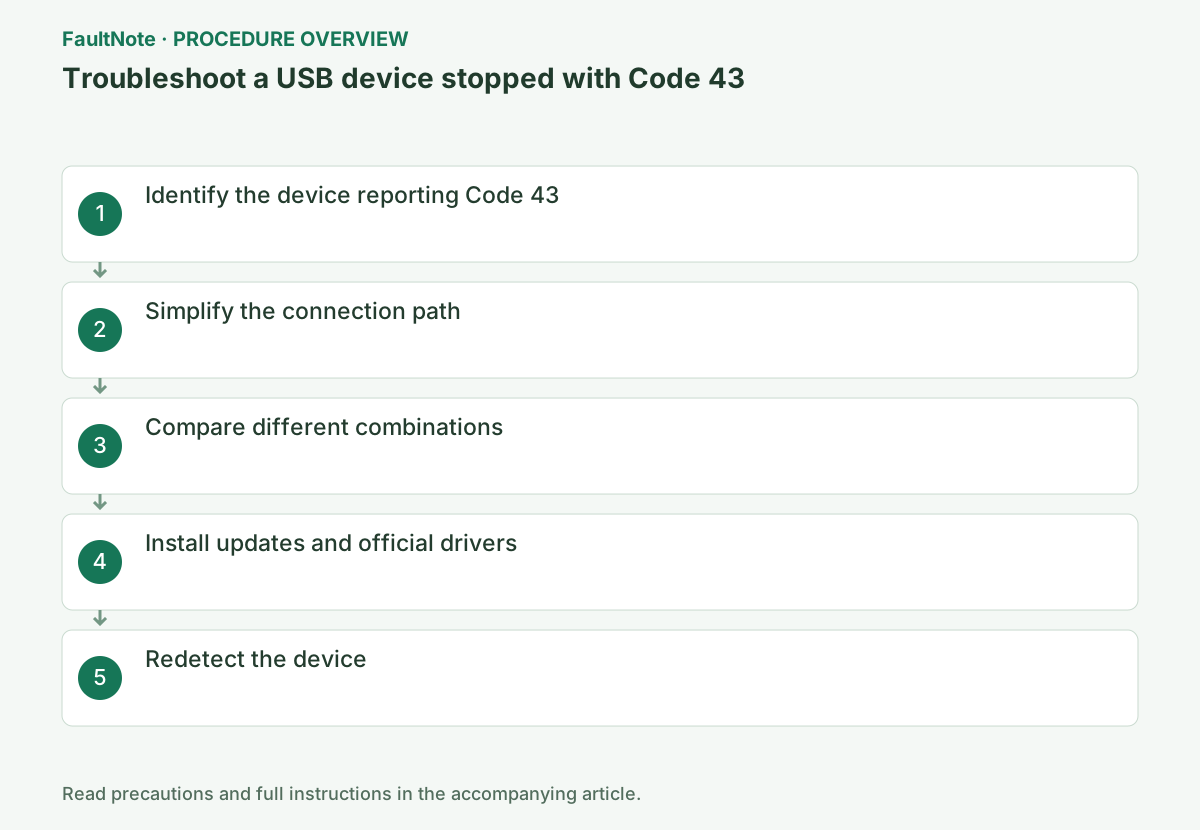
Step-by-step instructions
Open the affected device and record General status/Code 43 and its name. Note hub, extension and adapter order. Code 43 reports a problem from a controlling driver and does not uniquely identify a cable or hardware fault. Record recent connection or update changes.
Identify the target carefully among similar entries. Close files and safely eject external storage before changing connections. Do not repeatedly move a drive while write completion is uncertain. Diagnose connectivity separately from preserving stored data.
Right-click Start > Device Manager, open the device with the yellow warning, and confirm that General > Device status shows Code 43. For a different code, use the procedure for that code.
You can also open Device Manager from the Windows key+X menu. If the display name does not clearly identify the external device, stop writes, safely remove it, and see which entry disappears. Do not choose to initialize USB storage in response to an error.
Restart the PC, remove USB hubs, extension cables, and docks, and connect the device directly to another port on the PC. For devices with their own power supply, also check the AC adapter. If this helps, restore the removed parts of the connection one at a time.
Test a direct PC connection without the hub, then another compatible port. If available, test a known-working accessory on the original port. Failure following the accessory differs from multiple accessories failing at one port and guides the next investigation.
If direct connection works, check hub power/specifications and cabling. Use required accessory power per its manual. Matching connector shapes alone do not establish power or protocol compatibility. Mark unavailable comparisons untested; do not report another-PC failure without testing.
Replace any detachable cable and try the same device on another PC. If that PC also reports an equivalent Code 43 error or fails to recognize it, the device or cable is more likely responsible. If other USB devices also fail only on the same PC, suspect the PC.
Official links for this step
- Error codes in Device Manager in Windows
Check the official requirements, screen names, and limitations for this procedure.
- Error codes in Device Manager in Windows
Complete updates under Settings > Windows Update. In Device Manager, right-click the affected device > Update driver > Search automatically for drivers. If necessary, check for an officially supported version from the device manufacturer.
In Windows 10, open Settings > Update & Security > Windows Update. If optional driver updates are available, select View optional updates and check for the affected device.
An automatic search result saying "The best drivers for your device are already installed" does not mean the device is working correctly. Note the version under Properties > Driver and compare it with the package the manufacturer provides for your OS. Do not use a similarly named driver for a different model.
After confirming that you can reinstall it using the manufacturer's procedure, right-click the device > Uninstall device. Leave the driver-removal checkbox unchecked, restart, and check whether Windows redetects it.
If the uninstall confirmation offers an option such as "Delete the driver software for this device," do not select it this time. After restarting, read the same device's status and test its actual function once Code 43 is gone. If it does not return, avoid repeated uninstalls and report this together with the other-PC test results to support.
Restart after driver update/reinstallation and check Code 43, then test the intended function: open existing files, play audio or verify input. A cleared warning without working function is not recovery. Do not jump to formatting a drive containing needed data.
Provide model/code, direct/hub and port results, and driver provider/version to the manufacturer. If an update triggered it, check supported versions or available rollback. Restore disabled devices/connections as appropriate. Code 43 alone does not establish warranty or replacement eligibility.
Check the result
- Device status says "This device is working properly"
- Its intended read/write or input functions work even after disconnecting and reconnecting
If the problem continues
- If it also fails on another PC, give the manufacturer the diagnostic results
- If multiple USB devices fail on the same PC, check the PC manufacturer's USB and chipset updates
Scope of this guide
Troubleshooting guide — Clear Code 43 in Device Manager and restore stable use of the USB device's intended functions.
Frequently asked questions
Does Code 43 mean the USB port is faulty?
Not necessarily. It means the device driver reported a failure. Use the results with another port, cable, and PC to distinguish the cause.
Should I also delete the driver when uninstalling?
First redetect the device without selecting the removal checkbox. Remove the driver only after obtaining the official driver and when instructed by the manufacturer.
Does Code 43 establish a faulty USB device?
Not by itself. Compare connection, power and drivers, then use manufacturer diagnostics. Distinguish failure following one device from failure affecting other devices at the same port.
Why is a drive inaccessible after its warning clears?
Detection and data access are separate. If data matters, do not format; record connection state and the message for support. Successful device detection does not establish that files are safe.
Official sources and dates
Source publication or resolution date: Not specified. Sources checked: 2026-09-05. The check date is not the date the problem first occurred. Interface labels can vary between versions and display languages.
Related troubleshooting guides
Windows errors and troubleshooting →
- USB devices repeatedly disconnect after idle or sleep
- External drive disconnects in the middle of a large copy: check power delivery, the removal policy and USB power management in that order
- External SSD not reaching USB 20Gbps or USB4 speed: check PC ports, cables, hubs and Windows indicators
- USB-C connection notifications: is the port, the cable, the device or the power the missing piece?