External SSD not reaching USB 20Gbps or USB4 speed: check PC ports, cables, hubs and Windows indicators
What to do first
Microsoft's support article on USB-C connection problems says that when functionality is limited, you should check that the PC and cable support the same USB-C features as the connected device and that it is connected directly rather than through a hub or dock. USB-IF explains that a USB4 connection scales to the best mutual capability, and the Samsung T9 datasheet notes that its maximum speed comes from Samsung's internal testing with the enclosed cable and varies with host configuration and cable. Check the port, cable and path one at a time.
This is a general troubleshooting guide, not an announcement of a current outage.
Affected products and symptoms
- Product
- USB external SSD / M.2 SSD enclosure
- Versions and conditions
- Windows 11 / Windows 10 desktop or laptop PCs with a USB 20Gbps (USB 3.2 Gen 2x2), USB 40Gbps (USB4) or Thunderbolt external SSD or M.2 SSD enclosure attached, where transfers never reach the product's advertised speed and stay at 10Gbps or 5Gbps levels or lower
Symptoms
- A USB 20Gbps or USB4 external SSD copies large files far below the maximum speed on its product page, no faster than a 10Gbps or 5Gbps product
- Connecting the external SSD shows a notification such as "USB4 device functionality might be limited" or "USB device functionality might be limited"
Causes and conditions
A USB connection runs at the lowest speed supported by the PC port, the cable, any hub or dock in between and the external SSD. Often only some ports on a PC support 20Gbps or 40Gbps, and speed drops when you use a case front port, a cable other than the one supplied or a USB 2.0 hub. Cable signal quality and device or PC firmware and BIOS can also be the cause.
Before you start
- The exact model and specification page of the external SSD (or SSD enclosure) and its supplied cable, plus the exact model and specification page of the PC or motherboard that lists the speed of each rear and front USB port
- A large test file you can copy repeatedly under the same conditions, and a note of the source drive (such as the PC's internal NVMe SSD, which should not be slower than the external SSD)
Precautions
- This article is not based on hands-on reproduction testing. The maximum speed on a product page is measured under the maker's conditions and is not a guarantee of the same result.
- Before updating firmware or BIOS, always check the procedure and supported models on the maker's official site. Back up the data on the external SSD to another location before updating its firmware.
Tools and official pages used in this guide
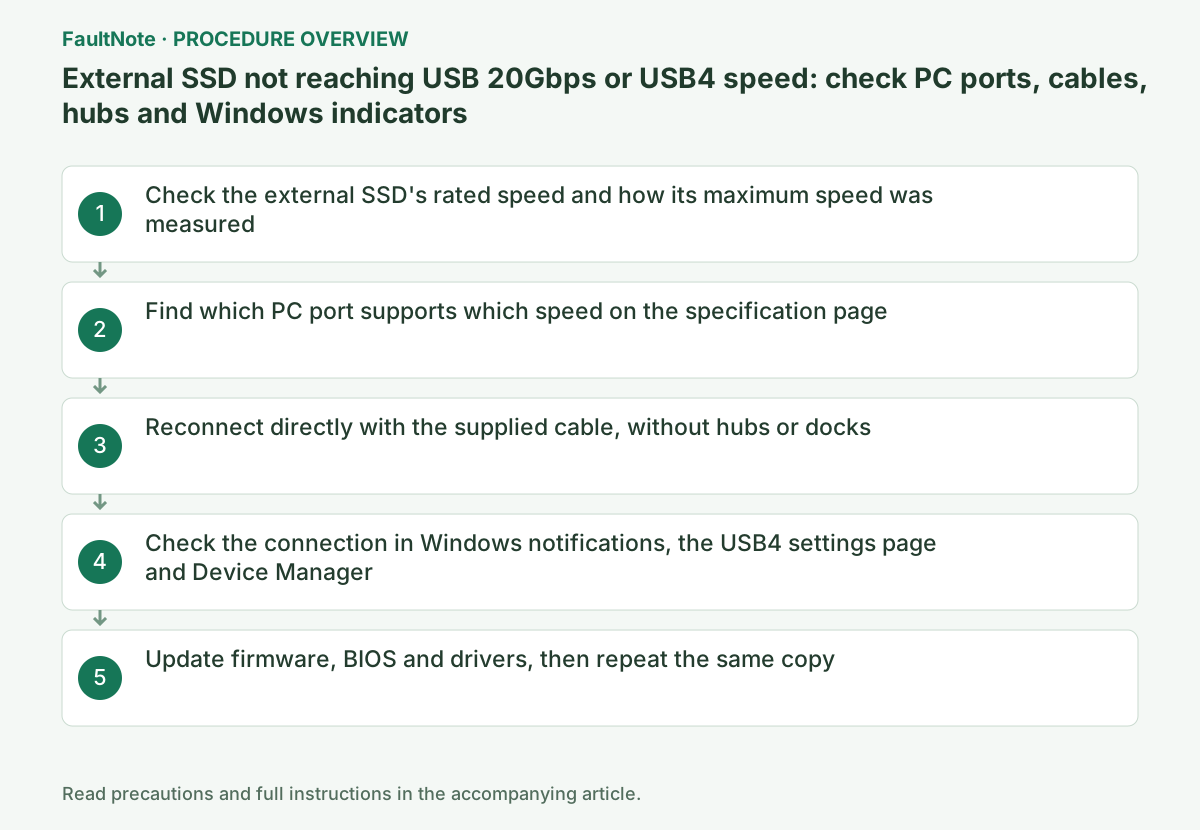
Step-by-step instructions
On the specification page of the external SSD or enclosure, check the connection speed label. USB-IF's language guidelines say USB4 and USB 3.2 define five transfer rates, USB 80Gbps, 40Gbps, 20Gbps, 10Gbps and 5Gbps, and recommend these speed names for consumers. "USB 3.2" alone does not tell you the speed, so look for the Gbps figure.
The maximum speed on a product page applies to specific conditions. For example, the Samsung Portable SSD T9 datasheet lists the interface as USB 3.2 Gen 2x2 (20Gbps) and notes that maximum transfer speed is measured with the enclosed cable under Samsung's internal testing standards and may vary with host configuration, cable and system environment. Century's CFUM2NU40G (a USB 40Gbps M.2 SSD enclosure) states that running at up to 40Gbps needs both a USB host that supports USB4 (dual-lane 40Gbps) and an M.2 SSD that operates at 40Gbps or faster. If the SSD inside the enclosure is slow, changing the connection will not raise the speed.
On the PC or motherboard specification page, check the speed and connector type of each USB port. For example, ASUS's TUF GAMING B860-PLUS WIFI specification lists eight rear USB ports, of which only one Type-C port is USB 20Gbps; the others are two USB 10Gbps (Type-A), three USB 5Gbps (Type-A) and two USB 2.0. The internal connector for a front-panel Type-C port is USB 10Gbps. On this board, a 20Gbps external SSD can run at 20Gbps only from the rear Type-C port, and a case front Type-C port is limited to 10Gbps.
USB-IF explains that a USB4 connection scales to the best mutual capability and is compatible with USB 3.2 and USB 2.0. A fast SSD therefore works on a slower port, but at the port's speed. The sources for this article do not confirm whether a USB4 port handles a 20Gbps (USB 3.2 Gen 2x2) device at that speed, so check whether the PC specification lists USB 20Gbps, and ask the PC maker if it is unclear.
Official links for this step
For "USB device (or Thunderbolt device) functionality might be limited", Microsoft's support article on USB-C connection problems says to check that the PC supports the same USB-C features as the connected device, that the cable supports the same features, that the device is connected directly to the PC rather than through a hub or dock, and that it is on the correct port. For USB4, it says to use the cable provided by the device maker or a certified USB4 cable, and to connect USB4 devices directly to the PC or only through USB4 docks.
Reconnect the SSD directly to a port whose speed matched in step 2, using the supplied cable, then copy the same file from the same source and compare speeds. Microsoft's USB team blog explains that a USB 3.0 device attached through a USB 2.0 hub can only operate at high speed (USB 2.0 speed), and that a cable with signal integrity issues can make the device switch to a lower speed, in which case the cable must be replaced. Remove extension cables and adapters as well while testing.
In Windows 11, turn on "Connection notifications" under Settings > Bluetooth & devices > USB so Windows shows a notification when there is a problem with a USB connection. Microsoft's USB blog points to the support article above for the problems these notifications report and what to do about them.
On USB4-capable PCs running Windows 11 build 22621.1778 (KB5026446) or later, Settings > Bluetooth & devices > USB > USB4 Hubs and Devices lists attached USB4 hubs and devices and their capabilities. Microsoft explains that the page does not appear if the PC is not USB4-capable, and that a USB4 (or Thunderbolt 3) device missing from the page is either not attached or not operating in USB4 mode. USB 20Gbps and 10Gbps external SSDs are not USB4 devices, so they do not appear on this page.
In Device Manager, also check that the external SSD and the Universal Serial Bus controllers have no yellow exclamation mark. According to Microsoft Learn, you can also view the USB connection tree with USBView (usbview.exe), included in the Debugging Tools for Windows option of the Windows SDK, but because it is an older application it might not display newer USB information.
When a USB 3.0 device runs below the speed it supports, Microsoft's USB team blog suggests updating the device firmware from the maker's site, updating the USB controller firmware and updating the PC's BIOS, and explains that on some motherboards the BIOS can incorrectly route a device to a USB 2.0 controller, which a BIOS update might fix. The post was written for Windows 8, so use it for the approach and follow each maker's instructions for the actual update.
Check the maker's site of the external SSD or enclosure for firmware, and install the BIOS plus chipset and USB4 (Thunderbolt) drivers from the PC or motherboard maker's site. Do not turn off the power during a BIOS update. Afterwards, copy with the same port, cable, file and source as in step 3, record the speed and compare it with the earlier result.
Official links for this step
Check the result
- Connected directly to a matching port with the supplied cable, the same file copies faster than through a hub or front port, and approaches the product-page speed in a setup close to the maker's test conditions
- For a USB4 external SSD, the device appears on the USB4 Hubs and Devices page and the Windows "functionality might be limited" notification no longer appears
If the problem continues
- If the speed does not change after connecting directly to a matching port with the supplied cable and updating the BIOS and firmware, try the same copy on another PC with a port of the same speed to find whether the SSD or the PC is the cause before contacting a maker
- If it is equally slow on another PC, contact the maker of the external SSD or enclosure with the model, the PCs and ports used, the cable, and a record of the copied file and speeds
Scope of this guide
Troubleshooting guide — Compare the rated speed of the external SSD with each PC port on their specification pages, and connect directly to a matching port with the supplied cable, without hubs or docks. If the speed does not change, check Windows notifications, the USB4 Hubs and Devices page and Device Manager, update the device firmware and the PC's BIOS and drivers, and repeat the same file copy.
Frequently asked questions
Will a 20Gbps external SSD run at 20Gbps on a USB4 or Thunderbolt port?
It will work, but whether it runs at 20Gbps depends on the PC port's specification. USB-IF explains that a USB4 connection scales to the best mutual capability, but whether a USB4 port supports 20Gbps (USB 3.2 Gen 2x2) needs checking for each product. Look for USB 20Gbps on the PC's specification page, and ask the PC maker if it is unclear.
Why is it slower on the case front Type-C port?
A front port's speed is set by the internal motherboard connector it is wired to. For example, on ASUS's TUF GAMING B860-PLUS WIFI the rear Type-C port is USB 20Gbps, but the connector for a front Type-C port is USB 10Gbps. Check both the motherboard and case specifications for the front port's speed.
Official sources and dates
- Fix USB-C problems in Windows ↗
- Microsoft Learn: Universal Serial Bus 4 (USB4) settings enablement (updated 2024-03-01) ↗
- Microsoft USB Blog: Discover USB Settings and Notifications in Windows 11 (2025-02-28) ↗
- Microsoft USB Blog: How to determine whether a USB 3.0 device is operating at SuperSpeed? (first published 2012, written for Windows 8) ↗
- Microsoft Learn: Universal Serial Bus Viewer in Windows (USBView) ↗
- USB-IF: USB Data Performance Language Usage Guidelines (January 2024, PDF) ↗
- USB-IF: USB4 (connection scales to the best mutual capability) ↗
- Samsung: Portable SSD T9 datasheet Rev.1.0 (maximum speed test conditions) ↗
- Century: CFUM2NU40G product page (conditions for 40Gbps transfers, Japanese) ↗
- ASUS: TUF GAMING B860-PLUS WIFI specifications (rear and front USB port speeds) ↗
Source publication or resolution date: 2026-02-19. Sources checked: 2026-09-13. The check date is not the date the problem first occurred. Interface labels can vary between versions and display languages.
Related troubleshooting guides
Windows errors and troubleshooting →
- External drive disconnects in the middle of a large copy: check power delivery, the removal policy and USB power management in that order
- USB-C connection notifications: is the port, the cable, the device or the power the missing piece?
- USB devices repeatedly disconnect after idle or sleep
- Fix Device Manager Code 10: "This device cannot start"
Related how-to guides and comparisons
- Choosing an M.2 SSD enclosure: USB 10Gbps vs 20Gbps vs USB4 (40Gbps) vs Thunderbolt, and checking your PC's port
- How to Choose a USB-C Cable: 60W vs 240W Power Marks, 10Gbps to 80Gbps Data Rates and Video Output by Use
- USB-C Hub vs Thunderbolt Dock: Displays, Power, and Compatibility
- External SSD vs HDD for backups: capacity, speed and portability