External drive disconnects in the middle of a large copy: check power delivery, the removal policy and USB power management in that order
What to do first
A drive that disappears partway through a copy is diagnosed by first recording the conditions that reproduce it. Microsoft publishes two removal policies for external storage: Quick removal keeps the device ready to remove at any time, but to do that "Windows can't cache disk write operations", which can degrade system performance; Better performance lets Windows cache write operations to the external device, but you must then use the Safely Remove Hardware process, which "protects the integrity of data on the device by making sure that all cached operations finish". The default from Windows 10 version 1809 onwards is Quick removal. On the power side, Buffalo's USB hub explanation is concrete: a bus-powered USB 2.0 four-port hub supplies 100 mA or less per port, a self-powered USB 2.0 hub 500 mA or less per port, and high-consumption devices such as portable hard disks may not work correctly. For USB power management, Microsoft states that selective suspend "is enabled by default" and that it "strongly recommends not disabling selective suspend", so that is not the first switch to flip. This record works through power delivery, the removal policy and power management using only reversible changes.
This is a general troubleshooting guide, not an announcement of a current outage.
Affected products and symptoms
- Product
- Windows 11 / Windows 10 external USB storage (removal policy, write caching, USB selective suspend), bus-powered and self-powered USB hubs
- Versions and conditions
- Windows 11 / Windows 10 (the default removal policy is Quick removal from Windows 10 version 1809 onwards). For the power-delivery side, Buffalo’s published explanation of self-powered and bus-powered USB hubs is used (published 2015-12-10, updated 2017-05-19; the figures are for USB 2.0 hubs)
Symptoms
- An external HDD or SSD vanishes partway through a multi-gigabyte copy or backup, and File Explorer stops the copy with an error such as the device being unreachable
- The drive reappears seconds or tens of seconds later without a restart, so it is unclear whether this is a failing drive or a setting
- It never reproduces with small files or short reads, and only happens during long writes or when a hub or extension cable is in the path
Causes and conditions
When an external drive goes "removed" partway through a copy, the cause is usually not the disk itself but one of three things that only change while the copy is running. The first is power: a portable HDD or SSD draws the most current during sustained writes, and a bus-powered hub or an extension cable is where that falls short. The second is the Windows removal policy and write caching: if Better performance is selected, Windows can cache writes to the external device, so data that has not been written yet can be lost when the disconnect happens. The third is USB power management, where selective suspend lets a hub suspend an individual port. Which one is in play can only be established by recording the conditions under which the disconnect happens and then removing them one at a time.
Before you start
- Pick one operation that reproduces the disconnect (the same folder copy, the same backup job). Testing with a different operation each time makes it impossible to tell whether a change helped
- Write down the current state before changing anything: which port is in use (on the PC, on a hub, through an extension cable), which cable (bundled or bought separately), whether the drive is bus-powered or has an AC adapter, and the current removal policy
- If the source data exists in only one place, secure a copy elsewhere before diagnosing. Repeatedly writing through a connection that drops is not something to do while the cause is still unknown
Precautions
- This record is not based on hands-on reproduction. The behaviour quoted here is what Microsoft and Buffalo publish, and screen names, menu names and defaults differ by Windows version and product. Confirm against the documentation for your own environment.
- Microsoft states that with the Better performance policy, removing or disconnecting the device without following the safe removal instructions risks losing data. Do not switch to a write-caching setting while the connection is still dropping mid-transfer.
- The Buffalo FAQ quoted here was published 2015-12-10 and updated 2017-05-19, and its per-port supply figures are given for USB 2.0 hubs. Do not apply them directly to USB 3.x or USB PD products. Microsoft’s selective suspend page is documentation for device driver developers.
Tools and official pages used in this guide
Step-by-step instructions
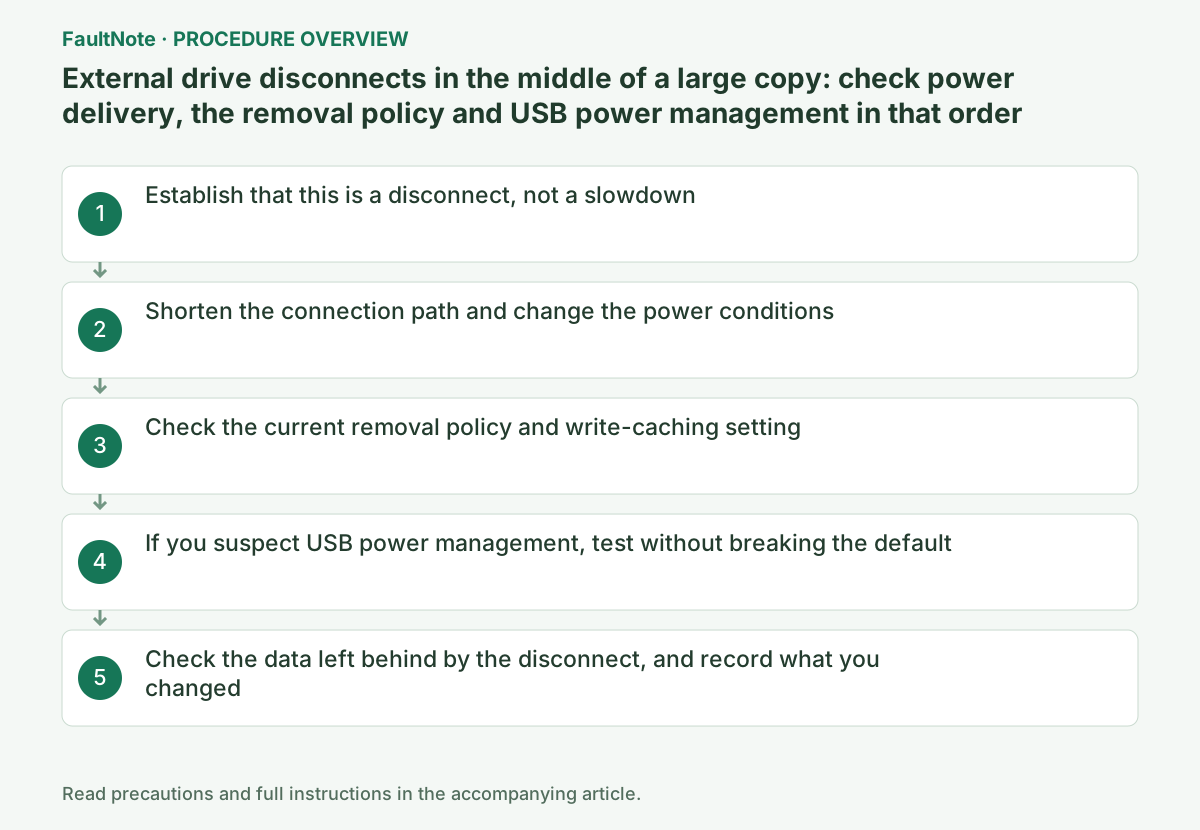
The first move is classification, not configuration. Does the copy merely get slower while the connection holds, or does the drive disappear from File Explorer and the copy end with an error? The former is about thermal throttling, SLC cache behaviour and port speed, which this site covers in "A large copy to an NVMe SSD slows down partway" and "An external SSD does not reach USB 20Gbps or USB4 speeds". This record is about the latter: the connection itself dropping mid-transfer.
Next, record how the disconnect arrives. How many minutes in, how much data had copied, whether the drive's light or noise changed, the exact wording of the error, and whether the drive comes back on its own. "It always drops somewhere past 30 GB" and "it drops after about ten minutes of being left alone" point in different directions: the first towards power delivery or heat during sustained writes, the second towards idle power management.
If the drive only disconnects and reconnects while idle or after resuming from sleep, this site's record "USB devices repeatedly disconnect and reconnect after power saving" is the closer match. This one stays with the case where the drop happens while a transfer is still running.
A sustained write is the period when the drive needs the most power. Remove every hub, extension cable, monitor-built-in port and keyboard pass-through port, connect the drive straight to a port on the PC with its bundled cable, and run the same copy again. If it stops reproducing, the path was the problem, not the drive. On a desktop, using a rear port wired directly to the motherboard rather than a front-panel port also removes the front-panel wiring as a variable.
If a hub cannot be avoided, its type matters. In its FAQ on self-powered and bus-powered USB hubs, Buffalo explains that a self-powered hub draws power from a wall outlet through an AC adapter and is "suited to portable hard disks and portable Blu-ray/DVD drives with high power consumption that do not work on bus power", and states that a self-powered USB 2.0 hub supplies 500 mA or less per port while a bus-powered USB 2.0 four-port hub supplies 100 mA or less per port. It adds that "if many devices are drawing power, operation may become unstable. Reduce the number of connected devices or use a self-powered USB hub." That FAQ was published 2015-12-10 and updated 2017-05-19, and its figures are for USB 2.0 hubs. Do not transfer those numbers to a hub of a different standard or generation.
For a desktop-style external HDD with an AC adapter, also check that the adapter is properly connected and is not sitting behind a daisy-chained or switched power strip. If a non-bundled cable is in use, put the bundled one back for the duration of the diagnosis. Cable length and quality change results, and moving several variables at once while the cause is unknown makes it impossible to tell which one mattered.
Official links for this step
This is not the setting that stops the disconnect; it is the setting that decides what is lost when one happens. Microsoft publishes two policies for external storage. Quick removal "manages storage operations in a manner that keeps the device ready to remove at any time": the device can be removed without using the Safely Remove Hardware process, but to allow that "Windows can't cache disk write operations. This can degrade system performance." Better performance "manages storage operations in a manner that improves system performance": Windows can cache write operations to the external device, but the Safely Remove Hardware process must be used, and that process "protects the integrity of data on the device by making sure that all cached operations finish".
Microsoft then states as an Important note that if you use the Better performance policy you must use the Safely Remove Hardware process to remove the device, and that if you remove or disconnect the device without following the safe removal instructions you risk losing data. A drive that disconnects on its own mid-copy is precisely a device that was disconnected without following that process. So do not switch to Better performance while the cause is still unknown. The default is Quick removal from Windows 10 version 1809 onwards; in earlier versions the default was Better performance, so a machine carried over from an older install, or one you changed yourself in the past, may not be on the current default.
Microsoft publishes the procedure too. Connect the device, identify its letter or label in File Explorer, right-click Start and select Disk Management, right-click the device label in the lower section of the window, select Properties, and open the Policies tab. Microsoft notes that "Some recent versions of Windows may use a different arrangement of tabs in the disk properties dialog box", and that if the Policies tab is not visible you should select Hardware, pick the removable drive from the All disk drives list and select Properties, after which the Policies tab becomes available. The policy is set per external device, and it "remains in effect if you disconnect the device and then connect it again to the same computer port". The same tab carries a separate checkbox, Enable write caching on the device, and Microsoft notes that if you select Better performance it recommends that you also select it - so write caching is not decided by the policy alone. Leave both settings on this tab untouched until the cause is found.
Advice found online often starts by telling you to disable USB selective suspend. Microsoft's documentation points the other way. The selective suspend feature "allows the hub driver to suspend an individual port without affecting the operation of the other ports on the hub", it reduces power consumption by suspending devices that are not in use, and "any device that isn't selectively suspended might prevent the USB host controller from disabling its transfer schedule". Microsoft then states plainly: "Selective suspend is enabled by default. Microsoft strongly recommends not disabling selective suspend." Note that this page is written for device driver developers and says so at the top; only those two reader-relevant statements are taken from it here.
Treat power management, then, as a condition to vary temporarily for diagnosis rather than a setting to switch off permanently. Also note that in the case this record covers the device is not idle at all while the transfer runs, which makes selective suspend an unlikely first suspect. It can still matter with backup software that leaves gaps between jobs, or when other USB devices are plugged and unplugged during the copy. If you do test it, record the value before changing it, change one thing only, record the result, and put it back if nothing improves.
If the disconnect still reproduces with the shortest possible path, the default policy in place and no change from a temporary power-management test, what remains is the drive or the cable. Move to the manufacturer's own troubleshooting. Buffalo publishes a flowchart-style troubleshooter for USB hard disks that branches on what the drive is connected to (a TV or recorder versus a PC) and on whether the product was bought recently. If your drive's maker publishes something equivalent, that gives you steps matched to your model.
The most dangerous outcome of a copy that drops is a file that looks copied. When File Explorer stops partway, the destination can hold a partially written file whose name is right and whose contents are not. Once the cause is addressed, recreate the destination folder for the failed copy, or at minimum delete the last file that was being processed, before running it again. Microsoft's statement that the Safely Remove Hardware process protects data integrity by making sure all cached operations finish implies the converse: writes that have not finished can exist.
For data made of large individual files, such as video or photos, comparing file sizes against the source already finds most of the damage. For a stricter check, compare hashes of the same file at both ends. Either way, keep in mind that "the transfer reached the end" and "the contents match" are two different confirmations.
Finally, keep a record of what you changed: the port and cable used, whether a hub was involved and of which type, the removal policy before and after, which power-management item you varied temporarily and whether you put it back, and whether the same copy then completed. That record lets you reverse anything that did not help, and it is exactly what a manufacturer support request needs.
Check the result
- The same copy chosen in preparation completes end to end with the drive connected directly to a port on the PC, and the drive never disappears partway
- In Disk Management > the drive > Properties > Policies, the removal policy is the value you intend (Quick removal while diagnosing)
- The destination file count and sizes match the source, and no partially written file left over from a disconnect remains
If the problem continues
- If the disconnect still reproduces mid-transfer with a direct connection to the PC, the bundled cable and the default policy, contact the drive maker’s support with the model number, the Windows version, the port and cable in use, how much data transfers before it drops, and the exact error message
- If the drive also makes unusual noises, takes progressively longer to be recognised, or does not come back after a disconnect, stop repeating configuration tests and treat data retrieval as the priority
Scope of this guide
Troubleshooting guide — Separate "slower" from "disconnected" first, then shorten the path to a direct connection on the PC to change the power conditions. Next check the removal policy in Disk Management > Policies, and do not switch to a write-caching setting until the diagnosis is finished. Treat USB power management as a temporary test rather than a permanent change, because Microsoft states selective suspend is enabled by default and strongly recommends not disabling it. Finally, compare the destination files against the source.
Frequently asked questions
Will switching the removal policy to Better performance make the copy faster and stop the disconnects?
It will not stop the disconnects. The removal policy is not the cause of a disconnect; it decides the consequences of one. Microsoft states that under Better performance Windows can cache write operations to the external device, but that the Safely Remove Hardware process must then be used, and that removing or disconnecting the device without following the safe removal instructions risks losing data. It is not a setting to choose while the drive is dropping on its own.
Should I disable USB selective suspend?
Microsoft writes that "Selective suspend is enabled by default" and that it "strongly recommends not disabling selective suspend". It also explains that a device which is not selectively suspended might prevent the USB host controller from disabling its transfer schedule, which can stop the system from entering deeper sleep states. Varying it temporarily for diagnosis is fine, but record the value beforehand and restore it if nothing improves.
Is using a hub the problem?
It depends on the type and on how many devices are attached. Buffalo states that a bus-powered USB 2.0 four-port hub supplies 100 mA or less per port and a self-powered USB 2.0 hub 500 mA or less per port, that high-consumption devices such as portable hard disks may not work correctly, and that when many devices are drawing power you should reduce their number or use a self-powered hub (published 2015, updated 2017; USB 2.0 figures). Start by checking whether the problem still reproduces with a direct connection to the PC.
Official sources and dates
- Microsoft: Windows default media removal policy (Quick removal and Better performance, write caching and safe removal) ↗
- Microsoft: USB selective suspend (suspending an individual port, enabled by default, strongly recommended not to disable; device driver developer documentation) ↗
- Buffalo: What self-powered and bus-powered mean (USB hubs) - per-port supply and the portable HDD caveat (published 2015-12-10, updated 2017-05-19) ↗
- Buffalo: Troubleshooting a USB hard disk that does not work correctly (symptom- and environment-based flowchart) ↗
Source publication or resolution date: 2025-08-18. Sources checked: 2026-09-19. The check date is not the date the problem first occurred. Interface labels can vary between versions and display languages.
Related troubleshooting guides
Windows errors and troubleshooting →
- External SSD not reaching USB 20Gbps or USB4 speed: check PC ports, cables, hubs and Windows indicators
- USB-C connection notifications: is the port, the cable, the device or the power the missing piece?
- USB devices repeatedly disconnect after idle or sleep
- Fix Device Manager Code 10: "This device cannot start"