An external monitor is not detected or shows no image in Windows 11
What to do first
If an external screen is blank, isolate the connection using Win+P, the monitor input, a direct cable, and another port, then check Windows detection and the display driver.
This is a general troubleshooting guide, not an announcement of a current outage.
Affected products and symptoms
- Product
- Windows 11 Display
- Versions and conditions
- Windows 11
Symptoms
- No image appears after connecting HDMI or DisplayPort
- Detect does not find another display
- The display fails only when connected through a dock
Causes and conditions
Possible causes include projection mode, the selected input, cables, adapters or docks, port capabilities, or display-driver problems.
Before you start
- Check the connector types on the monitor and PC
- Save your work
- Prepare a replacement cable or another monitor if available
Precautions
- A simple splitter duplicates the same image and cannot add independent extended displays
- Not every USB-C port supports video output
- Keep resolution and refresh rate within the cable and devices' limits
Tools and official pages used in this guide
Check the official requirements, screen names, and limitations for this procedure.
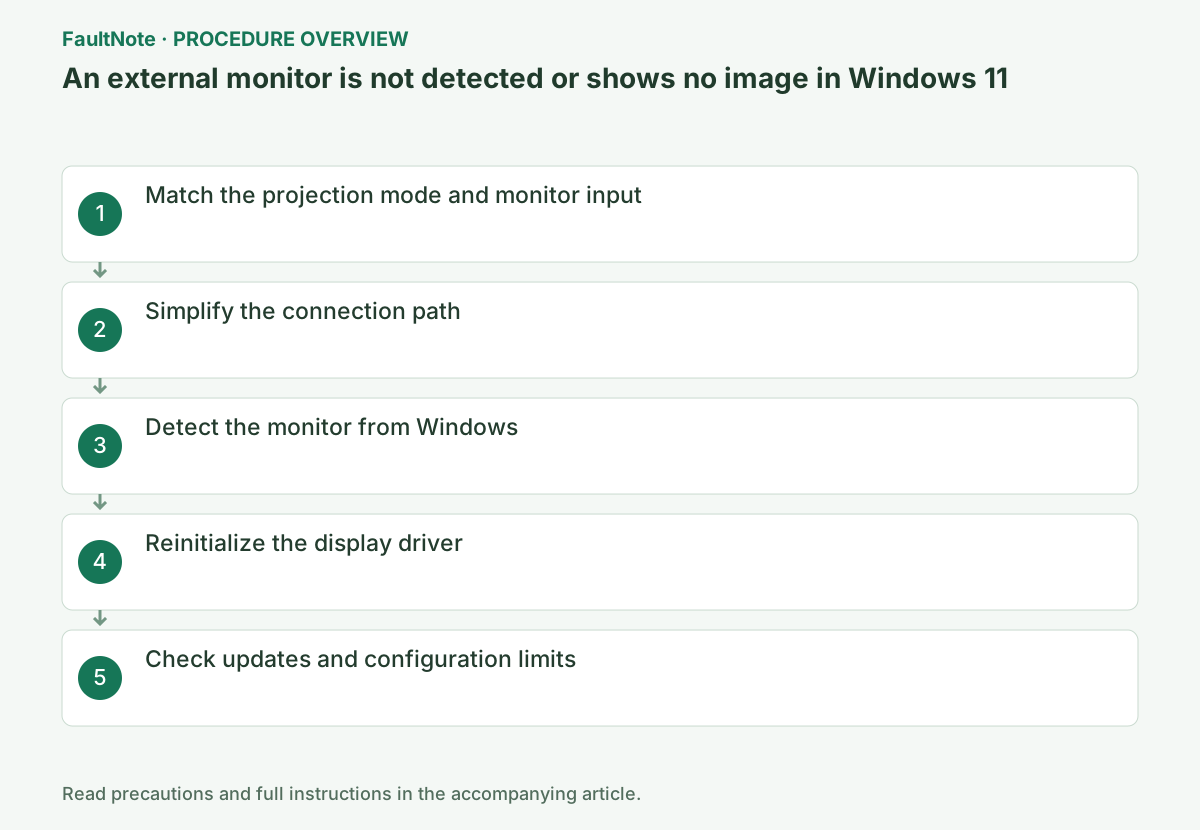
Step-by-step instructions
Distinguish the monitor reporting no signal, Windows not detecting it, and detected hardware using an unintended projection mode. Check monitor power and selected input first, matching it to the connected port.
Record PC, dock, adapter, cable and monitor in order. USB-C shape does not establish video capability; check the actual port and adapter specifications. Note whether this configuration worked previously and whether failure occurs only with multiple displays.
Press Windows key+P and select Extend, or Duplicate for testing. Use the monitor's own input selector to choose the HDMI or DisplayPort input actually connected. Also check its power indicator and cable seating.
Check for mismatches such as the monitor being set to HDMI 1 while the cable is plugged into HDMI 2. Input selection is separate from Windows settings and uses the monitor's buttons or on-screen menu. First check that the monitor's own menu appears.
Disconnect docks, splitters, conversion adapters, and unnecessary peripherals. If possible, connect the PC directly to the monitor with one cable. Try another cable and another output port in sequence, without changing multiple conditions at once.
If possible, connect directly with compatible cabling, bypassing dock/adapter. Direct success points toward dock power/specifications, port or cable. If direct also fails, compare known cabling or another compatible display when available. Mark unavailable comparisons untested.
Use a laptop internal display to review settings if available. Select needed duplicate/extend mode with Windows+P and identify screens in Display settings. Record projection-mode results separately from cable changes; simultaneous resolution/driver changes obscure the improved layer.
Right-click the desktop > Display settings. Expand Multiple displays and select Detect. Use Identify to confirm the displayed numbers, select the intended display, and set it to Extend these displays.
Use Identify to see the built-in and external display numbers, then select the external display you want to change. If a confirmation appears after changing display settings, choose Keep changes only when the image is normal. If it becomes invisible, avoid attempting blind changes and wait to see whether the settings revert.
Official links for this step
- Troubleshoot external monitor connections in Windows
Check the official requirements, screen names, and limitations for this procedure.
- Troubleshoot external monitor connections in Windows
If the screen has only temporarily frozen, press Windows key+Ctrl+Shift+B once. Check whether it returns after a short beep or screen flash. Do not press it repeatedly.
Complete Windows Update and check official drivers and firmware from the PC, GPU, and dock manufacturers. If one monitor works but the second does not, consult the specifications for the number of displays and resolutions supported by the GPU, USB-C port, and dock.
The USB-C connector shape alone does not establish video-output support. Check the PC model and the specific port's specifications, and verify the dock's supported OS, required power, and output count. Before looking for drivers, record the result of the single-cable direct connection.
Once video appears, check resolution, text size, layout and projection mode. Video alone does not prove the desired refresh rate or multi-display configuration works. Record differences if the original setup fails again, and restore the needed mode after unsuitable tests.
Before driver updates, record PC/GPU/version and confirm official support. Consider available rollback or manufacturer guidance if an update worsened it. Provide the path, models, no-signal/no-detection distinction and direct test. Compare display-count/resolution requirements with the actual hardware specifications.
Check the result
- The external display's number appears in Display settings
- The image appears in the desired Duplicate or Extend mode
- Lightly touching the cable does not interrupt the image
If the problem continues
- Test the monitor on another PC and the PC with another monitor to isolate the faulty side
- For Surface, use Microsoft's Surface-specific second-screen instructions
Scope of this guide
Troubleshooting guide — Ensure that the external monitor appears in Display settings and displays reliably in the chosen Duplicate or Extend mode.
Frequently asked questions
Can an HDMI splitter extend two screens independently?
A normal splitter duplicates the same signal. Independent extension requires a GPU with multiple outputs, a dock, or a compatible USB adapter.
Will any USB-C cable display an image?
No. The PC port, cable, and dock must support the video-output standard. Check each specification.
Can every USB-C port output video?
The shape alone cannot establish that. Check the actual PC port, adapter and cable support. A direct comparison can separate PC-side from intermediary issues. Use exact-model specifications.
Is verification complete once video appears?
Check intended projection, resolution, text, layout and normal connections. Direct success with dock/multi-display failure leaves that configuration unresolved. Retain a way to restore the needed mode.
Official sources and dates
Source publication or resolution date: Not specified. Sources checked: 2026-09-05. The check date is not the date the problem first occurred. Interface labels can vary between versions and display languages.
Related troubleshooting guides
Windows errors and troubleshooting →
- The screen brightness changes on its own: telling content-based adjustment apart from ambient-light adjustment
- Laptop is slow only on battery: check the power mode, energy saver and the maker's cooling mode in that order
- A driver can't load on this device: what memory integrity is blocking, and the choices that leaves
- Monitor shows "No Signal" after changing OSD overclock or DisplayPort settings: how to get the picture back
Related how-to guides and comparisons
- DisplayPort vs. HDMI for 144Hz, 4K and 240Hz Monitors: Check Ports, Cables and GPU Support
- Integrated vs. Discrete Graphics: Check Workloads, CPU Models and Outputs
- 1080p, 1440p or 4K: Plan a Gaming Monitor and GPU Budget Together
- How to Choose a USB-C Cable: 60W vs 240W Power Marks, 10Gbps to 80Gbps Data Rates and Video Output by Use