Monitor stuck at 60Hz: what to check when Windows will not offer 144Hz or 165Hz
What to do first
When the target refresh rate is missing from Settings, read what Windows shows first, then isolate the monitor's input conditions, the connection path and cable, the OSD, and the GPU driver in that order. This procedure checks the officially documented conditions one by one before resorting to a custom resolution.
This is a general troubleshooting guide, not an announcement of a current outage.
Affected products and symptoms
- Product
- Windows 11 Display
- Versions and conditions
- Windows 11 / Windows 10. A monitor rated for 144Hz or higher is connected over DisplayPort, HDMI or USB-C, but the maximum value is missing from the settings list or the display reverts to 60Hz after selecting it
Symptoms
- Choose a refresh rate lists only 60Hz, or the maximum value is missing
- Selecting 144Hz or 165Hz blanks the screen and reverts, or the resolution drops on its own
Causes and conditions
If any one of the monitor's input conditions, the cable bandwidth, the monitor's OSD settings, or the GPU port and driver falls short of the target resolution and refresh rate, Windows does not offer that combination. The settings page alone does not show where the limit is.
Before you start
- The monitor model and manual (the supported timing page), and the GPU or integrated graphics model
- The labeling on the cable in use (certification names such as Ultra High Speed HDMI, DP40 or DP80) and whether any adapter or dock is in the path
Precautions
- Before switching the OSD version or overclocking setting, know the procedure for unplugging the cable and restoring the setting in case the display goes blank
- Do not create a custom resolution for a rate that is not in the supported timings. Stay within officially documented values to protect the monitor
Tools and official pages used in this guide
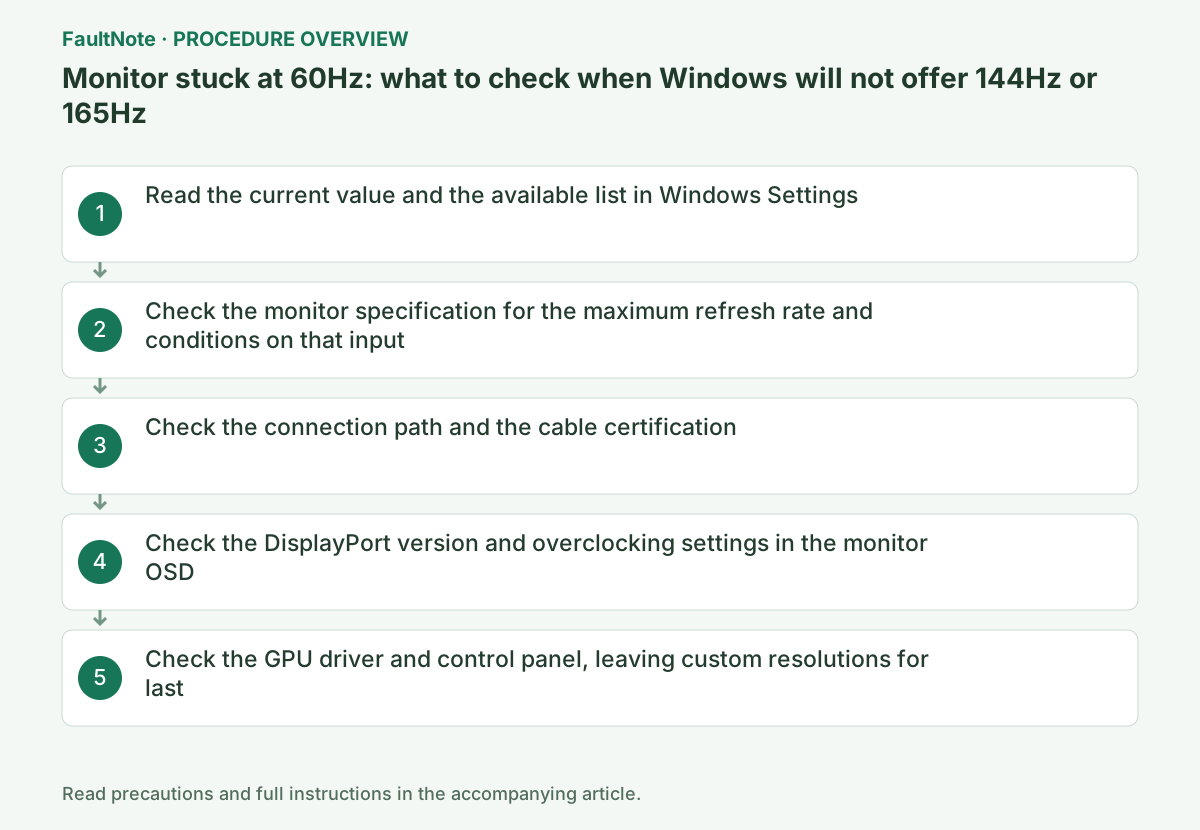
Step-by-step instructions
In Windows 11 open Settings > System > Display > Advanced display, select the monitor and review the list under Choose a refresh rate. In Windows 10 it is Refresh rate under Advanced display settings. Microsoft explains that rates the current resolution does not support are marked with an asterisk, and selecting one changes the resolution.
Record the list as monitor name, connected GPU, current resolution and the highest rate shown. If the target rate appears with an asterisk, it is a bandwidth limit that works at a lower resolution. If it does not appear at all, continue with the monitor conditions and the connection path. The Dynamic refresh rate toggle appears only in Windows 11 and only on VRR-capable displays of at least 120Hz.
Official links for this step
On the product page or the supported timing list in the manual, confirm the maximum resolution and refresh rate for the input you are using (DisplayPort, HDMI or USB-C). For example, LG's 27GR93U-B states that 144Hz requires a graphics card supporting DisplayPort 1.4 (DSC) or HDMI 2.1. Where DSC is a condition, the GPU must also support DSC.
ASUS's FAQ explains that HDMI 2.0-era ports cannot output 4K 60Hz at 10-bit and that supported resolutions and refresh rates depend on the PC hardware and output. If the target rate is unavailable over HDMI, first confirm that both the port and the cable are HDMI 2.1 class.
Official links for this step
Confirm the cable is plugged into the GPU's port and not into the motherboard's rear port (integrated graphics). If an adapter, docking station or KVM is in the path, that device's supported version becomes the ceiling, so test a direct connection first.
Judge cables by certification name. HDMI.org requires the cable name on the jacket: High Speed (10.2Gbps), Premium High Speed (18Gbps, 4K60) and Ultra High Speed (48Gbps, 4K120 and 8K60), and Ultra High Speed cables carry a certification label verifiable by QR code. DisplayPort has VESA DP40 (40Gbps) and DP80 (80Gbps) certifications; choose a certified cable even for DisplayPort 1.4 (HBR3, 32.4Gbps) use. Replace an unlabeled cable with a certified one and compare.
Official links for this step
Some monitors have an OSD item that switches the DisplayPort version (1.1, 1.2, 1.4 and so on); an older setting limits bandwidth so higher rates never appear. Find the item name and the setting required for the target rate in the manual, then switch it. If the screen goes blank after switching, unplug the cable and restore the setting.
On products whose maximum rate is treated as overclocking (ASUS calls it Over Clocking), Windows will not show that value until it is enabled in the OSD. ASUS's FAQ describes turning Adaptive-Sync or G-Sync off first, setting Gaming > Over Clocking to ON and choosing the maximum refresh rate, and disconnecting the signal cable and retrying a lower value if no image appears. The vendor does not guarantee how this feature performs.
Official links for this step
Update the GPU driver from the vendor's product page, restart, and review the Windows list again. In NVIDIA Control Panel, open Display > Change resolution, select the monitor and pick from the Refresh rate list. NVIDIA notes that VRR-capable displays with VRR enabled are set to the highest refresh rate automatically. AMD's guidance defers refresh-rate changes to Microsoft's procedure and notes that supported resolutions and rates can depend on the cables and adapters used.
Creating a value that is not listed as a custom resolution is only appropriate when that value exists in the monitor's supported timings. In AMD Software, a custom resolution is created with Create New and then Create; the screen may go blank momentarily during the compatibility check and a notification appears if there is a problem. Do not force a rate that is absent from the support table; confirm the earlier conditions first.
Check the result
- After selecting the target rate in Advanced display, the same value persists across a restart and the resolution has not dropped
- The monitor OSD's information screen (input, resolution, refresh rate) matches the values shown in Windows
If the problem continues
- If another GPU port and another certified cable give the same result, the combination may be absent from the monitor's supported timings or the monitor may be faulty; contact the manufacturer
- On laptops that can only connect over USB-C or Thunderbolt, check the PC maker's specification for that port's DisplayPort output mode and maximum refresh rate
Scope of this guide
Troubleshooting guide — Match the Windows list, the monitor's input conditions, the cable certification, the OSD settings and the GPU driver in order, and confirm the target refresh rate persists using an officially documented combination.
Frequently asked questions
What happens if I select the 144Hz entry marked with an asterisk?
Microsoft explains that rates the current resolution does not support are marked with an asterisk and selecting one changes the resolution. To keep the resolution, you need more bandwidth from the cable or the input.
Why does 144Hz work over DisplayPort but not over HDMI?
Each monitor input supports a different version and bandwidth. HDMI 2.0-era ports and cables stop at 4K 60Hz, and products such as the LG 27GR93U-B state that 144Hz requires DisplayPort 1.4 (DSC) or HDMI 2.1.
Official sources and dates
- Change the refresh rate on your monitor in Windows ↗
- ASUS FAQ: how to adjust screen resolution, refresh rate and color depth ↗
- ASUS FAQ: how to set up overclocking for LCD monitors ↗
- LG UltraGear 27GR93U-B product page (UK) ↗
- HDMI.org: HDMI cables and cable types ↗
- VESA: VESA releases DisplayPort 2.1 specification ↗
- NVIDIA Control Panel help: to select a screen refresh rate ↗
- AMD: adjust Windows display settings and configure multiple displays (DH3-005) ↗
- AMD: create custom resolutions with AMD Software: Adrenalin Edition (DH3-032) ↗
Source publication or resolution date: Not specified. Sources checked: 2026-09-13. The check date is not the date the problem first occurred. Interface labels can vary between versions and display languages.
Related troubleshooting guides
Windows errors and troubleshooting →
- The screen brightness changes on its own: telling content-based adjustment apart from ambient-light adjustment
- Laptop is slow only on battery: check the power mode, energy saver and the maker's cooling mode in that order
- A driver can't load on this device: what memory integrity is blocking, and the choices that leaves
- Monitor shows "No Signal" after changing OSD overclock or DisplayPort settings: how to get the picture back