How many external displays can you actually connect? GPU limits and the two kinds of dock
"Buy a dock and you get more screens" fails because the limit is not set in one place. Three things decide it: the number of independent displays the GPU can drive at once, whether the port you are using actually carries video output, and whether the dock distributes that video output or draws the picture in software over USB. NVIDIA publishes a Multi Monitor figure of up to 4 for the GeForce RTX 5070 family and footnotes the conditions that figure assumes. AMD's Radeon RX 9070 XT product page, checked the same day, had no maximum-display field at all. That difference in how manufacturers publish the number is itself part of what a buyer has to handle, and this guide sets out the checks to run before ordering anything.
Published · Updated · FaultNote editorial policy
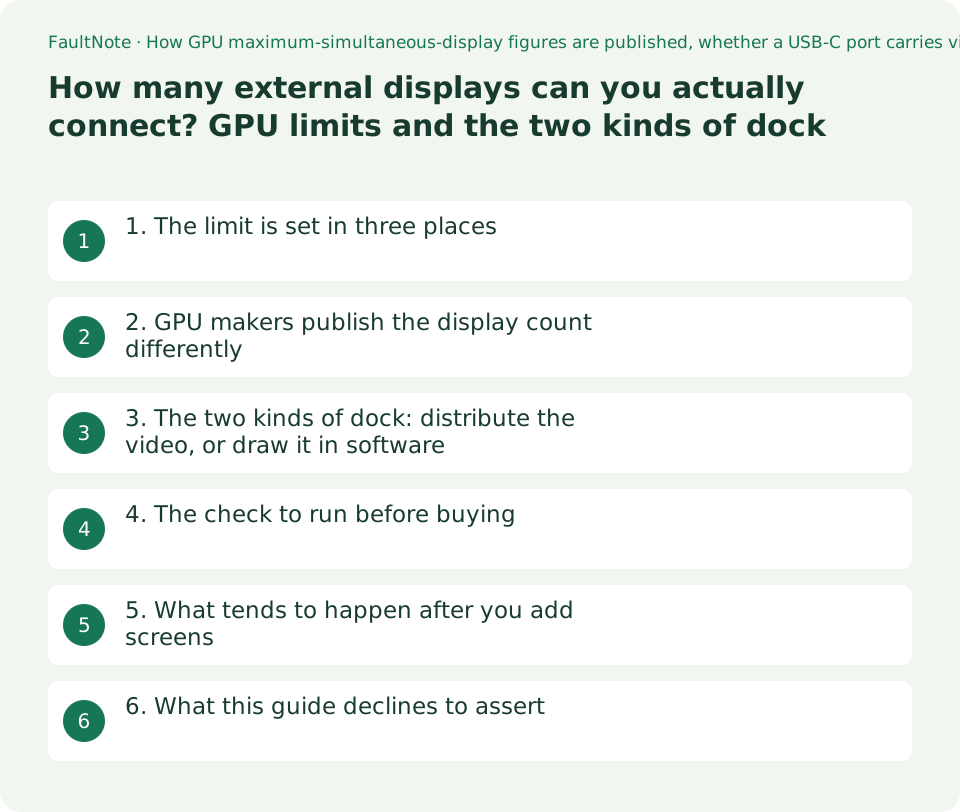
Who this guide is for and what to prepare
- Readers who want two or more external displays and do not know how many their PC supports
- Readers wondering what the word DisplayLink on a dock's product page signifies
- Readers who want to avoid plugging a dock into a USB-C port and finding that only the USB devices work
What you need
- Note the exact model of your GPU (Device Manager, or the Performance tab of Task Manager, will tell you)
- Decide the resolution and refresh rate you want on the new displays; the count and the settings available at that count are separate limits
- Look at the markings beside your PC's ports and at the port section of its spec sheet
1. The limit is set in three places
The number of external displays is not decided by how many cables or dock outputs you have. First there is the number of independent displays the GPU can drive at once. Then there is whether the port you intend to use actually carries video output. Then the dock's method decides whether it consumes the GPU's budget at all or draws the picture another way.
The three fail differently, which is useful for diagnosis. Exceed the GPU's budget and the fourth display either shows nothing or displaces one of the others. Use a port with no video output and the USB devices work while the screens stay dark. Get the dock's method wrong and you discover it as a missing driver.
Separately from the count there is bandwidth. Screens that are recognised but will not offer the refresh rate you wanted are a bandwidth problem rather than a count problem. This site's guide to checking refresh rate over USB-C covers the resolution and refresh-rate combinations.
Scroll horizontally to see the full table →
| Where the limit sits | What sets it | How to check | What happens when you exceed it |
|---|---|---|---|
| The GPU | The number of independent displays it can drive at once | The relevant field on the GPU maker's product page (worked examples below) | The fourth display shows nothing, or another one drops out |
| Port and transport | Whether that USB-C port carries video (DP Alt Mode or Thunderbolt) | The port section of the PC's spec sheet, and the markings beside the port | The dock's USB devices work but no picture appears |
| The dock's method | Whether it distributes the GPU's video output or draws in software | The product page, and whether a driver is required | Nothing appears, or a dedicated driver turns out to be necessary |
| Bandwidth (a separate limit from the count) | The total of resolution times refresh rate, and whether compression (DSC) is in use | The footnotes of the GPU specification and the monitor's own support | The screens are recognised but the high refresh rate is not selectable |
2. GPU makers publish the display count differently
NVIDIA's GeForce RTX 5070 family specification table carries a Multi Monitor row, and gives "up to 4" for both the RTX 5070 Ti and the RTX 5070 (read 2026-09-20). A footnote then explains what that 4 assumes.
The footnote has three lines: "4 independent displays at 4K 165Hz using DP or HDMI", "2 independent displays at 4K 360Hz or 8K 100Hz with DSC using DP or HDMI", and "Other display configurations may be possible based on available bandwidth". The maximum count and the settings achievable at that count are written as separate constraints.
AMD's Radeon RX 9070 XT product page, checked the same day, listed DisplayPort 2.1a and HDMI 2.1b under Connectivity but carried no field equivalent to a maximum display count. So "look it up on the GPU's spec page" is not universally available advice. Where the figure is absent, the card maker's own product page or the PC maker's spec sheet is the next place to look.
Scroll horizontally to see the full table →
| Page checked | Display-count field | What it said | How to read it |
|---|---|---|---|
| NVIDIA GeForce RTX 5070 family | Multi Monitor | up to 4, with a conditional footnote | The maximum is stated. Read it as a conditional figure, not an unconditional one |
| NVIDIA GeForce RTX 5070 family (connectors) | Standard Display Connectors | 3x DisplayPort, 1x HDMI | Connector count and maximum display count are specified separately. A note adds that the actual connector layout varies by card manufacturer |
| AMD Radeon RX 9070 XT | No such field | Connectivity lists DisplayPort 2.1a and HDMI 2.1b, but no maximum-display field was present | The number cannot be read off the official product page. Another source is needed |
3. The two kinds of dock: distribute the video, or draw it in software
Docks divide into two families. One takes the video output already present on the PC's USB-C port (DP Alt Mode or Thunderbolt) and distributes it to the attached displays. The other draws the picture over an ordinary USB data connection, a USB graphics approach of which DisplayLink is the best-known example.
Synaptics describes DisplayLink as working on "macOS, Windows, ChromeOS, Ubuntu & Android" and across "Apple, Intel, AMD, Qualcomm and any ARM SoC" (read 2026-09-20). Not depending on the GPU's video output is the essential difference between the two families: you can add screens from a port that carries no video at all, at the cost of needing a dedicated driver.
One caution. Synaptics publishes a table of its controllers with their input, number of video outputs and maximum resolution - the DL-7400, for instance, is listed with USB3 10Gbps input, 4 / 3 video outputs and maximum resolutions including 2x 8K60 and 4x 4K120. Those are the chip's capabilities. A dock on the shelf is not necessarily built to them, and you are buying the dock, so read the dock's own specification.
Scroll horizontally to see the full table →
| Uses the GPU's video output (DP Alt Mode / Thunderbolt) | Draws in software (USB graphics such as DisplayLink) | |
|---|---|---|
| What the PC must provide | Video output present on that port | A USB data port and a driver for your platform |
| How the count works | Within the GPU's independent-display budget | Depends on the dock's implementation; a different accounting from the GPU's budget |
| Software | No extra driver as a rule | A dedicated driver is required |
| Suits | Gaming, and wanting high refresh rates | Adding screens for desk work, or having only ports without video output |
| What to verify | Support differs port by port, so identify the exact port you will use | Supported operating systems, and whether drivers keep being published |
4. The check to run before buying
Four steps. First, identify the GPU and look for a display-count field on the maker's product page. Where there is one, as with NVIDIA, note both the number and the conditions in the footnote. Where there is not, as on AMD's Radeon RX 9070 XT page, recognise that you could not read it off the official page and go to the card maker's or the PC maker's specification instead.
Second, confirm that the port you intend to use carries video output. USB-C is a connector shape and guarantees nothing about function; this site's guide to USB-C hubs versus Thunderbolt docks covers that distinction. Third, compare your desired count against the budget. If it exceeds the budget, the choices are closing the laptop's built-in screen to free a slot, or adding a software-drawn dock alongside.
Fourth, check the dock's method and its supported operating systems. If you choose the software-drawn kind, it is worth looking at whether a driver exists for your platform and whether the vendor keeps publishing them. Whether the laptop's built-in screen counts towards the budget cannot be settled from the desktop-GPU specifications read here; check the machine's own spec sheet.
Scroll horizontally to see the full table →
| Step | What to open | What you decide |
|---|---|---|
| 1. The GPU's display budget | The GPU maker's product specification page | If the field exists, take the number and its footnote. If not, go to another source |
| 2. Video output on the port | The port section of the PC's spec sheet, and the port markings | No video output means a software-drawn dock becomes the candidate |
| 3. Desired count against the budget | The number from step 1, and whether the built-in screen counts | Over budget means closing the built-in screen or mixing the two methods |
| 4. Dock method and supported OS | The dock product's specification and driver availability | Decide on the dock's specification, not the controller chip's |
5. What tends to happen after you add screens
Screens that blank for a moment and come back, or flicker, are a common follow-up complaint. DisplayLink's support article attributes this to the monitor losing sync with the video output, and says that long or poor-quality video cables can cause it. The article's own suggestion is to swap the video cable for another and see whether the problem goes away.
The same article gives specific advice about converted connections. Where DisplayPort to HDMI, DVI or VGA, or HDMI to VGA, is causing trouble, it recommends using an active adapter together with a video cable. It also explains the difference: active adapters contain a conversion chip, while passive ones rely on the source to do the conversion.
The article additionally notes that gas-lift office chairs can generate an EMI spike when someone sits or stands, which is picked up on the video cables and causes a loss of sync. It sounds improbable, but it is DisplayLink's own published text rather than this site's speculation. Nothing here was reproduced on hardware, so no cause is being asserted.
Scroll horizontally to see the full table →
| Symptom | What DisplayLink's article raises as a possibility | What to try |
|---|---|---|
| The screen blanks for about a second and returns | The monitor is losing sync with the video output | Swap the video cable for another and see whether it resolves |
| Flicker or distortion | Signal degradation from long or poor-quality cables | The same. The article mentions cables with a magnetic ferrite ring |
| Instability on a converted connection | A passive adapter or conversion cable is in use | The article recommends an active adapter combined with a video cable |
6. What this guide declines to assert
It gives no number for how many displays an MST daisy chain supports. VESA's DisplayPort FAQ was checked; MST is mentioned there only as a DisplayPort-specific Multi-stream Transport feature, with no statement about chain length or what the monitors must support. Without a primary source the number is not something to publish. Check the monitor and dock makers' specifications.
It also gives no maximum-display figures for Intel or AMD integrated graphics. No primary page carrying those numbers could be retrieved while preparing this guide. Nor does it generalise to "laptops always support two external displays", which varies by GPU and by machine.
It puts no number or verdict on the smoothness of video or games through the software-drawn method, because nothing was measured. The grouping of the two methods by use case - gaming versus desk work - is this site's editorial arrangement and not a manufacturer statement.
Limitations and requirements
- Connector count and maximum display count are different figures. The same NVIDIA table lists 3x DisplayPort and 1x HDMI as the standard connector layout while specifying Multi Monitor separately as up to 4, and notes that the actual connector layout varies by card manufacturer.
- The per-controller maximum resolutions Synaptics publishes are chip capabilities. A dock on sale is not necessarily built to them; decide on the dock product's own specification.
- Whether a laptop's built-in screen counts towards the budget cannot be settled from the desktop GPU specifications read here. Check the machine's spec sheet.
- USB-C is a connector shape and does not guarantee that video output is present on that port. A dock can end up powering USB devices while no picture appears.
Frequently asked questions
How many monitors can an MST daisy chain carry?
This guide gives no number. VESA's DisplayPort FAQ was checked and mentions MST only as a DisplayPort-specific Multi-stream Transport feature, without stating a chain length or the monitor-side requirements. Check the monitor and dock makers' specifications for the figure.
Does a laptop's built-in screen count towards the total?
Check the machine's specification. The NVIDIA figures read here are for a desktop GPU and say nothing about a built-in panel. As a practical matter, if the budget is tight, closing the built-in screen to free a slot for an external one is a real option.
Can I game through a software-drawn dock?
This guide does not rule on the performance, because nothing was measured. What can be said about the conditions is that this method draws the picture over a USB data connection rather than using the GPU's video output directly, so the premises differ. If high refresh rates are the point, the straightforward route is a port that carries video output and a dock of the corresponding kind.
I plugged in a dock and only the USB devices work.
That port may carry no video output. USB-C names a connector shape, and video support differs from port to port. Check the port section of the PC's spec sheet and the markings beside the port. If none of your ports carries video output, a software-drawn dock becomes the option. This site's guide to USB-C hubs versus Thunderbolt docks covers the distinction.
Sources and verification date
Sources checked: . These sources support the specifications, procedures or prices discussed here. Check each source for applicable conditions and current information.
- NVIDIA: GeForce RTX 5070 Family specifications (the Multi Monitor: up to 4 entry, the footnote giving the conditions for 4 and for 2 independent displays, and the Standard Display Connectors entry. Read 2026-09-20) ↗
- AMD: Radeon RX 9070 XT product page (Connectivity lists DisplayPort 2.1a and HDMI 2.1b; no field equivalent to a maximum display count was present when read on 2026-09-20) ↗
- Synaptics: DisplayLink Graphics (the supported operating systems and platforms, and the per-controller table of input, video outputs and maximum resolution. Read 2026-09-20) ↗
- DisplayLink Support: Display intermittently blanking, flickering or losing video signal (loss of sync and cable quality, and the explanation of active versus passive conversion adapters. Read 2026-09-20) ↗
Related practical guides
- USB-C Monitor Not Working or Stuck at a Low Refresh Rate: Check DP Alt Mode and Lane Allocation
- Single-cable USB-C monitors: match the monitor's supply wattage against your laptop's rating
- CAMM2 and LPCAMM2: the third kind of laptop memory, and what it does and does not tell you about upgrades
- USB-C Hub vs Thunderbolt Dock: Displays, Power, and Compatibility
- 1080p, 1440p or 4K: Plan a Gaming Monitor and GPU Budget Together
- Check a laptop's upgradeability before you buy: soldered memory, M.2 slot count and battery capacity