DisplayPort vs. HDMI for 144Hz, 4K and 240Hz Monitors: Check Ports, Cables and GPU Support
A high-refresh monitor only reaches its target resolution and refresh rate when the GPU output, the cable and the monitor input all support it. This guide walks through the published bandwidth of each standard, the product specification pages and the certified cable names so you can decide the connection before you buy.
Published · Updated · FaultNote editorial policy
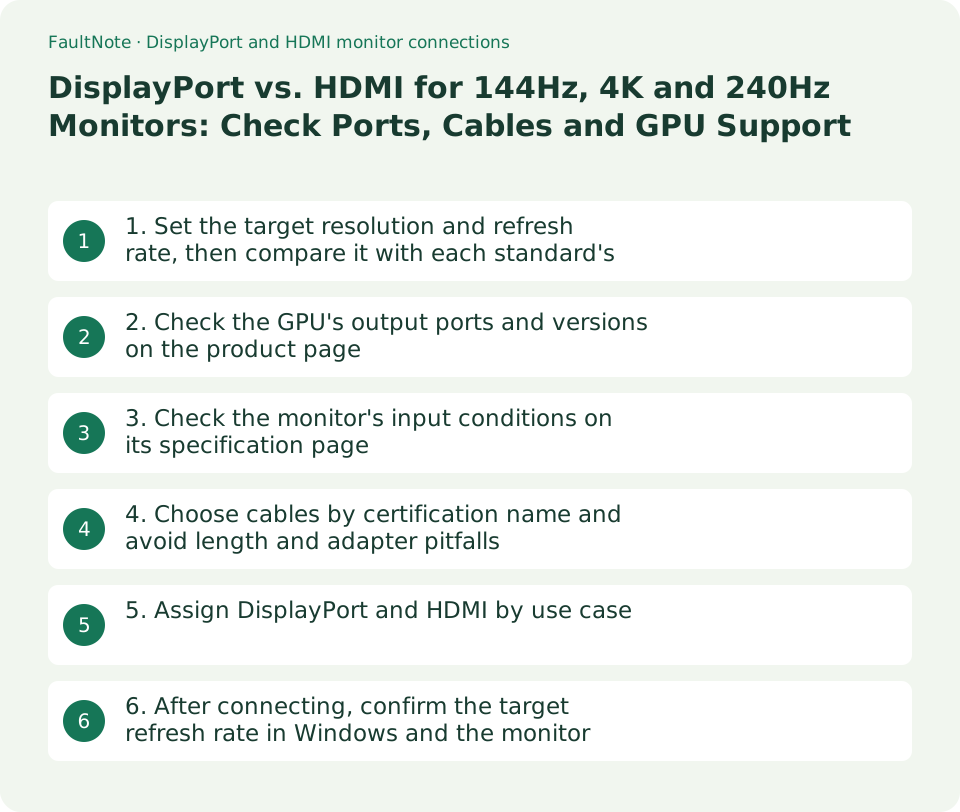
Who this guide is for and what to prepare
- People buying a 144Hz-or-faster or 4K monitor who want to confirm their GPU and cable are sufficient
- People connecting a PC and a game console to the same monitor who need to assign DisplayPort and HDMI
What you need
- The exact GPU product name (for integrated graphics, the CPU model and the motherboard's rear ports)
- The candidate monitor's specification page or manual, input section (DisplayPort and HDMI versions, any DSC note)
- The target resolution, refresh rate and whether HDR is required
1. Set the target resolution and refresh rate, then compare it with each standard's bandwidth
The connection is decided by required bandwidth, not by the connector shape. The HDMI Forum states that HDMI 2.1 raised bandwidth to 48Gbps and supports 4K120 and 8K60 along with VRR and ALLM. VESA states that DisplayPort 1.4 HBR3 delivers 32.4Gbps over four lanes and that DSC 1.2 compression enables 8K60 HDR and 4K120 HDR. DisplayPort 2.1 has three tiers, UHBR10, UHBR13.5 and UHBR20, with DP40 cables rated for 40Gbps and DP80 cables for 80Gbps.
Even on DisplayPort 1.4, combinations such as 4K 144Hz depend on DSC (Display Stream Compression) because the raw bandwidth is not enough. DSC works only when both the GPU and the monitor support it, so check whether the monitor's specification mentions DSC. HDMI 2.0-era cables and ports top out at 18Gbps (Premium High Speed HDMI), which limits 4K to 60Hz.
Scroll horizontally to see the full table →
| Standard (publisher) | Bandwidth | Published examples |
|---|---|---|
| HDMI 2.0 era (Premium High Speed HDMI Cable) | 18Gbps | 4K60, HDR |
| HDMI 2.1 (Ultra High Speed HDMI Cable) | 48Gbps | 4K120, 8K60, VRR, ALLM, QFT, QMS and eARC |
| DisplayPort 1.4 (HBR3) | 32.4Gbps (8.1Gbps x 4 lanes) | 8K60 HDR and 4K120 HDR with DSC 1.2 |
| DisplayPort 2.1 (UHBR10 / UHBR13.5 / UHBR20) | 40 / 54 / 80Gbps (DP40 and DP80 cables) | Backward compatible with DP 2.0, aligned with the USB4 and USB-C physical layer |
- Write the target on one line as resolution, refresh rate and color conditions, for example 3840 x 2160 at 144Hz with HDR.
- Use the table below to shortlist standards, assuming the requirement must be met on both the GPU side and the monitor side.
- If you plan 4K 144Hz or more over DisplayPort 1.4, check first whether the monitor lists DSC.
2. Check the GPU's output ports and versions on the product page
Specifications checked on September 13, 2026 list the GeForce RTX 5070 and 5070 Ti with three DisplayPort 2.1b (UHBR20) outputs and one HDMI 2.1b, rated up to 4K 480Hz or 8K 165Hz with DSC (8K 120Hz on HDMI). The Radeon RX 9070 XT lists DisplayPort 2.1a and HDMI 2.1b. The Intel Arc B580 splits its DisplayPort 2.1 outputs into one UHBR13.5 port and UHBR10 ports, plus HDMI 2.1. Note that the UHBR tier can differ between products and even between ports on the same card.
For integrated graphics, Intel ARK lists the Core Ultra 7 265K's display output as DP 2.1 UHBR20 and HDMI 2.1, but the ports and versions you can actually use are set by the motherboard's rear-panel specification. Laptops often output through USB-C (DisplayPort Alt Mode) or Thunderbolt, so confirm the supported output mode in the PC maker's specification.
Scroll horizontally to see the full table →
| Product (official specification, checked 2026-09-13) | DisplayPort | HDMI | Published limits |
|---|---|---|---|
| NVIDIA GeForce RTX 5070 / 5070 Ti | 2.1b, UHBR20, 3 ports | 2.1b, 1 port | 4K 480Hz or 8K 165Hz with DSC (8K 120Hz on HDMI), up to 4 displays |
| AMD Radeon RX 9070 XT | 2.1a | 2.1b | Port count and layout depend on the board partner's implementation |
| Intel Arc B580 | 2.1, one UHBR13.5 port plus UHBR10 | 2.1 | DP 7680 x 4320 at 60Hz, HDMI 7680 x 4320 at 120Hz, up to 4 displays |
| Intel Core Ultra 7 265K integrated graphics | 2.1 UHBR20 (CPU capability) | 2.1 (CPU capability) | Actual ports are set by the motherboard's rear-panel specification |
- Open the GPU maker's specification page and record the Display Connectors, DisplayPort and HDMI rows: version, UHBR tier and port count.
- For multiple monitors, check the maximum simultaneous outputs and whether the tier differs per port, as with UHBR13.5 on one port.
- For integrated graphics or laptops, confirm the rear-port versions in the motherboard or PC specification.
3. Check the monitor's input conditions on its specification page
On the monitor side, read not just the port versions but which input reaches the maximum refresh rate. LG's product page for the 27GR93U-B (4K 144Hz) states that enabling 144Hz requires a graphics card supporting DisplayPort 1.4 (DSC) or HDMI 2.1, and the monitor has two HDMI 2.1 ports. The ASUS ROG Strix XG27UCS (4K 160Hz) has DisplayPort 1.4, HDMI 2.1 and USB-C with DP Alt Mode, and advertises HDMI 2.1 VRR 4K 120Hz for consoles.
If the product page does not state the conditions for the maximum refresh rate, use the Supported Timing list in the manual to check the resolution and refresh-rate combinations per input. ASUS's FAQ also notes that HDMI 2.0-era ports cannot output 4K 60Hz at 10-bit and directs users to the supported timing list in the manual.
Scroll horizontally to see the full table →
| Monitor (official page, checked 2026-09-13) | Inputs | Condition for the maximum refresh rate |
|---|---|---|
| LG UltraGear 27GR93U-B (4K 144Hz) | 2 x HDMI 2.1, DisplayPort 1.4 (DSC), USB | States that 144Hz needs a GPU with DisplayPort 1.4 (DSC) or HDMI 2.1 |
| ASUS ROG Strix XG27UCS (4K 160Hz) | DisplayPort 1.4, HDMI 2.1, USB-C (DP Alt Mode) | Advertises HDMI 2.1 VRR 4K 120Hz for consoles; for PCs, check the supported timings including DisplayPort and USB-C |
- In the input section of the specification, record the DisplayPort and HDMI versions, port counts and any DSC or VRR notes.
- If there is a condition such as 144Hz requires DisplayPort 1.4 (DSC) or HDMI 2.1, match it against the GPU's support.
- If no condition is stated, check the supported timing list in the manual for the maximum refresh rate per input.
4. Choose cables by certification name and avoid length and adapter pitfalls
HDMI.org requires the official cable name on the jacket: High Speed (10.2Gbps), Premium High Speed (18Gbps, 4K60 and HDR) and Ultra High Speed (48Gbps, 4K120 and 8K60), and Ultra High Speed cables carry a certification label verifiable by QR code. DisplayPort has VESA DP40 (UHBR10, 40Gbps) and DP80 (UHBR20, 80Gbps) certifications, and DisplayPort 2.1 anticipates lengths beyond 2 m for DP40 and beyond 1 m for DP80. DisplayPort 2.1b defines DP80LL active cables up to 3 m.
Marketing terms such as 8K ready or 144Hz support do not tell you the bandwidth. Adapters, docking stations and KVM switches cap the connection at the version that device supports.
Scroll horizontally to see the full table →
| Official cable name or certification | Bandwidth | When to choose it |
|---|---|---|
| Premium High Speed HDMI Cable | 18Gbps | Up to 4K60. Not enough for 4K120 |
| Ultra High Speed HDMI Cable (QR certification label) | 48Gbps | 4K120, 8K60 and VRR over HDMI 2.1 |
| VESA certified DP40 | 40Gbps (UHBR10) | DisplayPort 1.4 (HBR3) use and up to UHBR10 |
| VESA certified DP80 (DP80LL active up to 3 m in DP 2.1b) | 80Gbps (UHBR20) | Pairing a UHBR13.5 or UHBR20 GPU with a matching monitor |
- For HDMI, choose a cable labeled Ultra High Speed HDMI Cable (required for 4K120 or higher); for DisplayPort, choose one labeled DP40 or DP80 certified.
- Measure the required length; if you need more than 1 m at DP80, consider an active cable or whether a DP40 configuration is sufficient.
- When going through an adapter or dock, check that device's DisplayPort and HDMI versions in its specification and compare with a direct connection.
5. Assign DisplayPort and HDMI by use case
For a PC with a discrete GPU, DisplayPort bandwidth and VRR support are easy to confirm on product pages and pair naturally with a monitor's DisplayPort 1.4 (DSC) note. Consoles are advertised with HDMI 2.1 4K 120Hz VRR, so leaving an HDMI port free for the console avoids re-cabling. A laptop can use a single USB-C (DP Alt Mode) cable for video and charging on monitors that support it, but the power delivery and supported refresh rate vary by product.
Scroll horizontally to see the full table →
| Setup | Recommended connection | Conditions to confirm |
|---|---|---|
| Desktop PC with GeForce RTX 50 / Radeon RX 9000 / Arc B and a 4K 144Hz-or-faster monitor | DisplayPort (DSC assumed if the monitor is DP 1.4; the UHBR tier if it is DP 2.1) | The monitor's DSC note, a DP40 or DP80 certified cable, the UHBR tier per GPU port |
| A game console on the same monitor | Console on HDMI 2.1, PC on DisplayPort | Ultra High Speed HDMI Cable, number of HDMI 2.1 inputs on the monitor (two on the LG 27GR93U-B) |
| A laptop with a single USB-C cable | A monitor with USB-C (DP Alt Mode) | DP Alt Mode support on the PC, the monitor's power delivery, the maximum refresh rate on that input |
| GPU with HDMI 2.1, monitor with HDMI 2.1 and DP 1.4 | Either HDMI 2.1 or DisplayPort; prefer the input with the VRR note | Ultra High Speed HDMI Cable or DP40 certified cable, input conditions for VRR, G-SYNC Compatible and FreeSync |
- Pick the row that matches your setup in the table below and confirm the GPU, cable and monitor all meet that row's conditions.
- If ports remain, fix the PC on DisplayPort and the console on HDMI 2.1 so you never unplug cables when switching.
6. After connecting, confirm the target refresh rate in Windows and the monitor
Connecting the cable does not always select the maximum refresh rate. Microsoft's guidance for Windows 11 is Settings > System > Display > Advanced display, then pick a value under Choose a refresh rate; rates that do not support the current resolution are marked with an asterisk. On displays that support VRR and at least 120Hz, Windows 11 alone offers a Dynamic refresh rate toggle.
If the target refresh rate is missing from the list, check the cable certification, the monitor OSD's DisplayPort version and overclocking settings, and the GPU driver in that order. The procedure is covered in the companion troubleshooting guide on a monitor that will not reach 144Hz or 165Hz.
- In Advanced display, read the connection information under the monitor name and the current refresh rate, then select the target refresh rate.
- If the screen reverts after selecting, or the option is missing, isolate the cause in the order cable, OSD, then driver.
Limitations and requirements
- Standard bandwidths are ceilings. Real support depends on the UHBR tier of each GPU port, the cable and the monitor's input conditions, so confirm all three together.
- The GPU and monitor specifications shown are examples read from official pages on September 13, 2026. They may not apply to other products in the same series or to board partners' port layouts.
- This guide includes no hands-on display testing or image-quality comparison, and does not cover how DSC looks or any latency differences.
Frequently asked questions
Can a DisplayPort 1.4 monitor run 4K at 144Hz?
If both the monitor and the GPU support DSC, some products such as the LG 27GR93U-B advertise 144Hz over DisplayPort 1.4 (DSC). For DisplayPort 1.4 products with no DSC note, check the supported timing list in the manual for each input's limit.
Which is faster, HDMI 2.1 or DisplayPort 2.1?
Published bandwidth is 48Gbps for HDMI 2.1, and for DisplayPort 2.1 40Gbps at UHBR10, 54Gbps at UHBR13.5 and 80Gbps at UHBR20. However, the UHBR tier a GPU port supports varies by product, and some cards such as the Arc B580 differ per port.
Is an expensive cable automatically safe?
Choose by certification name, not price. For HDMI look for the Ultra High Speed HDMI Cable label and QR code; for DisplayPort look for the DP40 or DP80 certification mark. If you need a long run, also check the rules for active cables such as DP80LL.
Sources and verification date
Sources checked: . These sources support the specifications, procedures or prices discussed here. Check each source for applicable conditions and current information.
- HDMI Forum: HDMI Forum releases version 2.1 of the HDMI specification ↗
- HDMI.org: HDMI cables and cable types ↗
- VESA: VESA publishes DisplayPort standard version 1.4 ↗
- VESA: VESA releases DisplayPort 2.1 specification ↗
- VESA: DisplayPort 2.1 update with DP80LL active cables ↗
- NVIDIA: GeForce RTX 5070 family specifications ↗
- AMD: Radeon RX 9070 XT specifications ↗
- Intel ARK: Intel Arc B580 graphics specifications ↗
- Intel ARK: Core Ultra 7 processor 265K ↗
- LG UltraGear 27GR93U-B product page (UK) ↗
- ASUS ROG Strix XG27UCS product page ↗
- ASUS FAQ: how to adjust screen resolution, refresh rate and color depth ↗
- Microsoft: change the refresh rate on your monitor in Windows ↗
Related practical guides
- Buy HDMI and DisplayPort cables by certification name, not by version number: Ultra96, Ultra High Speed, DP40/DP54/DP80
- 1080p, 1440p or 4K: Plan a Gaming Monitor and GPU Budget Together
- USB-C Monitor Not Working or Stuck at a Low Refresh Rate: Check DP Alt Mode and Lane Allocation
- Pen tablet or pen display: check the connection requirement and the desk before the pressure levels
- Choosing a KVM switch: the video ceiling row, keyboard/mouse emulation and EDID
- Integrated vs. Discrete Graphics: Check Workloads, CPU Models and Outputs