Pen tablet or pen display: check the connection requirement and the desk before the pressure levels
Choosing between a pen tablet and a pen display is often settled by the ports on your PC before any performance figure enters the argument. In Wacom's specifications the Intuos and Intuos Pro require "a standard USB-A port on the computer", whereas the Wacom One 14 pen display lists "a USB Type-C port that supports DisplayPort Alt Mode" as its system requirement and names DisplayPort as its only video input. The Cintiq 16 accepts either a DP Alt Mode USB-C port or the combination of an HDMI port and a USB port, ships with an AC adapter, and lists its input power as DC 5V 3A over USB-C or 9V 2.77A from the adapter. A pen display is, in other words, the purchase of an additional monitor, and video output plus power are preconditions. This guide sets out those connection requirements, how to read pressure levels and active areas, and the installation cautions that come with Wacom's electromagnetic resonance pens.
Published · Updated · FaultNote editorial policy
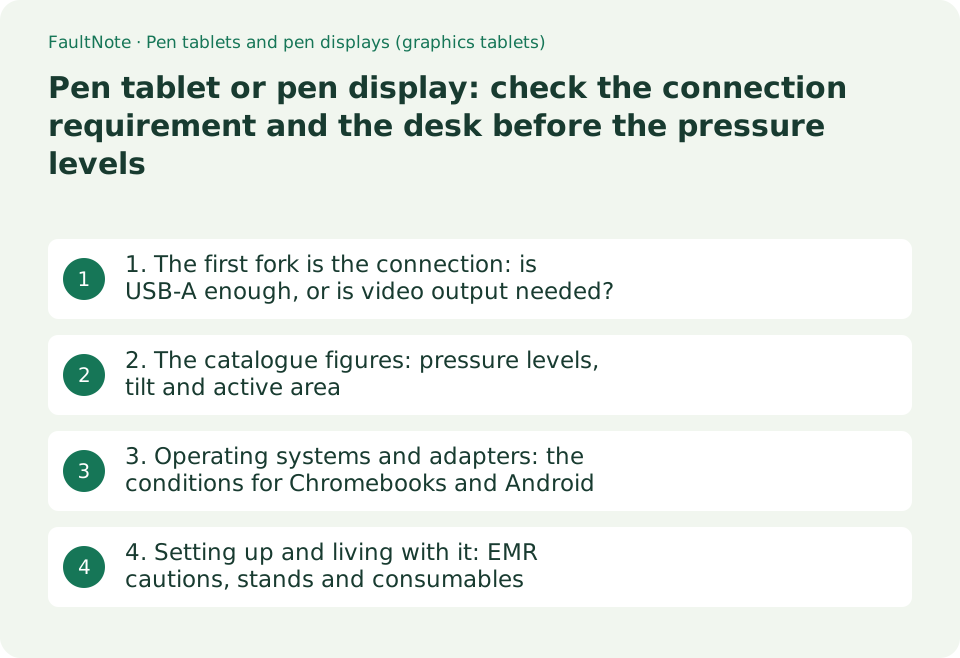
Who this guide is for and what to prepare
- People buying a first graphics tablet for illustration or photo editing who cannot decide between a pen tablet and a pen display
- People considering a pen display who need to check whether their PC or laptop can actually drive it
- People who want to know what catalogue figures such as pressure levels and active area mean for day-to-day work
What you need
- The free ports on the PC: a USB Type-C port with DisplayPort Alt Mode, an HDMI port plus USB, or only USB-A
- The desk depth available, and where the mains socket is if a pen display needs one
- The operating system and version you will use (Windows, macOS, ChromeOS or Android) and what your applications support
1. The first fork is the connection: is USB-A enough, or is video output needed?
A pen tablet is an input device. Wacom's Intuos specification lists "a standard USB A port on the computer" among its system requirements, with the wireless models (CTL-4100WL, CTL-6100WL) supporting Bluetooth 2.1 or later (Bluetooth Classic). The higher Intuos Pro lists its hardware requirement as a standard USB-A port plus Bluetooth Low Energy for wireless use, ships a USB-C to USB-A cable (1.8 m) and notes that "a separate USB-C to USB-A adapter is required for a USB-C connection". Video output does not come into it.
A pen display is also a monitor, so the conditions change. The Wacom One 14's system requirement is "a USB Type-C port that supports DisplayPort Alt Mode", its interface is one USB Type-C port, and its video input signal is listed as DisplayPort only (with a note that Thunderbolt 3 and later are also supported). A USB-C port that does not carry video will show nothing. Wacom does publish a remedy on the same page, however: "A Thunderbolt port (3rd generation or later) or DisplayPort Alt Mode support is required. For a PC without DisplayPort Alt Mode support, please use the Wacom Converter Kit (sold separately)." That is worth checking before ruling the product out because of your port. Our separate guide on a monitor stuck at 60Hz over USB-C covers DP Alt Mode in more detail.
The Cintiq 16 offers more routes. Its supported connections are "a USB Type-C port supporting DisplayPort Alt Mode, or an HDMI port plus a USB port"; its interfaces are one mini HDMI (HDMI Type-C) and one USB Type-C; and its video input signals are both DisplayPort and HDMI. The box includes a USB Type-C cable (DisplayPort Alt mode), a USB Type-C cable for power and an AC power adapter, with input power listed as DC 5V 3A over USB-C or 9V 2.77A from the adapter. It works with a desktop that only has HDMI, at the cost of more cables and a mains socket.
There is a resolution condition on the display side too. The Cintiq 16's specification notes that "to achieve the maximum resolution and response speed of the Wacom Cintiq 16, the host PC port must support 2560 x 1600@60Hz". An older laptop's HDMI output, or a USB-C port without video, may not meet it. So the pre-purchase check covers not only which ports exist but what resolution and refresh rate they can drive.
Scroll horizontally to see the full table →
| Product (as published by Wacom) | Type | Connection required | Power |
|---|---|---|---|
| Wacom Intuos (CTL-4100 / 6100) | Pen tablet | A standard USB A port on the computer; WL models add Bluetooth 2.1 or later | USB bus powered; WL models have a built-in lithium-ion battery (up to 15 hours) |
| Wacom Intuos Pro (PTK470 / 670 / 870) | Pen tablet | A standard USB-A port, or Bluetooth Low Energy | Built-in, non-removable lithium-ion battery, up to 16 hours |
| Wacom One 14 (DTC141) | Pen display | A USB Type-C port supporting DisplayPort Alt Mode (DisplayPort is the only video input) | Connected through one USB Type-C port |
| Wacom Cintiq 16 (DTK168K4C) | Pen display | DP Alt Mode USB Type-C, or an HDMI port plus a USB port | DC 5V 3A over USB-C, or 9V 2.77A from the bundled AC adapter |
| Host resolution condition | Pen display | The Cintiq 16 requires a host port supporting 2560x1600@60Hz for its maximum resolution and response speed | — |
| If you only have USB-C | Pen tablet | The Intuos Pro notes that a separate USB-C to USB-A adapter is required | — |
| Number of cables | — | One for a pen tablet; the Cintiq 16 ships with separate video and power cables | Affects how the desk is arranged |
2. The catalogue figures: pressure levels, tilt and active area
Pressure levels on Wacom's current line split into 4096 and 8192. The Wacom Intuos ships the Wacom Pen 4K (LP-1100K) at 4096 levels, 2540 lpi resolution and a 133 pps report rate. The Wacom One 14 ships the Wacom One standard pen at 4096 levels with 60° tilt detection and 2540 lpi. The Intuos Pro and Cintiq 16 ship the Wacom Pro Pen 3 at 8192 levels, ±60° tilt and a resolution of up to 0.005 mm (written as 5080 lpi on the Cintiq 16 page). Since the difference is really the bundled pen, checking the pen's model name shortens the comparison.
What affects daily work more is the active area. The Intuos Pro is 187 x 105 mm (Small), 263 x 148 mm (Medium) and 349 x 195 mm (Large), with outside dimensions of 215 x 163, 291 x 206 and 377 x 253 mm respectively. The Wacom Intuos is 152.0 x 95.0 mm at Small (outside 200 x 160 x 8.8 mm) and 216.0 x 135.0 mm at Medium (outside 264 x 200 x 8.8 mm). On pen displays the active area matches the screen: 309 x 174 mm on the Wacom One 14 (14.0 inches, 1920 x 1080) and 345 x 215 mm on the Cintiq 16 (16.0 inches, 2560 x 1600). On a pen tablet the outside dimensions, not the active area, decide how much desk it occupies.
The pens share their basics. All four products use electromagnetic resonance, and the pens are listed as pressure sensitive, cordless and battery-free — the pen itself never needs charging. The tablet may, though: the Intuos Pro has a built-in, non-removable lithium-ion battery rated at up to 16 hours with a 3.5-hour charge (2 hours on a computer that supports fast charging), and the Wacom Intuos has a battery only on the wireless models, rated up to 15 hours with about a 3.5-hour charge.
On pen displays the panel specification becomes part of the decision. The Wacom One 14 is IPS with a maximum brightness of 285 cd/m2 (typical), 1000:1 contrast, 16 ms response (typical) and sRGB (CIE 1931) coverage of 98% (typ). The Cintiq 16 is IPS at 290 cd/m2, 1400:1 contrast, 12 ms response, with DCI-P3 coverage of 99% and sRGB coverage of 100% (both CIE 1931, typical), colour temperature presets and native / sRGB / DCI-P3 / Display P3 gamut settings. How to read a "coverage" percentage is covered in our monitor colour gamut guide.
Scroll horizontally to see the full table →
| Item | Wacom Intuos | Wacom Intuos Pro | Wacom One 14 / Cintiq 16 |
|---|---|---|---|
| Bundled pen | Wacom Pen 4K (LP-1100K) | Wacom Pro Pen 3 | Wacom One standard pen / Wacom Pro Pen 3 |
| Pressure levels | 4096 | 8192 | 4096 / 8192 |
| Tilt detection | Not listed in the specification table | ±60° | 60° / ±60° |
| Resolution | 2540 lpi | Up to 0.005 mm | 2540 lpi / up to 0.005 mm (5080 lpi) |
| Active area | S 152.0 x 95.0 mm, M 216.0 x 135.0 mm | S 187 x 105, M 263 x 148, L 349 x 195 mm | 309 x 174 mm / 345 x 215 mm |
| Size and weight | S 200 x 160 x 8.8 mm, 230 g; M 264 x 200 x 8.8 mm, 390 g | S 215 x 163, 240 g; M 291 x 206, 411 g; L 377 x 253, 660 g (4–7 mm thick) | 201 x 336 x 10 mm, 750 g / 384 x 259 x 15 mm, 2.0 kg |
| Screen | None | None | 14.0 in 1920x1080, sRGB 98% (typ) / 16.0 in 2560x1600, DCI-P3 coverage 99% |
| Pen power | Cordless and battery-free | Same (the tablet itself has a battery, up to 16 hours) | Same |
3. Operating systems and adapters: the conditions for Chromebooks and Android
Supported operating systems differ per product. The Wacom Intuos lists Windows 7 or later (latest service pack, excluding Windows 10 S), macOS X 10.15 or later, Android 6.0 or later phones and tablets with OTG, and the latest version of ChromeOS. The Intuos Pro lists Windows 10 or later and macOS 13 or later. The Wacom One 14 lists Windows 10 or later, macOS 13 or later and the latest ChromeOS. The Cintiq 16 lists Windows 10 or later, macOS 13 or later, Android 8.0 or later and the latest ChromeOS, with a note that the table is as of October 2025.
ChromeOS and Android carry conditions. The Cintiq 16's specification says display mode requires support from the device maker's OS and points to a compatibility list, and notes that "due to the ChromeOS specification, some pen and tablet functions may not be supported". Wacom publishes that list as its verified-device list, split per product into Chromebook models, Chromebook-compatible USB Type-C adapters, Android devices, Android adapters and so on. If you plan to use a phone or Chromebook, checking your device against that list before buying is the reliable step.
Drivers are a shared precondition. The Wacom Intuos notes that "on Windows and Mac, the tablet driver must be downloaded and installed", and the Intuos Pro's requirements list an internet connection because "the tablet driver must be installed to use all functions". Bundled software additionally requires a Wacom ID and product registration. It is safer not to plan around everything working the moment the box is opened.
For adapters, follow the product's own notes. The Intuos Pro states plainly that a separate USB-C to USB-A adapter is required for a USB-C connection, and the Wacom One's accessory list includes the Wacom Converter (ACK45219Z) as a separate purchase. For a pen display carrying video, the maker does not claim that any arbitrary adapter will work, so the compatibility list and the first-party accessories are the place to start.
Scroll horizontally to see the full table →
| What to check | What Wacom states | Action before buying |
|---|---|---|
| Wacom Intuos supported OS | Windows 7 or later (excluding Windows 10 S), macOS X 10.15 or later, Android 6.0 or later with OTG, latest ChromeOS | Check your own OS version |
| Intuos Pro / Wacom One 14 supported OS | Windows 10 or later, macOS 13 or later (the Wacom One 14 also lists the latest ChromeOS) | Older macOS releases may fall outside support |
| Cintiq 16 supported OS | Windows 10 or later, macOS 13 or later, Android 8.0 or later, latest ChromeOS (stated as of October 2025) | For Android, check whether display mode is supported |
| ChromeOS limitation | "Due to the ChromeOS specification, some pen and tablet functions may not be supported" | Confirm the functions you need are available |
| Verified-device list | Published per product: Chromebook models, compatible USB Type-C adapters, Android devices | Check that your device and adapter appear |
| Drivers | On Windows and Mac the tablet driver must be downloaded and installed | Setup needs an internet connection |
| Adapters | The Intuos Pro requires a USB-C to USB-A adapter; the Wacom Converter is sold separately for the Wacom One | Choose a first-party or listed adapter |
4. Setting up and living with it: EMR cautions, stands and consumables
Wacom's pen tablets and pen displays use electromagnetic resonance (EMR). The Wacom One specification page states that because of this, using the product close to equipment containing magnets or motors "may cause unstable behaviour such as distorted drawing", naming PC speakers, the cooling fans of a PC or stand, and magnetic cover cases as examples, and recommends keeping such equipment away. When the pen drifts or lines bend, this is the first thing to check.
A pen display is more demanding to place. The Cintiq 16 is 384 x 259 x 15 mm and 2.0 kg, with a built-in stand adjustable to 20°, VESA 75 x 75 mm support and fanless operation; the Wacom Adjustable Stand (ACK620K) is sold separately. The Wacom One 14 is 201 x 336 x 10 mm and 750 g, with a Wacom Foldable Stand (ACK652Z) available separately. If you will draw for long stretches at an angle, the stand belongs in the budget and the desk depth calculation.
The consumable is the pen nib. The Intuos Pro includes ten spare nibs in its pen stand (five standard, three felt, two rubber), the Wacom Intuos includes three standard nibs inside the pen, and the Wacom One 14 includes three standard nibs and a nib remover. Standard, felt and elastomer nibs are sold separately, and the material is described as changing the feel. Since they are expected to be replaced, noting the part number from the product page (for example ACK24801Z for Wacom Pro Pen 3 standard nibs) saves time later.
Warranty and environmental conditions are in the specification tables too. All four products listed here carry a one-year warranty in Japan. Operating conditions are 5–40 °C and 30–90% humidity for the Wacom One 14 and 5–40 °C and 30–80% for the Cintiq 16, both non-condensing. The Cintiq 16 page also notes that the LCD panel may have dead or permanently lit pixels and that this is not a fault. A pen display inherits the caveats of buying a monitor.
Scroll horizontally to see the full table →
| Situation | What Wacom states | What it means in practice |
|---|---|---|
| Drawing distorts or behaves oddly | EMR means that equipment with magnets or motors nearby (PC speakers, cooling fans, magnetic covers) can make behaviour unstable | Move the equipment away first; it is often a placement problem |
| Placing a pen display | The Cintiq 16 is 384 x 259 x 15 mm, 2.0 kg, stand adjustable to 20°, VESA 75x75, fanless | Check desk depth and monitor-arm compatibility |
| Angle adjustment | The Wacom Foldable Stand and the Wacom Adjustable Stand are sold separately | Budget for a stand if you draw for long periods |
| Pen nibs | Ten spares with the Intuos Pro, three with the Intuos, three with the Wacom One 14 | A consumable; note the part number |
| Nib types | Standard, felt, elastomer and rubber nibs are sold separately | The feel changes with the nib material |
| Warranty (Japan) | One year on all four products | Decide about extended cover at purchase |
| Operating environment | Wacom One 14: 5–40 °C, 30–90%; Cintiq 16: 5–40 °C, 30–80% (non-condensing) | Avoid direct sunlight and humid places |
Limitations and requirements
- The specifications are as published on Wacom's product pages and read on 2026-09-19. We did not try or measure drawing feel or accuracy ourselves. Wacom's pages state that specifications may change, and the Cintiq 16's supported-OS entry is marked as of October 2025.
- The four products here are part of Wacom's current line. Other brands' pen tablets and pen displays differ in connection requirements, pressure levels and pen technology, so check the same rows in the specification table of the product you intend to buy.
- Whether a Chromebook or Android device works also depends on the device, and Wacom publishes a per-product verified-device list. This guide carries no prices, stock or rankings.
Frequently asked questions
Will a pen display work with any laptop that has a USB-C port?
Having USB-C is not enough. The Wacom One 14's system requirement is "a USB Type-C port that supports DisplayPort Alt Mode", its interface is one USB Type-C port and its video input signal is DisplayPort only (with Thunderbolt 3 and later also supported). A USB-C port without video output will show nothing. The Cintiq 16 additionally supports "an HDMI port plus a USB port" and ships with an AC power adapter. Its specification also notes that reaching the maximum resolution and response speed requires a host PC port supporting 2560 x 1600@60Hz. Check not the shape of the port but whether it carries video, and up to what resolution.
What changes between 8192 and 4096 pressure levels?
In Wacom's specifications it appears as the bundled pen. The Wacom Intuos ships the Wacom Pen 4K (LP-1100K) at 4096 levels and 2540 lpi; the Wacom One 14 ships the Wacom One standard pen at 4096 levels with 60° tilt; the Intuos Pro and Cintiq 16 ship the Wacom Pro Pen 3 at 8192 levels, ±60° tilt and up to 0.005 mm resolution. Wacom does not publish what the pressure-level difference produces beyond the number, so we do not claim that 8192 makes anyone draw better. What the specification does let you compare for daily work is the active area (Intuos Pro Small 187 x 105 mm against Medium 263 x 148 mm), the desk space each occupies, and whether tilt detection is listed at all.
The pen drifts and my lines bend — is it faulty?
It can be the environment. Wacom's Wacom One specification page states that because its pen tablets and pen displays use electromagnetic resonance (EMR), using them close to equipment containing magnets or motors can cause unstable behaviour such as distorted drawing, naming PC speakers, the cooling fans of a PC or stand, and magnetic cover cases, and recommends keeping such equipment away. Review the distance to nearby equipment first. Separately, the Cintiq 16 specification notes that the LCD panel may have dead or permanently lit pixels and that this is not a fault.
Sources and verification date
Sources checked: . These sources support the specifications, procedures or prices discussed here. Check each source for applicable conditions and current information.
Related practical guides
- DisplayPort vs. HDMI for 144Hz, 4K and 240Hz Monitors: Check Ports, Cables and GPU Support
- Single-cable USB-C monitors: match the monitor's supply wattage against your laptop's rating
- Integrated vs. Discrete Graphics: Check Workloads, CPU Models and Outputs
- 1080p, 1440p or 4K: Plan a Gaming Monitor and GPU Budget Together
- USB-C Hub vs Thunderbolt Dock: Displays, Power, and Compatibility
- How to Choose a USB-C Cable: 60W vs 240W Power Marks, 10Gbps to 80Gbps Data Rates and Video Output by Use