Integrated vs. Discrete Graphics: Check Workloads, CPU Models and Outputs
Check integrated-graphics availability, application performance and display connections separately. Use CPU specifications and the actual output path to decide whether a graphics card is needed.
Published · Updated · FaultNote editorial policy
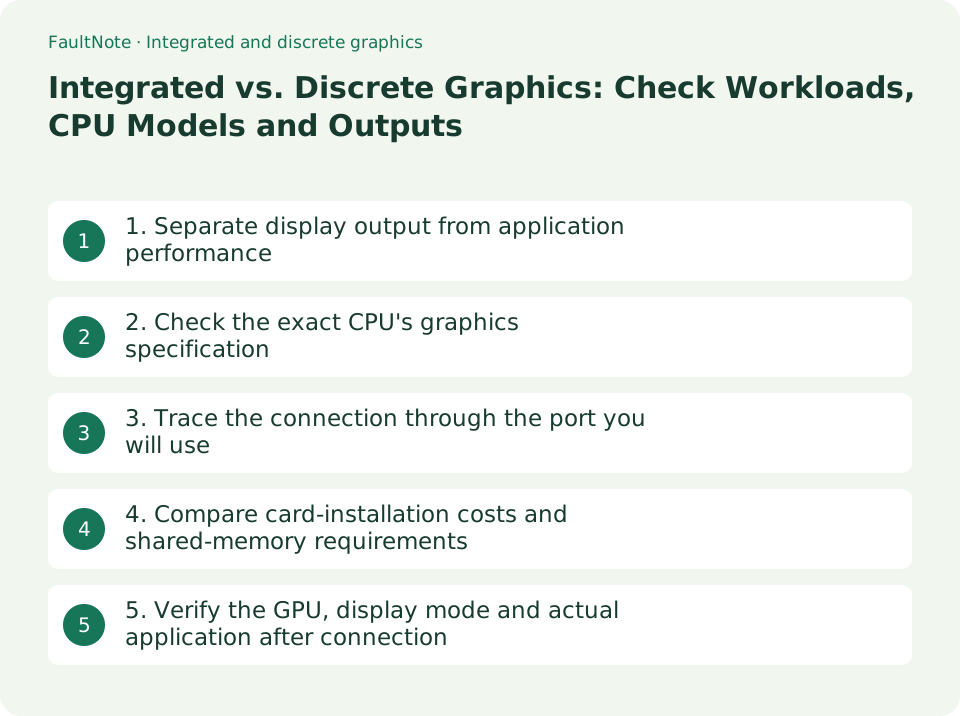
Who this guide is for and what to prepare
- People checking whether a DIY PC can run without a graphics card
- People deciding on a graphics card for displays or gaming
What you need
- Exact CPU, board and candidate GPU models
- Applications, target resolution, refresh rate and display count
- Monitor-port and cable specifications
1. Separate display output from application performance
Integrated graphics is built into the processor and normally shares system memory. A typical desktop graphics card has a separate GPU and dedicated memory. Choose based on the applications, resolution, target frame rate and required GPU features, rather than merely whether a picture can be displayed.
Scroll horizontally to see the full table →
| Use | Starting candidates | Before deciding |
|---|---|---|
| Documents, browsing and video playback | An integrated GPU meeting the requirements | Display count, output capability, video formats and memory configuration. |
| Gaming | An exact integrated GPU or graphics-card model | Matched game, resolution, quality settings and target FPS. |
| 3D and GPU-accelerated creation | A GPU supported by the application | Supported API, driver and dedicated-memory requirements. |
| Add a card later | A build that can start on integrated graphics | CPU graphics, expansion slot, PSU and case clearance. |
- List the games or applications, display count, resolution and refresh rate.
- Read each application's official GPU, graphics-API and memory requirements, distinguishing minimum from recommended specifications.
2. Check the exact CPU's graphics specification
Integrated graphics is not limited to Ryzen names ending in G. AMD's specifications checked on September 12, 2026 list Radeon 780M for the Ryzen 7 8700G and Radeon Graphics for the Ryzen 5 9600X. Both having graphics does not establish equal gaming performance.
Intel identifies F desktop processors as requiring discrete graphics. Check the full CPU model rather than expecting motherboard display ports to provide output from a processor without integrated graphics.
Scroll horizontally to see the full table →
| CPU example | Official integrated-graphics entry | What it establishes |
|---|---|---|
| Ryzen 7 8700G | Radeon 780M / 12 graphics cores | Assess this GPU's features and workload performance. |
| Ryzen 5 9600X | Radeon Graphics / 2 graphics cores | An example with graphics without a G suffix; compare gaming performance separately. |
| F suffix on Intel desktop processors | Discrete graphics required | Include a graphics card for display output in the build. |
- Find Graphics Model or Processor Graphics in the official CPU specification.
- Record the exact integrated-GPU name and assess it for the required application. Do not convert a core-count ratio into an FPS ratio.
3. Trace the connection through the port you will use
On a typical DIY desktop, the motherboard's HDMI or DisplayPort uses the CPU's integrated graphics. For a graphics card, check and use the card's output ports. The CPU's maximum display count or output capability is not necessarily implemented in full by the motherboard.
Using integrated and discrete graphics together depends on the board and BIOS. Do not assume plugging displays into both will always enable extra screens; check the manufacturer's simultaneous-use conditions.
- For integrated graphics, check CPU, motherboard output, cable and monitor in order. For a card, check the card output, cable and monitor.
- Verify the required screen count, resolution and Hz for that port and connection method, including any adapter or dock restrictions.
- If you want to keep using motherboard outputs after adding a card, check simultaneous-output support in the manual or with the manufacturer before buying.
4. Compare card-installation costs and shared-memory requirements
A graphics-card plan includes PSU requirements, auxiliary cables and physical fit as well as the card price. An integrated-GPU plan shares system RAM, so account for application memory too. A reported shared-memory allowance is not proof that a dedicated-VRAM requirement is met.
This comparison has not obtained matched live prices or game measurements. Compare builds that meet your workload rather than assuming integrated graphics is always enough or a card is always necessary.
- Quote the integrated-GPU option with its CPU, board, memory and required display outputs.
- For the card option, add any required PSU, cable or case changes and compare against the same display and workload requirements.
- For a planned later card, check a specific candidate's dimensions and power requirements now. Compatibility with an unspecified future product cannot be established.
5. Verify the GPU, display mode and actual application after connection
A visible picture is only part of the check. Verify that the intended GPU is detected, the display mode is correct and the application works at the required settings. Supporting a high-resolution display is different from rendering a game quickly at that resolution.
- Open Windows + X > Device Manager > Display adapters and check the GPU name. For a Basic Display Adapter entry, check the PC or GPU manufacturer's supported driver.
- In Settings > System > Display > Advanced display, select the target screen and check resolution and refresh rate.
- Try the intended application at the planned quality, resolution and feature settings. If it falls short, consider adjusted settings or another GPU.
Limitations and requirements
- Without CPU graphics, a typical motherboard display port alone cannot provide output.
- The CPU's maximum display capability is not necessarily implemented on the motherboard's ports.
- Check board and BIOS support before relying on simultaneous integrated and discrete graphics.
Frequently asked questions
Does a Ryzen CPU need a G suffix to display without a card?
Not always. The example Ryzen 5 9600X includes Radeon Graphics. Check the exact CPU's graphics specification and the board's display outputs.
Does an HDMI port on the motherboard guarantee a picture?
It requires CPU graphics and motherboard support. For a graphics-card setup, check the outputs on the card itself.
Does 4K display support mean enough performance for 4K gaming?
Display-output support and rendering performance are different. Assess the intended game at the target quality and FPS.
Sources and verification date
Sources checked: . These sources support the specifications, procedures or prices discussed here. Check each source for applicable conditions and current information.
- Intel: integrated and discrete graphics ↗
- AMD Ryzen 7 8700G graphics specifications ↗
- AMD Ryzen 5 9600X graphics specifications ↗
- Intel processor suffixes and graphics requirements ↗
- Intel: motherboard video outputs and discrete graphics ↗
- Microsoft: display refresh-rate settings ↗
- Intel: planning graphics-card installation ↗
- Intel: identifying the graphics controller in Windows ↗
Related practical guides
- GPU value ranking, September 2026: ten models at Japanese retail prices
- DDR4 vs. DDR5: Choose for a New Build, Reused RAM and Upgrade Cost
- DDR5 on-die ECC is not ECC memory: how to check whether your CPU and motherboard actually accept ECC modules
- Before you buy a second SSD: the M.2 slots on your board are not interchangeable
- ATX vs microATX vs Mini-ITX: choose a PC case and motherboard
- Before buying an expansion card: an x16-shaped slot can run at x1, and M.2 carrier cards need bifurcation