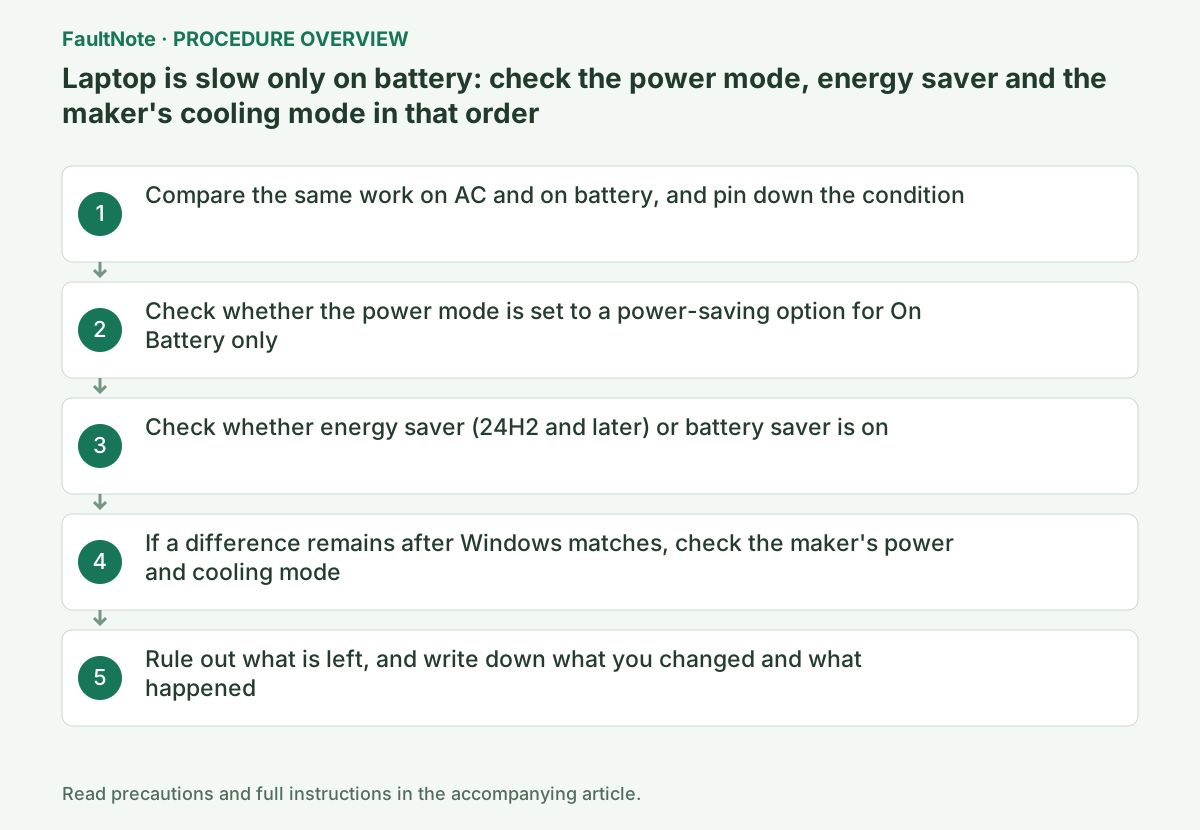
Laptop is slow only on battery: check the power mode, energy saver and the maker's cooling mode in that order
What to do first
When a laptop is slow only on battery, the first thing to look at is neither the driver nor the application: it is the settings that are split by power state. Microsoft's procedure for the power mode is Settings > System > Power & battery > Power mode, choosing an option for Plugged in or for On Battery separately, and its OEM documentation states that the default mode is configured separately for AC and DC and that a user's choice on either becomes the new default for that state. While energy saver is on, Microsoft states that "Users cannot change the power mode in Windows Settings" and that "Display brightness is reduced by 30%", and it lists "Apps running in the background are blocked" among the additional behaviours to expect when the device is unplugged and on low battery - enough on its own to change how the machine feels. If a difference remains once Windows matches, the GPU and thermal controls sit with the OEM, so check a maker document such as Lenovo's Intelligent Cooling for your own model.
This is a general troubleshooting guide, not an announcement of a current outage.
Affected products and symptoms
- Product
- Windows 11 power mode / energy saver, laptop maker power profiles (Lenovo Intelligent Cooling)
- Versions and conditions
- Windows 11 (energy saver on 24H2 and later, battery saver on 24H1 and earlier and on Windows 10). Lenovo ThinkPad Intelligent Cooling user guides are used as the published example of the maker side
Symptoms
- The same work becomes slower the moment the power adapter is unplugged: lower frame rates, longer exports, sluggish response
- Plugging the adapter back in restores the original speed, and neither a restart nor reinstalling the application changes anything
- The screen dims, background apps stop syncing, and the power mode setting cannot be changed
Causes and conditions
Being slower on battery is usually not a fault. Both Windows and the PC maker apply different settings depending on whether the machine is on AC or on battery. The Windows power mode is chosen separately for Plugged in and On Battery, and when energy saver (24H2 and later) or battery saver (24H1 and earlier) is on, screen brightness drops and the power mode itself can no longer be changed. Background apps are blocked whenever battery saver is on, and under energy saver Microsoft lists that as an additional behaviour when the device is unplugged and on low battery. Everything beyond the CPU, including the GPU and thermals, is left to the maker's settings, and some makers, such as Lenovo, state outright that the Windows power mode is the machine's cooling mode.
Before you start
- Pick one specific piece of work that feels slow (the same video export, the same scene in the same game, the same file copy) so the comparison is not a subjective impression
- Write down the current settings before changing them: the power mode for both Plugged in and On Battery, whether energy saver or battery saver is on and at which threshold, and the screen brightness
- Note the model number, check whether a maker power or cooling utility is installed, and open your model's user guide on the maker's support site
Precautions
- This record is not based on hands-on reproduction. The behaviour quoted here is what Microsoft and Lenovo publish, and screen names, menu names and availability differ by Windows version and by model - always confirm against your own model's documentation.
- Losing some performance on battery is usually by design. Lenovo describes Best Performance as prioritizing maximum performance "allowing higher temperature and fan speed", so turning off power saving is traded against battery life, heat and noise. Do not leave the machine switched that way if you need it away from a power outlet.
- The OEM slider document quoted here is dated October 18, 2019. Do not read its time-dependent statements, such as which processor generations support a feature, as current. Do not edit power settings through undocumented registry values either.
Tools and official pages used in this guide
Step-by-step instructions
The first move is a comparison, not a settings change. Run the piece of work you picked once with the adapter connected and once on battery alone, and write down the elapsed time, how it felt, and the battery percentage at the time. Whether the slowdown starts the instant you unplug, or tens of seconds later, or only below a certain charge level, points at different causes.
If it depends on the charge level, energy saver (or battery saver), covered in the next step but one, is the candidate. Microsoft states that battery saver "will turn on automatically when your battery falls below 20%" by default, and that energy saver can be configured to run automatically when the device reaches a chosen battery percentage. If it is slow from the moment you unplug regardless of charge, the power mode or the maker's mode is the candidate.
Do not move on to reinstalling drivers or a clean install at this stage. If the problem does not appear on AC, "different settings are applied depending on the power state" fits the evidence before "something is corrupted" does.
Official links for this step
Microsoft's support page gives the procedure as Start > Settings > System > Power & battery, then under Power mode choosing the option you want for Plugged in or On Battery: "Best power efficiency - Saves battery life", "Balanced - Balances performance and battery", "Best performance - Maximizes performance". The setting is per power state, so a battery-side setting that leans towards saving power looks perfectly consistent on screen.
The same page carries a note: "If you can’t change the power mode, a custom power plan might be selected. Open Control Panel > System and Security > Power Options, then select Balanced." On machines where a maker utility creates its own plan, this is where people get stuck.
Microsoft's OEM documentation (dated October 18, 2019) confirms the same structure. The default mode can be configured separately for AC and DC, and "If a customer chooses a different slider mode on either AC or DC, their selection will become the new default setting." If the machine was once nudged towards power saving while running on battery, that choice can still be the battery-side default today.
Microsoft states that energy saver "replaces battery saver and exists on Windows 11 24H2 and later versions", and it publishes what changes while it is on: "Users cannot change the power mode in Windows Settings", "Display brightness is reduced by 30%. Users can enable or disable this setting", and transparency effects on window backgrounds are disabled. When the device is unplugged and on low battery, it adds that certain Microsoft apps "including OneNote, OneDrive, Phone Link, etc. may not sync", that "Apps running in the background are blocked" (individual apps can be allowed, and categories such as VOIP apps are not blocked), and that non-critical Windows update downloads are blocked while update scans still occur.
If the power mode could not be changed in the previous step, the reason may be energy saver rather than a custom power plan. Microsoft's support page describes expanding Energy saver under Settings > System > Power & battery, choosing a level next to "Turn energy saver on when battery level is at", and setting "Always use energy saver" to On, which leaves it on "until the next time you plug in your PC". If that switch was turned on at some point, the machine stays in the power-saving state for the whole time it is on battery, whatever the charge level.
On 24H1 and earlier and on Windows 10, battery saver plays the same role and turns on below 20% by default. While it is on, background apps and non-critical update downloads are blocked, brightness drops by 30%, and scheduled tasks run only if they meet Microsoft's stated conditions - "All other triggers are delayed until the system exits battery saver mode."
If both power modes are the same and energy saver is off but the gap is still there, the maker side is next. Microsoft's slider document states that only settings which affect perceived performance can be customized across slider modes - CPU power management (PPM) and power throttling - and that "Other factors which control performance (GPU, thermals etc) are in OEM/SVs control and they can create custom power-settings for those and connect them to the slider via the INF." In other words, the GPU and cooling behaviour is not visible from the Windows screens at all.
Lenovo is an example of a maker that spells that connection out for the end user. The ThinkPad X1 Carbon Gen 11 user guide says the Intelligent Cooling feature "helps you adjust power consumption, fan speed, computer temperature, and performance", that on Windows 11 models it is adjusted through Windows Settings, and it maps the modes directly: Best Power efficiency lowers power consumption, fan speed and performance "to get your computer quieter and more eco-friendly, and to get the best battery life", Balanced balances them, and Best Performance means "the maximum performance is prioritized, allowing higher temperature and fan speed". The guide splits its illustrations into "on ac power" and "on battery power", so the per-power-state structure appears here as well.
Some models add a UEFI setting. The ThinkPad T14 Gen 4 / P14s Gen 4 (AMD models) guide describes Intelligent Cooling Boost as a feature that "dynamically adjusts system performance based on the apps you are running", switched on or off in the UEFI BIOS menu under Config > Power. If your machine is not a Lenovo, you are still looking for the same three things in the maker's published manual: a mode per power state, a fan and temperature mode, and whether those are tied to the Windows power mode.
If only background applications are slow, power throttling is involved. Microsoft's document says power throttling "saves up to 11% in CPU power by throttling CPU frequency of applications running in the background", that it "does not suspend or close apps and services on the device", that it is "always engaged, unless the slider is set to Best Performance", and that users can opt individual apps out of it in the Battery usage UX. Note that this document is dated October 18, 2019, including what it says about which processors support the feature - do not read a statement from that date as a current specification.
If nothing above explains it, move to measurement. The powercfg command-line documentation describes using the tool to analyze the system for common energy-efficiency and battery-life problems, and the report is produced from an elevated command prompt. If the battery itself is suspect, the battery report that compares design capacity with full charge capacity is the deciding evidence (our guide on laptop battery health covers how to read it).
Finally, record what you changed and what happened: the power mode for Plugged in and for On Battery, the energy saver threshold and whether "always use" is on, the maker-side mode, and the elapsed time for the same piece of work. That record lets you revert changes that did nothing, and it is exactly what maker support will ask for.
powercfg /energyOfficial links for this step
Check the result
- In Settings > System > Power & battery, the power mode for Plugged in and for On Battery is what you intended, and it is still the same after a restart
- With energy saver (or battery saver) off, the same piece of work run on battery lands within a difference you can accept compared with AC
- The settings before and after, and the elapsed times, are written down, and any change that did nothing has been put back
If the problem continues
- If a large gap remains after the Windows power mode and energy saver match, ask the maker's support about the cooling and power profile specification, quoting the model, the Windows version, the power mode for both power states, the work you ran and how long it took
- If the machine also shuts down suddenly with charge remaining, will not charge, or reports a full charge capacity far below its design capacity, treat it as a battery problem rather than a performance setting
Scope of this guide
Troubleshooting guide — Match the settings that are split by power state first. Check the power mode for Plugged in and for On Battery under Settings > System > Power & battery, check whether energy saver or battery saver is on and at which threshold, then re-measure the same piece of work. If a gap remains, the GPU and thermal controls sit with the OEM, so check the maker's published manual for your model's power and cooling modes.
Frequently asked questions
Is being slow only on battery a fault?
Usually not. Windows keeps a separate power mode for Plugged in and On Battery, and while energy saver is on it reduces display brightness by 30% and locks the power mode, with background apps blocked as an additional behaviour when the device is unplugged and on low battery. Match the settings and compare first; only suspect the hardware if a large gap survives that.
Will Best Performance make it as fast as it is on AC?
Not necessarily. Microsoft states that the slider customizes CPU power management and power throttling, and that factors such as the GPU and thermals are in OEM control. Lenovo likewise describes Best Performance as prioritizing maximum performance while allowing higher temperature and fan speed - it does not say the machine matches its AC behaviour.
The power mode option cannot be changed.
There are two published causes. Microsoft names a custom power plan and says to open Control Panel > System and Security > Power Options and select Balanced. The other is energy saver: while it is on, Microsoft states that "Users cannot change the power mode in Windows Settings".
Official sources and dates
- Change the power mode for your Windows PC ↗
- Microsoft: Energy Saver (Windows 11 24H2 and later; behaviour while on, including that the power mode cannot be changed) ↗
- Microsoft: Battery Saver (24H1 and earlier and Windows 10; on below 20% by default, and the blocked behaviours) ↗
- Microsoft: Battery saving tips for Windows (the energy saver threshold and "Always use energy saver") ↗
- Microsoft: Customize the Windows performance power slider (dated October 18, 2019; AC/DC defaults, power throttling, GPU and thermals in OEM control) ↗
- Lenovo: Intelligent cooling (ThinkPad X1 Carbon Gen 11; the Windows power mode is the machine's cooling mode) ↗
- Lenovo: Intelligent cooling (for AMD models) (ThinkPad T14 Gen 4 / P14s Gen 4; the Intelligent Cooling Boost UEFI setting) ↗
Source publication or resolution date: Not specified. Sources checked: 2026-09-19. The check date is not the date the problem first occurred. Interface labels can vary between versions and display languages.
Related troubleshooting guides
Windows errors and troubleshooting →
- A driver can't load on this device: what memory integrity is blocking, and the choices that leaves
- The Windows 11 clock or time zone is wrong and cannot synchronize
- The screen brightness changes on its own: telling content-based adjustment apart from ambient-light adjustment
- Monitor shows "No Signal" after changing OSD overclock or DisplayPort settings: how to get the picture back
Installation and license activation failures →