A driver can't load on this device: what memory integrity is blocking, and the choices that leaves
What to do first
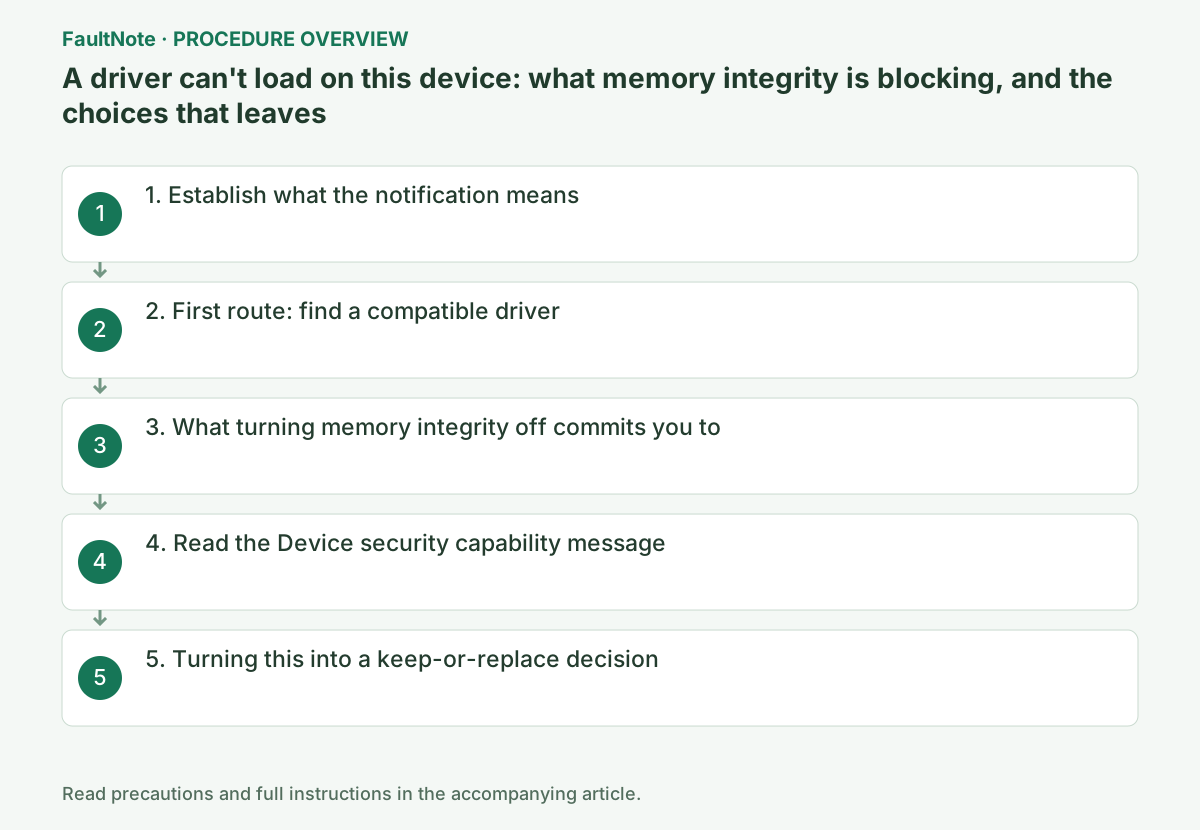
A notification saying a driver cannot load does not mean the hardware has failed. It means the memory integrity setting in Windows Security is stopping that driver from loading. This guide was written on 2026-09-21 from three Microsoft support pages and covers what the notification means, the two options Microsoft gives, what turning the setting off commits you to, and how to read the four hardware security capability messages. Those together are the material for deciding whether to keep using an older peripheral or replace it. Nothing here was reproduced on a test machine.
This is a general troubleshooting guide, not an announcement of a current outage.
Affected products and symptoms
- Product
- Windows 11 and Windows 10 PCs with memory integrity (core isolation) on in Windows Security, or where turning memory integrity on reports incompatible drivers
- Versions and conditions
- Microsoft's support pages cover the meaning of the notification, why memory integrity ends up turned off, and the four hardware security capability messages shown on the Device security page in Windows Security. No build-specific differences are given. The pages were read on 2026-09-21.
Symptoms
- A notification says a driver can't load on this device, without naming the hardware
- One peripheral stops working: a capture card, a printer, a gaming device
- Turning memory integrity on in Windows Security reports incompatible drivers
- The Device security page shows a message such as standard hardware security not supported
Causes and conditions
Microsoft states what the notification means: You are receiving this message because the Memory Integrity setting in Windows Security is preventing a driver from loading on your device. Reinstalling or updating the driver sometimes changes nothing, because the fault is not in the driver's installation; the operating system's protection is refusing it. The reverse situation is documented too: where incompatible drivers exist, Turning on the Memory integrity setting would block these incompatible drivers from loading. Because blocking these drivers might cause unwanted or unexpected behaviors, the Memory integrity setting is turned off to allow these drivers to load. So being unable to turn it on is not a fault either. It is Windows standing down in favour of the hardware.
Before you start
- Note the driver name and company name from the notification (it may still be in the notification centre)
- Identify the affected device. If the notification does not name it, start from whatever stopped working
- Have that manufacturer's support page to hand
- Confirm you can open Device security in Windows Security
Precautions
- Nothing here was reproduced on a test machine. What is presented is what Microsoft's pages state.
- Microsoft states that turning memory integrity off on a Secured-core PC takes the device out of its Secured-core state.
- Continuing without addressing the driver problem is stated to risk the functionality that driver supports no longer working, with consequences ranging from negligible to severe.
- Microsoft does not recommend deleting drivers to restore the setting.
- Everything quoted here was read on 2026-09-21.
Tools and official pages used in this guide
Step-by-step instructions
Microsoft's page states the reason directly: the memory integrity setting in Windows Security is preventing a driver from loading on the device. This is not an expired signature or a corrupted file.
It also characterises the driver: Though the driver has a minor vulnerability that’s preventing it from loading, it’s most likely not malicious in any way. That is not grounds for panic about the hardware.
And it states the limit of what can be learned: The driver name and company name that appear in the notification are the only reliable pieces of information that we have been able to gather about the driver. Which is exactly why they are worth writing down while the notification is still on screen.
Official links for this step
The first option Microsoft gives: See if an updated and compatible driver is available through Windows Update or from the driver manufacturer.
In practice, check optional driver updates in Windows Update first, then search the manufacturer's support pages by model number. The company name you wrote down decides who to ask.
The page also says what to do when there is nothing: If an updated driver is unavailable from the driver manufacturer, it might be a good idea to contact them and inquire whether a fix is coming soon. For older hardware, the answer to that question is often what decides replacement.
And what not to do: Microsoft does not recommend that you delete drivers to attempt to restore this setting.
Official links for this step
The second option Microsoft gives is turning the memory integrity setting off in Windows Security: open Device security, go to Core isolation details, turn memory integrity off. The page notes that a restart is needed for the change to take effect.
A warning sits beside it: Turning off Memory Integrity on a Secured-core PC takes the device out of a Secured-core state. Whether that applies to your machine is answered by the check in the next step.
There is a second warning, about not acting: If you choose to continue using your device without addressing the driver problem, you might discover that the functionality the driver supports does not work any longer, which could have consequences ranging from negligible to severe.
This guide does not tell you to turn it off or to leave it on. The material for deciding is those two warnings and how much the hardware matters to you. For equipment that stops work when it fails, looking at a replacement can be the more coherent answer.
The bottom of Device security in Windows Security shows a message describing the machine's hardware security capability. Microsoft documents four of them.
First: Your device meets the requirements for standard hardware security. This means the device supports memory integrity and core isolation and also has TPM 2.0, secure boot enabled, DEP and UEFI MAT.
Second: Your device meets the requirements for enhanced hardware security. That is the standard requirements plus memory integrity turned on — so turning memory integrity off drops a machine from this level back to standard.
Third: Your device has all Secured-core PC features enabled, which is the enhanced level plus System Management Mode (SMM) protection turned on. Fourth: Standard hardware security not supported., meaning the device does not meet at least one of the standard requirements. On improving it, the page says you might need to turn on hardware features such as secure boot or change BIOS settings, and to contact your hardware manufacturer about what is supported and how to activate it.
Official links for this step
By this point you have the material. Whether the driver's publisher has issued an update. If not, whether a fix is expected. How much it costs you when the device stops. And which capability level the machine drops to if memory integrity goes off.
If you are buying a new PC and intend to keep using older peripherals, this notification bites before the purchase, not after. Hardware whose maker has published no newer driver can land in the same state on the new machine. Checking the driver's update history before buying is worth the few minutes.
This site also covers memory integrity from the buying side, as a device-choice guide. This record is the symptom-first counterpart; read together, they cover both the hardware that is not working now and the decision about what to buy next.
Note finally that this is a different class of problem from a driver that needs updating or rolling back. If updating changes nothing, suspect the protection rather than the driver version.
Check the result
- After installing a compatible driver, confirm the notification does not return and that the device actually works
- After turning memory integrity off, confirm on the core isolation page that it is off following the restart
- Record the Device security capability message before and after, so you know which level the machine moved to
- Judge whether the device works by using it, not by the absence of a notification
If the problem continues
- Where the publisher has no updated driver and names no timeline, the options narrow to running with memory integrity off or replacing the hardware. Microsoft does not say which to choose.
- Deleting the driver is not a supported route back. The device stops working and the setting is not guaranteed to return.
- On a Secured-core PC where that state has to be maintained, for instance under an organisation's requirements, check with the administrator before turning anything off.
Scope of this guide
Troubleshooting guide — Record the driver name and company from the notification, look for an updated compatible driver through Windows Update and the manufacturer, ask about a fix if none exists, and then decide between running with memory integrity off and replacing the hardware, using the Device security capability message and how much the device matters.
Frequently asked questions
I cannot tell which driver is responsible.
Microsoft states that the driver name and company name in the notification are the only reliable information available about it. Write them down before the notification clears. If it has gone, start from whatever stopped working most recently.
Will reinstalling the driver fix it?
Reinstalling the same version changes nothing. What Microsoft lists is obtaining an updated, compatible driver through Windows Update or from the manufacturer. While the version remains incompatible, memory integrity keeps blocking it.
Is it acceptable to leave memory integrity off?
Microsoft takes no position. What it states is that memory integrity is turned off so incompatible drivers can load, that turning it off on a Secured-core PC removes that state, and that continuing without addressing the driver risks the related functionality no longer working. This site does not decide it for you either.
Can I delete the driver to get memory integrity back on?
Microsoft does not recommend it: Microsoft does not recommend that you delete drivers to attempt to restore this setting. Looking for an updated, compatible driver comes first.
Official sources and dates
- Microsoft: A driver can't load on this device (what the notification means, the two options, the Secured-core and unaddressed-driver warnings, and the limits of what the notification reveals) ↗
- Microsoft: Why do incompatible drivers prevent using Memory integrity? States that turning the setting on would block incompatible drivers from loading, that because blocking them might cause unwanted or unexpected behaviours the setting is turned off to allow them to load, that restoring the setting means looking for an updated and compatible driver through Windows Update or the manufacturer, and that Microsoft does not recommend deleting drivers to attempt to restore the setting. Read 2026-09-21 ↗
- Microsoft: Device Security in the Windows Security App. Documents the four hardware security capability messages (standard hardware security requirements met; enhanced hardware security requirements met; all Secured-core PC features enabled; standard hardware security not supported) and their meanings, the standard requirements (support for memory integrity and core isolation, TPM 2.0, secure boot enabled, DEP, UEFI MAT), that the enhanced level includes memory integrity turned on, that the Secured-core level adds System Management Mode protection, and that improving capability may require enabling hardware features or changing BIOS settings, with the hardware manufacturer as the place to ask. Read 2026-09-21 ↗
Source publication or resolution date: Not specified. Sources checked: 2026-09-21. The check date is not the date the problem first occurred. Interface labels can vary between versions and display languages.
Related troubleshooting guides
Windows errors and troubleshooting →
- Laptop is slow only on battery: check the power mode, energy saver and the maker's cooling mode in that order
- The screen brightness changes on its own: telling content-based adjustment apart from ambient-light adjustment
- Monitor shows "No Signal" after changing OSD overclock or DisplayPort settings: how to get the picture back
- Monitor stuck at 60Hz: what to check when Windows will not offer 144Hz or 165Hz