The screen brightness changes on its own: telling content-based adjustment apart from ambient-light adjustment
What to do first
When the built-in display changes brightness without being touched, it is usually one of Windows' automatic adjustments. There are two, with different triggers: one changes brightness and contrast according to the content on screen, the other follows the light in the room. Microsoft states outright that the first kind of change is normal. This guide was written on 2026-09-21 from Microsoft's support page and its hardware design documentation, and sets out how to tell which one is running, what the three options actually mean, what it tells you when the setting is absent, and what to choose for colour-critical work. Nothing here was reproduced on hardware by this site.
This is a general troubleshooting guide, not an announcement of a current outage.
Affected products and symptoms
- Product
- A Windows 11 or Windows 10 PC with a built-in display. On a setup with only an external monitor, the Windows brightness slider itself may not appear
- Versions and conditions
- Microsoft's support page covers changing brightness manually, changing it automatically with the lighting conditions, changing it automatically with the displayed content (on some Windows 11 PCs), and the limits on night light. The content-based setting has three options. No build-specific differences are given. The page was read on 2026-09-21.
Symptoms
- Brightness and contrast shift on their own when a video moves from a dark scene to a bright one
- A page with a white background looks different in brightness from an app with a dark one
- Colour cannot be judged in a photo or video app because the display keeps changing while it is open
- It never happens on mains power, only on battery
- The brightness slider, or the setting being looked for, cannot be found at all
Causes and conditions
In most cases this is not a fault but one of two automatic adjustments Windows provides. Microsoft's support page describes the content-based one like this: Some Windows 11 PCs can automatically adjust the screen brightness and contrast based on content that’s displayed on your built-in screen. It then gives the example of a video with a dark scene followed by a bright one, says brightness and contrast may change, and states This is normal. The other adjustment is driven by the room: Some PCs can let Windows automatically adjust screen brightness based on the current lighting conditions. One is triggered by what is displayed, the other by the light around the machine. Because the triggers differ, so do the settings that address them.
Before you start
- Confirm it happens on the built-in display (an external monitor is adjusted with its own buttons)
- Arrange to try both mains power and battery power
- Decide on one action that reproduces it (for example, playing a video with many dark scenes full-screen)
- Confirm that Settings > System > Display opens
Precautions
- Microsoft states This is normal. of brightness and contrast changing with the content. There is no need to suspect a fault first.
- The source states that turning the content-based adjustment off can result in shorter battery life. The setting trades running time against a stable image.
- Content-based adjustment and ambient-light adjustment are separate features. Turning one off leaves the symptom in place if the other is running.
- For colour-critical work, turning the content-based adjustment off is among the grounds the source gives. It is not, however, display colour calibration.
- Everything here comes from the two Microsoft pages as read on 2026-09-21. Nothing was reproduced on hardware by this site.
Tools and official pages used in this guide
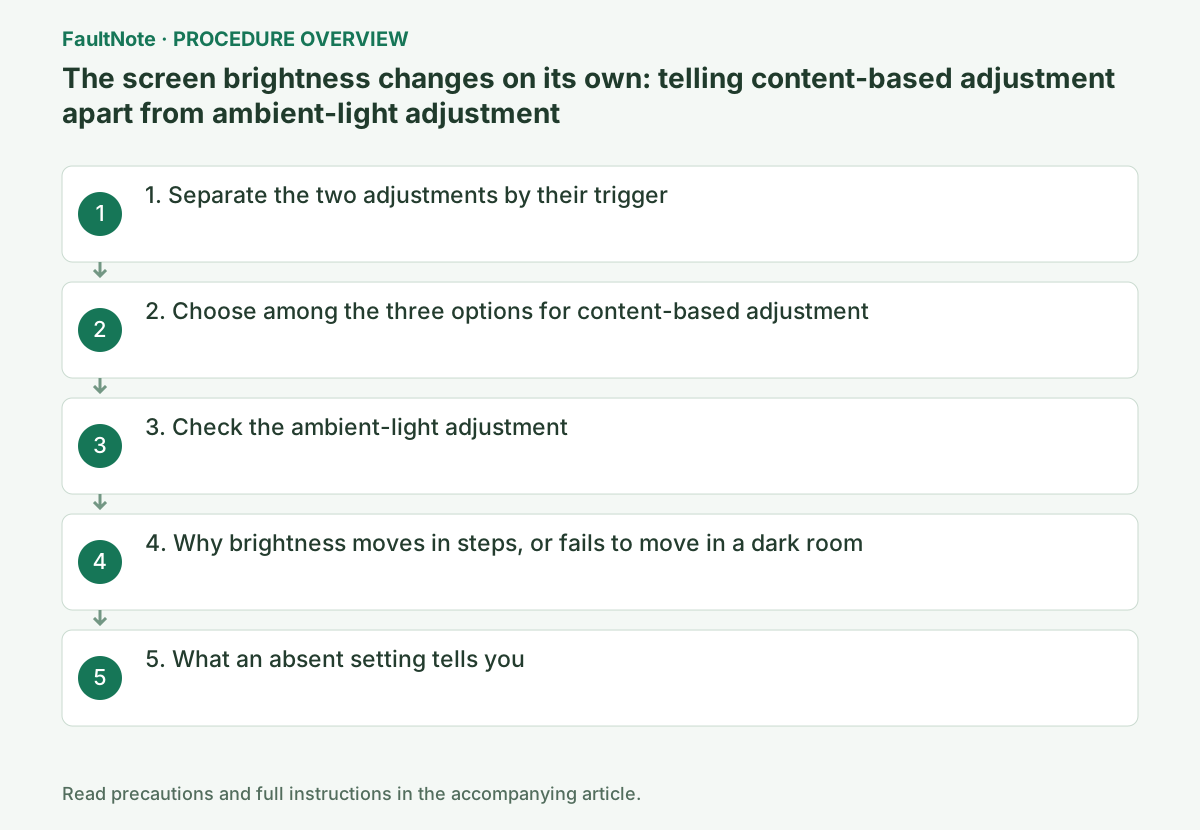
Step-by-step instructions
Microsoft documents them as two separate items: Change brightness automatically based on content and Change brightness automatically based on lighting conditions. The names and the location are similar; the features are not the same.
Use the trigger to tell them apart. If it reproduces when the room light is unchanged and only the displayed content switches from a white background to a dark one, it is the content-based adjustment. If the display is untouched and the brightness moves when a curtain is opened or closed, it is the lighting-conditions one.
The reason for doing this first is simple: the two are addressed by different settings. Turning one off leaves the symptom in place if the other is what is running.
Official links for this step
Open Settings > System > Display, then Brightness, and use the Change brightness based on content drop-down. Microsoft states what each of the three options does.
Off is Adaptive brightness control will be turned off and screen brightness and contrast will not be adjusted. This can result in shorter battery life. Brightness and contrast stop being adjusted — and the cost is stated in the same sentence.
Always is Adaptive brightness control will always run regardless of whether the device is plugged in or on battery., and On Battery Only is Adaptive brightness control will only be activated when the device is on battery power. That is why the symptom can be absent whenever the machine is plugged in.
Microsoft also gives the grounds for choosing: If these sudden brightness changes are distracting, or if you work in photo and video apps where color accuracy is important to you, these settings can be adjusted to best meet your needs between providing appropriate brightness and contrast and conserving battery life. Distraction and colour accuracy on one side, battery life on the other.
The same Brightness section carries a toggle for adjusting brightness automatically when the lighting changes. Microsoft frames the presence of that setting as the way to find out whether the PC supports it at all.
This adjustment runs on an ambient light sensor. Microsoft's hardware design documentation defines it: Adaptive brightness is the screen brightness set automatically by the system in response to the ambient light sensor reading. On a machine with no such sensor, the item does not appear.
Using it does not disable manual control. Microsoft states that the Brightness slider can still be used to fine-tune the level for the built-in display.
HDR displays behave differently: On HDR displays, Windows optimizes the automatic brightness adjustment behavior to better match how the human eye perceives brightness changes. As a result, brightness adjustments might take more time on HDR displays when lighting conditions change. A slow response there is by design, not a fault.
Official links for this step
Ambient-light adjustment can look stepped rather than continuous. Microsoft's documentation gives the reason: to reduce frequent brightness fluctuations caused by a fluctuating sensor reading, ranges of lux values are mapped onto a single target brightness.
The effect is stated directly: The buckets introduce the necessary hysteresis effect that prevents fluctuations in the display brightness for non-significant changes in ALS readings. Small changes in the reading are deliberately ignored.
There is also an explanation for a dark room appearing unresponsive: Because the lowest bucket goes up to 100 lux, brightness should not change frequently in these dark environments.
So not tracking the light smoothly is the design. Knowing that shortens the diagnosis before anyone suspects a failed sensor.
If the content-based item is missing, this PC does not have that feature. Microsoft scopes it as Some Windows 11 PCs rather than as something every machine has. The hardware documentation matches: There is a user toggle for Content Adaptive Brightness Control (CABC). — a toggle provided on the machines that implement it.
A missing brightness slider is a different matter. Microsoft states You might not see the Brightness slider on devices that have an external monitor. The brightness of an external monitor is changed with the monitor's own buttons.
The condition for night light being unavailable is stated too: Night light isn’t available if your device uses certain drivers, like DisplayLink or Basic Display. A display driven through a docking station can land here.
Finally, where a vendor utility is changing brightness or contrast on its own, the symptom can survive turning every Windows setting off. Check the manufacturer's support material in that case; this site has not examined individual vendors' implementations.
Check the result
- After turning the content-based adjustment off, confirm that brightness and contrast hold steady through the same scene of the same video
- Change the room light again and see whether brightness still moves (if it does, the ambient-light adjustment is what is running)
- Confirm that behaviour on mains power and on battery power is now the same
- Before colour-critical work, switch between a white and a black screen in the application you actually use and confirm the display stays constant
If the problem continues
- If the behaviour survives turning both Windows settings off, check the vendor's utility and the monitor's own power-saving or automatic-contrast features
- If it happens on an external monitor, check that monitor's menu for automatic brightness or power saving. The Windows settings are for the built-in display
- If brightness cannot be changed at all, or the display stays dim at maximum, this guide does not cover it. Check the display driver and the model's own support material
Scope of this guide
Troubleshooting guide — Establish first whether the trigger is the displayed content or the light in the room, then change only the setting that applies. The content-based adjustment is a three-way choice of Off, Always or On Battery Only, and the choice includes accepting that Off can shorten battery life. Where the setting does not exist, the conclusion is that the PC does not have the feature.
Frequently asked questions
Brightness only moves while I am watching video. Is something broken?
Not necessarily. Microsoft gives the example of a video with a dark scene followed by a bright one, says brightness and contrast may change, and states This is normal. If it bothers you, the content-based adjustment can be turned off under Settings > System > Display > Brightness.
Why does it only happen on battery?
One of the options for content-based adjustment is On Battery Only, which Microsoft describes as Adaptive brightness control will only be activated when the device is on battery power. That is most likely what is selected.
There is no "Change brightness based on content" in my settings.
Then this PC does not have the feature. Microsoft scopes it as Some Windows 11 PCs rather than as something present on every machine.
I cannot find the brightness slider at all.
Microsoft states You might not see the Brightness slider on devices that have an external monitor. Change an external monitor's brightness with the buttons on the monitor.
Official sources and dates
- Microsoft: Change display brightness and color in Windows (manual adjustment, ambient-light adjustment and HDR behaviour, content-based adjustment and its three options, and the limits on night light) ↗
- Microsoft Learn: Adaptive brightness. Adaptive brightness defined as the screen brightness set automatically by the system in response to the ambient light sensor reading; the existence of a user toggle for Content Adaptive Brightness Control (CABC); the mapping of lux ranges onto a single target brightness and the hysteresis it introduces against small changes in ALS readings; and the lowest bucket reaching 100 lux, so brightness should not change frequently in dark environments. Read 2026-09-21 ↗
Source publication or resolution date: Not specified. Sources checked: 2026-09-21. The check date is not the date the problem first occurred. Interface labels can vary between versions and display languages.
Related troubleshooting guides
Windows errors and troubleshooting →
- Laptop is slow only on battery: check the power mode, energy saver and the maker's cooling mode in that order
- A driver can't load on this device: what memory integrity is blocking, and the choices that leaves
- Monitor shows "No Signal" after changing OSD overclock or DisplayPort settings: how to get the picture back
- Monitor stuck at 60Hz: what to check when Windows will not offer 144Hz or 165Hz