The Windows 11 clock or time zone is wrong and cannot synchronize
What to do first
For an incorrect clock, check the time zone as well as the current time, use automatic settings and Sync now, and check whether the settings persist after restarting.
This is a general troubleshooting guide, not an announcement of a current outage.
Affected products and symptoms
- Product
- Windows 11 Date and Time
- Versions and conditions
- Windows 11
- Error codes and identifiers
- 0x80072F8F
Symptoms
- The clock is off by minutes or hours
- The time reverts after restarting
- Certificate, sign-in, or activation operations report time-related errors
Causes and conditions
Possible causes include mismatched automatic time or time-zone settings, location restrictions, failed network synchronization, or a problem with the PC's internal clock.
Before you start
- Prepare a reliable clock on another device for comparison
- Record whether you are using a VPN or workplace network
- Note the currently displayed time zone
Precautions
- Do not deliberately set the clock backward to bypass certificate warnings
- Do not change organizational time-synchronization policies or service settings without authorization
Tools and official pages used in this guide
Check the official requirements, screen names, and limitations for this procedure.
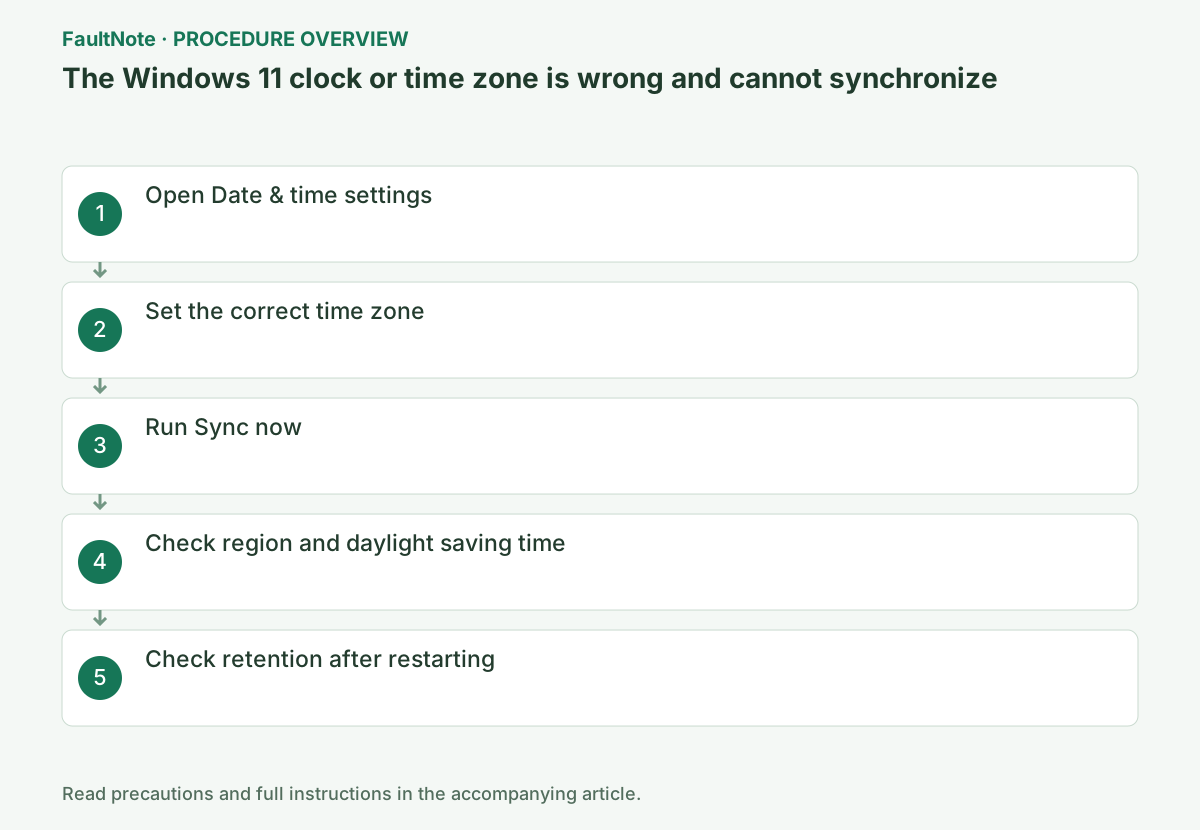
Step-by-step instructions
Distinguish minute drift, an hours-wide offset and a wrong date. Record the zone/region and compare a trusted reference. An hours-wide difference suggests checking zone/daylight-saving settings, while one app calendar may need app-region checks separately.
Record current settings first. Manually entering a time while leaving the wrong zone can preserve discrepancies elsewhere. Distinguish OS time, zone and app display. Consult the administrator when organizational time settings are locked.
Open Settings > Time & language > Date & time. Turn on Set time automatically. If the difference is several hours, check the time zone before manually changing the clock.
You can also reach this screen by right-clicking the taskbar clock and selecting Adjust date and time. Note the current date, time, and time zone before making changes. Avoid deliberately setting an earlier date to remove a certificate error.
On a device that can use location information, turn on Set time zone automatically. If that is unavailable, turn it off and manually select your location under Time zone. For Japan, select (UTC+09:00) Osaka, Sapporo, Tokyo.
Under Additional settings on the same screen, select Sync now. Check the completion indicator and last synchronization time. If it fails, check the internet connection and connect or disconnect the organization's VPN according to management policy.
After pressing the synchronization button, check that completion is shown and the last sync date and time update. Wi-Fi that requires sign-in may prevent synchronization even when it appears connected, so also confirm that an ordinary website opens in the browser.
Official links for this step
- Set time, date, and time zone settings in Windows
Check the official requirements, screen names, and limitations for this procedure.
- Set time, date, and time zone settings in Windows
In Settings > Time & language > Date & time, review automatic time and automatic zone separately. If manual controls are unavailable, read the associated automatic setting. Record the items changed. Distinguish travel from sudden drift in the same location.
For synchronization, check connectivity and read the result before comparing time. Pressing a button is not proof of successful sync. Diagnose both time and connection when authentication errors coexist. Do not replace an organization-specified source without administrator guidance.
For a manually selected time zone, set Adjust for daylight saving time automatically as appropriate for the region. Japan does not use daylight saving time. If only the date format is different, also check Time & language > Language & region.
Restart the PC normally and compare its clock with another device before and after sign-in. If it jumps far backward every time, ask the PC manufacturer to inspect the hardware clock or firmware rather than focusing only on Windows settings.
If the time is off by only a few hours after restarting, suspect the time zone; if the date also jumps far backward, suspect the hardware clock. Company PCs may have time managed by organizational servers, so report the synchronization results to the administrator instead of registering your own server.
Reopen the original app and check affected authentication, calendars or timestamps. Inspect app refresh/settings if its display remains stale. Check a normal restart and later power-off for recurrence, recording offset and timing. Correct immediately after sync differs from staying correct.
For recurrence, provide PC model, time/zone, automatic settings, sync result and trigger. Repeated manual correction is not cause resolution. Device-clock or managed-setting checks may be needed, but the display alone does not establish battery failure. Restore appropriate diagnostic changes.
Check the result
- Sync now succeeds and the last synchronization time updates
- There is no practically significant difference from another reliable clock
- The date, time, and time zone persist after restarting
If the problem continues
- Time sources are managed on organization-joined PCs, so tell the administrator when synchronization failed
- If even the date reverts whenever power is turned off, contact the PC manufacturer about the internal clock
Scope of this guide
Troubleshooting guide — Ensure that the correct time zone and current time appear and do not drift significantly after manual synchronization and a restart.
Frequently asked questions
The time looks correct, but it reports a nine-hour difference.
The time zone may be set to another region, such as UTC. In Japan, select UTC+09:00 and synchronize again.
Set time zone automatically is unavailable.
It depends on location access and organizational policy. You can turn automatic selection off and manually choose the correct time zone.
Why is only the calendar offset when Windows time is correct?
Check Windows zone and calendar app zone/region separately, including the event display conditions. Do not repeatedly correct only the OS. Reopen the app and record which surface differs for app-specific guidance.
Does recurrence after restart prove the battery needs replacement?
It is a useful clue, not proof of battery failure; synchronization or managed settings also matter. Retain offset, timing, model and sync results and use manufacturer diagnostics before replacement.
Does pressing the sync button establish success?
An accepted action differs from a successful result. Read the status and compare time with a trusted reference. Record recurrence after restart even if synchronization initially works. Check connectivity and managed settings as appropriate; do not repeatedly replace sources without confirmed success.
Official sources and dates
Source publication or resolution date: Not specified. Sources checked: 2026-09-05. The check date is not the date the problem first occurred. Interface labels can vary between versions and display languages.
Related troubleshooting guides
Windows errors and troubleshooting →
- Laptop is slow only on battery: check the power mode, energy saver and the maker's cooling mode in that order
- A driver can't load on this device: what memory integrity is blocking, and the choices that leaves
- Printer outputs blank pages after an ink or toner change: packing material, seating, nozzle check and the new-supply test
- A print job remains stuck on Deleting
Installation and license activation failures →