Fix Device Manager Code 10: "This device cannot start"
What to do first
For Code 10, record any additional failure message and the driver version, then isolate the start failure using Windows Update, the manufacturer's official driver, and redetection.
This is a general troubleshooting guide, not an announcement of a current outage.
Affected products and symptoms
- Product
- Windows Device Manager
- Versions and conditions
- Windows 11 / Windows 10
- Error codes and identifiers
- Code 10コード 10
Symptoms
- A network, audio, USB, or other device does not work
- Device status says "This device cannot start. (Code 10)"
Causes and conditions
This is a device-specific FailReasonString or a general start failure, involving an incompatible or damaged driver or the hardware state.
Before you start
- Record the device name, complete status message, and driver provider, date, and version
- For a network device, prepare another way to connect
- Save your work before restarting
Precautions
- Do not uninstall a different device with a similar name
- Do not use unofficial driver-update utilities
Tools and official pages used in this guide
Check the official requirements, screen names, and limitations for this procedure.
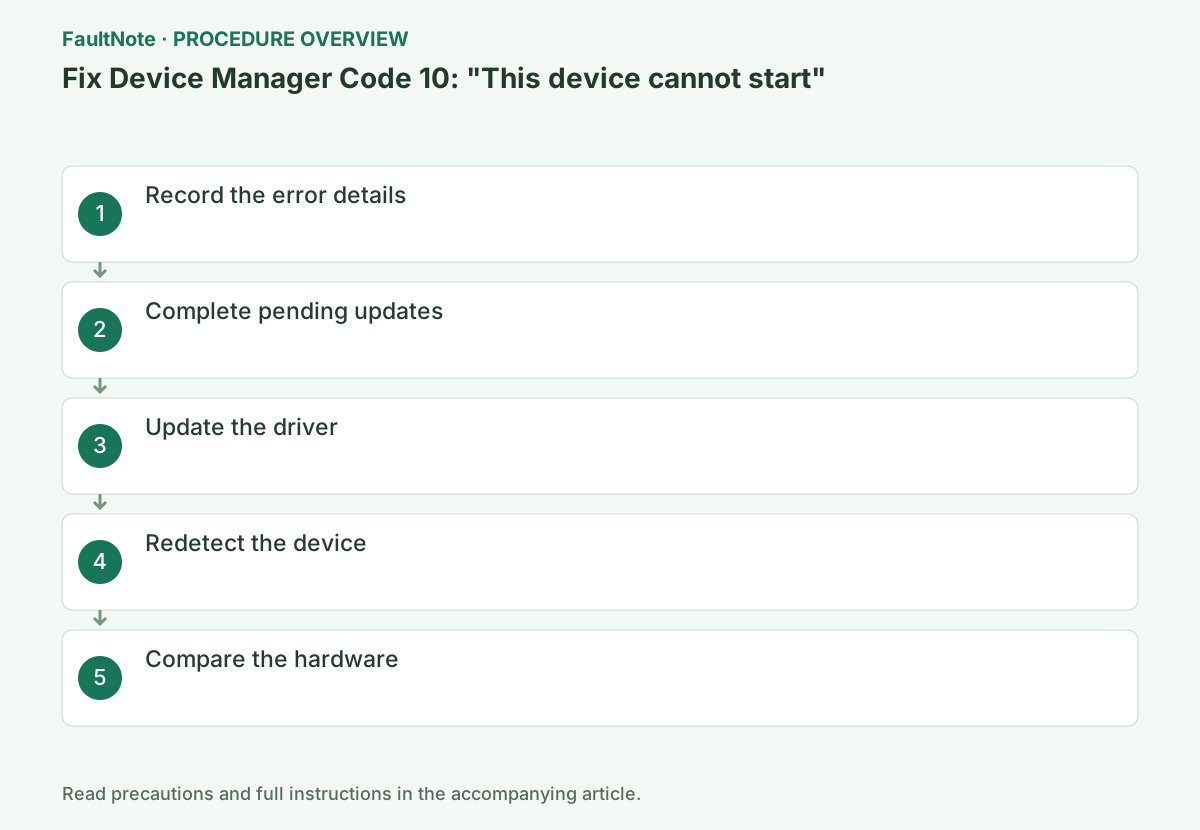
Step-by-step instructions
Record General status/name and driver provider/date/version from the warning device. Identify it carefully among similar entries. Code 10 establishes an inability to start, not one specific setting or component cause. Include preceding updates or connection changes.
USB, internal wireless and audio devices require different connection/manufacturer checks. Compare direct USB connection with a hub; identify the exact PC model for internal hardware. Investigate the affected item rather than deleting devices in bulk. Compare a normal restart without adding another change.
In Device Manager, right-click the affected device > Properties. Note the device-specific message following Code 10 on the General tab and the provider and version on the Driver tab.
Open Device Manager from Windows key+X. Confirm that the affected device's General tab says "This device cannot start. (Code 10)" and save all text that follows without omitting anything. Do not assume Code 10 from a yellow symbol alone.
Select Settings > Windows Update > Check for updates. Under Advanced options > Optional updates, select a driver only if one is available for the affected device, then restart.
In Windows 10, open Settings > Update & Security > Windows Update. If optional driver updates are available, select View optional updates and check for the affected device.
Match Windows edition and exact PC/accessory model when checking optional updates or manufacturer drivers. Avoid similarly named hardware or packages for another model. No new driver found does not establish a healthy device; consult the supported manufacturer version/procedure when needed.
Restart and inspect the same Code 10 after updating. If it began with an update, review available rollback or supported versions. Record versions before rollback and test function afterward. A disabled rollback button does not establish that an old package is available; avoid arbitrary third-party files.
Right-click the device > Update driver > Search automatically for drivers. If none is found and Code 10 persists, check the PC or device manufacturer's support page for a driver matching the exact model and Windows version.
On the manufacturer's download page, check the OS version, 32-bit/64-bit or ARM support, and exact device model. For built-in laptop devices, prioritize the PC manufacturer's supported combination. If the installer requests a restart, complete it before comparing the status.
Official links for this step
- Error codes in Device Manager in Windows
Check the official requirements, screen names, and limitations for this procedure.
- Error codes in Device Manager in Windows
Right-click the device > Uninstall device. On the first attempt, do not select the option to delete the driver; restart instead. After Windows redetects the device, reopen its status.
For an external device, try another port, cable, and PC. For a built-in device, run the PC manufacturer's diagnostics. If it cannot start in another environment either, give the manufacturer the device-specific message you recorded.
For a built-in device that cannot be moved to another PC, there is no need to try removing or disassembling it. Tell the PC manufacturer the model, full Code 10 message, current driver version, and that updating did not help, and ask for model-specific diagnostics.
After Code 10 clears, test intended use: network access, audio/input or needed files. A better status without function is not a completed fix. Restore other devices/connections changed during diagnosis and verify the required original configuration.
For recurrence, provide device/PC/Windows/driver details and restart/connection comparisons. Mark unavailable other-PC tests as untested. Review manufacturer diagnostics or firmware conditions before concluding hardware failure. Registry edits or forced drivers require specific official guidance.
Check the result
- Device status says "This device is working properly"
- The device's actual functions, such as network connectivity or audio playback, work
If the problem continues
- If this began immediately after an update, check whether Driver > Roll Back Driver is available
- For built-in devices, give the PC manufacturer the diagnostic code and driver version
Scope of this guide
Troubleshooting guide — Ensure that the device starts and its properties report normal operation.
Frequently asked questions
Are Code 10 and Code 43 the same?
No. Code 10 means Windows cannot start the device. Code 43 means the driver has reported a device failure to Windows.
Automatic search says the best driver is installed, but the problem remains.
Check whether the PC or device manufacturer provides a model-specific driver and include the complete error message when contacting support.
Does no new driver found mean the device is healthy?
It means no update candidate was found, not that device function was verified. Check Code 10 and actual use, then consult model-specific manufacturer drivers if needed.
Should I remove every device with Code 10?
Identify and diagnose one device at a time. Removing input or networking devices can eliminate your control/recovery route. Prepare alternatives and an official driver source, then follow device-specific guidance.
Official sources and dates
Source publication or resolution date: Not specified. Sources checked: 2026-09-05. The check date is not the date the problem first occurred. Interface labels can vary between versions and display languages.
Related troubleshooting guides
Windows errors and troubleshooting →
- External drive disconnects in the middle of a large copy: check power delivery, the removal policy and USB power management in that order
- External SSD not reaching USB 20Gbps or USB4 speed: check PC ports, cables, hubs and Windows indicators
- Laptop is slow only on battery: check the power mode, energy saver and the maker's cooling mode in that order
- A driver can't load on this device: what memory integrity is blocking, and the choices that leaves