USB-C connection notifications: is the port, the cable, the device or the power the missing piece?
What to do first
The notification that appears when something is plugged into USB-C has a defined meaning. Microsoft's support page lists eleven of them, each with solutions to try and the possible causes. This guide was written on 2026-09-21 from that page and arranges it so that the wording on screen leads to the answer: whether what is missing is a capability on the PC's port, in the cable, in the device itself, or simply power. What you need to buy, if anything, follows from that. Nothing here was reproduced on a test machine; what is presented is Microsoft's own listing and how to read it.
This is a general troubleshooting guide, not an announcement of a current outage.
Affected products and symptoms
- Product
- Windows 11 and Windows 10 PCs showing a connection notification after something is plugged into a USB-C port: a device, a dock, a display or a charger
- Versions and conditions
- Microsoft's support page carries steps for both Windows 11 and Windows 10, where the notification setting lives in different places. Eleven notifications are listed, and Microsoft does not state that the same explanation applies to wording that is not on the page. The page was read on 2026-09-21.
Symptoms
- A notification such as USB device functionality might be limited appears as soon as something is plugged into USB-C
- A display is connected but shows nothing, and Display connection might be limited appears
- Slow charger or PC isn't charging appears while charging, or the battery icon carries a warning
- Only devices connected through a dock or hub fail to run at their expected speed or with their full function
Causes and conditions
Microsoft sets the scene like this: a USB-C connection can charge the PC and connect phones, docking stations, display adapters and more, but Unfortunately, some combinations of hardware and software may cause problems. When that happens, a notification says something is wrong with the USB-C connection. The key statement is about Alternate Modes: The Alternate Mode feature must be supported on the PC's hardware and software, and the connected device or dongle. You might also need a specific USB-C cable. It is a capability that only exists when the PC, the device and the cable all carry it, and the notification says one of those three is missing. Identical-looking connectors carrying different capability sits behind every one of these messages.
Before you start
- Note the exact wording of the notification (it may still be in the notification centre)
- Note what you connected (dock, display adapter, SSD, charger) and which cable you used
- Note which USB-C port on the PC you used. Ports differ from one another
- Have the specifications of the PC and the device to hand: supported Alternate Modes, USB4 or Thunderbolt support, and the power required
Precautions
- Nothing here was reproduced on a test machine. What is presented is Microsoft's published list of notifications with the actions and causes it gives.
- Turning the notifications off leaves the underlying condition in place. Keeping them on is more useful until the diagnosis is finished.
- Microsoft states that Alternate Mode support is required in the PC's hardware and software and in the connected device or dongle, and that a specific USB-C cable may also be needed. Replacing the cable alone does not always resolve it.
- Everything quoted here was read on 2026-09-21.
Tools and official pages used in this guide
Step-by-step instructions
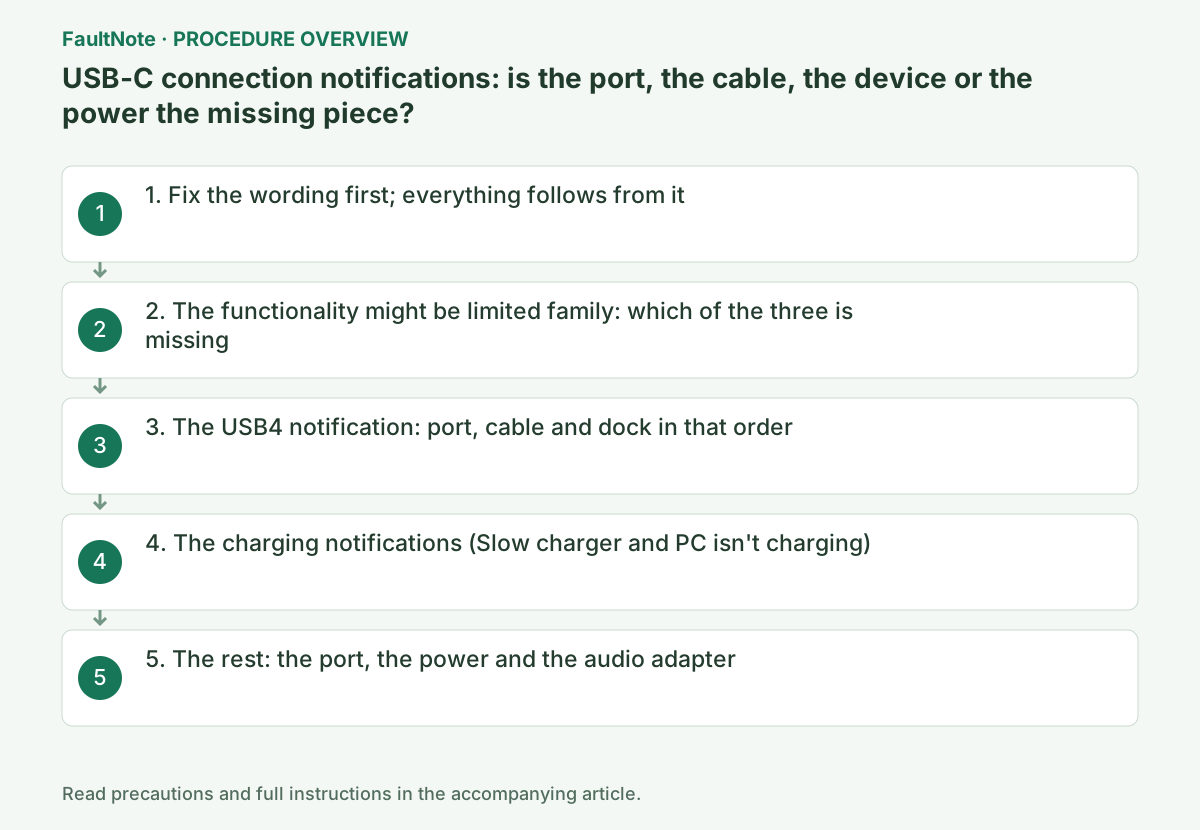
The notifications Microsoft's page lists are these eleven: USB4 device functionality might be limited, USB device not recognized, Slow charger, PC isn't charging, USB device functionality might be limited, Thunderbolt device functionality might be limited, Display connection might be limited, MHL device functionality might be limited, Use different USB port, USB device might need more power, and Unsupported USB-C Audio Adapter.
Different wording, different candidates. Use different USB port says you plugged into the wrong socket; USB device might need more power is about power. They look similar and lead to different purchases.
The page also covers turning the notifications on and off. On Windows 11, search for usb, open USB settings and toggle Connection notifications. On Windows 10, go to Settings, Devices, USB and use the checkbox for being notified about problems connecting to USB devices. Turning the notification off does not change the condition; while you are still diagnosing, leaving it on is the more useful state.
Official links for this step
USB device functionality might be limited, Thunderbolt device functionality might be limited, Display connection might be limited and MHL device functionality might be limited are grouped by Microsoft under the same actions.
Four checks are given. Whether the PC supports the same USB-C features as the connected device. Whether the cable supports them. Whether the device or dongle is connected directly to the PC. And whether it is connected to the USB-C port that supports the correct Alternate Mode; the page uses Thunderbolt as the example, saying a Thunderbolt Alternate Mode device should go to the USB-C port that supports Thunderbolt.
The possible causes have the same shape: the device or dongle has USB-C features the PC does not support, the cable does not support them, it is not on the correct USB-C port, it is connected through an external hub or dock, or too many Alternate Mode devices and dongles are connected.
What this establishes is what to buy. If the cable is the gap, buy a cable that carries the feature. If the port is, use another port or another PC. If the PC does not support the device's feature at all, no accessory closes that gap.
For USB4 device functionality might be limited, Microsoft gives three checks: make sure the PC supports USB4; use the cable provided by the device or dock manufacturer, or a certified USB4 cable; and connect the USB4 device or dock directly to the PC, or only to USB4 docks.
The causes are correspondingly plain: the device or dock supports USB4 but the port it is plugged into does not, so the device is not using USB4; the cable does not support USB4; or it is connected to a dock that does not support USB4.
On a laptop with several identical-looking ports, one of them may be the only one carrying USB4 or Thunderbolt. Check the PC's specification for what each port supports.
These two are about power and share their causes: the charger is not compatible with the PC, the charger is not powerful enough, it is not connected to a charging port, the cable does not meet the power requirements of the charger or PC, dust or dirt in the port stopped the charger going in correctly, or the charger is connected through an external hub or dock.
The actions given are two: use the charger and cable included with your PC, and make sure you are connecting the charger to the USB-C charging port on the PC.
The page also explains the arithmetic. To charge faster, the PC, the charger and the cable must all support the industry standards, and the charger and cable must support the power levels the PC requires. The worked example: if your PC requires 12V and 3A for the fastest charging, a 5V, 3A charger will not give you the fastest charging. It adds that chargers without a standard USB Type-C connector might use a proprietary, nonstandard connector the PC does not support.
The Slow charger entry also describes what you see: a battery icon with a warning on it appears in the system tray when a slow charger is connected and the battery is discharging, and the Slow charger notification might appear too.
Official links for this step
Use different USB port says the device might have limited functionality on that port and to plug it into a different USB port. Two causes are listed: it is not connected to the correct USB-C port, and it is connected through an external hub or dock.
USB device might need more power means the PC cannot supply enough power. The actions given are to plug the device into an external power source if it can take one, to run the PC from external power rather than battery, and to disconnect unused USB devices. The causes listed are that the device is not supported, that the PC has a low battery and has temporarily limited the power it provides, that it is powering other devices and has limited what it provides, and that the device requires more power than the PC can provide.
Unsupported USB-C Audio Adapter translates directly into a purchase. The page explains that there are two types of USB-C audio adapter, analog and digital, and that most PCs only support the digital kind, which contains hardware that converts digital audio data from the PC into an analog signal headphones or speakers can play, and is often more expensive than the analog kind. The action is to unplug the analog adapter and connect a digital one.
USB device not recognized takes a different route: find the error code in Device Manager and follow the steps for that code, with a note that this applies to every code shown there except Code 28. The per-code procedures are covered in this site's Device Manager error code records.
Check the result
- Remove any hub or dock, connect directly to the PC on a port that supports the feature, and confirm the notification does not reappear
- For a display notification, confirm the picture appears at the resolution and refresh rate you expect
- For a charging notification, use the supplied charger and cable on the PC's charging port and confirm the warning icon does not appear
- Judge whether the device is running at its intended speed by actually transferring or displaying something, not by the absence of a notification
If the problem continues
- If the PC itself lacks the capability, no cable or adapter purchase resolves it. Confirm from the PC's specification which port supports what before buying anything.
- Microsoft's page explains only the eleven notifications listed here. For any other wording, the page does not claim the same explanation applies.
- If the dock or the display has a known issue of its own, that information sits with its manufacturer. This Microsoft page does not cover individual third-party faults.
Scope of this guide
Troubleshooting guide — Fix the exact wording of the notification, remove any hub or dock and connect directly, move to a USB-C port that supports the required Alternate Mode, check the cable and the power conditions, and from that decide whether the PC, the cable, the device or the power is what is missing.
Frequently asked questions
I got USB device functionality might be limited but the device seems to work. Can I ignore it?
The notification means it may not be running with its full function or speed. Microsoft's causes are that the PC or the cable does not support the device's newer USB-C features, that it is not on the correct port, or that it is behind an external hub or dock. If nothing is bothering you, you can leave it; if you are paying for speed or resolution, it is worth diagnosing.
Will a new cable fix it?
It depends on the cause. If the cable does not support the device's USB-C features, yes; if the PC's port does not support them, a new cable changes nothing. Microsoft states that Alternate Mode requires support on both the PC and the device, and that a specific cable may also be required.
The notification only appears when I use the dock.
Several of the notifications name an external hub or dock among the possible causes, and connecting the device or dongle directly to the PC appears repeatedly among the actions. Connect it directly first and see whether the notification stops.
I got Unsupported USB-C Audio Adapter. What should I buy?
Microsoft explains that USB-C audio adapters come in analog and digital forms and that most PCs only support the digital kind. The action given is to unplug the analog adapter and connect a USB-C digital audio adapter instead.
Official sources and dates
Source publication or resolution date: Not specified. Sources checked: 2026-09-21. The check date is not the date the problem first occurred. Interface labels can vary between versions and display languages.
Related troubleshooting guides
Windows errors and troubleshooting →
- External drive disconnects in the middle of a large copy: check power delivery, the removal policy and USB power management in that order
- External SSD not reaching USB 20Gbps or USB4 speed: check PC ports, cables, hubs and Windows indicators
- USB devices repeatedly disconnect after idle or sleep
- Fix Device Manager Code 10: "This device cannot start"
Related how-to guides and comparisons
- How to Choose a USB-C Cable: 60W vs 240W Power Marks, 10Gbps to 80Gbps Data Rates and Video Output by Use
- USB-C Hub vs Thunderbolt Dock: Displays, Power, and Compatibility
- Choose a USB-C laptop charger: wattage, USB PD and cable support
- USB-C Monitor Not Working or Stuck at a Low Refresh Rate: Check DP Alt Mode and Lane Allocation