USB devices repeatedly disconnect after idle or sleep
What to do first
USB devices repeatedly disconnect after idle or sleep. USB hub power management, selective suspend, cable or power limitations, or a device driver may be involved. Record the current state before changing it, use only the supported Windows path described below, and verify the same operation again after any required restart.
This is a general troubleshooting guide, not an announcement of a current outage.
Affected products and symptoms
- Product
- Windows USB power management
- Versions and conditions
- Windows 11 (confirm the edition and hardware requirements for the feature)
- Error codes and identifiers
- Code 43
Symptoms
- USB devices repeatedly disconnect after idle or sleep.
- The same condition can persist after a retry or restart.
Causes and conditions
USB hub power management, selective suspend, cable or power limitations, or a device driver may be involved.
Before you start
- Save open documents and allow time for a Windows restart if required.
- Run administrative actions only on a personally managed PC or with administrator approval.
- Save the diagnostic command output so the before and after states can be compared.
Precautions
- Do not bulk-delete registry entries, system folders, credentials, or storage metadata.
- Do not run unofficial scripts or unknown drivers with administrator rights.
- Microsoft recommends that USB selective suspend normally remain enabled. Check the cable, power supply, and manufacturer-provided drivers first, and limit power-management changes to a temporary comparison on the affected device.
Tools and official pages used in this guide
Check the official requirements, interface names, and limitations for this step.
Step-by-step instructions
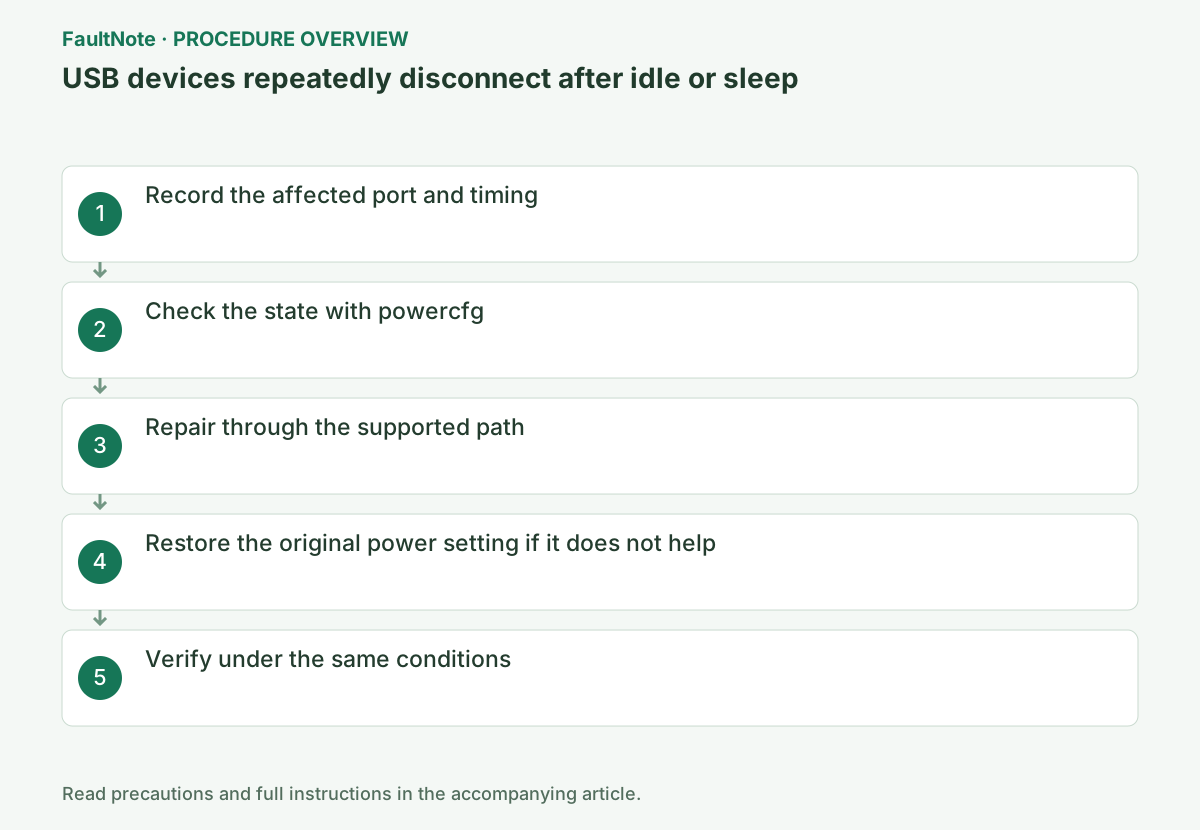
Distinguish disconnects after idle, after waking, and after moving the cable. Back up external storage and stop writes before comparing hub and direct PC connections. If replacing the cable fixes the issue, leave power settings unchanged.
Record whether disconnects occur only after inactivity or also when touching the cable. For a hub-connected device, compare a direct connection to another PC port, changing one condition at a time. Protect important data before testing storage disconnects and avoid forced unplugging during writes.
Compare the same device on another port, another cable, and a powered hub; safely eject important USB storage before testing.
Run powercfg /energy in elevated Command Prompt and use the USB device normally during the 60-second trace. Open the HTML path printed at completion and inspect USB Suspend findings.
powercfg /energyIn Device Manager > Universal Serial Bus controllers, inspect the target hub's Power Management tab. Microsoft recommends leaving selective suspend enabled; change automatic power-off only as a temporary diagnostic comparison and restore it if there is no improvement.
Official links for this step
- USB selective suspend
Check the official requirements, interface names, and limitations for this step.
- USB selective suspend
Some hubs do not expose a Power Management tab. Do not force it through registry edits; check the PC manufacturer’s USB or chipset drivers instead. If you can change the setting, compare over the same idle period and restore the original checkbox state if it does not help.
Microsoft recommends leaving selective suspend enabled normally. For one device failing to resume, check its manufacturer firmware and drivers. If comparing a power setting, record the target and original value; restore it when there is no improvement and investigate cable, power supply and hub behavior.
Run Get-PnpDevice -PresentOnly | Where-Object Class -eq USB and repeat the original operation once under the same conditions. If it succeeds, verify again after a restart and record the setting that changed.
Get-PnpDevice -PresentOnly | Where-Object Class -eq USB
Check the result
- The device stays connected through the same inactivity interval and resume action
- The verification command reports the expected enabled, healthy, or connected state.
- The result remains correct after a Windows restart and no new matching critical event appears.
If the problem continues
- For device-specific recurrence, include results from another PC when contacting the manufacturer
- If hardware requirements, organization policy, or server settings are responsible, ask the owner to make the change instead of bypassing it on the client.
Scope of this guide
Troubleshooting guide — Restore the feature so it starts, connects, or completes normally and passes the same verification after a Windows restart.
Frequently asked questions
Should selective suspend stay disabled permanently?
Use the change only on the target hub for diagnosis. Restore it if unrelated because battery life and other USB devices can be affected.
Is it safe to test with USB storage?
Back up first; a disconnect during writes can corrupt data. Safely remove the drive before changing ports or cables.
Official sources and dates
Source publication or resolution date: Not specified. Sources checked: 2026-10-13. The check date is not the date the problem first occurred. Interface labels can vary between versions and display languages.
Related troubleshooting guides
Windows errors and troubleshooting →
- Troubleshoot a USB device stopped with Code 43
- External drive disconnects in the middle of a large copy: check power delivery, the removal policy and USB power management in that order
- External SSD not reaching USB 20Gbps or USB4 speed: check PC ports, cables, hubs and Windows indicators
- USB-C connection notifications: is the port, the cable, the device or the power the missing piece?