Convert Word document to PDF while preserving layout
The desktop version of Office can be configured with advanced settings using Save As or Export, while Word for the web can generate a basic PDF using File > Print. No additional software required.
Published · Updated · FaultNote editorial policy
Who this guide is for and what to prepare
- People who want to convert editing docx into PDF for viewing and printing
What you need
- Save the document and check the change history, comments, links, and fonts
Review three high-risk pages before delivery
For a long document, first inspect the opening page, the widest table and the final page. Check title placement, table edges, wrapping and missing final text. Then scan all thumbnails for blank or displaced pages. Review the output PDF itself.
If the recipient needs clickable contents or reference links, test them in the PDF. Include required functions in the review checklist. Saving as PDF alone does not establish that permission or password requirements are satisfied.
Correct layout problems in the Word source, including page breaks, table width and image wrapping, then export again. Give the revision a clear name and verify that changed page counts and endpoints are intentional.
After final edits, regenerate the PDF and inspect captions near page boundaries. Confirm the outgoing file time so an older PDF is not sent after editing the source.
Review at a display size close to the recipient environment. PDF export does not automatically make dense A4 material easy to read on a phone; revise the source layout where needed.
- Inspect opening, widest table and final page
- Review all page thumbnails
- Test required links
- Correct the source and export again
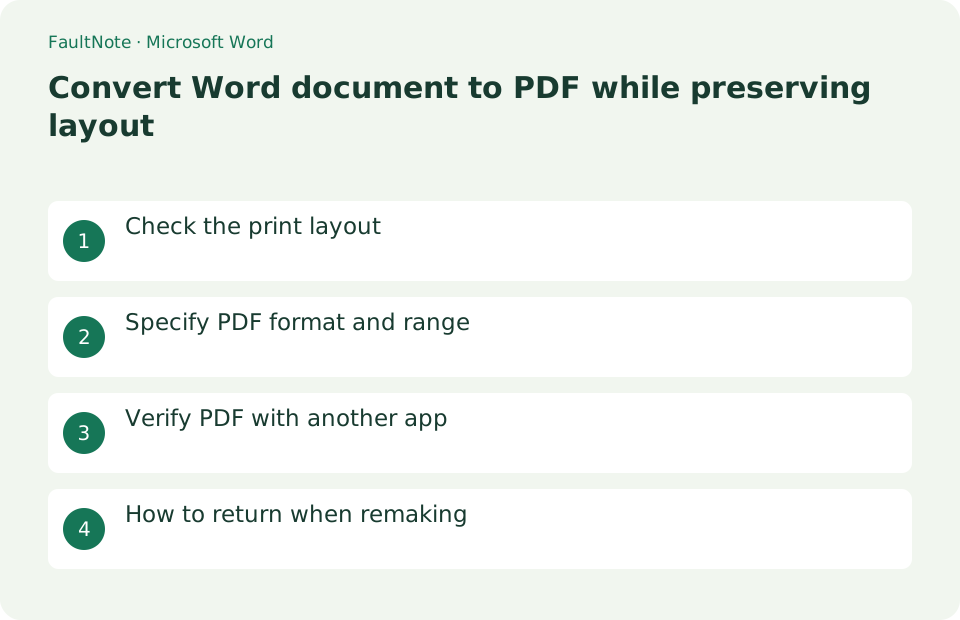
Check the print layout
Check page breaks, images, and table overflow in [View] > [Print Layout] and check Ctrl+S to save the docx. If you do not want to include comments, check the visibility and change history in [Review].
- Make print layout
- Browse pages
- Save the original document
Specify PDF format and range
On the Windows desktop version, select File > Export > Create PDF/XPS. Name the file report-final.pdf, and select the required range such as all pages or 2-5 pages in [Options]. For print quality, use [Standard].
- Open PDF/XPS creation
- Decide on the save name and location
- Select page range in options
Verify PDF with another app
Select [Open file after publishing], publish the PDF, and check its page count, table-of-contents links, Japanese text, images, and margins in a PDF viewer. The result should be a separate PDF whose page breaks match the Word document.
- issue
- Check the number of pages in a PDF
- Check links and text display
How to return when remaking
Return to the Word document without editing the PDF side, correct page breaks and fonts, and republish with the same name or a different name. In the web version, you can generate a PDF using [File] > [Print], but if you need detailed control such as bookmarks, use [Open in desktop app].
- fix docx
- Close existing PDF
- Republish and compare
Decide whether review markup belongs in the PDF
Decide whether comments and tracked changes should appear in the deliverable. Inspect PDF options for document-only versus markup output. Hiding markup in the editing view is not a substitute for checking the export setting.
For a page-range export, inspect the first and last output pages. A cover still counts as a physical page even when its printed number is hidden, so do not select the range solely from the numbers shown in the document.
- Check the markup export setting
- Choose the output page range
- Open the first and last PDF pages
Verify quality before reducing size
Start with standard quality for printing or submission. Compare minimum-size output only when attachment limits require it, checking small diagram text, QR codes and screenshots at a useful zoom.
Keep the .docx source for corrections and regenerate the PDF after editing. Confirm the outgoing PDF name and modification time so that a previous export is not attached by mistake.
- Zoom in on detailed figures
- Compare a smaller export if needed
- Retain the editable source and identify the final PDF
Choose the next action from the result
Scroll horizontally to see the full table →
| State | Interpretation | Next check |
|---|---|---|
| Printed distribution | Review standard quality first | Inspect fine labels and page edges |
| On-screen reading | Review links and headings | Click and verify destinations |
| Partial submission | Review selected page range | Check count and endpoints |
Limitations and requirements
- The PDF is for distribution and I also save the docx for later modifications
Frequently asked questions
Change history and comments will appear in the PDF.
Use [Review] to accept or reject the changes, check the print settings markup output, and then republish.
Can I convert only some pages to PDF?
In the desktop version of the publish dialog, open Options and specify the page range.
Can I discard the Word source?
Keep .docx if later revisions are possible. Reconstructing paragraphs and tables from PDF alone can be difficult.
Should I minimize file size above everything else?
Respect delivery limits while preserving readable required content. Open the smaller export and inspect legibility and completeness.
Sources and verification date
Sources checked: . These sources support the specifications, procedures or prices discussed here. Check each source for applicable conditions and current information.
Related practical guides
- Remove Author Details, Comments and Hidden Data from a Word Copy
- Create an automatic table of contents from Word headings
- Start page numbering at 1 on page 3 in Word
- Test ebook conversion on a copy before adopting the layout
- Manage reading locations with outlines and favorites in SumatraPDF
- Save and verify PDF reading notes in Firefox