Test ebook conversion on a copy before adopting the layout
Compare source and output and adopt the result only when essential content remains readable. Do not assume a fixed-page PDF can become a perfect reflowable book; retain the format suited to the task.
Published · Updated · FaultNote editorial policy
Who this guide is for and what to prepare
- Readers managing books on computers and reading devices
- People who want to distinguish originals from working results
What you need
- Keep an entitled original and a backup before changing settings
- Identify the application build, destination and one trial book
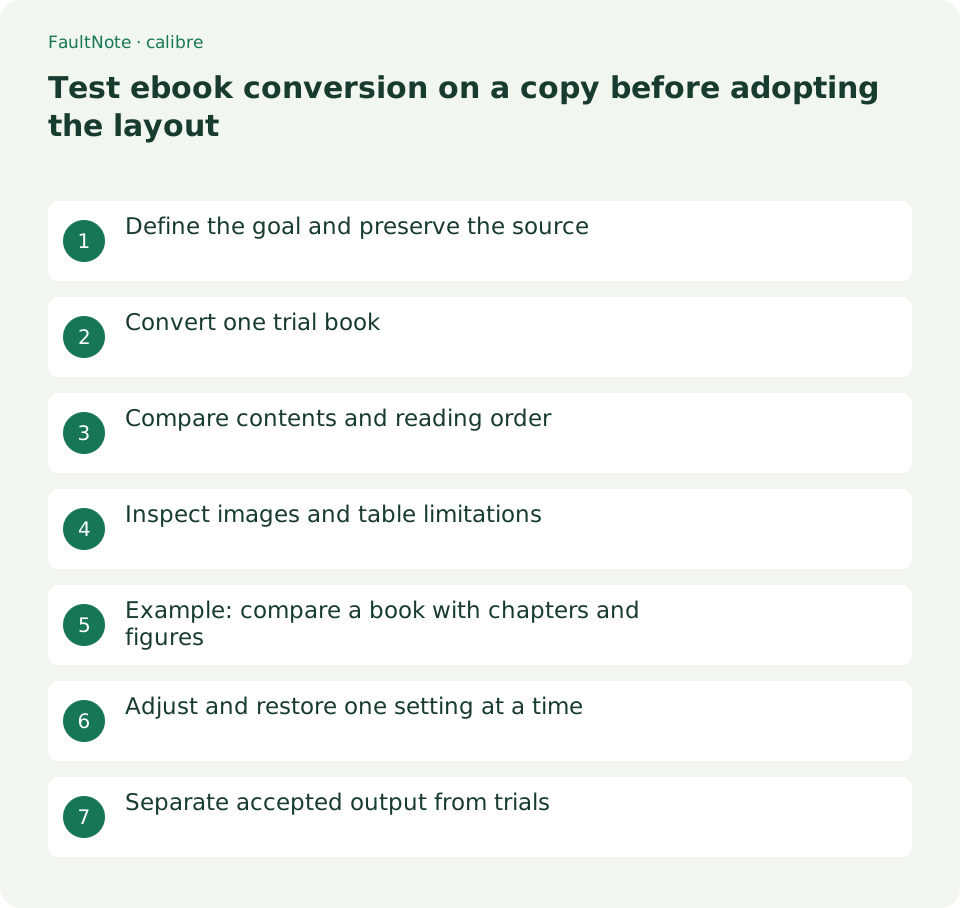
Define the goal and preserve the source
Choose one purpose, such as device compatibility or flexible text size. If ordinary viewing already works, conversion may not be the right response to a display issue. Keep an external original and add a trial copy without mixing another edition into an existing record.
Record representative chapter openings, pictures, tables, footnotes and the ending. Reflow will not necessarily retain screen boundaries or page counts. Success means preserved information and useful reading order; retain fixed pages when their composition is essential.
Convert one trial book
Select one trial record and open Convert books. Check input and the output selector and begin near defaults to retain a baseline. For a multi-format record, verify which input is being converted.
Inspect Jobs and read any error details. After completion, right-click View and explicitly open the output format; ordinary View may reopen the source. Keep any external output separately named for comparison.
- Preserve source and prepare a trial copy
- Record representative chapters, figures and tables
- Check input and output in Convert books
- Inspect Jobs for completion or errors
- Right-click View to open the output format
- Compare contents, prose and figures with the source
Compare contents and reading order
Compare chapter contents and test representative destinations. Visible contents text and functioning links are separate checks. Read several opening paragraphs for mixed headings or repeated page headers rather than judging from the cover alone.
Test one footnote or reference destination as well. Matching numbers do not prove correct links. Prioritize required chapters and record unexamined ranges, widening verification according to sharing or preservation needs.
Inspect images and table limitations
Check figure identity and captions, not only image count. A moved or undersized diagram can lose meaning. In tables, compare headers, units and values; textual values alone may no longer identify their column. Complex math or spatial arrangements need the same scrutiny.
The official conversion guide describes substantial PDF-input limits, including complex columns, image-based content, tables, vector images and links. Hidden OCR can differ from the visible page. Check for a publisher EPUB or better input before repeatedly tuning an unsuitable PDF.
Scroll horizontally to see the full table →
| Observed state | Check | Action |
|---|---|---|
| Viewing the source by mistake | View format selection | Explicitly open the output |
| Headers mixed into prose | PDF input extraction | Inspect relevant setting or another source format |
| Table meaning lost | Columns and units | Compare fixed source pages |
| Wrong contents destination | Chapter structure | Compare sample chapters and one setting at a time |
Example: compare a book with chapters and figures
For an illustrative five-chapter guide, record chapter two and a figure, convert a trial copy and explicitly open the output. Follow contents to chapter two and compare heading, prose, figure and caption. Different screen divisions can still be acceptable if content and order remain useful.
Compare table columns elsewhere. For small diagrams, test viewing scale to distinguish size from missing text. Repeated headers call for inspecting input and settings. After changing one control, use the same comparison points to detect regressions in other chapters and retain separately identified trial results.
Adjust and restore one setting at a time
Record the symptom and changed control. Adjust chapter detection, appearance or margins separately and consult the relevant input/output guidance. Compare another representative chapter as well as the original problem.
Return to the baseline and near-default settings if changes become confusing. Some documents are best read as fixed pages; endless conversion is unnecessary. Record remaining limitations and retain the source rather than treating a format change as automatic quality improvement.
Separate accepted output from trials
Identify accepted output separately from trials. For device reading, verify on the actual device as well. PC display does not establish another reader's rendering. Rights and protection conditions remain separate from successful conversion.
Before cleaning outputs, identify originals and accepted formats for each book. Annotation portability can differ, so preserve important notes separately. Keep clear roles for source, reading copy and comparison record.
Limitations and requirements
- Compare the documented controls with your installed build.
- Retain originals and verify one book before widening the operation.
Frequently asked questions
Does matching page count mean success?
Reflow changes boundaries. Judge content, order, figures, tables and navigation.
Will PDF always become a clean EPUB?
The guide documents many PDF-input limits. Retain fixed pages or use another source format when appropriate.
Does PC readability prove device compatibility?
Check official format support and rendering on the actual reader by opening required chapters and figures.
Sources and verification date
Sources checked: . These sources support the specifications, procedures or prices discussed here. Check each source for applicable conditions and current information.
Related practical guides
- Send a DRM-free EPUB to a USB reading device
- Set EPUB text size and reading layout in calibre
- Use calibre bookmarks and Reference mode for reading notes
- Export calibre highlights and annotations to a separate file
- Move a complete calibre library to another drive
- Track purchase source and edition with calibre custom columns