Start page numbering at 1 on page 3 in Word
Create a section break in the desktop version of Word, unlink it from the previous section, and start numbering from 1. The web version supports simple hiding of the first page, but the desktop version is reliable for complex delimited editing.
Published · Updated · FaultNote editorial policy
Who this guide is for and what to prepare
- People who want to start the main text from 1 without using numbers on the cover and table of contents
What you need
- Make a copy of the docx with at least 3 pages of cover, table of contents, and body text
Work through a two-page front section
For a cover and contents occupying two pages, insert a next-page section break at the end of page 2. Reveal marks to avoid stacking an unnecessary page break with the section break. Open the body footer, unlink it and insert page numbering.
Set the body starting number to 1. Remove front-section numbers only after verifying the unlink. If body numbers also disappear, undo and review the section boundary and link status. Do not type page numbers as ordinary text.
Insert a body page to check automatic continuation, then update any contents table. In the PDF, distinguish physical page position from the printed number: physical page 3 should show body page 1.
Removing section breaks can affect more than numbering. Preserve a copy and distinguish unnecessary page breaks from required section boundaries before fixing blank pages.
If odd and even pages use different footers, inspect both numbers and linking states. Verify consecutive body pages in the PDF instead of checking only one footer.
- Reveal marks at the end of page 2
- Insert a next-page section break
- Unlink the body footer and start at 1
- Add a body page and verify continuation
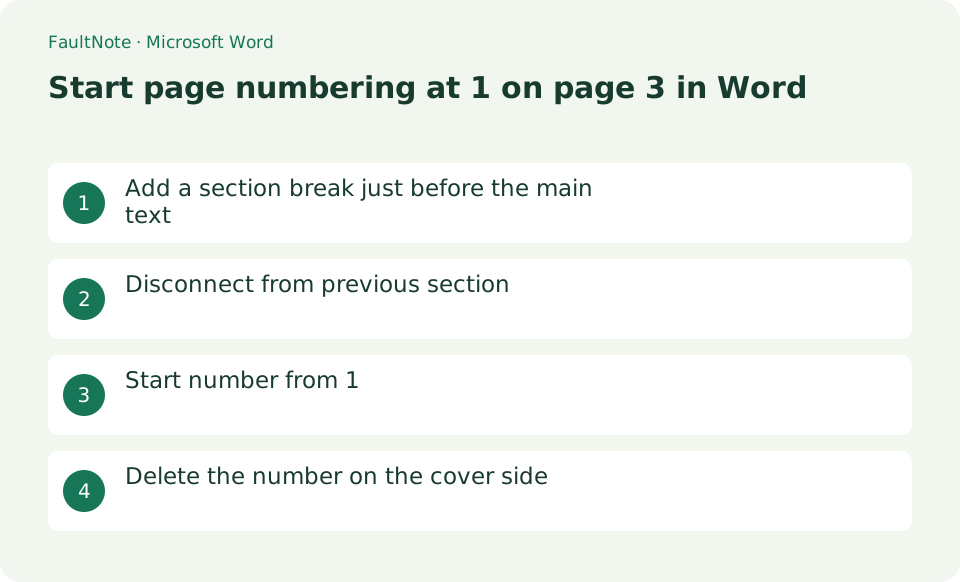
Add a section break just before the main text
Place the cursor at the end of page 2 and select [Layout] > [Breaks] > [Section Breaks] > [Next Page]. Turn on ¶ from [Home] and confirm that one section break appears immediately before the main text.
- Select the end of the second page
- Insert section break from next page
- Check with editing symbols
Disconnect from previous section
Double-click the footer on the third page and uncheck "Link to Previous" on the "Header & Footer" tab. If the page number is in the header, turn off Link to Previous in that header instead.
- Open text footer
- cancel same as before
Start number from 1
Choose a position from [Insert] > [Page Number], then select [Page Number] > [Format Page Numbers]. Set [Start at] to 1 and choose [OK]. The setup is correct if page 3 shows 1 and page 4 shows 2.
- Insert page number into text
- Select starting number 1 in format settings
- Check if the next page is also sequentially numbered.
Delete the number on the cover side
Move to the section on page 1 or 2, select the page number in that section only, and delete it. If the main section's number also disappears, press Ctrl+Z, turn off [Link to Previous] in the main section, and try again.
- Delete numbers from previous section
- Check if the text number remains
- Return with Ctrl+Z in case of failure
Unlink the header or footer that contains the number
If the number is in the footer, unlink the body section footer. Header and footer links are independent; unlinking the header alone leaves the footer connected. Only then remove numbers from the preceding section.
Inspect the Same as Previous indication and check that editing the body number no longer changes the cover. If linking is unavailable, reveal formatting marks and confirm a section break rather than a normal page break.
- Open the header or footer containing the number
- Unlink it in the body section
- Verify independence from the preceding section
Check continuation and the exported PDF
Check the following page as well as the new page 1: the body should continue with 2 and 3. If the first body number disappears, inspect the Different First Page setting.
A later section can restart numbering unexpectedly. For chapters that should continue, choose continuation from the preceding section in page-number formatting. Inspect the cover, body start and chapter boundaries in the final PDF.
- Check that the next body page is 2
- Inspect Different First Page
- Review numbering across later section boundaries
Choose the next action from the result
Scroll horizontally to see the full table →
| State | Interpretation | Next check |
|---|---|---|
| Body numbers also disappeared | Footer still linked | Undo and unlink the body footer |
| Only the first body number is missing | Different First Page | Review whether that setting is intended |
| A chapter restarts at 1 | Later section restarts | Choose continued numbering |
Limitations and requirements
- Requires section breaks, not page breaks
- You can't add section breaks in Word for the web, so edit in the desktop app
Frequently asked questions
If you erase the number in the main text, the cover will also disappear.
Same header/footer as before is enabled between sections. Delete it after canceling it on the main text side.
What if I want to hide the number only on the second page?
Create a section for each boundary that changes the display, such as separating the cover page and table of contents into separate sections.
An extra blank page appeared
Reveal marks and check for stacked page and section breaks. Keep a copy before removing unnecessary breaks and recheck numbering.
Should I update contents after adding pages?
Yes, page positions change. Update the contents and verify its references separately from body numbering.
Sources and verification date
Sources checked: . These sources support the specifications, procedures or prices discussed here. Check each source for applicable conditions and current information.
Related practical guides
- Remove Author Details, Comments and Hidden Data from a Word Copy
- Create an automatic table of contents from Word headings
- Convert Word document to PDF while preserving layout
- Search a PDF in Firefox and distinguish printed page numbers
- LibreOffice Writer: Create a Document and Export It as PDF
- SumatraPDF: Read PDFs and E-books Quickly