Save and verify PDF reading notes in Firefox
Keep an original and a study copy, verify persistence with one annotation, then continue reading. Manage return marks and review the correct copy before sharing.
Published · Updated · FaultNote editorial policy
Who this guide is for and what to prepare
- People reading books or reference documents on a PC
- Readers who want to verify display and persistence separately
What you need
- Prepare a document you are entitled to use and keep an original plus a working copy
- Check the application version and document format
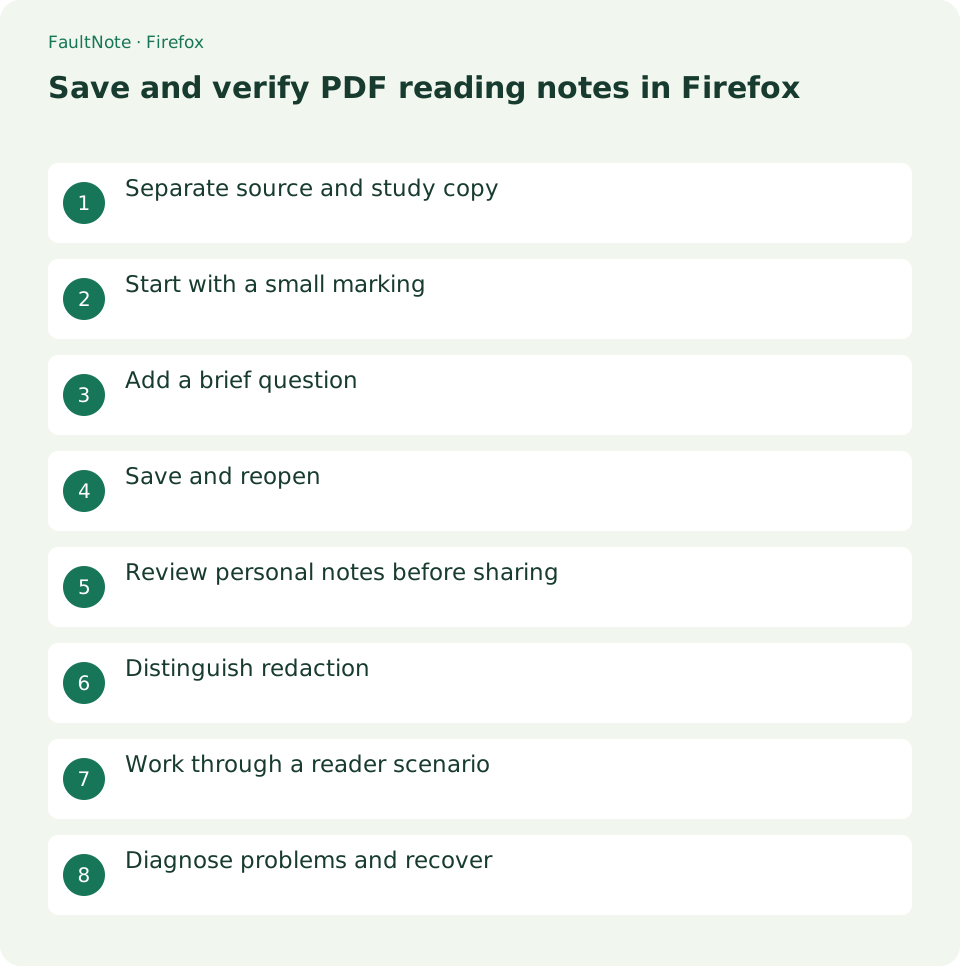
Separate source and study copy
Keep the original PDF and choose a separate name such as manual-notes.pdf. The goal is to distinguish the publisher's edition from your personal annotated copy.
Include the edition in the study-copy name if updates are expected. Store the downloaded original separately and decide the annotation destination before editing. Check any same-name overwrite prompt so several similar files do not become ambiguous at the end.
Start with a small marking
Highlight one important passage, focusing on a condition or conclusion instead of marking every line. Image pages may not behave like selectable text, so inspect the annotation tools available on your screen.
Give a small number of colors distinct roles, such as confirmed conditions and pending questions. Add text for unresolved items rather than relying solely on color. Verify saving with one passage before adding many marks, which keeps recovery manageable if persistence fails.
- Choose original and study-copy locations
- Drag across the short passage to select it, then click the Highlight control in the PDF toolbar or selection interface
- Choose the text-annotation control, set its color and text size, click an empty margin and enter the question
- Save a separately named copy
- Open that copy from its folder
- Verify marks, notes and readable prose before adding more
Add a brief question
Add a text note such as "Check applicable edition" that identifies your next action. Place it in a margin where possible and zoom out to check its target. Treat this as an annotation, rather than editing the source prose.
Write an actionable question, such as whether a condition applies to another model. Zoom out to check that annotations do not cover prose, page numbers or legends. Moving or deleting a note is distinct from removing source text.
Save and reopen
Use the save button to save the annotated copy, then open that saved file again. The original editing tab does not prove persistence. Confirm the new marks and text remain and that the underlying document is legible.
Locate the actual saved file through downloads or its folder and reopen that copy, rather than returning to the editing tab. If marks are missing, compare filenames and paths to distinguish the original from the annotated copy. Use one distinctive note as the persistence check; a timestamp alone is insufficient.
Scroll horizontally to see the full table →
| Observed result | What to check | Next action |
|---|---|---|
| Marks missing after reopen | Actual filename and path | Locate annotated copy |
| Notes cover prose | Overlap at whole-page view | Move or remove, then save |
| Private notes in sharing copy | All marked pages | Choose original or reviewed copy |
| Dark cover mistaken for deletion | Required task | Use a dedicated redaction workflow |
Review personal notes before sharing
Open the copy intended for sharing and review it for private questions or work notes. If you intend to distribute the source document, choose the unannotated original. Decide by inspecting contents, not merely the filename.
Review the sharing copy separately from the personal reading copy. Public source material does not make private work judgments or names in notes public. Inspect each marked page before sharing; use the original or a separately reviewed clean copy if remaining annotations are uncertain.
Distinguish redaction
Covering text with a dark shape or opaque drawing does not guarantee removal of the hidden content. Study annotations add information. Removing sensitive content requires a dedicated redaction process and verification of the result.
Visual covering for study is different from securely removing information. Appearance alone cannot establish whether text remains selectable or searchable. Do not treat a study-copy workflow as completed redaction. Also verify that dark study highlights have not made the saved prose unreadable.
Work through a reader scenario
While reading setup requirements, highlight a short uncertain condition and add "Compare device model" in the margin. Save as manual-modelA-notes.pdf, close it and reopen from the destination folder. Continue only after marks persist without obstructing prose.
Before later sharing the reference for a question, decide whether personal notes are needed. Open the original if sending the publisher copy, or create and review a copy containing only relevant notes. Verify the actual sharing file once more; sending it through an external service is outside this reading workflow.
Diagnose problems and recover
If the saved copy lacks notes, verify the destination before closing the editing tab. Save under a distinct name and reopen that specific file, avoiding bulk overwrites. A distinctive note establishes the save path. If it still fails, stop adding annotations and compare your build's save operation with official guidance.
If marks obscure text, inspect available editing or removal controls and save a separate corrected copy. Visual covering is not secure deletion. Review filenames as well as notes before sharing, choosing the verified original when that is your intent.
Limitations and requirements
- Display adjustments do not improve source image resolution or repair PDF reading order.
- Menu names and available features can differ by installed version; compare the official documentation with your screen.
Frequently asked questions
Does closing the tab prove the notes are saved?
Reopen the saved file to verify. A visible editing session alone is not evidence that a durable copy exists.
Should I overwrite the original for simple highlights?
Keeping an original supports comparison and unannotated sharing. Name the study copy before saving.
Are more annotation colors better?
Keep roles manageable and add text for unresolved points instead of relying only on color.
Does a new timestamp prove the notes are saved?
Reopen the copy and inspect a distinctive annotation. A timestamp does not distinguish original contents from study notes.
Sources and verification date
Sources checked: . These sources support the specifications, procedures or prices discussed here. Check each source for applicable conditions and current information.
Related practical guides
- Search a PDF in Firefox and distinguish printed page numbers
- Firefox: Use Containers and Reader View
- Sync bookmarks between devices with Firefox Sync
- Export calibre highlights and annotations to a separate file
- Convert Word document to PDF while preserving layout
- Manage reading locations with outlines and favorites in SumatraPDF