Manage reading locations with outlines and favorites in SumatraPDF
Combine chapter outlines with personal return marks. Verify retrieval, record document identity and edition, and retain a fallback when reorganizing files.
Published · Updated · FaultNote editorial policy
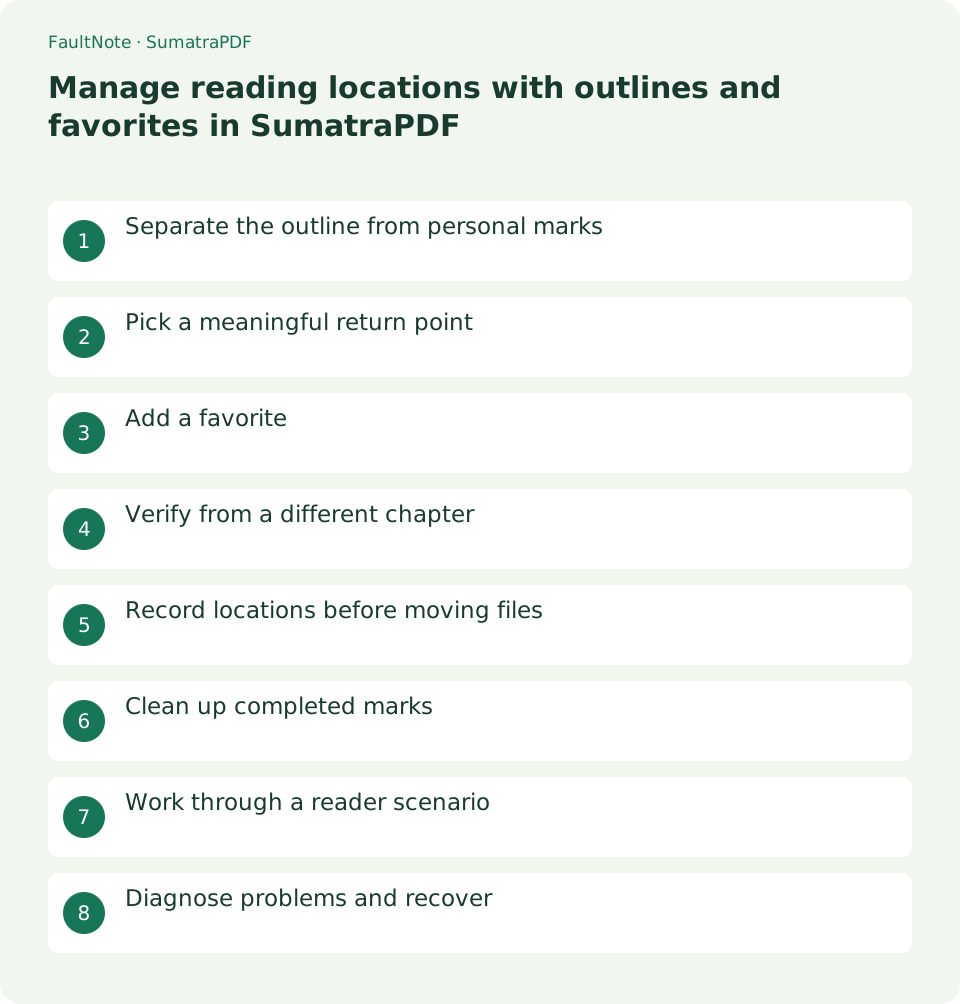
Who this guide is for and what to prepare
- People reading books or reference documents on a PC
- Readers who want to verify display and persistence separately
What you need
- Prepare a document you are entitled to use and keep an original plus a working copy
- Check the application version and document format
Separate the outline from personal marks
The outline describes the author's chapter structure; favorites mark places you want to revisit. Personal marks can still be useful when a PDF has no outline. A chapter heading and your stopping point serve different purposes.
Decide whether you need to compare chapters in a reference or resume yesterday's reading. An outline does not describe your progress, and a favorite does not explain document structure. Separating these purposes improves navigation without rebuilding an existing outline.
Pick a meaningful return point
For a long reference, mark the next heading rather than an ambiguous end of a page. For a table, note its number and purpose. A name such as "Check power requirements" explains why you saved the place.
Name the unresolved task instead of only "read later." Include a product or chapter when juggling references. Inspect the heading before marking and note a figure number for mid-page content. Dates alone become ambiguous, so pair them with the purpose.
- Display the target heading or figure
- Add through the Favorites menu
- Name the document and purpose
- Navigate to a different chapter
- Return through the list and compare the heading
- Keep edition and page in a separate note
Add a favorite
Navigate to the desired place and add it through the Favorites menu. The current documentation also lists Ctrl + B. Confirm the dialog in your build and avoid filling the list with repeated marks for the same place.
After creation, open the list and verify the mark belongs to the intended file. Compare names when multiple editions are open. If a shortcut does nothing, click the document and try the menu command to distinguish focus issues from version differences.
Verify from a different chapter
Move to another chapter, select the favorite and confirm that it returns to the intended page. When following an outline entry, check that the visible heading matches. Verify both creation and retrieval.
Test retrieval from a different chapter and compare the heading and figure number. Check within-page position when precision matters. Determine the needed accuracy using your build's observed behavior; a descriptive figure or subheading can supplement page-only navigation.
Scroll horizontally to see the full table →
| Observed result | What to check | Next action |
|---|---|---|
| No outline | Whether author supplied chapter data | Use personal favorites |
| Mark opens another edition | Open filenames | Recreate it in the right edition |
| Fails after file move | New source location | Recreate from recorded page |
| Right page, ambiguous passage | Figure or subheading | Make the mark descriptive |
Record locations before moving files
Before renaming or moving a document, record its file name and marked page. Copying a PDF to another PC does not necessarily transfer personal application settings. Keep an ordinary note with the document title, edition and page for important references.
Before reorganizing, copy important locations into an ordinary note, for example "Reference A, edition 3, file page 42, power conditions." PDF backup and application-settings backup may cover different data. Consult settings storage documentation before migration rather than replacing live settings by guesswork.
Clean up completed marks
Separate completed checks from places worth rereading and remove obsolete entries through favorite management. Select the correct mark first and distinguish removing a favorite from deleting its document.
Remove completed marks individually and retain a small useful set. If a mark stops opening after a move, locate the file and recreate the mark from your written page record. Verify the new location before removing obsolete entries.
Work through a reader scenario
When comparing two product manuals, mark power requirements in each with product and purpose in the name. Each time you switch favorites, verify title and edition before recording conditions. A page number alone is easily confused with the same number in another manual.
After comparison, retain document identity, edition and page in the result note. Remove completed comparison marks while retaining reading marks. The written record lets you recreate locations after folder organization instead of relying on the favorites list as your only source record.
Diagnose problems and recover
If retrieval is wrong, first inspect the opened title and edition and check for same-name copies in other folders. Use recorded page and heading to relocate the passage. Recreate one failing mark rather than deleting the whole list.
If the list was your only record, transfer recoverable document identities and locations to ordinary notes before cleanup. Reread conditions before drawing conclusions from a mark name. Correct chapter navigation does not establish that its advice applies to your situation.
Limitations and requirements
- Display adjustments do not improve source image resolution or repair PDF reading order.
- Menu names and available features can differ by installed version; compare the official documentation with your screen.
Frequently asked questions
Will sending the PDF transfer my favorites?
Personal application marks differ from the PDF outline. Give the recipient the document title and page, then check that they can locate the same passage.
Can I mark a PDF with no outline?
The outline and personal favorites are separate. Create a mark at the desired page and test retrieval from elsewhere.
Will favorites always survive a rename?
Verify rename behavior in your environment. Record title and page first, then test the mark after changing the file and recreate it if needed.
Does deleting a favorite delete the PDF?
Favorite management and document deletion are separate operations. Confirm that the selected target is a mark before removing it.
Sources and verification date
Sources checked: . These sources support the specifications, procedures or prices discussed here. Check each source for applicable conditions and current information.
Related practical guides
- Read small PDF text with fit-width and continuous view
- SumatraPDF: Read PDFs and E-books Quickly
- Diagnose image sequence problems in a CBZ comic
- Set comic spreads and right-to-left reading in SumatraPDF
- Convert Word document to PDF while preserving layout
- Test ebook conversion on a copy before adopting the layout