Enter accented characters from PowerToys Quick Accent candidates
Hold a base letter, choose an accent and inspect character sets, delays, ordinary typing and input-method interactions.
Published · Updated · FaultNote editorial policy
Who this guide is for and what to prepare
- People who need this specific workflow
What you need
- Prepare a harmless note and the intended character sample.
- Prepare separate Latin and IME tests.
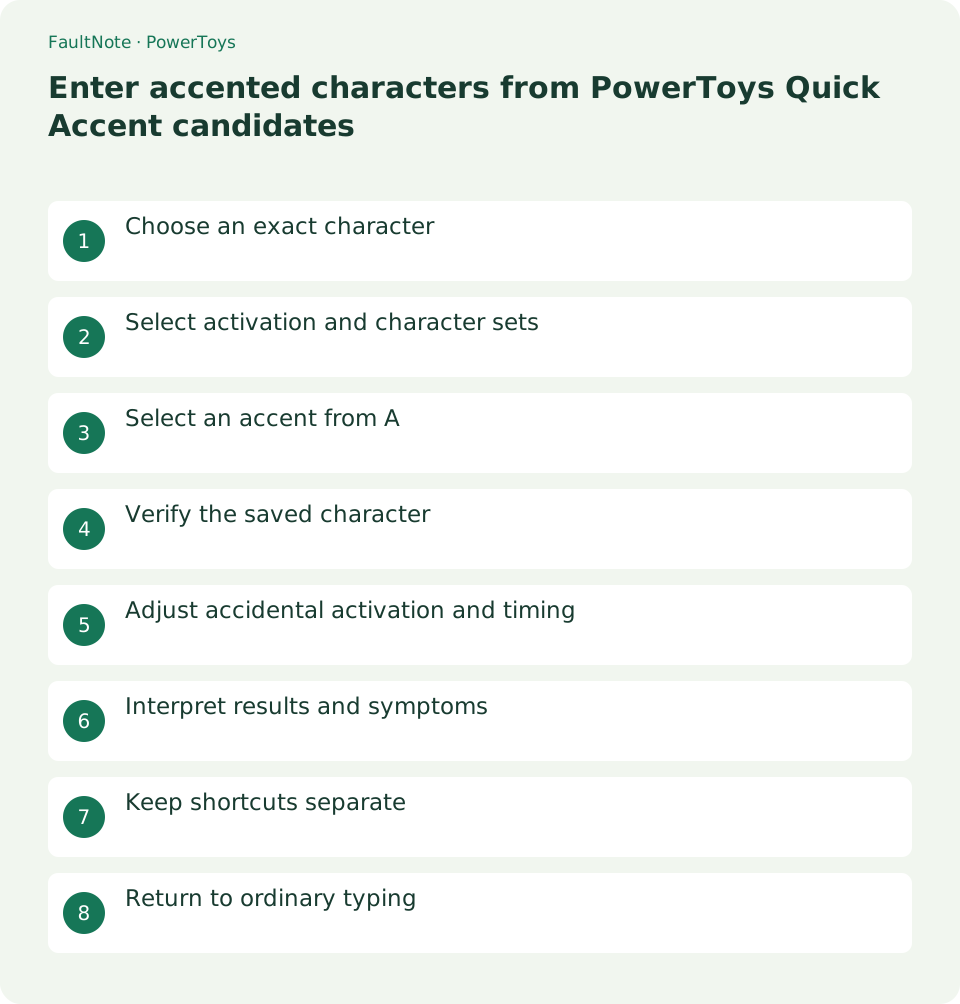
Choose an exact character
Identify the exact character before input. This is character selection, not translation or spelling correction; verify stored text.
Select activation and character sets
Enable the utility, choose Space triggering and restrict character sets. Available modes vary by release; follow installed controls.
Select an accent from A
Hold A and press Space, wait for activation, move selection and release to insert. Check character sets rather than substituting a wrong candidate.
- Enable and inspect Space triggering.
- Hold A and press Space in Latin mode.
- Select the sample-matching candidate and release.
- Reopen and inspect character and spacing.
- Disable and verify ordinary typing.
Verify the saved character
Compare with the sample, inspect extra spaces/base letters and reopen saved text, using another view for ambiguous glyphs.
Adjust accidental activation and timing
Separate false triggers from too-short holds and compare Latin typing with IME composition, adjusting only this utility initially.
Interpret results and symptoms
Scroll horizontally to see the full table →
| Result or symptom | Next check |
|---|---|
| Candidates appear | Verify exact character and spacing. |
| Required candidate absent | Inspect sets and support. |
| Triggers during normal spacing | Adjust delay or trigger separately. |
| Only IME differs | Compare Latin input and composition conditions. |
Keep shortcuts separate
Do not confuse accent input with shortcut remapping. Use another verified input method for unsupported characters.
Return to ordinary typing
Disable and verify ordinary typing; saved text remains and must be corrected separately without removing IME components.
Limitations and requirements
- Do not confuse accent input with shortcut remapping. Use another verified input method for unsupported characters.
Frequently asked questions
Does it correct spelling?
It selects characters; verify spelling separately.
Can I restrict languages?
Choose sets and verify desired candidates remain.
Does disabling revert document text?
Inserted text persists and needs document editing or Undo.
Why is there no picker?
Check enablement, mode, delay and holding the base letter in a Latin-mode test.
Sources and verification date
Sources checked: . These sources support the specifications, procedures or prices discussed here. Check each source for applicable conditions and current information.
Related practical guides
- Keep a reference window on top with PowerToys and unpin it when finished
- Use PowerToys Awake for a timed task and separate display power from sleep
- Capture screen colors as HEX or RGB with PowerToys Color Picker
- Measure on-screen width and spacing in pixels with PowerToys Screen Ruler
- Highlight a lost mouse pointer with PowerToys Mouse Utilities
- Remap a shortcut for one app with PowerToys Keyboard Manager