Create a OneDrive sharing link: permissions and expiration
These are the steps to share a file with specific people with permission to view or edit. We will explain in detail the starting position, setting values, completion confirmation, and how to review in case of problems.
Published · Updated · FaultNote editorial policy
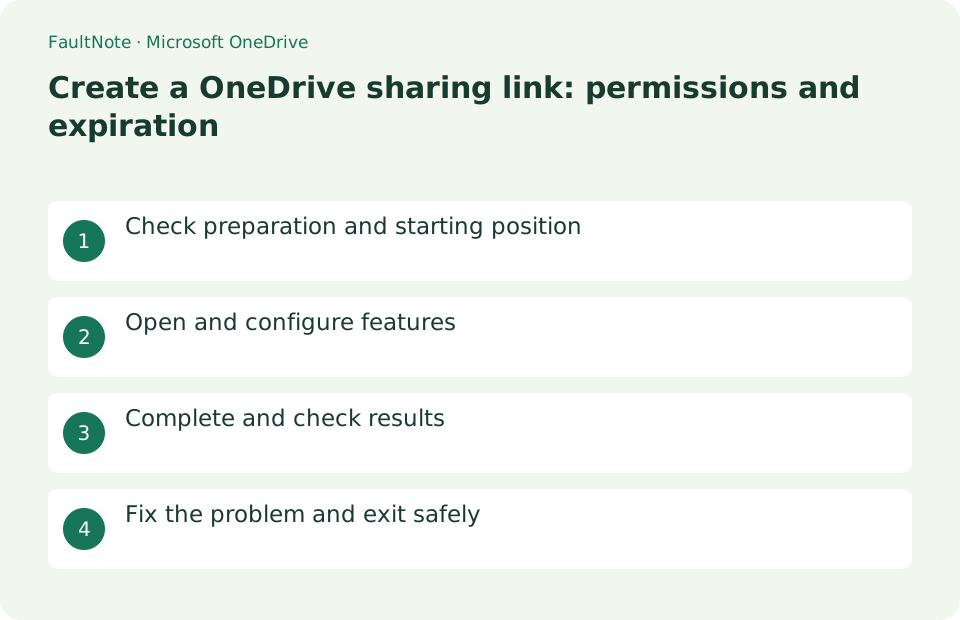
Who this guide is for and what to prepare
- First-time users of Microsoft OneDrive
- People who want to safely check the deadline and permissions and create a shared link on OneDrive
What you need
- Save the target to OneDrive, decide the email address of the person you want to share it with, decide whether to view or edit it, and decide on the end date.
Decide whether recipients need viewing or editing
Save the target to OneDrive, decide the email address of the person you want to share it with, decide whether to view or edit it, and decide on the end date.
Choose the link audience and options
Select the target on OneDrive Web and press [Share]. Select [Specific users] or within your organization in the link settings, and turn off [Allow editing] if you only want to view the link.
If available in the contract and administrator settings, set the expiration date and password and click [Apply]. Enter the recipient and click [Send] or [Copy link].
- Open sharing settings for the target file
- Choose the audience and viewing or editing permission
Verify the copied link as a recipient
Open the item's [Details] > [Manage access] and check the recipients, link type, and editing permission. To stop sharing, remove the relevant link or the recipient's access.
- Open the link with the intended recipient account
Remove unnecessary access in access management
If the other party can edit, delete the existing link and recreate the link without permission to edit.
[Anyone with the link] can also open it from the forwarded destination. Expiration dates and passwords may not be visible in plan or organization settings.
- Remove unwanted links in access management
Separate review access from collaboration
Choose viewing for a completed PDF and editing for a document you will revise together. Sharing a folder can expose several files, so share the individual file when only one document is needed. Before copying the link, review the item name, audience, and editing permission. A link for people with existing access does not grant a new recipient permission; choose an appropriate sharing audience for a first-time recipient.
For a completed PDF sent to a client, share only the file with the intended recipient and appropriate viewing access. Verify access before preparing the delivery message. If a revision has a new filename, review both links and make the official version explicit.
Verify access from the recipient perspective
Opening a link as the owner does not verify recipient access. Check that the intended account can open it and that a view-only recipient cannot edit. For an allowed anonymous link, a signed-out window can provide a useful check; rejection there is expected for a specific-people link. If access fails, review the recipient address and organization restrictions before broadening the link audience.
Revoke access after the sharing period
When distribution ends, open Manage access and remove links that are no longer needed. Other links or directly assigned permissions may still provide access. Reopen the revoked link to check it and ensure required recipients retain their intended permissions. Revoking a link cannot retrieve copies recipients already downloaded, so prepare the content for distribution before sharing it.
Scroll horizontally to see the full table →
| Observed result | Next action | Success condition |
|---|---|---|
| A viewer can edit | Inspect edit permission and other grants | The intended recipient has view-only access |
| A recipient cannot open the file | Inspect their address and organization restrictions | The intended account can open it |
| Expiration is unavailable | Check account and management-policy conditions | An available revocation workflow is chosen |
Limitations and requirements
- [Anyone with the link] can also open it from the forwarded destination. Expiration dates and passwords may not be visible in plan or organization settings.
Frequently asked questions
What if you can't find the item you want in Microsoft OneDrive?
If the other party can edit, delete the existing link and recreate the link without permission to edit.
What should I be especially careful about when checking expiration dates and permissions and creating a shared link in OneDrive?
[Anyone with the link] can also open it from the forwarded destination. Expiration dates and passwords may not be visible in plan or organization settings.
Will newly added files be shared through a folder?
Folder sharing can provide access to its contents, so review what happens to later additions too. Use a dedicated folder containing only intended delivery material and inspect actual access after sharing.
Does deleting a link remove downloaded copies?
No. Revocation controls future access and does not retrieve saved copies. If material was sent in error, separate access revocation from recipient follow-up and use the organization incident procedure.
Sources and verification date
Sources checked: . These sources support the specifications, procedures or prices discussed here. Check each source for applicable conditions and current information.
Related practical guides
- Restore an Earlier OneDrive File Version Without Losing Track of Current Work
- OneDrive vs Backblaze: Which Do You Need for PC Backup?
- OneDrive vs Google Drive: Choosing the Right Workflow
- Check which folders OneDrive is holding, and the two choices when you stop
- Windows 11: Sync Settings and Folders with Windows Backup
- Microsoft 365 vs Office 2024: Which Should You Buy?