Fix OneDrive “Can’t open file” or “Make sure OneDrive is running”
What to do first
Compare web originals, sync accounts, and retention state for OneDrive online-only files. Verify download completion and a local copy to separate document problems from retrieval failures.
This is a general troubleshooting guide, not an announcement of a current outage.
Affected products and symptoms
- Product
- Microsoft OneDrive
- Versions and conditions
- OneDrive for Windows
Symptoms
- Only blue-cloud files fail to open
- Windows says to make sure OneDrive is running
Causes and conditions
Online-only files require retrieval. A stopped client, sign-in prompt, paused synchronization, or storage and permission problems can prevent it. Compare web originals and desktop state rather than inferring loss from a message alone.
Before you start
- Before changes, record and preserve the web original, sharing permission, and blue-cloud or green-check status.
- Change one item at a time and record the original symptom after each stage.
- Record filename, folder, modification time, and cloud versus retained status. Distinguish personal and work accounts, verify access to the web original and free space, and follow organizational storage rules for comparison copies.
Precautions
- Do not bulk-delete unrelated settings or data.
- Exclude personal data and credentials; share only the necessary parts of the web original, sharing permission, and blue-cloud or green-check status.
Tools and official pages used in this guide
Check the official page for exact setting names, limitations, and updated decision paths.
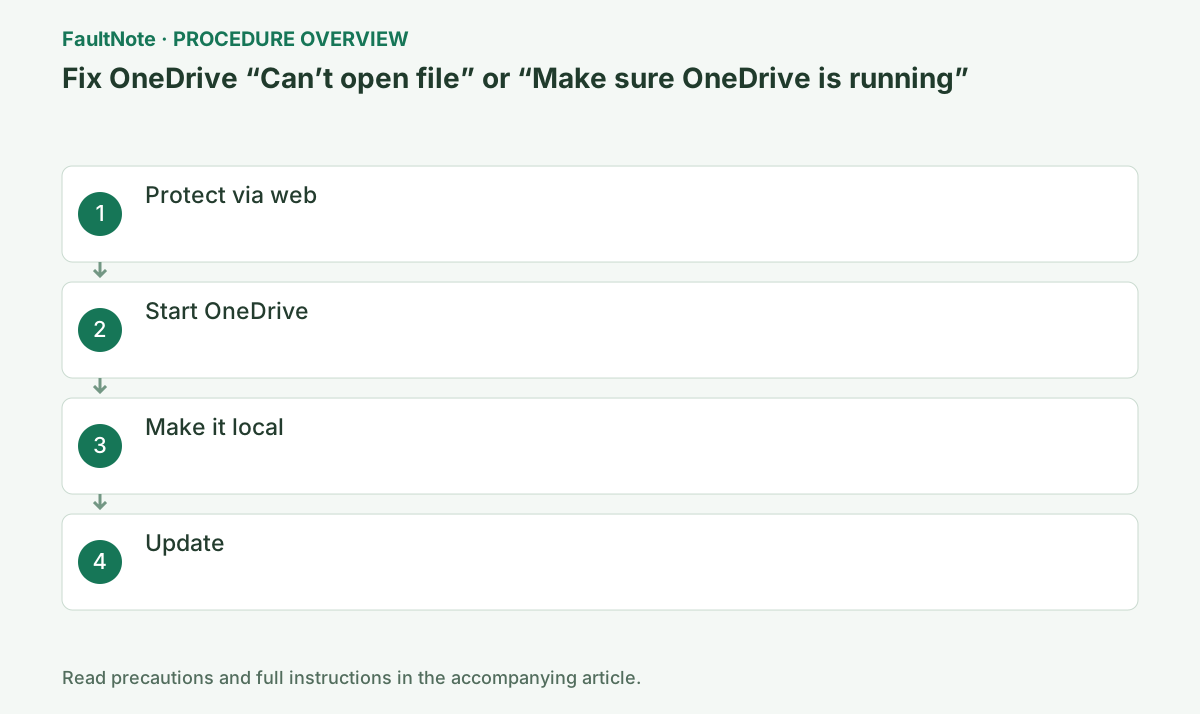
Step-by-step instructions
Confirm the item opens at onedrive.com and download an important copy.
If it is absent online, do not reset sync first.
Blue cloud is online-only, an outlined green check is locally available, and a solid green circle is always available. Do not confuse these states.
In File Explorer show the Status column and identify a blue cloud versus green check. If missing, right-click the headers and enable Status before opening the file.
If the cloud icon is absent, start OneDrive from Start. With multiple accounts, inspect the one owning the file. Web sign-in and the desktop client using that same account are separate checks.
Search Start for OneDrive and open the desktop app.
Check the cloud icon is signed into the correct account.
Always keep on this device downloads content, so provide more free space than the target size. Selecting a folder affects its descendants.
Always keep on this device does not prove offline availability until transfer finishes. Observe file and client status rather than reopening repeatedly. Check storage and compare one small file before large downloads.
Right-click in File Explorer and choose Always keep on this device.
Stay online until the green check appears.
If no cloud icon appears, check hidden icons. Record sign-in or organization-block messages if startup still shows none.
A shared file may have moved or had sharing revoked. If the web requests permission, ask the owner instead of repeatedly reauthenticating accounts. Verify the original and access rights before retrying retrieval.
Install Windows and OneDrive updates, then restart.
Ask the administrator about Files On-Demand policy on work devices.
Check filename and modified time on the web before editing locally to avoid overwriting a newer original with stale cache.
Official links for this step
- Official Microsoft OneDrive troubleshooting
Check the official page for exact setting names, limitations, and updated decision paths.
- Official Microsoft OneDrive troubleshooting
A blue cloud in Explorer means the file content is not yet stored on this computer. A visible filename is not proof that it can open without a connection and a working OneDrive client. Check the tray icon for sign-in prompts or paused synchronization first.
Use the same OneDrive account in the browser and compare the folder and modification time, not just the filename. On computers using personal and work accounts, avoid confusing identically named files from different accounts.
If the web copy opens, download one needed file outside OneDrive and try that copy in the intended application. If it also fails, investigate the format or application instead of treating every failure as synchronization trouble.
Select Always keep on this device for the needed file and wait for downloading to finish. Check free disk space before pinning large folders; begin with one small file to verify the behavior.
Once OneDrive reports synchronization complete, restart and reopen the same file. If the original is absent on the web, retain the placeholder while checking deletion history or the owner's sharing settings.
Check the result
- open the green-check item offline and confirm no sync error after reconnecting
- Check adjacent basic functions for side effects from the change.
If the problem continues
- continue in OneDrive web and send diagnostics through Help & Settings > Send feedback or to the administrator
- When continuing with a workaround, preserve original files or account data separately.
Scope of this guide
Troubleshooting guide — Compare web originals, sync accounts, and retention state for OneDrive online-only files. Verify download completion and a local copy to separate document problems from retrieval failures.
Frequently asked questions
Is a blue cloud an error?
No; it means online-only and requires connectivity to open.
It opens on the web.
That confirms cloud data exists and narrows the issue to the PC app.
Does a web download replace the original?
A different destination preserves the synchronized original. Compare modification times and content before returning edits under a new name. The copy does not necessarily sync back automatically.
Should I keep every folder locally?
Verify one small file first, then pin the needed scope. Large folders consume storage and transfer time. Online-only status itself is normal.
Official sources and dates
Source publication or resolution date: Not specified. Sources checked: 2026-10-13. The check date is not the date the problem first occurred. Interface labels can vary between versions and display languages.