Windows 11: Sync Settings and Folders with Windows Backup
Sync settings and folders with Windows Backup. Open [Windows Backup] from Start and check the Microsoft account used for backup. Each item will be marked as [Backed up] and you can check the selected files on OneDrive of your Microsoft account.
Published · Updated · FaultNote editorial policy
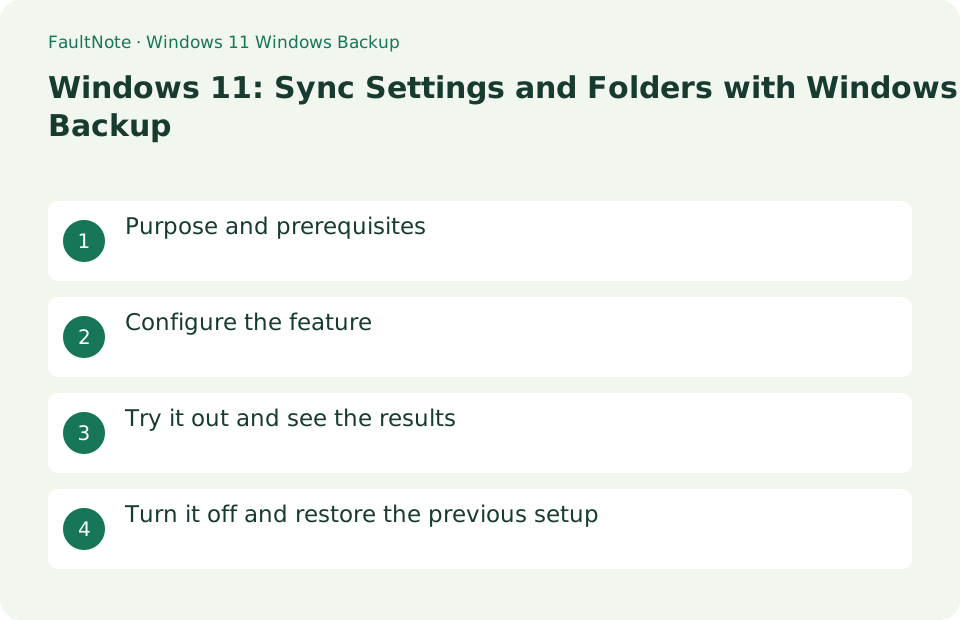
Who this guide is for and what to prepare
- Users who want to streamline daily operations with Windows 11
- Users who want to try out the feature in a way that allows them to restore the settings.
What you need
- Save the file you are working on and try it with test data that does not include personal information.
- Windows Backup is not a complete disk image. Available items vary depending on capacity, region, account type, and organization policy.
Choose a practical workflow
Review Windows Backup choices together with OneDrive synchronization. Find the actual locations of important folders and arrange another migration route for excluded project folders. This is not a whole-PC image backup; do not assume every app, local data folder and external drive is restored together.
Configure the feature
- Open [Windows Backup] on Start and check the Microsoft account used for backup.
Worked example: verify one document before moving to a new PC
- Open Windows Backup and confirm the Microsoft account. Check that restoration is not planned under a different account.
- Review listed folders and settings. Check that the document location is covered and OneDrive has sufficient space before proceeding.
- Save a short verification document in a selected folder and inspect sync status. Open it through OneDrive and compare the latest sentence.
- On the new PC, review the same account and restoration prompts and open the document. Launch everyday applications and verify usable data before cleaning the old PC.
Try it out and see the results
Expand [Folders], [Apps], [Settings], and [Credentials], and select the items you want to synchronize. Check the OneDrive capacity and current storage location before turning on the folder. Each item will be marked as [Backed up] and you can check the selected files on OneDrive of your Microsoft account.
Before enabling a folder, compare the remaining space in OneDrive with the size of the target folder. Keep the power and network on until the sync is complete, and make sure you can open the file in OneDrive in your browser. When migrating to another PC, sign in with the same Microsoft account, but restoring app items does not mean duplicating all desktop apps and internal data in their entirety.
Separate covered folders from app-specific data
List documents, photos, settings and applications separately. Identify what Windows Backup covers and what needs separate copying or reinstallation. Do not assume external drives or arbitrary project folders are restored as a whole; check important files by location.
Record data locations as well as app names. Documents may be in OneDrive while specialist assets or game saves are local elsewhere. Reinstalling an app differs from recovering its data. Review official migration guidance for licenses or plugins and retain the old environment until the new one works.
Verify synchronization with a fresh document
After reviewing backup status, check representative filenames and current contents in OneDrive. Verify they open before moving to a new PC and resolve quota or sync errors first. A folder name in the backup screen does not prove its latest contents are stored.
Verify synchronization with a newly created small document as well as existing files. An old cloud file does not prove recent changes arrived. Include a date or identifiable phrase and compare cloud contents. Resolve sync errors before proceeding and review capacity and unnecessary items when quota is insufficient.
Verify real work before cleaning the old PC
Restoring an application list differs from restoring application binaries, licenses and local data. Launch frequently used apps and verify sign-in, required files and settings. Keep old-PC data until real work succeeds on the new PC so omissions can be recovered.
Dispose of or reset the old PC only after real work succeeds on the destination. Open, edit and save required documents and test everyday peripherals, not merely sign-in. Keep the old PC available for excluded data. Do not clean it by bulk-deleting synchronized files that can propagate deletions to the cloud.
Compare backup status with actual files
Scroll horizontally to see the full table →
| Observed result | First check | Next action |
|---|---|---|
| A sync or quota error appears | Inspect OneDrive status | Do not treat partial storage as completion; resolve capacity or connectivity. |
| A required project folder is absent | Identify its actual location | Plan a separate copy if excluded and verify it opens. |
| An application icon exists but is unusable | Check installation and sign-in | Distinguish the restored list from binaries, licenses and local data. |
Turn it off and restore the previous setup
Turn off unnecessary items in [Settings] > [Accounts] > [Windows Backup] or OneDrive's [Sync and Backup]. Deleting existing files on the cloud is a separate operation.
Limitations and requirements
- It's not a complete disk image. Check your personal Microsoft account and OneDrive free space, and don't use it with your work or school account.
- If the settings are fixed on an organization-managed PC, check with the administrator instead of using unofficial methods to circumvent the policy.
Frequently asked questions
Can I restore the entire Windows?
This feature backs up target folders, settings, etc., and is not an image of the entire disk. Plan app installation and migration of application-specific data separately.
What if I exceed the free capacity?
If there is not enough free space in OneDrive, the backup of the target file will not be completed. Please review your target or check the conditions for additional capacity required on the official page.
Can I delete a synchronized folder on the old PC and keep it on the new one?
Deletion in a synchronized folder can propagate to other devices and the cloud. Do not simply delete synchronized files during cleanup; review account linking and verified destination storage first.
Are all game saves and specialist app settings included?
Arbitrary data locations are not necessarily covered. Check each app storage location and official migration procedure, back up important saves and settings separately and verify they load on the new PC.
Sources and verification date
Sources checked: . These sources support the specifications, procedures or prices discussed here. Check each source for applicable conditions and current information.
Related practical guides
- Sync vs Backup: Recovering from Accidental Deletion
- NAS vs cloud backup: costs, recovery time and maintenance
- External SSD vs HDD for backups: capacity, speed and portability
- OneDrive vs Backblaze: Which Do You Need for PC Backup?
- Preserve non-cloud game saves: copy after exit and verify restoration
- Check which folders OneDrive is holding, and the two choices when you stop