Check which folders OneDrive is holding, and the two choices when you stop
Files you put on the desktop appear on another PC, Documents now lives under OneDrive, and freeing space does not seem to free space. That is OneDrive folder backup being on. This guide was written on 2026-09-21 from Microsoft's support page and covers which folders can be covered, where to see which are covered now, the two choices you are given when you stop (keep the files only in OneDrive, or only on the PC), and the cloud-only files that stop the process halfway. The difference between syncing and backing up is covered separately on this site.
Published · Updated · FaultNote editorial policy
Who this guide is for and what to prepare
- Anyone whose Desktop or Documents sits under OneDrive and is considering undoing it
- Anyone who wants to see which folders are currently being backed up
- Anyone who wants to stop it but is afraid of losing files
What you need
- Note which account OneDrive is signed in with: personal, or work or school
- Check the free space both in OneDrive and on the PC's drive
- Know where your important files are. These steps move where files live
- On a work or school account, expect that an administrator may have removed the choice
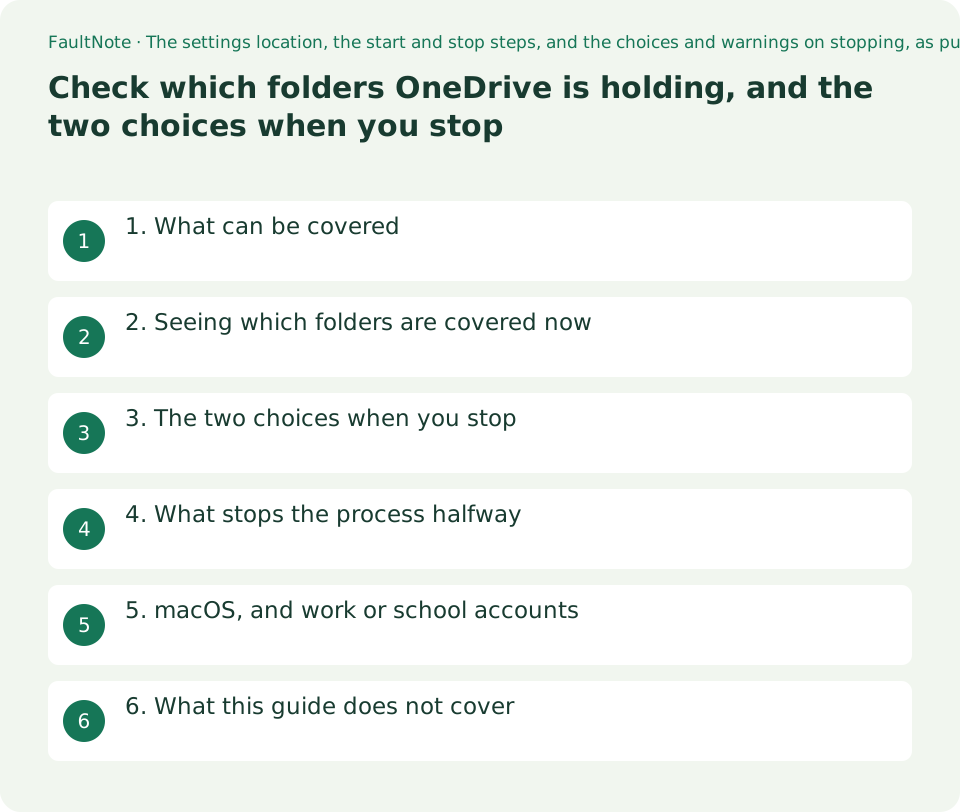
1. What can be covered
Microsoft's description: Every computer has standard folders such as Desktop, Documents, Music, Pictures, and Videos which you probably use but might not be included in your OneDrive. By backing up these folders to your OneDrive, they're protected and available across all your devices.
So the subject is the standard folders. With backup on, another PC signed in to the same OneDrive account sees the same contents.
The desktop gets its own sentence: When you back up your Desktop folder, the items on your desktop roam with you to your other desktops where you're running OneDrive. Whether that reads as a convenience or as something you did not ask for depends on how you work.
This guide keeps to which folders are covered. The difference between syncing and backing up, what happens when the cloud storage fills, and Files On-Demand are covered in separate guides on this site.
2. Seeing which folders are covered now
There is one place to look. Select the OneDrive cloud icon in the notification area, then the Help & Settings icon, then Settings.
Go to the Sync and backup tab and select Manage backup. The standard folders are listed there, each showing whether it is currently backed up.
To start backing one up, toggle a folder that says Not backed up and select Save changes. If you only came to look, close the window without touching the toggles.
This screen is also the answer to the question people usually arrive with: why are the files from my desktop on another computer.
03. The two choices when you stop
Stopping is a toggle, but a choice follows it. Microsoft names two.
The first is Keep the files only in OneDrive , removing them from your computer. The files stay in OneDrive and leave the PC; local space is freed, and opening one means fetching it from OneDrive.
The second is Keep the files only on my PC , removing them from OneDrive. The files stay on this machine and leave OneDrive; other devices stop seeing them, and the cloud usage drops.
The table sets out what each one means. Which is right depends on whether you use that folder from other devices. Whichever you choose, do not end up with no backup at all: leaving OneDrive means arranging something else.
Scroll horizontally to see the full table →
| Choice | As the source words it | The result | When it suits |
|---|---|---|---|
| Keep them in OneDrive | Keep the files only in OneDrive , removing them from your computer | They leave the PC. Local free space increases | You still use them from other devices, or the PC is short of space |
| Keep them on the PC | Keep the files only on my PC , removing them from OneDrive | They leave OneDrive. Other devices stop seeing them | This machine is the only one that uses them, or the cloud storage is full |
| Leave it on | — | The folder stays visible from both | You want the same desktop on more than one PC |
4. What stops the process halfway
One warning is spelled out on the page: If the folder you wish to stop backing up contains cloud only files , you will see a message saying "Some files couldn’t be moved. Download them first by changing their state to Always keep on this device"
If any of the files are held cloud-only, not everything can be moved. The instruction is to change their state to Always keep on this device first, so they download.
Which means local free space is a precondition for undoing this: everything that lived only in the cloud has to come down to the PC. Miss that and the operation stalls in a state that looks broken.
Before starting, compare the total size of the folder with the free space on the drive. If it does not fit, handle the folders one at a time, or clear space first.
05. macOS, and work or school accounts
macOS has its own conditions. The folders named there are Desktop and Documents, the standalone sync app is required rather than the Mac App Store version, and OneDrive must be granted Full Disk Access in macOS.
Stopping differs too: on macOS you select Stop backup and confirm the request.
For work or school accounts, the page notes that an IT administrator may have disabled this. If the setting is missing or cannot be changed, that is a likely reason.
Nothing here was reproduced on either operating system. Screen names change between versions, so if something does not match, open the source page directly.
06. What this guide does not cover
Whether to use OneDrive at all. That depends on your devices and how you work.
Storage plan comparisons. This site has a separate comparison of cloud storage services.
Symptoms such as syncing stopping or the storage filling up, which are covered in this site's troubleshooting records. This guide keeps to what the setting means and which choice to make.
Backup strategy in general — copies, separate media, separate locations. OneDrive folder backup can be part of one; it is not one by itself.
0Limitations and requirements
- Both choices on stopping change where files live. Check the folder's contents and destination before you act.
- Cloud-only files cannot all be moved. They must first be set to Always keep on this device so they download.
- Undoing the backup brings files down to the PC, so local free space is required.
- On a work or school account, an administrator may have disabled the feature entirely.
- Everything quoted here was read on 2026-09-21.
Frequently asked questions
Why do my desktop files appear on another PC?
Because Desktop is one of the folders being backed up. Microsoft states that when you back up the Desktop folder, the items on it roam with you to your other desktops where OneDrive is running.
Where do I see which folders are covered?
Open OneDrive settings, go to the Sync and backup tab and select Manage backup. Each standard folder shows whether it is currently backed up.
If I stop it, do the files get deleted?
It is not delete or keep; it is a choice of where to keep them. Either the files stay in OneDrive and leave the computer, or they stay on the PC and leave OneDrive.
I got a message that some files couldn't be moved.
That is the warning for a folder containing cloud-only files. The source says to download them first by changing their state to Always keep on this device. Check the PC's free space as well.
Sources and verification date
Sources checked: . These sources support the specifications, procedures or prices discussed here. Check each source for applicable conditions and current information.
Related practical guides
- Sync vs Backup: Recovering from Accidental Deletion
- OneDrive vs Google Drive: Choosing the Right Workflow
- OneDrive vs Backblaze: Which Do You Need for PC Backup?
- Windows 11: Sync Settings and Folders with Windows Backup
- Installing Windows 11 on an unsupported PC: what Microsoft states will happen
- External SSD vs HDD for backups: capacity, speed and portability