Connecting a Game Controller to a PC: USB Cable vs Bluetooth vs Xbox Wireless Adapter
There are three ways to use a game controller on a Windows PC - a USB cable, Bluetooth, or a manufacturer's own wireless link such as Xbox Wireless - and the choice changes which features you get. Microsoft states that with either USB or Xbox Wireless you can connect 8 Xbox Wireless Controllers at the same time, or 4 with Xbox Chat Headsets attached, or 2 with Xbox Stereo Headsets. Over Bluetooth, attachments such as headsets, chatpads and the Xbox Stereo Adapter will not work, and Microsoft recommends connecting only one controller at a time. Sony states that DualSense haptic feedback is available when the game supports it and requires a USB connection on PC, and that the headset jack requires a wired connection on PC and Mac. Before buying or setting up, match the features you need - headset, vibration, several controllers - against what your PC offers in Bluetooth and free USB ports.
Published · Updated · FaultNote editorial policy
Who this guide is for and what to prepare
- People deciding, before buying a controller for PC gaming, whether they need a cable, Bluetooth or a dedicated adapter
- People connecting an Xbox controller or DualSense they already own and wanting the method that keeps all its features
What you need
- Enough detail to identify the controller generation (the shape around the Xbox button; whether the port is micro-USB or USB-C)
- Whether your PC has Bluetooth, and which USB ports are free
- The store page of the games you play (the controller-support label) and your Windows version
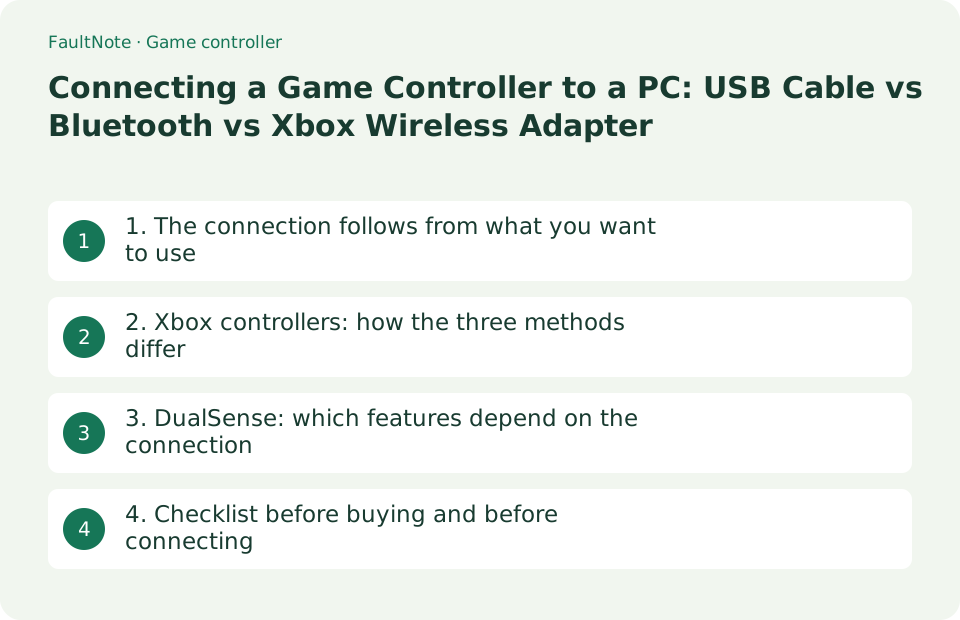
1. The connection follows from what you want to use
Microsoft lists three ways to connect an Xbox Wireless Controller to a Windows device: a USB cable, the Xbox Wireless Adapter for Windows, or Bluetooth. It adds that some Windows devices come with Xbox Wireless built in, so a controller connects directly without an adapter, and notes that the Xbox Wireless Adapter for Windows may not be available in all markets.
The choice is not only about convenience. As the table shows, wanting a headset on the controller, several controllers at once, or vibration narrows the options.
Scroll horizontally to see the full table →
| What you want to do | Connection that suits it | Basis (manufacturer statement) |
|---|---|---|
| Attach a headset or chatpad to the controller (Xbox) | USB cable, or Xbox Wireless | Microsoft: attachments such as headsets, chatpads and the Xbox Stereo Adapter will not work while connected via Bluetooth |
| Use three or more controllers for local multiplayer (Xbox) | USB cable, or Xbox Wireless | Microsoft: up to 8 controllers over USB or Xbox Wireless; Bluetooth is recommended one controller at a time |
| Use DualSense haptic feedback | USB connection | Sony: haptic feedback is available when supported by the game and requires a USB connection on PC |
| Use one controller wirelessly with minimal setup | Bluetooth | Microsoft: Bluetooth requires Windows 10 Anniversary Update or later. Sony: DualSense supports Windows 10 (64-bit) and Windows 11 |
| Play while charging, without worrying about the link | USB connection | Microsoft: be sure to use a cable that supports data transfer |
2. Xbox controllers: how the three methods differ
For USB, Microsoft says to use a USB-C cable with the Xbox Series X|S controller, the Xbox Elite Wireless Controller Series 2 and the Xbox Adaptive Controller, and a micro-USB charging cable otherwise. The condition that matters is stated plainly: be sure to use a cable that supports data transfer. A charge-only cable will not be recognized.
Bluetooth support can be identified by looking at the controller. Microsoft explains that on Bluetooth-supported controllers the plastic around the Xbox button is part of the face of the controller, while on controllers without Bluetooth it is part of the top, where the bumpers are. Microsoft also states that attachments do not work over Bluetooth and recommends connecting only one controller at a time that way. The controller that comes with the Xbox Series X|S can switch back to its last Xbox Wireless connection with a double press of the Pair button.
Scroll horizontally to see the full table →
| Connection | What it requires | Simultaneous controllers (as stated by Microsoft) | Limitations |
|---|---|---|---|
| USB cable | A cable that supports data transfer (USB-C for Series X|S, Elite Series 2 and Adaptive; micro-USB otherwise) | 8; or 4 with Xbox Chat Headsets, 2 with Xbox Stereo Headsets | Cable management. If it is not detected after sleep, press the Xbox button or unplug and replug |
| Xbox Wireless (adapter or built in) | The Xbox Wireless Adapter for Windows, or a PC with Xbox Wireless built in | 8; or 4 with Xbox Chat Headsets, 2 with Xbox Stereo Headsets | The adapter may not be available in all markets, and it occupies a USB port |
| Bluetooth | Windows 10 Anniversary Update or later, and a Bluetooth-capable controller (plastic around the Xbox button is part of the face) | Connecting one controller at a time is recommended | Headsets, chatpads and the Xbox Stereo Adapter will not work |
3. DualSense: which features depend on the connection
Sony's support page states that the DualSense wireless controller supports both Bluetooth and USB connections on Windows 10 (64-bit) and Windows 11 (as well as macOS Big Sur 11.3, iOS and iPadOS 14.5, and Android 12 or later). Individual features carry conditions: adaptive triggers are available when supported by the game, and haptic feedback is available when supported by the game and requires a USB connection on PC. The built-in microphone and speaker are available on Windows PC when supported by the game, and the headset jack requires a wired connection with PC and Mac.
USB uses a cable with a Type-C connector. To pair over Bluetooth, with the player indicator off, hold the create button and press and hold the PS button until the light bar blinks, then select the controller in your device's Bluetooth list. One controller can hold up to four pairing slots, and you switch between paired devices by holding an action button (triangle, circle, cross or square) together with the PS button. If all slots are in use, the slot you have not connected to for the longest time is replaced. For firmware updates on a PC, Sony directs you to the PlayStation Accessories app.
Scroll horizontally to see the full table →
| Feature | What Sony states (on PC) | What that means for your connection |
|---|---|---|
| Haptic feedback | Available when supported by the game; requires a USB connection on PC | Connect with a USB cable if you want vibration |
| Adaptive triggers | Available when supported by the game (not compatible with Android devices) | Check that the game supports them first |
| Built-in microphone and speaker | Available on Windows PC when supported by the game | Either connection can work, but the game must support it |
| Headset jack | Requires a wired connection with PC and Mac | Use USB if you plug headphones into the controller |
| Using several devices | Up to four pairing slots per controller, switched with button combinations | Use the slots if you move between a PC and a PS5 |
4. Checklist before buying and before connecting
Once you have chosen a connection, check the PC side and the game side. For the Xbox Wireless Adapter, Microsoft says to plug it into a USB 2.0 or 3.0 port on your Windows device and that installation happens automatically because the drivers are built into Windows. If the USB port does not face the controller or is blocked by metallic objects, as on many desktops, Microsoft advises using the included USB extender to avoid wireless interference and keep a good line of sight to the controller.
Game support is a separate question from the connection. Sony notes that even with a DualSense connected to your PC, controller support may vary depending on the game, and directs you to the Controller Support information on the right side of a game's Steam store page, which confirms either Full Controller Support or Partial Controller Support. Vibration and trigger features only work when the game implements them, so the connection alone does not settle it.
Scroll horizontally to see the full table →
| Where to check | What to look for | What to do if it does not work |
|---|---|---|
| The PC itself | Whether it has Bluetooth, and which USB ports are free (the adapter accepts USB 2.0 or 3.0) | Without Bluetooth, switch to the adapter or a USB cable |
| The cable | Whether it supports data transfer (not charge-only) and whether the end is USB-C or micro-USB | Try a different cable; Microsoft specifies a data-capable cable |
| The controller | On Xbox, the shape around the Xbox button indicates Bluetooth support; on DualSense, the state of the player indicator | If it lacks Bluetooth, use the Xbox Wireless Adapter or a cable |
| Where the adapter sits | Whether the USB port faces the controller and is not blocked by metal | Microsoft: use the included USB extender to keep line of sight |
| The game's store page | The controller-support label (Full or Partial) | Sony: check Controller Support on the right side of the Steam store page |
Limitations and requirements
- This guide reflects what the Microsoft (Xbox Support) and Sony (PlayStation Support) pages stated on 19 September 2026. Specifications and supported operating systems change, so check the current pages before buying.
- Vibration, adaptive triggers and the built-in microphone depend on the game as well as the connection. Support differs from title to title.
- No controllers were connected or latency measured for this site. Every statement here comes from the manufacturers' official documentation. Prices and availability are out of scope.
Frequently asked questions
Is Bluetooth good enough for an Xbox controller on PC?
For a single controller with nothing attached, it is the simplest option. However, Microsoft states that attachments such as headsets, chatpads and the Xbox Stereo Adapter will not work while connected via Bluetooth, and recommends connecting only one controller at a time that way. For several controllers or a headset, use a USB cable or Xbox Wireless (adapter or built in).
How do I tell whether my Xbox controller supports Bluetooth?
Microsoft's test is visual: on Bluetooth-supported controllers the plastic around the Xbox button is part of the face of the controller, while on controllers without Bluetooth it is part of the top, where the bumpers are. If yours lacks Bluetooth, connect it with a USB cable or the Xbox Wireless Adapter for Windows.
My DualSense does not vibrate on PC.
Sony's support page states that haptic feedback is available when supported by the game and requires a USB connection on PC. Connect with a USB Type-C cable first, then check whether that game supports the feature. Sony suggests checking the Controller Support label (Full or Partial) on the game's Steam store page.
Sources and verification date
Sources checked: . These sources support the specifications, procedures or prices discussed here. Check each source for applicable conditions and current information.
Related practical guides
- USB vs PCIe Wi-Fi Adapter: Check Installation Requirements, Bluetooth and Speed Labels Before Buying
- Japan's technical conformity mark: what to check before importing a wireless PC accessory
- Adding Bluetooth to a desktop PC: reading a USB adapter's version number, placement and limits
- Mesh Wi-Fi, one router, or a wired access point: backhaul and installation decide it
- USB receiver or Bluetooth for a wireless mouse and keyboard: what each one actually requires
- PC Headset Connections: USB, 3.5 mm, 2.4 GHz Dongle or Bluetooth, and What Happens to the Microphone