Fix Wi-Fi Connection and “No Internet” Problems
What to do first
Check the range on another device and another site, then try network diagnosis, reconnection, and restart the device.
This is a general troubleshooting guide, not an announcement of a current outage.
Affected products and symptoms
- Product
- Windows
- Versions and conditions
- Windows 11 / Windows 10
Symptoms
- The expected network does not appear in the Wi-Fi list
- Connected but shows no internet
Causes and conditions
Possible causes exist at several layers such as the device, access point, specific site, VPN/firewall, and IP settings.
Before you start
- Check Wi-Fi name and password
- If you are using a VPN, record the setting name
Precautions
- Back up important files in advance
- Check the impact before deleting, initializing, or resetting the network.
Tools and official pages used in this guide
Review the official requirements, screen names, and limitations for this procedure.
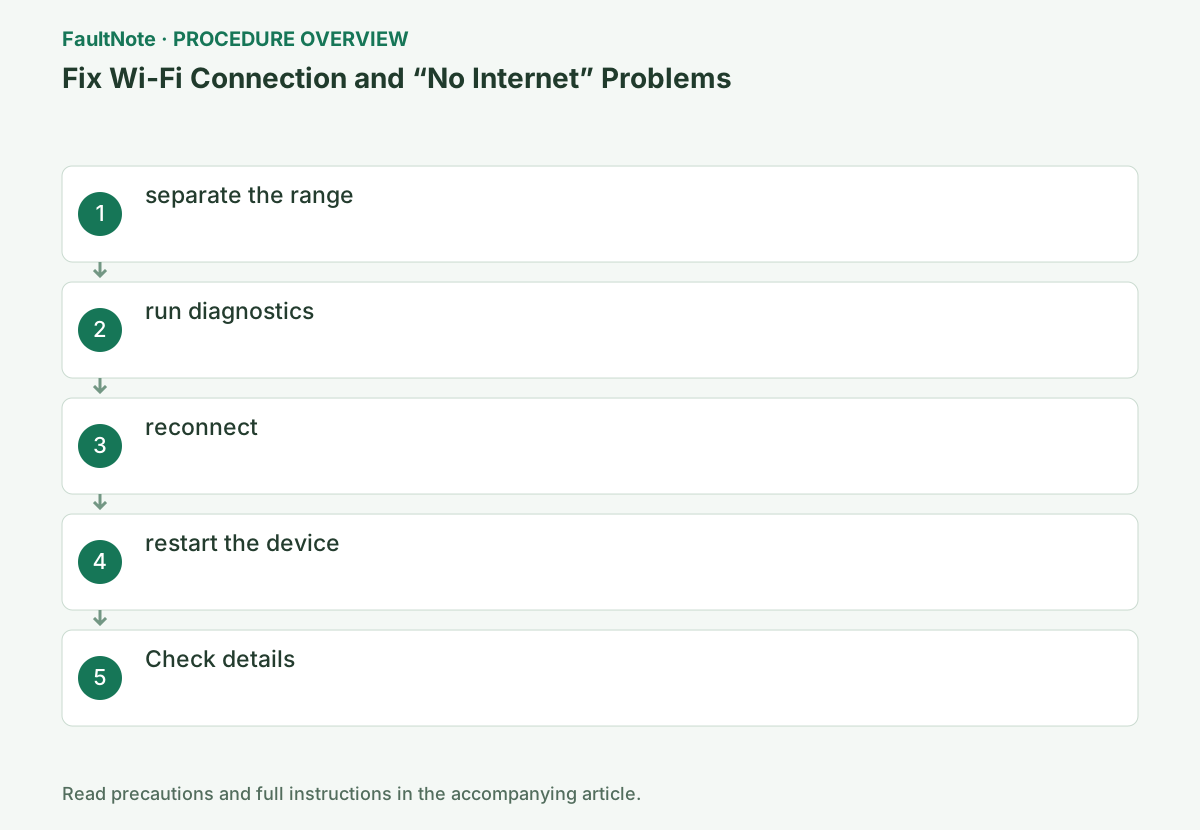
Step-by-step instructions
Confirm the intended Wi-Fi network name. A connected label describes the wireless connection, not availability of every internet service. Compare several trusted pages and another app to distinguish one browser, one service, and PC-wide failure. On a network requiring a sign-in page, complete its legitimate authentication.
If another device on the same Wi-Fi also fails, check the connection before changing PC drivers. Ensure a phone has not silently switched to cellular. Differences in VPN use or network choice affect the comparison; record the device, network and tested service.
Select the network icon on the far right of the taskbar and check if Wi-Fi is on and airplane mode is off. Check whether the connected SSID matches the intended router name and open two websites from different operators in your browser. Try the same site on a smartphone connected to the same SSID. If it fails only on the PC, prioritize the Windows side, and if it fails on all devices, prioritize the router or line side.
Open Start and type "Get Help" to launch the blue question mark Get Help app. Enter "Unable to connect to the Internet" in the search field and select "Launch the Network and Internet troubleshooter." Select Wi-Fi as the diagnostic target and review the results when the troubleshooter finishes. If the app does not open on the management PC, notify the administrator of the error message.
Open [Settings] > [Network & Internet] > [Wi-Fi] > [Manage known networks]. Select the target SSID, click [Delete], select the same SSID again from the Wi-Fi list on the taskbar, and enter the correct password. Recheck the web display after it becomes [Connected, secure]. In Windows 10, perform the same operation from [Manage known networks] in Wi-Fi settings.
Official links for this step
- Fix Wi-Fi connection issues in Windows
Review the official requirements, screen names, and limitations for this procedure.
- Fix Wi-Fi connection issues in Windows
Before forgetting a network or resetting, retain the SSID, password and any VPN/static-IP details. Ask the administrator about organizational certificates or managed configuration. Save network-dependent work and change one understood item at a time so the result remains attributable.
Retest the same pages and apps after reconnecting. Record original IP settings before changing them and restore them if ineffective. Router restart affects other users on a shared connection. Resetting only the PC may not fix an outage also affecting other devices.
If the problem is PC-only, use [Start] > [Power] > [Restart]. If all devices are failing, check with your router administrator or device manual and restart. The method of disconnecting the power is to follow the manufacturer's specified waiting time and wait until the line lamp returns to normal. Do not press the settings initialization button. After restarting, test both another device and the PC.
If you can open the entire web but only a specific app fails, check the updates and service status of that app. While using a VPN, write down the saved connection name and temporarily disconnect from [Settings] > [Network & Internet] > [VPN] and compare. If the problem only persists when disconnected, contact your VPN administrator. [Network Reset] reinstalls the adapter and may also lose VPN settings, so use it as a last resort with reconfiguration information available.
After pages load, test the original app and required VPN or shares. A network reset may require VPN software or virtual-switch setup again and can change the network profile. Restore sharing only after checking the environment and organization policy; public Wi-Fi need not be made shareable.
For recurrence, record whether it follows wake, a location or one network. Provide the PC model, adapter, Windows version, network and other-device result. If connectivity sometimes works, retain that pattern rather than reporting constant failure. Remove unnecessary personal details from screenshots.
Check the result
- The Wi-Fi icon on the taskbar is in a stable connection state.
- Open multiple different sites in your browser
- You can determine whether it is the PC side or the entire network by comparing it with another device using the same Wi-Fi.
If the problem continues
- If you can connect via Ethernet, check the Wi-Fi adapter and wireless settings with priority over the router line.
- If no device can connect, check if there is a problem with the router or internet service provider.
- Finally, if you use a network reset, prepare reconfiguration information for VPNs, virtual switches, and saved connections.
Scope of this guide
Troubleshooting guide — General diagnostic procedures. It does not describe a specific current incident.
Frequently asked questions
If it shows connected, is the internet normal?
It may simply indicate a connection to a Wi-Fi zone. Check external reachability on multiple sites and different devices.
Do you want to use [Reset Network] first?
I don't use it. You will need to reinstall the adapter and reconfigure the VPN, so consider this after diagnosing and reconnecting.
Does a working phone prove the connection is fine?
It helps narrow the investigation if the phone truly uses the same Wi-Fi without cellular fallback. VPN or destination differences still matter. Compare the same service and record whether failure affects one or several devices.
Why does only the work VPN fail after reset?
VPN or virtual networking may require setup again after a reset. Working web browsing is separate from working corporate access. Restore the administrator-provided configuration and credentials, then test the original business function.
Official sources and dates
Source publication or resolution date: Not specified. Sources checked: 2026-09-05. The check date is not the date the problem first occurred. Interface labels can vary between versions and display languages.
Related troubleshooting guides
Windows errors and troubleshooting →
- Laptop is slow only on battery: check the power mode, energy saver and the maker's cooling mode in that order
- A driver can't load on this device: what memory integrity is blocking, and the choices that leaves
- Printer outputs blank pages after an ink or toner change: packing material, seating, nozzle check and the new-supply test
- A print job remains stuck on Deleting