SumatraPDF: Read PDFs and E-books Quickly
View PDFs, EPUBs, etc. on a minimal interface and use tabs, searches, and shortcuts. This guide covers installation, practical steps, limitations, and how to stop using the app.
Published · Updated · FaultNote editorial policy
Who this guide is for and what to prepare
- First-time users of SumatraPDF
- People who want to check the storage location and safety of data while reducing manual work
What you need
- Check the processing target and storage location, and preserve the original data in another location
- Check the official distribution source, supported OS, and required permissions
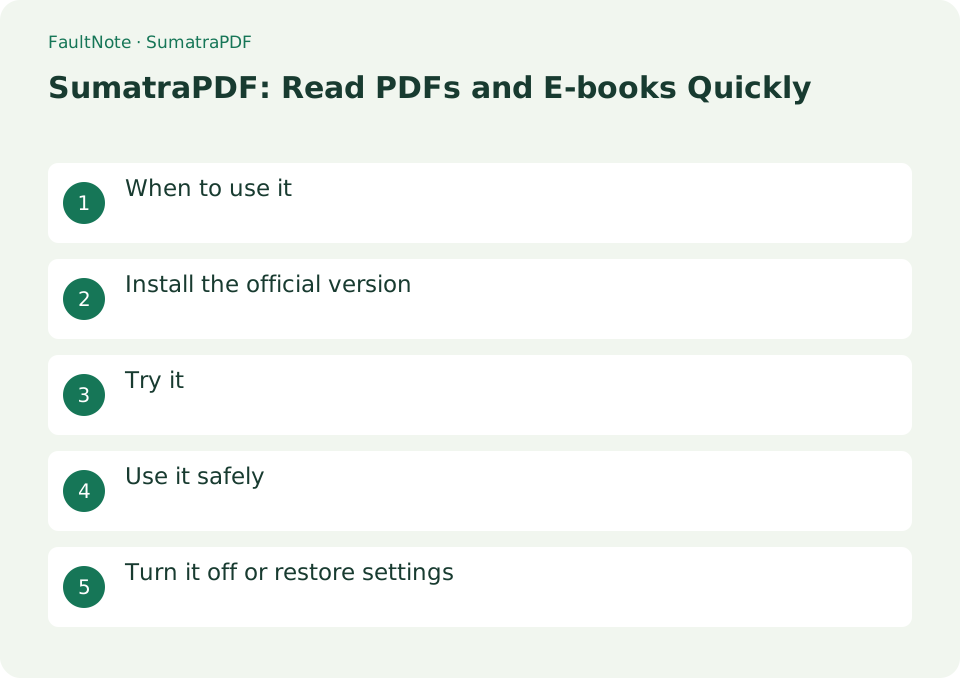
When to use it
View PDFs, EPUBs, etc. on a minimal interface and use tabs, searches, and shortcuts.
Install the official version
Select Installer or Portable from the official download at sumatrapdfreader.org.
- Choose Installer or Portable from the official download of sumatrapdfreader.org
Navigate a long document
Use the table of contents, page navigation and text search. Printed page numbers may differ from PDF positions because of covers. Give both the heading and PDF position when directing someone to a passage.
Print two pages from a long manual
Match headings and PDF positions when printed numbers differ. Reading zoom and print scaling are separate. No search hit may reflect wording or image-only content. Viewing does not edit the source.
- Navigate by contents or search and confirm the heading and surrounding text.
- Record start and end PDF positions and compare printed numbering.
- Zoom to read text and compare diagrams; display changes do not alter source layout.
- Select printer, range, paper and orientation and test one page instead of the full document.
- Inspect edges and text before continuing and communicate heading and PDF position.
Try it
Select [File] → [Open] and select the PDF. Select Continuous or Spread in [Display]. Search for a phrase with Ctrl+F. Move to the page number using the g key. Cancel the association in Windows' [Default apps].
- Select the PDF from [File] → [Open]
- Select continuous or spread in [Display]
- Search for a phrase with Ctrl+F
- Move to page number with g key
- Cancel the association in Windows' [Default apps]
Test one printed page
Check paper size, orientation and scaling with one page before a large job. Inspect cropped diagrams or undersized text. Correct on-screen rendering does not establish that printer settings will produce the intended result.
Distinguish reading from editing
Opening a PDF does not imply text-editing support. Check support for required forms or annotations. A scanned PDF with no search hits may be image-only; compare the source and decide whether separate OCR is needed.
Scroll horizontally to see the full table →
| Observation | Decision and next action |
|---|---|
| Search works | Read context; a matching word can appear in another chapter. |
| No matches | Try other wording and text selection, considering OCR for image-only pages. |
| Print crops edges | Check paper, orientation, scaling and source margins. |
| Form entry required | Check feature support separately from viewing. |
Use it safely
The main use is for viewing, not for advanced PDF editing. For confidential documents, check the scope of external tool collaboration and changes to default applications.
Turn it off or restore settings
To restore the association, search for.pdf in Windows Settings → Apps → Default apps and select the viewing app you want to use. In SumatraPDF, check the settings for remembering opened files and displaying history, and decide whether to keep the history on a shared PC.
Limitations and requirements
- The main use is for viewing, not for advanced PDF editing. For confidential documents, check the scope of external tool integration and default application changes
- Check the current specifications in the official documentation and reconfirm on-screen what you want to delete or overwrite.
Frequently asked questions
Can I edit the PDF text?
The main purpose is viewing. If you want to edit page content or do advanced form processing, check out separate PDF apps that have those features.
How can I avoid keeping a recent-file history?
Review the settings for remembering file history. Displaying recently used files and deleting the document file itself are separate operations.
Can viewable PDFs be edited?
Viewing, annotations, forms and text editing are separate; choose a tool for the task.
How do I extract pages?
Use an extraction tool, retain the original and verify output content and count.
Sources and verification date
Sources checked: . These sources support the specifications, procedures or prices discussed here. Check each source for applicable conditions and current information.
Related practical guides
- Diagnose image sequence problems in a CBZ comic
- Set comic spreads and right-to-left reading in SumatraPDF
- Read small PDF text with fit-width and continuous view
- Manage reading locations with outlines and favorites in SumatraPDF
- LibreOffice Writer: Create a Document and Export It as PDF
- Acrobat Standard vs Pro: do you need OCR, redaction or PDF comparison?