LibreOffice Writer: Create a Document and Export It as PDF
Create a document using an open-source office suite and generate a PDF for distribution while preserving the original ODT. This guide covers installation, practical steps, limitations, and how to stop using the app.
Published · Updated · FaultNote editorial policy
Who this guide is for and what to prepare
- First-time users of LibreOffice
- People who want to check the storage location and safety of data while reducing manual work
What you need
- Check the processing target and storage location, and preserve the original data in another location
- Check the official distribution source, supported OS, and required permissions
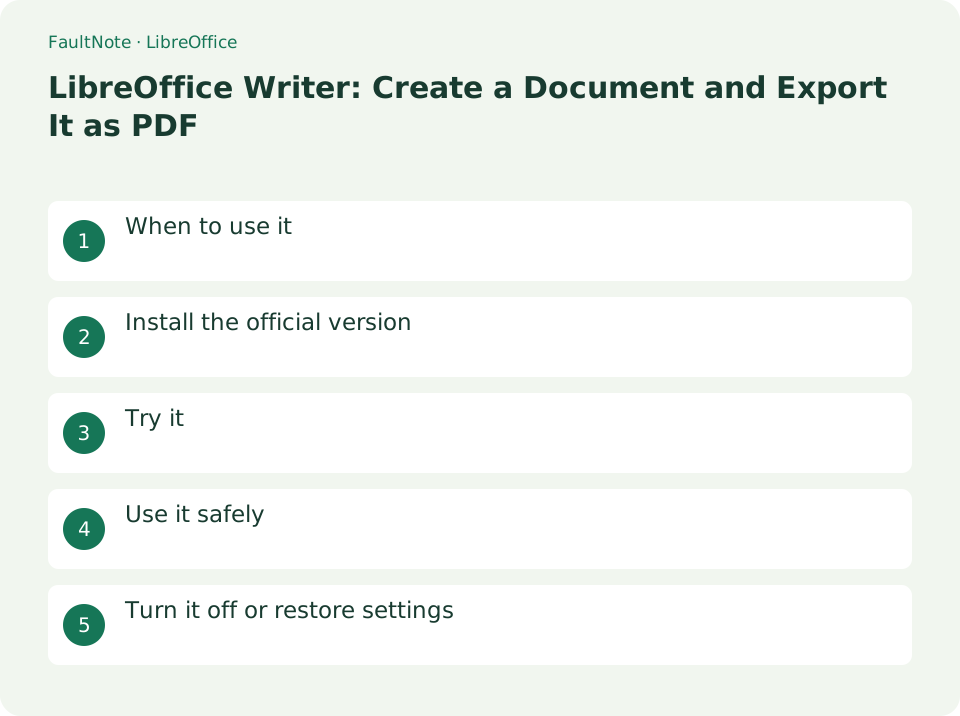
When to use it
Create a document using an open-source office suite and generate a PDF for distribution while preserving the original ODT.
Install the official version
- Select the version that matches your OS and CPU from libreoffice.org/download, and check the Japanese UI and save format.
Keep source and delivery copies
Save the ODT first, then export a separately named PDF. A PDF export does not preserve an editable source by itself. Use dates or versions to distinguish previously distributed files from the replacement.
Export a two-page handout
Inspect source and exported PDF separately, keep versions aligned and use a delivery folder. Verify any required PDF standard explicitly.
- Create content and inspect print preview without relying on repeated blank lines for layout.
- Save and locate a dated/versioned ODT before exporting.
- Choose page range and preserve readability when changing image compression.
- Inspect actual delivery output for count, table edges, characters and images.
- Save and export again after edits and verify the replacement attachment.
Try it
Apply title and heading 1 styles in Writer. [Insert] → Add [Page Number]. Save the ODT manuscript with [Save As]. Check the range and image compression with [Export as PDF]. Open the PDF and check fonts, page breaks, and links.
- Apply title and heading 1 styles in Writer
- [Insert] → Add [Page Number]
- Save the ODT manuscript with [Save as]
- Check range and image compression with [Export as PDF]
- Open a PDF and check fonts, page breaks, and links
Check export options
Select all pages or a page range. For a handout without its cover, check actual page numbers before exporting and compare the resulting page count. When changing compression or resolution, inspect diagrams and small text rather than judging only file size.
Review the delivered PDF
Open it in another viewer and inspect page breaks, tables, characters and links. Choose form or tagged-PDF options for the actual requirement. After source edits, export again and check that the shared attachment is the new PDF.
Scroll horizontally to see the full table →
| Observation | Decision and next action |
|---|---|
| Count matches | Inspect layout as well as count. |
| Pages missing | Check range and actual positions including covers. |
| Image text unclear | Restore quality and compare the same figure while reviewing compression. |
| Old content remains | Compare source, destination and opened-file paths. |
Use it safely
Complex layout compatibility with Microsoft Office formats is not perfect. Separate the original format and distribution format and check font substitution.
Turn it off or restore settings
Manuscripts that continue to be edited are saved in ODT and kept separate from the PDF for distribution. If you want to change the settings and re-output, open the ODT, make the changes, and export the PDF under a different name to compare it with the distributed version. When closing the app, respond to the confirmation to save the document.
Limitations and requirements
- Complex layout compatibility with Microsoft Office formats is not perfect. Separate the original format and distribution format and check font replacement
- Check the current specifications in the official documentation and reconfirm on-screen what you want to delete or overwrite.
Frequently asked questions
Is DOCX fully compatible with Word?
Not fully compatible. Fonts, page breaks, tables, special features, etc. may differ from how they appear in Word, so check them in the actual document before co-editing.
Can I directly repair the PDF later?
Edit the source ODT in Writer and export the PDF again. If you edit the PDF directly, the layout may be disrupted, so leave the original manuscript.
Should I edit the ODT?
Edit source and regenerate to avoid PDF-only corrections disappearing at the next export.
Can print and screen use one export?
Check resolution, paper, links and tags for the purpose and test one printed page.
Sources and verification date
Sources checked: . These sources support the specifications, procedures or prices discussed here. Check each source for applicable conditions and current information.
Related practical guides
- SumatraPDF: Read PDFs and E-books Quickly
- Acrobat Standard vs Pro: do you need OCR, redaction or PDF comparison?
- Export One Excel Sheet to PDF with All Columns on One Page Width
- Redact Sensitive PDF Information in Acrobat Pro and Verify the Saved Copy
- Convert Word document to PDF while preserving layout
- Save selected PDF pages with Microsoft Print to PDF