A running instance of Acrobat has caused an error: fixes
What to do first
PDF will not open because of a running Acrobat instance? Close background processes, update or repair Acrobat, and check whether one PDF or the app is affected.
This is a general troubleshooting guide, not an announcement of a current outage.
Affected products and symptoms
- Product
- Adobe Acrobat
- Versions and conditions
- Acrobat on Windows
- Error codes and identifiers
- A running instance of Acrobat has caused an error
Symptoms
- Opening a PDF displays A running instance of Acrobat has caused an error
- A PDF or tool still fails after the Acrobat window has been closed
Causes and conditions
The message refers to an already-running Acrobat process. Closing its window may leave a background process behind. Adobe lists unresponsive processes, a DDE registry entry, an outdated release and installation damage as troubleshooting branches. The message alone does not establish that a PDF is corrupt or infected.
Before you start
- Save any PDF edits that are still accessible; forced termination can lose unsaved changes
- Record the exact message, Acrobat release and where the PDF was opened; keep confidential files local
Precautions
- Ending a process can discard unsaved edits
- AcroView values depend on the installed product and environment; do not apply an example to a different value or missing key
Tools and official pages used in this guide
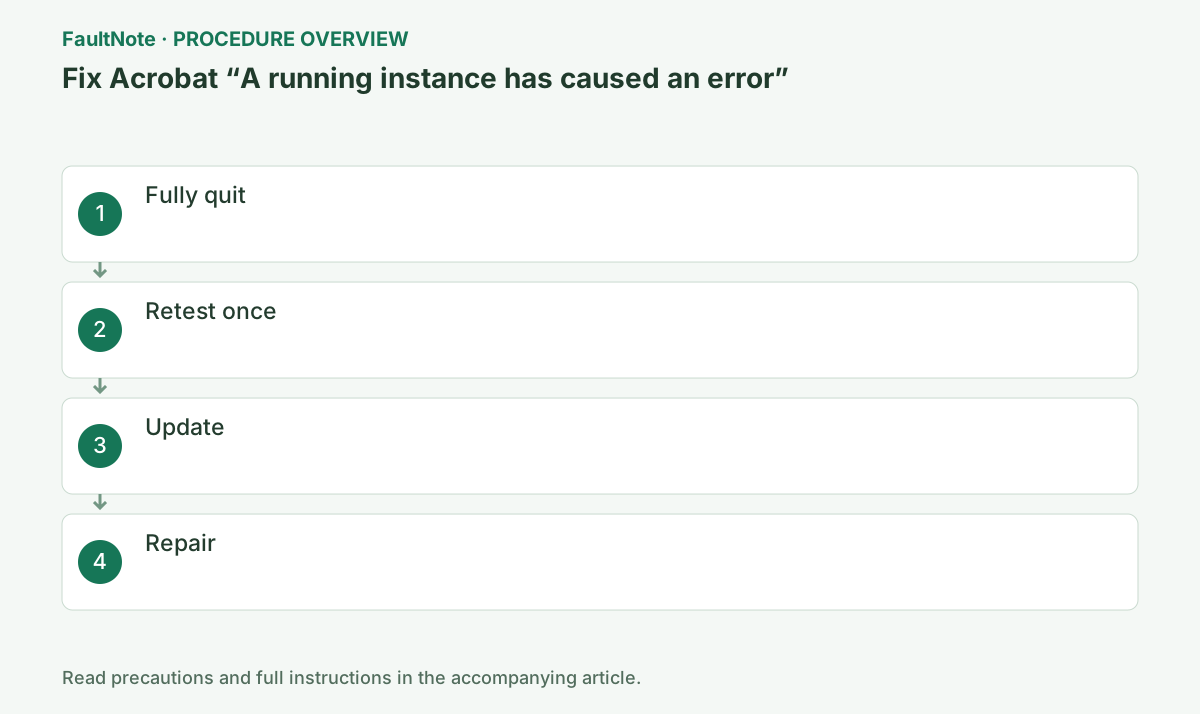
Step-by-step instructions
Save your work, close Acrobat and press Ctrl+Shift+Esc. Look for Adobe Acrobat in both the Apps and Background processes groups.
End each Adobe Acrobat task. Leave unrelated Adobe applications alone.
Save edits, comments, and signature work before termination. A nonresponsive window may contain unsaved data. Verify saved destinations after recovery and avoid overwriting immediately if work may have been lost.
Official links for this step
Check before continuingNo remaining Adobe Acrobat task is listed.
Launch Acrobat once and open a known local PDF. Close Acrobat, then open the same PDF from File Explorer.
This comparison separates an app-wide failure from a failure limited to one document.
Use a local PDF previously known to open as the control. Testing only the affected file cannot establish repair effectiveness. Compare launch routes using a local copy without changing a shared original.
Check before continuingYou know which file and opening method reproduces the problem.
In Acrobat, open Menu > Help > Check for updates. Apply offered updates and restart Acrobat.
Record the release shown in Help and retry the same PDF. If Acrobat cannot open at all, seek an available repair route instead of repeating an inaccessible menu action.
Do not launch additional instances during update or repair. Wait for completion, save other work before restart, check the version, and retest the original launch route, recording changed error wording.
Official links for this step
Check before continuingThe update finishes and you can compare the result with the same PDF.
Choose Menu > Help > Repair installation and follow the prompts. Restart Windows after repair.
Keep your source documents. Test both opening methods again after the restart.
Official links for this step
Check before continuingYou can determine whether the original operation still fails.
Adobe documents a backed-up DDE registry change as another branch. If closing, updating and repairing do not help, review its applicability with your administrator or Adobe support.
Do not guess a replacement when the installed product or value differs. Report which opening method fails.
Official links for this step
Check before continuingAny further setting change is based on guidance for the actual installation.
If the first launch after ending the process works but the next double-click fails, open that same PDF through Acrobat instead. Record the file, launch route, and first versus second result separately. This distinguishes an application that never starts from a failure associated with launching a document.
Compare one local PDF without simultaneously using Explorer previews, browser PDFs, or email attachment previews. Restore those entry points individually to identify the trigger. This is a diagnostic comparison; it does not establish that DDE is damaged.
Before repeatedly forcing Acrobat to close, check whether unsaved edits can be saved under another name. If other documents open normally, obtain a fresh copy of the affected document before repairing the entire application.
After repair, start Acrobat normally and repeat both in-app opening and double-clicking twice with the same document. If the error returns, provide the Acrobat version and failing entry point to Adobe support.
Consider registry changes only when an official procedure identifies the key for your version. Do not alter keys belonging to other products or several search results at once. Ask the administrator to review this on a managed computer.
Check the result
- Open a known local PDF from within Acrobat
- Close Acrobat and open that PDF from File Explorer without the error
- Compare the original PDF with another file to identify any document-specific failure
If the problem continues
- If opening inside Acrobat works but double-clicking fails, report that distinction for association and DDE diagnosis
- If only one PDF fails, keep the original and compare a fresh copy from its sender
- If every PDF still fails after repair, send Adobe the release number, reproduction steps and results
Scope of this guide
Troubleshooting guide — A Windows Acrobat troubleshooting path through process termination, reproduction checks, updates and repair. This is not a claim that a particular release fixes every case.
Frequently asked questions
What does A running instance of Acrobat has caused an error mean?
An operation failed in connection with an already-running Acrobat instance. Check for an unresponsive Acrobat process first; the message does not mean that simply having multiple PDF files is the cause.
Does this mean the PDF is damaged?
Not necessarily. Compare another PDF and opening from inside Acrobat to distinguish a document problem from an application problem.
Why does closing the window not fix it?
A background process may remain. Check Adobe Acrobat in Task Manager, end it and launch Acrobat once.
Must I edit the registry or reinstall first?
Start with closing processes, updating and repairing. Registry changes depend on the actual installation and should not be applied indiscriminately.
Why end processes before reinstalling?
Termination directly tests a remaining-instance problem. Reinstallation changes configuration without diagnosing an individual document. Compare a known-good PDF, then update and repair for broader failures.
Only double-clicking fails.
Use in-app Open temporarily if it reads the same file, and inspect the default application and association. Do not delete documents or broadly alter the registry; report the different results.
Official sources and dates
Source publication or resolution date: Not specified. Sources checked: 2026-10-13. The check date is not the date the problem first occurred. Interface labels can vary between versions and display languages.