Set comic spreads and right-to-left reading in SumatraPDF
Diagnose reading direction separately from spread pairing. Compare a cover, two portrait story pages and one wide image, then choose controls supported by your build.
Published · Updated · FaultNote editorial policy
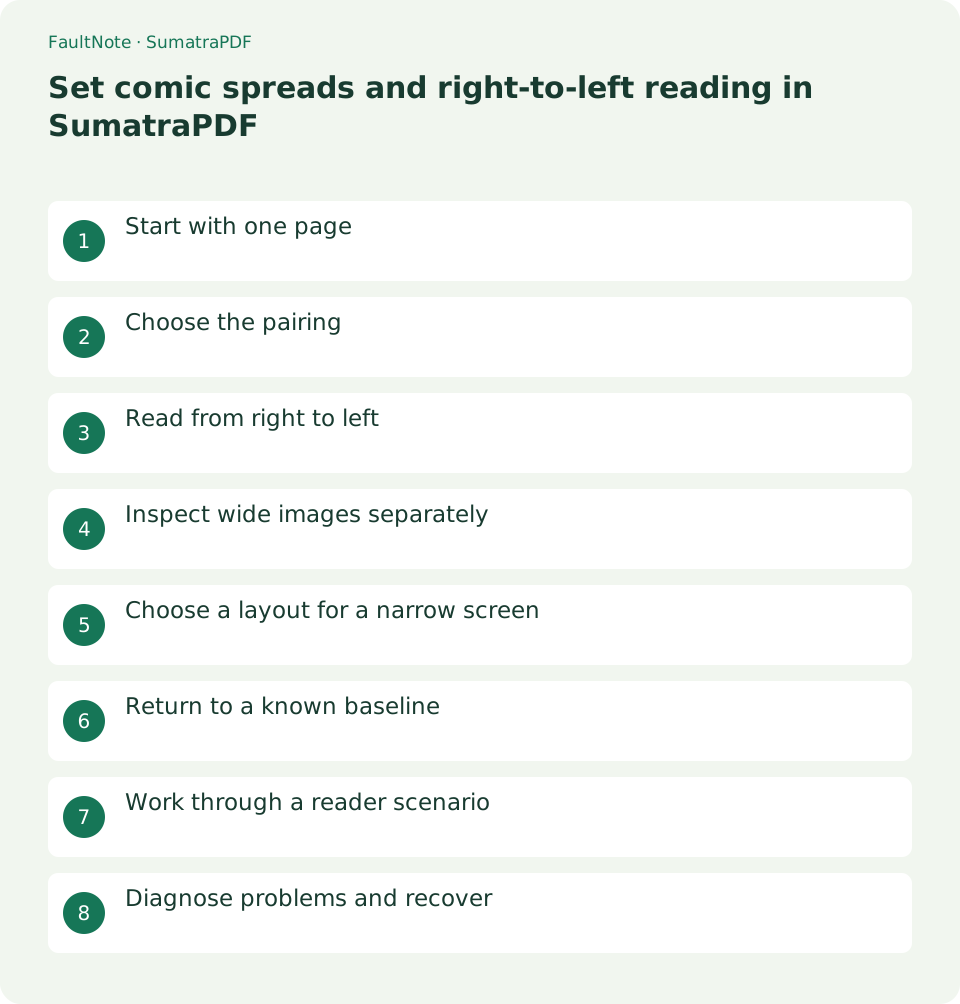
Who this guide is for and what to prepare
- People reading books or reference documents on a PC
- Readers who want to verify display and persistence separately
What you need
- Prepare a document you are entitled to use and keep an original plus a working copy
- Check the application version and document format
Start with one page
Start in single-page view and inspect the cover, the first story page and a wide spread. Distinguish reversed left/right placement from a pairing shifted by one page. These require different adjustments.
Count the cover as the first file page and establish the intended order of the first story pair using connected artwork or dialogue. Language alone does not prove direction; check the publisher's instructions. Changing left/right placement cannot fix an incorrect source sequence. Gaps or repeated images call for inspecting the package while retaining the original.
Choose the pairing
Compare Facing and Book View in the View menu. Book View leaves the first page alone, which often suits a file containing a cover. Choose the arrangement that joins the artwork correctly and inspect chapter boundaries as well as the opening.
If Facing pairs the cover with the first story page and splits connected artwork on subsequent rows, try Book View. A file containing only story pages may instead become misaligned when its first page is isolated. Success means the central artwork or panel borders join correctly, rather than merely displaying two pages. Blank leaves and chapter title pages can change pairing later.
- Inspect the first story pair in single-page view
- Select Facing and inspect the central join
- Compare Book View with its isolated cover
- Toggle Manga Mode if required
- Inspect chapter transitions and wide images before choosing the view
Read from right to left
For right-to-left comics, check Manga Mode in the View menu. It changes page placement, rather than mirroring the artwork. Check which navigation direction advances before continuing.
After toggling Manga Mode, check that the same pair exchanges sides. If the cover changes its position in the sequence, inspect whether another layout control changed too. Initially use the next-page toolbar control and confirm both advancing file position and narrative continuity. Following a short opening conversation is more informative than jumping randomly through the book.
Inspect wide images separately
A spread stored as one landscape image differs from a pair of portrait images. The documented LandscapeAsSpread setting requires version 3.7 or later. If your build lacks it, read wide artwork in single-page view instead of adding an unsupported setting.
A wide image paired with a portrait page can look like three pages squeezed into one spread. Investigate landscape placement rather than reading direction. For documented 3.7-or-later options, retain the settings file and distinguish ComicBookUI from ImageUI. If the applicable setting is unclear, single-page reading gives a recoverable baseline without speculative changes affecting other books.
Scroll horizontally to see the full table →
| Observed result | What to check | Next action |
|---|---|---|
| Pair reversed | Placement of the same two pages | Compare Manga Mode |
| Pairing offset by one | Whether a cover is included | Compare Facing with Book View |
| Only wide images tiny | One landscape image versus two portraits | Compare single-page view and supported landscape layout |
Choose a layout for a narrow screen
If fitting a spread makes lettering too small, read individual pages and temporarily use a spread to inspect connected artwork. You do not need to split or recompress the original images to adjust the view.
On a laptop, insufficient height can shrink a spread even with a wide window. Maximize and compare the same scene, then decide whether complete composition or readable lettering matters more. When reading individual pages, inspect the whole spread once before focusing on details so one half does not become your only context.
Return to a known baseline
If the result becomes confusing, return to single-page view and compare with Manga Mode toggled. Change one setting at a time using the same two story pages. A missing source page cannot be recovered through a layout setting.
Record a simple fallback such as "single page, right-to-left off." Recheck the cover and opening when switching books instead of assuming the last layout is universal. Do not diagnose missing pages from the total alone; packages may include appendices or alternate images. This display investigation does not require overwriting or resaving the artwork.
Work through a reader scenario
For a file containing a cover and story pages, inspect the cover and first two story images separately. Establish that the latter form one scene. If Facing pairs the cover with the story, compare Book View and check that the story pair now occupies one row. Compare Manga Mode if dialogue appears on the wrong sides.
Continue to a wide spread and inspect it as one image before considering source alterations. For a 3.7-or-later build, consult its landscape layout documentation before changing supported settings. Finally read the lettering; adopt the view only when ordering and text size both work.
Diagnose problems and recover
If direction changes do not join the artwork, inspect neighboring images one at a time. Adjacent matching halves suggest layout; separated halves suggest source sequence. Check whether appendices or alternate covers were counted as story pages. Retain the original and use a working copy for any order comparison.
Verify the opening, a middle chapter boundary and the ending. One correct spread does not establish every pairing. Use single-page view when landscape behavior is unclear and record modified settings so they can be restored for another book. A usable basic view does not require advanced configuration.
Limitations and requirements
- Display adjustments do not improve source image resolution or repair PDF reading order.
- Menu names and available features can differ by installed version; compare the official documentation with your screen.
Frequently asked questions
Should I mirror the images?
No. Right-to-left placement and image mirroring are separate operations. Do not transform the pictures into reversed lettering.
Why does the center of a spread not join?
Check cover inclusion and compare Facing with Book View. Use Manga Mode for reversed placement; inspect the source sequence if the wrong images are paired.
Should I split a wide spread image?
Not for a display check. Inspect it in single-page view and check the layout options available in your build. Image editing is a separate task.
What if the setting is missing?
Compare the documented version requirement with your installed build. Do not guess newer configuration options into an older build; retain a workable basic view.
Sources and verification date
Sources checked: . These sources support the specifications, procedures or prices discussed here. Check each source for applicable conditions and current information.
Related practical guides
- Diagnose image sequence problems in a CBZ comic
- SumatraPDF: Read PDFs and E-books Quickly
- Read small PDF text with fit-width and continuous view
- Manage reading locations with outlines and favorites in SumatraPDF
- LibreOffice Writer: Create a Document and Export It as PDF
- Acrobat Standard vs Pro: do you need OCR, redaction or PDF comparison?