Separate PDF damage from Acrobat installation damage
What to do first
Compare known-good PDFs, fresh copies, local storage, and in-app opening. Separate one-document failures from application-wide faults before choosing updates, associations, or repair.
This is a general troubleshooting guide, not an announcement of a current outage.
Affected products and symptoms
- Product
- Adobe Acrobat / Acrobat Reader
- Versions and conditions
- Current desktop releases on Windows
Symptoms
- One PDF or every PDF fails to open
- Browser opens it but Acrobat fails
Causes and conditions
Compare another PDF, then update, set association, and repair installation.
Before you start
- Before changes, record and preserve the original PDF, its source, file size, and Acrobat version.
- Change one item at a time and record the original symptom after each stage.
- Record file size, source, full error, and Acrobat version. Prepare a known-good local PDF and preserve annotations or form data. Keep fresh downloads separate from edited originals for comparison.
Precautions
- Do not bulk-delete unrelated settings or data.
- Exclude personal data and credentials; share only the necessary parts of the original PDF, its source, file size, and Acrobat version.
Tools and official pages used in this guide
Check the official page for exact setting names, limitations, and updated decision paths.
Official Acrobat Reader download if all PDFs still fail after repair.
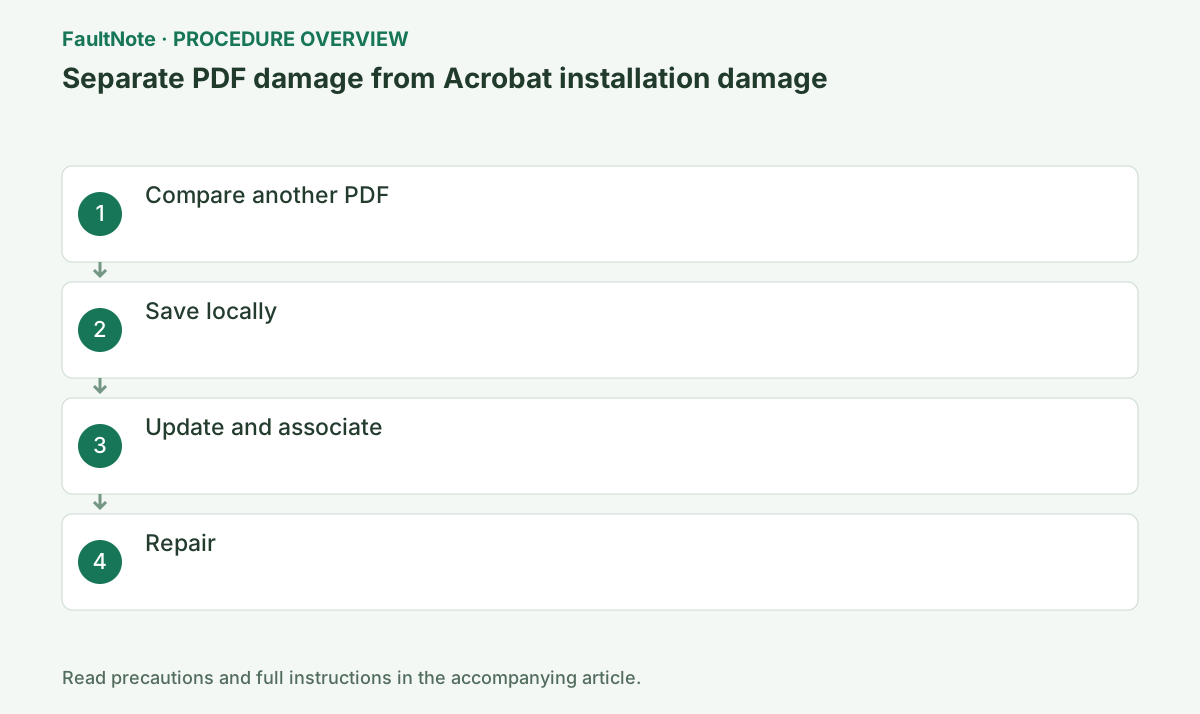
Step-by-step instructions
Open a trusted sample PDF.
If only one fails, ask its sender to recreate it.
Check whether the download completed and compare its size with the publisher’s information. A small PDF can be valid; its size alone does not prove a failed transfer.
Record the file size in Properties. A zero-byte file cannot contain a PDF; obtain it again from the original source. If the download completed but only that PDF fails, preserve it and ask the creator to check or recreate it.
Compare a local PDF previously known to open through the same Acrobat Open action. Failure in both prioritizes the application; failure in one prioritizes the document. A newly retrieved control can share the same download problem.
Save the web link and open the file from Acrobat.
Do not bypass warnings on suspicious PDFs.
Use Open with > Choose another app and select Adobe Acrobat; make it permanent only after a sample opens correctly.
Save a fresh attachment under another name, preserving annotations and form entries. Ask the sender for a fresh export from the authoring application; repeatedly downloading the same damaged distribution does not recover content.
Use Help > Check for updates, then set .pdf default to Acrobat.
Choose intentionally if Reader and Acrobat coexist.
After Help > Check for updates, restart Acrobat. Do not confuse a protected-document warning with update failure.
After changing associations, verify the actual application and document display separately. In-app success points toward association checks; in-app failure warrants document or Acrobat investigation.
Official links for this step
- Official Adobe Acrobat / Acrobat Reader troubleshooting
Check the official page for exact setting names, limitations, and updated decision paths.
- Official Adobe Acrobat / Acrobat Reader troubleshooting
Run Help > Repair Installation and restart.
Application repair cannot fix a damaged PDF file.
Retest the sample and affected PDF after repair. Improvement is a useful diagnostic result, but does not by itself prove component corruption. For a remaining single-file failure, ask the creator about damage, password protection or unsupported content.
Official links for this step
- Official Adobe Acrobat / Acrobat Reader download
Official Acrobat Reader download if all PDFs still fail after repair.
- Official Adobe Acrobat / Acrobat Reader download
Check the file size in Properties. Acrobat repair cannot recover source data from an empty, unusually small, or incomplete download. Download again from the sender and compare the fresh copy under a different filename.
If only a browser or mail preview fails, save the attachment locally and open it from Acrobat. Local success suggests checking the preview or launch route before concluding that the entire document is damaged.
A .pdf extension does not guarantee PDF content. A download behind a login page may have saved the wrong response; verify the sender's intended download steps. There is no need to send confidential documents to an online repair service for this comparison.
If a known-good PDF also fails, update or repair Acrobat and retest both documents. Record which improved so you can distinguish application repair from obtaining a fresh document.
If the message requests a password or permission, contact the document owner rather than continuing corruption remedies. Do not make permanent disabling of security features a routine fix.
Check the result
- compare a trusted sample and the affected PDF using Acrobat Open and double-click
- Check adjacent basic functions for side effects from the change.
If the problem continues
- ask the author to re-export one bad file, or give Adobe Support repair results when all PDFs fail
- When continuing with a workaround, preserve original files or account data separately.
Scope of this guide
Troubleshooting guide — Compare known-good PDFs, fresh copies, local storage, and in-app opening. Separate one-document failures from application-wide faults before choosing updates, associations, or repair.
Frequently asked questions
Can Acrobat repair a corrupt PDF?
Adobe recommends recreating it from the original source.
Only one file fails.
That points to the file or its server.
The browser reads it but Acrobat cannot.
Compare the same local copy and record Acrobat version and error. If only one file still fails after updating, consult the sender. A viewing workaround does not verify editing or signing.
Does installation repair repair the PDF too?
It repairs the application, not damaged document content. If only one file fails, prioritize a fresh original or export from its author, keeping the original file.
Official sources and dates
Source publication or resolution date: Not specified. Sources checked: 2026-10-13. The check date is not the date the problem first occurred. Interface labels can vary between versions and display languages.