A print job remains stuck on Deleting
What to do first
A print job remains stuck on Deleting. An application or driver may hold a spool file, preventing Print Spooler from processing the queue. Record the current state before changing it, use only the supported Windows path described below, and verify the same operation again after any required restart.
This is a general troubleshooting guide, not an announcement of a current outage.
Affected products and symptoms
- Product
- Windows Print Spooler
- Versions and conditions
- Windows 11 (confirm the edition and hardware requirements for the feature)
- Error codes and identifiers
- Spooler
Symptoms
- A print job remains stuck on Deleting.
- The same condition can persist after a retry or restart.
Causes and conditions
An application or driver may hold a spool file, preventing Print Spooler from processing the queue.
Before you start
- Save open documents and allow time for a Windows restart if required.
- Run administrative actions only on a personally managed PC or with administrator approval.
- Save the diagnostic command output so the before and after states can be compared.
Precautions
- Do not bulk-delete registry entries, system folders, credentials, or storage metadata.
- Do not run unofficial scripts or unknown drivers with administrator rights.
Tools and official pages used in this guide
Check the official requirements, interface names, and limitations for this step.
Step-by-step instructions
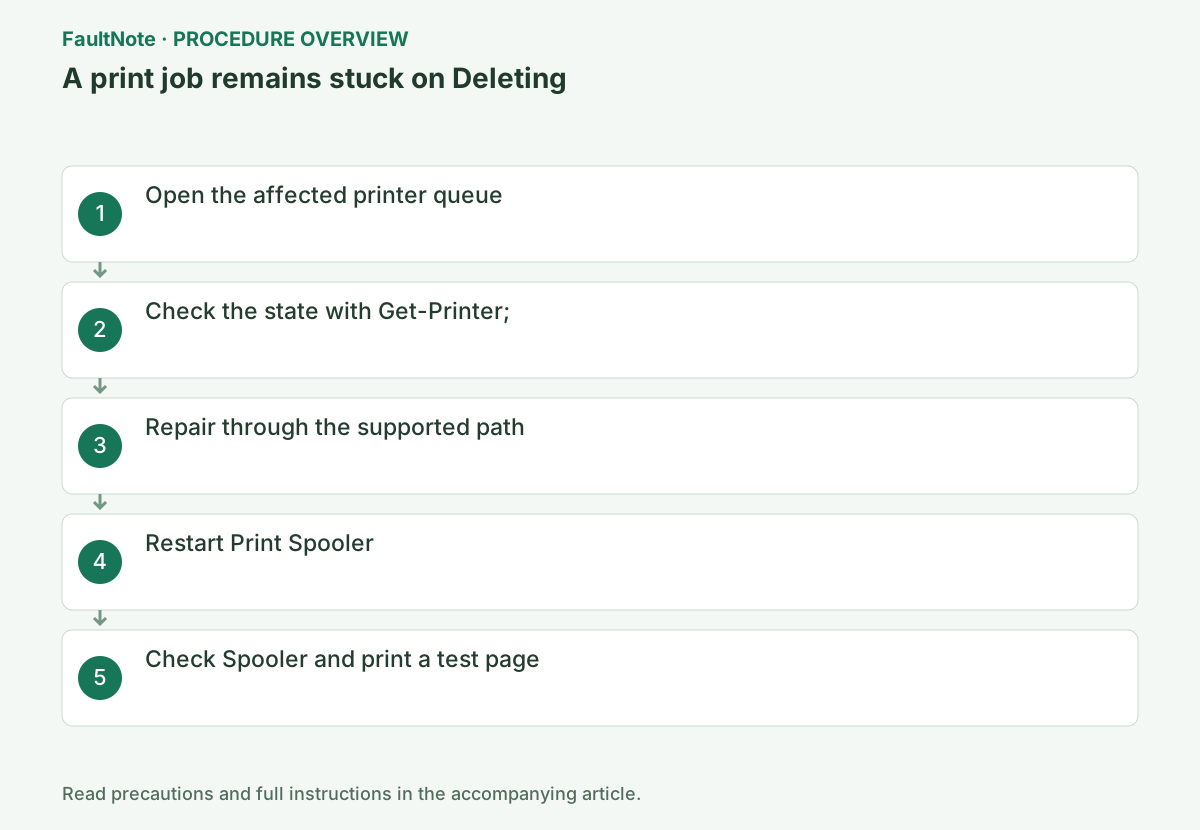
Open Settings > Bluetooth & devices > Printers & scanners, select the printer and choose Open print queue. Check document names and owners and cancel only your own unwanted jobs. Do not remove other users’ jobs from a shared printer.
Open Settings > Bluetooth & devices > Printers & scanners > the printer > Open print queue. Record document, owner, and status, and determine whether only your job or all users are affected.
If several queues share a model name, identify the actual queue and port. Clear paper or device errors before cancelling one old job. For a shared printer, confirm affected jobs with the administrator before pausing queues or restarting the spooler.
Close the printing application, confirm that interrupting printing is acceptable for other users, and record the affected queue and jobs.
Close the source application and reopen the queue. If a cancelled document remains, proceed to restart Print Spooler; do not resubmit it first because that can print duplicates.
Official links for this step
- Fix printer connection and printing problems in Windows
Check the official requirements, interface names, and limitations for this step.
- Fix printer connection and printing problems in Windows
If cancellation does not take effect, press Windows key + R and open services.msc. Right-click Print Spooler, choose Restart, and confirm its status returns to Running. Leaving it stopped prevents printing; if it cannot start, record the error and contact your administrator.
After cancellation, send one small test page rather than the original large document immediately. Confirm physical output as well as disappearance from the Windows queue. A vanished job with no paper output points toward the port or destination rather than a stuck queue alone.
Confirm that Print Spooler is Running in Services. Open the affected printer’s Printer properties, print one test page and check that its job leaves the queue.
Check the result
- The printer produces the test page and the queue returns to empty
- The verification command reports the expected enabled, healthy, or connected state.
- The result remains correct after a Windows restart and no new matching critical event appears.
If the problem continues
- For recurrence, record document format, application, driver version and the single-page result
- If hardware requirements, organization policy, or server settings are responsible, ask the owner to make the change instead of bypassing it on the client.
Scope of this guide
Troubleshooting guide — Restore the feature so it starts, connects, or completes normally and passes the same verification after a Windows restart.
Frequently asked questions
Can printing continue while Spooler is stopped?
No. Other users' jobs also stop, so coordinate downtime on a shared print server.
Should I delete the entire spool folder?
Confirm the affected jobs after stopping Spooler and avoid bulk deletion on a shared server.
Official sources and dates
Source publication or resolution date: Not specified. Sources checked: 2026-10-13. The check date is not the date the problem first occurred. Interface labels can vary between versions and display languages.
Related troubleshooting guides
Windows errors and troubleshooting →
- Laptop is slow only on battery: check the power mode, energy saver and the maker's cooling mode in that order
- A driver can't load on this device: what memory integrity is blocking, and the choices that leaves
- Printer outputs blank pages after an ink or toner change: packing material, seating, nozzle check and the new-supply test
- A mapped network drive cannot reconnect after sign-in