Printer outputs blank pages after an ink or toner change: packing material, seating, nozzle check and the new-supply test
What to do first
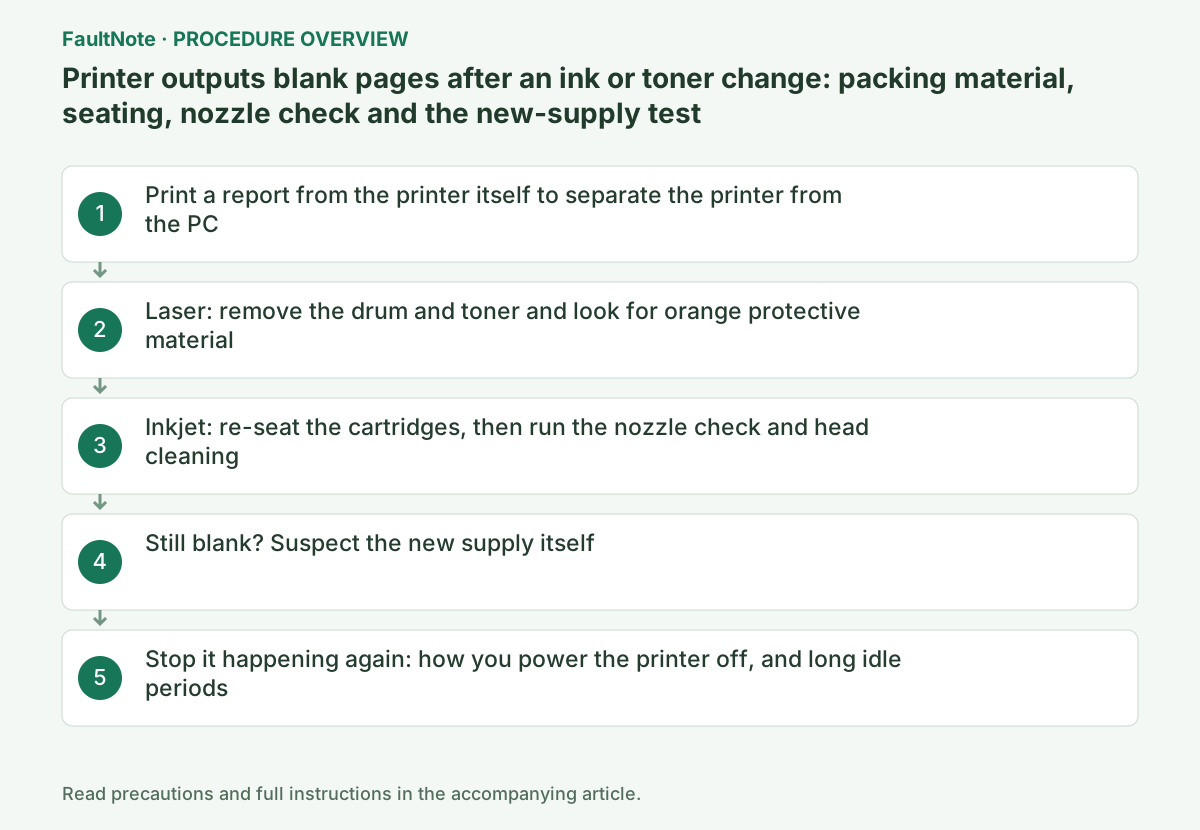
Brother's procedure for completely blank laser output is: print the User Settings List from the machine to split the problem, remove the drum and toner assembly and check for orange protective material, and if pages are still blank, "if the blank print issue began immediately after a new toner cartridge or drum unit was installed, the new consumable item will need to be replaced" - otherwise the machine needs service. For an inkjet machine with missing colors, Brother's order is to verify the cartridges are installed correctly, print the Print Quality Check Sheet, and clean the print head if the pattern calls for it. Epson publishes the same approach for its inkjet printers, pointing to nozzle check pattern printing and head cleaning when the nozzles do not fire correctly. Work through the printer before changing anything on the PC.
This is a general troubleshooting guide, not an announcement of a current outage.
Affected products and symptoms
- Product
- Inkjet / laser printer (Brother, Epson)
- Versions and conditions
- Pages come out completely blank, or one or more colors are missing, immediately after replacing an ink cartridge, ink bottle, toner cartridge or drum unit (worked through the published procedures for Brother inkjet and laser machines and Epson inkjet printers, which follow the same order on other makes)
Symptoms
- Every page comes out completely blank right after a new ink or toner cartridge was installed
- Only black, or only one or more of the colors, is missing from printed pages
- The printer shows no error on its display and the PC reports the job as printed
Causes and conditions
A blank page right after a supply change almost always comes from the printer, not from the PC or the driver. On a laser machine, the orange shipping material that Brother's procedure says is meant to be removed at initial setup will stop the page from developing if it is still attached. On an inkjet machine, a cartridge that is not seated correctly, or clogged print head nozzles, produce nothing on paper even though ink is present. Less often, the new supply itself is faulty.
Before you start
- The exact printer model, which supply was replaced (ink cartridge, ink bottle, toner cartridge or drum unit), whether it is a genuine or third-party supply, and the date of the change
- The box and packing material from the new supply (to check whether protective material is still attached on a laser machine), and a few sheets of plain paper
- The FAQ and user's guide pages for your own model on the maker's support site - panel menu names differ between models
Precautions
- This record is not based on hands-on reproduction. The procedures quoted are published by Brother and Epson, and panel menu names and steps differ by model and generation - always confirm against your own model's FAQ and user's guide.
- The Brother laser FAQ quoted here is dated 11/15/2012 and lists the DCP-8110DN, MFC-8510DN, MFC-8710DW and MFC-8810DW. The principle of removable protective material is general, but the shape of the parts and the way to print a report may not be.
- Do not touch the print head. Brother warns that touching it may cause permanent damage and may void the print head's warranty, and head cleaning consumes ink, so do not repeat it more than necessary.
Tools and official pages used in this guide
Step-by-step instructions
The first move is not to print again from the PC. Print a report that the printer can produce from its own control panel. Brother's FAQ for laser machines (MFC-8510DN and related models, dated 11/15/2012 on the page) says to confirm whether there is an error message on the LCD, and if there is not, to print the User Settings List by pressing Menu, 6 (Print Reports), 4 (User Settings), Start.
The same FAQ states the decision rule. If the User Settings List prints fine, stop troubleshooting - the engine can print. If it prints but with another quality problem such as a gray background or horizontal or vertical lines, go to the print-quality FAQ instead. If it is completely blank, continue. So if the report prints and only PC jobs come out blank, the cause is the print queue, driver or application, not the hardware, and this record is the wrong one to follow.
On an inkjet machine the same role is played by the nozzle check pattern (Brother calls it the Print Quality Check Sheet, Epson calls it the nozzle check pattern). Brother's inkjet FAQ (dated 12/19/2022) says that when one or more ink colors are missing, "the ink cartridge(s) may not be installed correctly or nozzles in the print head may be clogged", and directs you to verify the cartridges and print the check sheet.
When a laser machine keeps printing blank pages, the next thing to check is the shipping material. Brother's FAQ says to press the front cover release button, open the front cover and remove the drum and toner assembly, and recommends placing it on a piece of paper in case toner spills. It then asks whether there is a piece of orange plastic attached to the drum unit and toner cartridge, and states that this is "part of the packaging used to protect the supplies during shipping which is supposed to be removed during the initial set up of the machine".
If orange material is found, remove it, put the drum/toner assembly back and close the front cover, then print the User Settings List again. The FAQ branches the same way as before: prints correctly means the issue is resolved, prints with another defect sends you to the quality FAQ, still completely blank continues to the next step.
One caveat to keep in mind: this FAQ is a 2012 article for the MFC-8510DN, DCP-8110DN, MFC-8710DW and MFC-8810DW, and the menu sequence (Menu, 6, 4) belongs to that generation. The idea of removable protective material carries over to newer machines, but the shape and color of the parts and the way to print a report do not necessarily, so confirm the equivalent step in your own model's user's guide.
Official links for this step
On an inkjet machine, seating comes first. Brother's FAQ gives the order as: verify the ink cartridges are installed correctly, print the Print Quality Check Sheet and look at the nozzle check pattern, and if print head cleaning is needed, follow the machine's display instructions.
Brother's head-cleaning procedure (dated 01/23/2020, for the MFC-J491DW/J497DW/J690DW/J895DW) says to clean the print head "if there is a horizontal line or a blank space in the text or graphics on printed pages", and that depending on the problem color you select Black only, three colors at a time (Yellow/Cyan/Magenta), or all four at once, with a strength of Normal, Strong or Strongest. The same page states that "Cleaning the print head consumes ink. Cleaning too often uses ink unnecessarily", so repeated cleaning is not a free action. It also warns: "DO NOT touch the print head. Touching the print head may cause permanent damage and may void the print head's warranty."
Epson publishes the same approach. Its support page for models without an LCD explains that an inkjet printer prints by firing ink from many fine nozzles, and that when the nozzles do not fire correctly the output shows banding or wrong colors, so you should maintain the printer with nozzle check pattern printing and head cleaning, with per-model procedure pages. The same page notes that print head alignment cannot be performed correctly unless the nozzle check pattern already prints normally - which is why the nozzle check comes first.
If pages are still blank after all of that, the new part is next. Brother's laser FAQ ends with an explicit rule: "If the blank print issue began immediately after a new toner cartridge or drum unit was installed, the new consumable item will need to be replaced", and links to the toner and drum replacement procedures. If the problem did not begin immediately after a new supply was installed, or the supplies were not recently replaced, it states that "the machine will need to be serviced" and directs you to Brother Customer Service. Whether the symptom started at the moment of the change is therefore the dividing line between a bad supply and a machine fault.
The inkjet side has the same rule. Brother's head-cleaning page says that if you clean the print head and printing has not improved, install a new genuine Brother replacement ink cartridge for each problem color and clean again, and if it still has not improved, contact Brother Customer Service.
If you are using third-party supplies, the test changes. Brother states that it recommends genuine supplies for stable print quality and performance, that "although not all non-genuine supplies may cause quality issues, using non-Brother supplies or refilling ink cartridges with third party ink, may adversely affect print quality or cause the machine to malfunction", and that "the Brother limited warranty does not apply to any problem caused by the use of third party supplies". Reproducing the symptom with a genuine supply before contacting support saves a round trip.
On inkjet machines, the "it was fine until I left it for a while" version of this problem is related to how the printer is powered off. Brother's FAQ says it does not recommend frequent unplugging and re-plugging of the machine or leaving it unplugged for extended periods, and gives the reason: "To maintain premium print quality, our product is designed to automatically clean the print head periodically. When the machine is unplugged, it will not complete the periodic cleanings needed to ensure ink does not dry in the print head and may cause poor print quality."
The same FAQ recommends using the Power On/Off button to power down instead, because that "allows minimal power to the machine ensuring periodic cleanings of the print head occur only when necessary and needed information remains in memory".
It is also worth writing down what you did, so the sequence is not repeated blindly. The model, which supply was changed, genuine or third-party, whether protective material was found, how many cleanings were run and at what strength, and the nozzle check result afterwards are exactly what a support contact will ask for.
Official links for this step
Check the result
- A report printed from the printer itself (User Settings List, nozzle check pattern) comes out with every color's lines or blocks present and nothing missing
- Reprinting the same document from the PC produces the expected output instead of a blank page, and the symptom seen right after the supply change does not return
If the problem continues
- If the printer's own report prints correctly and only PC jobs are blank, stop here and troubleshoot the print queue, driver and application instead of the hardware
- If blank pages continue after checking protective material, re-seating, nozzle check and cleaning, and after fitting a genuine new supply, collect the model, the supply changed, the steps performed and the report results, and ask the maker's support for service
Scope of this guide
Troubleshooting guide — Before reprinting from the PC, print a report from the printer's own panel to decide whether the machine or the PC is at fault. If the machine is, remove the drum and toner on a laser printer and check for orange protective material, or re-seat the cartridges on an inkjet, print the nozzle check pattern and clean only the problem color. If pages are still blank and the symptom began immediately after a new supply was installed, Brother's procedure is to replace that supply; if it did not, the machine needs service.
Frequently asked questions
The cartridge is full, so how can ink be the problem?
Ink level and ink reaching the paper are different things. Brother lists the causes of missing colors as cartridges that are not installed correctly or nozzles in the print head that are clogged. Regardless of what the level indicator says, re-seat the cartridges and print the nozzle check pattern so you can see with your own eyes which color is not firing.
How many times can I repeat head cleaning?
The makers do not publish a limit, but Brother states plainly that "Cleaning the print head consumes ink. Cleaning too often uses ink unnecessarily." Print a nozzle check pattern after each cleaning to see whether anything changed; if it has not improved, Brother's next step is a new genuine cartridge for the problem color and one more cleaning, then contacting Customer Service.
It went blank right after a new toner cartridge. Is the printer broken?
Brother publishes the test that separates the two. If pages are still blank after the protective-material check and the symptom began immediately after a new toner cartridge or drum unit was installed, the new consumable needs to be replaced. If it did not begin at that moment, or the supplies were not recently replaced, the FAQ says the machine will need to be serviced and directs you to Brother Customer Service.
Official sources and dates
- My printed pages are completely blank. ↗
- Brother: One or more of my colors are not printing (blank). (dated 12/19/2022; seating, Print Quality Check Sheet, powering off, genuine supplies and warranty) ↗
- Brother: Clean the Print Head from Your Brother Machine (dated 01/23/2020; color selection, cleaning strength, ink consumption and the print head warning) ↗
- Epson Japan: before contacting support (nozzle check pattern printing and head cleaning, and why alignment needs a good nozzle check first) ↗
Source publication or resolution date: 2012-11-15. Sources checked: 2026-09-19. The check date is not the date the problem first occurred. Interface labels can vary between versions and display languages.