Chrome download blocked? Review the warning and fix the cause
What to do first
Download stopped in Chrome? Open Ctrl+J and read the full warning. Separate blocked or suspicious files from connection, storage and sign-in errors before changing security settings.
This is a general troubleshooting guide, not an announcement of a current outage.
Affected products and symptoms
- Product
- Google Chrome
- Versions and conditions
- Chrome for computer
- Error codes and identifiers
- Dangerous download blockedDownload blockedVirus detected
Symptoms
- Chrome blocks a download or labels it dangerous
- Searching for review error download without knowing which warning or action applies
- A file fails to save with a connection, disk-space or permissions error
Causes and conditions
Chrome downloads can fail because of a security warning, an insecure transfer, connectivity, disk space, local permissions or server authorization. A short phrase such as “review error download” does not identify the cause; review the full error in Downloads before choosing a fix.
Before you start
- Check the official distribution page and expected version
- Record warning text and URL
Precautions
- Do not disable Safe Browsing or antivirus
- Do not send password-protected archives without verifying their source and contents
Tools and official pages used in this guide
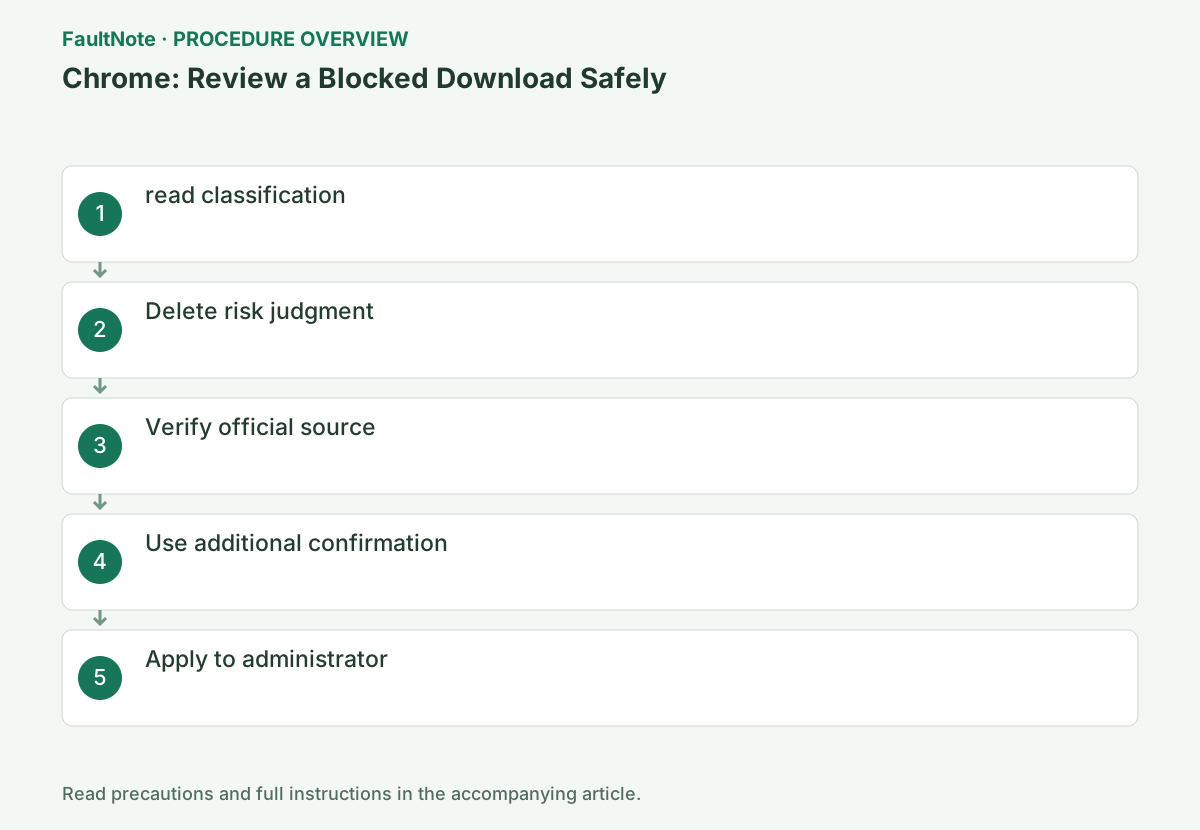
Step-by-step instructions
For example, an allowed PDF and one dangerous installer point to file evaluation, while every download failing for full storage points to the destination. Do not apply one fix to distinct symptoms.
Confirm source and purpose and cancel unneeded downloads. For a needed file, establish a legitimate safe acquisition route with its publisher or administrator.
On Windows, press Ctrl+J or open Chrome’s menu > Downloads. Record the failed item’s name, source and exact message.
Distinguish a dangerous or suspicious file from an insecure transfer, a full disk or a permissions error. Keep the entry until you have recorded it.
Record the complete Ctrl+J item message, filename, source URL, and time. Security warnings, insecure delivery, permissions, storage, and interrupted transfers require different actions. Check items individually and keep successful unrelated downloads separate. Preserve evidence before clearing history instead of reducing everything to download error.
Official links for this step
Check before continuingYou can choose the next step from the actual error.
Google distinguishes dangerous software, suspicious or unfamiliar files, unverified downloads made with Safe Browsing off, and insecure transfers. These labels are not all proof of a virus infection.
Do not run a file flagged as dangerous. Check the official distribution route, intended product, release and any published signature or checksum; contact the publisher if anything is unclear.
Match product, OS, version, and filename on the official distribution page. Do not substitute an unrelated same-named download. Check any published legitimate signature or checksum, recognizing that a signature is not unconditional safety. Do not run a dangerous file to test it; give the publisher the warning and official URL. Use approved routes for managed restrictions.
Official links for this step
Check before continuingThe warning type is understood before deciding whether a file is trustworthy.
For an interrupted connection, check connectivity and try resuming. For a full disk, inspect the destination drive. For local permissions or a busy system, retry to a location you can access.
For Forbidden or an authorization request, check sign-in and access on the hosting website. For No file or File missing, ask the publisher whether the file or link has moved.
For interruption, check connectivity and available resume. For full storage, inspect the destination and remove only confirmed unneeded files. Choose an accessible location for permissions errors without disabling OS protection. Use legitimate site sign-in for authorization and request a fresh expired link. Disabling Safe Browsing does not fix permissions or capacity.
Official links for this step
Check before continuingSecurity warnings and ordinary transfer failures are handled separately.
If Chrome offers a scan, read the protection mode and disclosure. Enhanced protection can send a file and an archive password to Google for checking.
Google says supported encrypted-file checks under Standard protection keep the file and password on the device. Do not assume every scan behaves the same; follow your organization’s rules for confidential files.
Read scan disclosures and the protection mode. An encrypted-archive password is not your Google Account password. Check work-file upload rules first. Supported local checks under Standard protection differ from submission under Enhanced protection. A scan result does not replace source, version, or purpose checks; ask the publisher about ambiguous results.
Official links for this step
Check before continuingYou understand any upload before choosing a scan.
For a managed browser policy, provide the official URL, purpose and full error to your administrator for the approved route.
If the failure persists, note whether it affects other files or only one publisher. Do not rename extensions or obtain a same-named file from an unrelated site to evade the warning.
Report filename, official URL, Chrome version, complete warning, and scope without private files or passwords. Correlate Windows protection history with the administrator or publisher. Even for a reported false positive, use a legitimate update or approved route. Renaming, repackaging, or disabling protection to execute the file is not verified recovery.
Check before continuingThe administrator or publisher has enough information to advise an appropriate route.
After saving, check filename, size, and official version. A partial file or different release is not the intended result. Keep Safe Browsing enabled and resolve remaining warnings before execution.
Install managed apps through their approved process. Acquisition does not establish functional suitability; follow publisher usage guidance. Retain any changed destination or setting with its result.
Check the result
- Safe Browsing remains enabled
- You can check the official source and assumed version
If the problem continues
- Request HTTPS/signed distribution from the provider
- Check your Windows protection history with your administrator
Scope of this guide
Troubleshooting guide — General diagnostic and recovery procedures based on official support. It does not describe a specific current incident.
Frequently asked questions
Searching for “review error download”: what should I check first?
Open Ctrl+J in Chrome and read the complete warning for the item. The phrase is not a universal error code; security, transfer, storage and sign-in failures need different actions.
Does deleting the warning fix the download?
Removing the history entry does not fix the cause. Record the error and check the source or saving conditions first.
Is a suspicious file always a virus?
No. The category includes unfamiliar files, but it is not confirmation of safety either. Check the official source and any verification Chrome offers.
Should I turn off Safe Browsing?
You do not need to disable it to diagnose the warning. Keep protection enabled while checking the publisher, available scan or administrator guidance.
Does suspicious prove an infection?
Not necessarily; Chrome distinguishes several warning types. Check the complete text and official source and seek clarification rather than testing by executing the file.
Official sources and dates
Source publication or resolution date: Not specified. Sources checked: 2026-10-13. The check date is not the date the problem first occurred. Interface labels can vary between versions and display languages.